Set up sales tax
Florio never computes sales tax itself: QuickBooks does, exactly as it does for the documents you enter by hand today. This stage tells QuickBooks which tax treatment each document Florio posts should get, so an event is taxed where it happens and a delivery is taxed where it goes.
This is the third stage of the QuickBooks setup journey.
Before you start
- Know which way your QuickBooks company handles sales tax. In QuickBooks, open Taxes: if QuickBooks calculates tax for you from addresses, you are on automated sales tax; if you assign each customer a tax rate yourself from a list you maintain, you are on manual rates. Most long-running company files use manual rates.
- Your tax jurisdictions in Florio (the localities you deliver to and hold events in) come from your workspace setup. If a place you do business is missing, add it there first; the mapping below activates once jurisdictions exist.
Choose the tax mode
-
Go to Admin, then QuickBooks, and find the Invoicing options card.
-
Set Sales tax to match your company file: Manual (per customer) or Automated Sales Tax.
 Screenshot from a demo workspace; data illustrative.
If you are on automated sales tax, you are done with this stage: QuickBooks computes tax from addresses on its own, there are no codes to map, and the Sales tax codes card says so. Continue to Match your customers to QuickBooks.
Map each jurisdiction to a tax code
In manual mode, QuickBooks applies whatever tax code a document carries. This mapping is how Florio knows which of your codes belongs to each place.
-
Find the Sales tax codes card. It lists every tax jurisdiction in your workspace, each with a picker of your company’s real tax codes, the same names you see in the QuickBooks Taxes list.
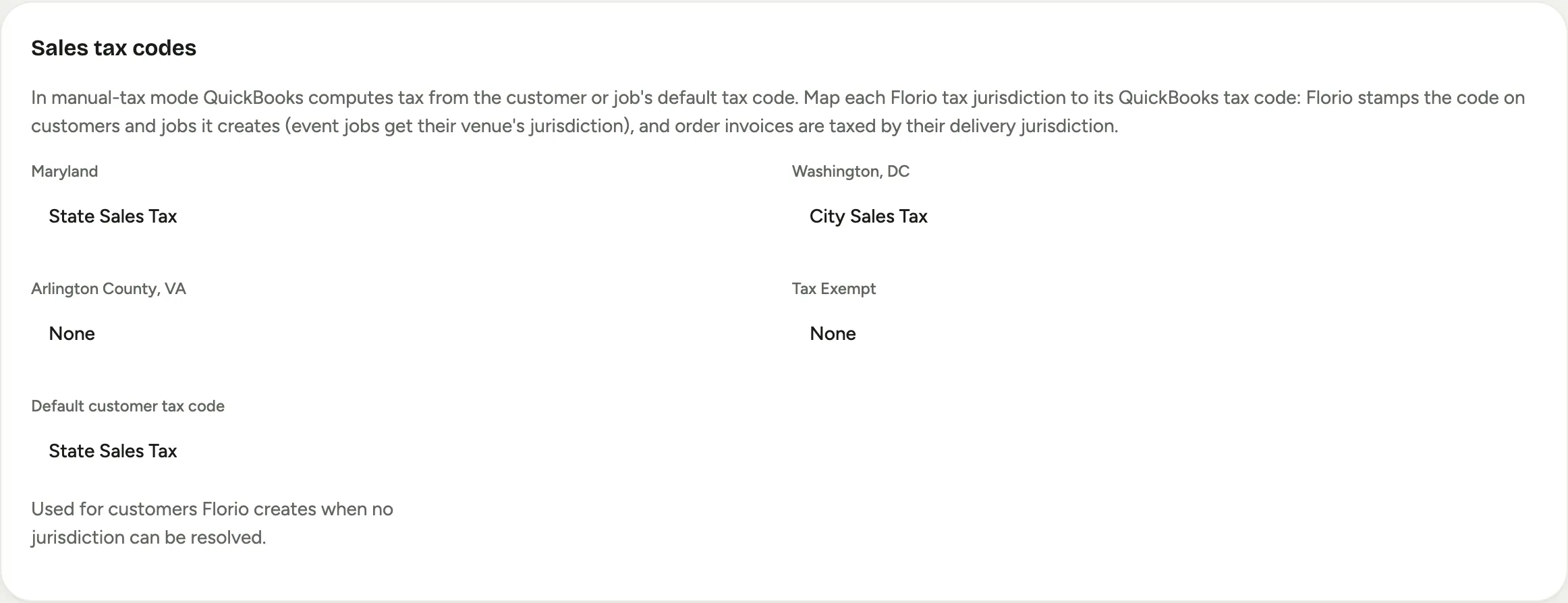 Screenshot from a demo workspace; data illustrative.
 -
Pick the matching QuickBooks tax code for each jurisdiction. This is why the mapping is per place: a client with events or deliveries in two states must be taxed differently on each, and the jurisdiction on the document decides which code applies. Event billing is taxed by the venue’s jurisdiction; an order’s invoice is taxed by its delivery jurisdiction.
 Screenshot from a demo workspace; data illustrative.
 -
Set Default customer tax code. Florio stamps this on customers it creates in QuickBooks when it cannot resolve a jurisdiction, so a brand-new customer never lands in your books untaxed.
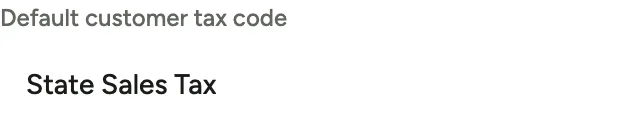 Screenshot from a demo workspace; data illustrative.
If a jurisdiction is left unmapped, nothing breaks silently: the go-live readiness check names it before you turn posting on, and until it is mapped, documents for that place fall back to the tax code on the QuickBooks customer, the same behavior as a hand-entered invoice.
Decide whether delivery fees are taxed
Whether a delivery fee is taxable varies by state and by how the sale is structured, and it is genuinely an accountant question. Florio ships with delivery not taxed, which matches the common hand-entry practice.
-
In the Invoicing options card, find Charge sales tax on order delivery fees.
 Screenshot from a demo workspace; data illustrative.
 -
Leave it off until your accountant rules. When they do, flip it once; it applies to documents posted from then on. Tips are never taxed either way.
Good to know
- Tax-exempt customers are handled separately. A customer with a valid exemption certificate on file is exempted document by document; see Handle tax-exempt customers.
- Florio posts amounts before tax. QuickBooks applies the tax code and computes the tax on the document, so the tax on a Florio-posted invoice is calculated by the same engine, with the same rounding, as one your bookkeeper enters by hand.
Next stage: Match your customers to QuickBooks.