Check rentals back in and log damage
Checking a rental back in is one choice per piece, and that choice starts everything downstream: it returns the piece to stock or holds it out, it raises shop work if it needs a finish, and it opens a damage assessment someone has to decide on. This is the whole loop.
Before you start
You need a Florio sign-in that can manage rentals. The person checking pieces in and the person approving a charge are usually not the same, and Florio is built that way on purpose: recording damage and billing for it are two separate steps.
Steps
- Open the rental order from Rental fulfillment, on the Pickup or Restock stage, and go to Units out.
- For each piece, set On return. The choice is the whole record:
- OK puts it straight back into stock.
- Needs inspection holds it out until someone looks at it.
- The refinishing option holds it out and raises a shop job at the same time.
- Lost takes it out of stock for good and proposes its replacement cost.
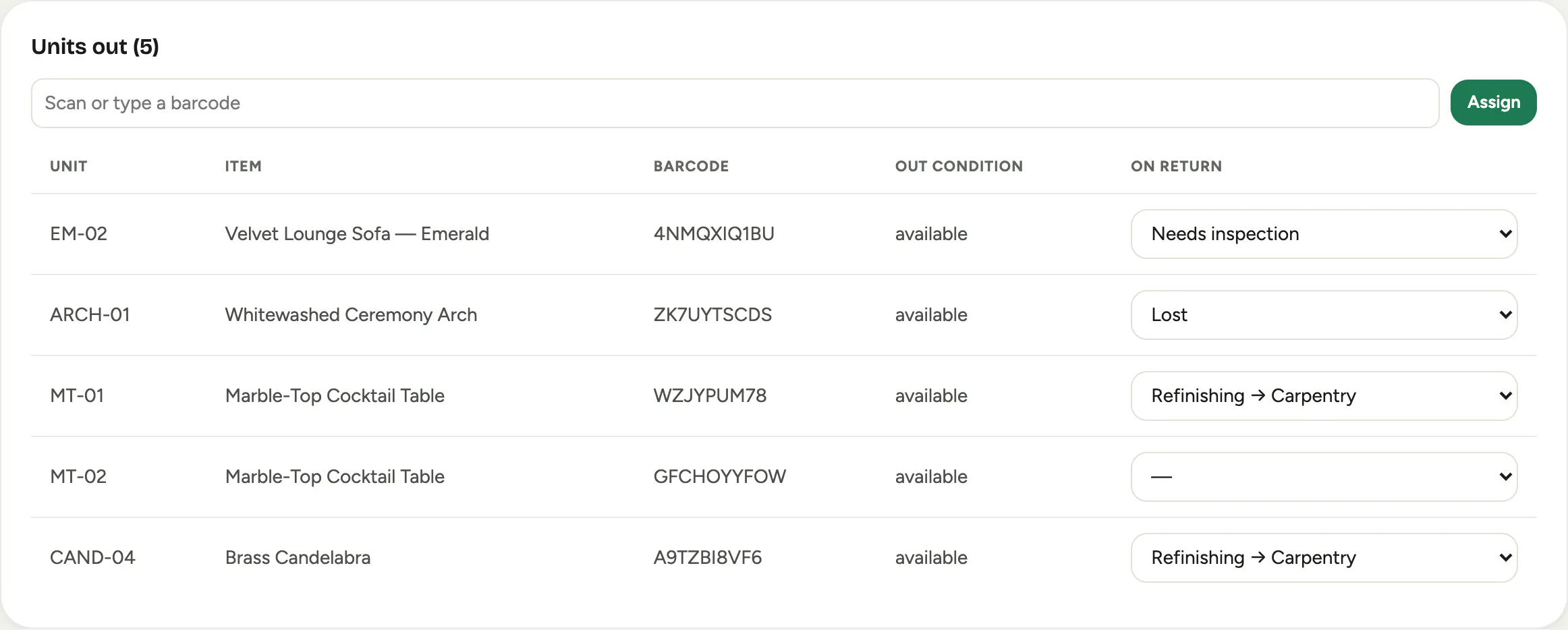 Screenshot from a demo workspace; data illustrative.
- Write what you actually saw in the note. It is the only thing the reviewer and the shop will have, so “chipped veneer along the front edge, down to the bare wood” is worth the extra seconds over “damaged”.
- Open Damage & loss. Anything that came back not OK is waiting on To review, with its Condition, your Note, the Proposed charge, and that piece’s Wear allowance.
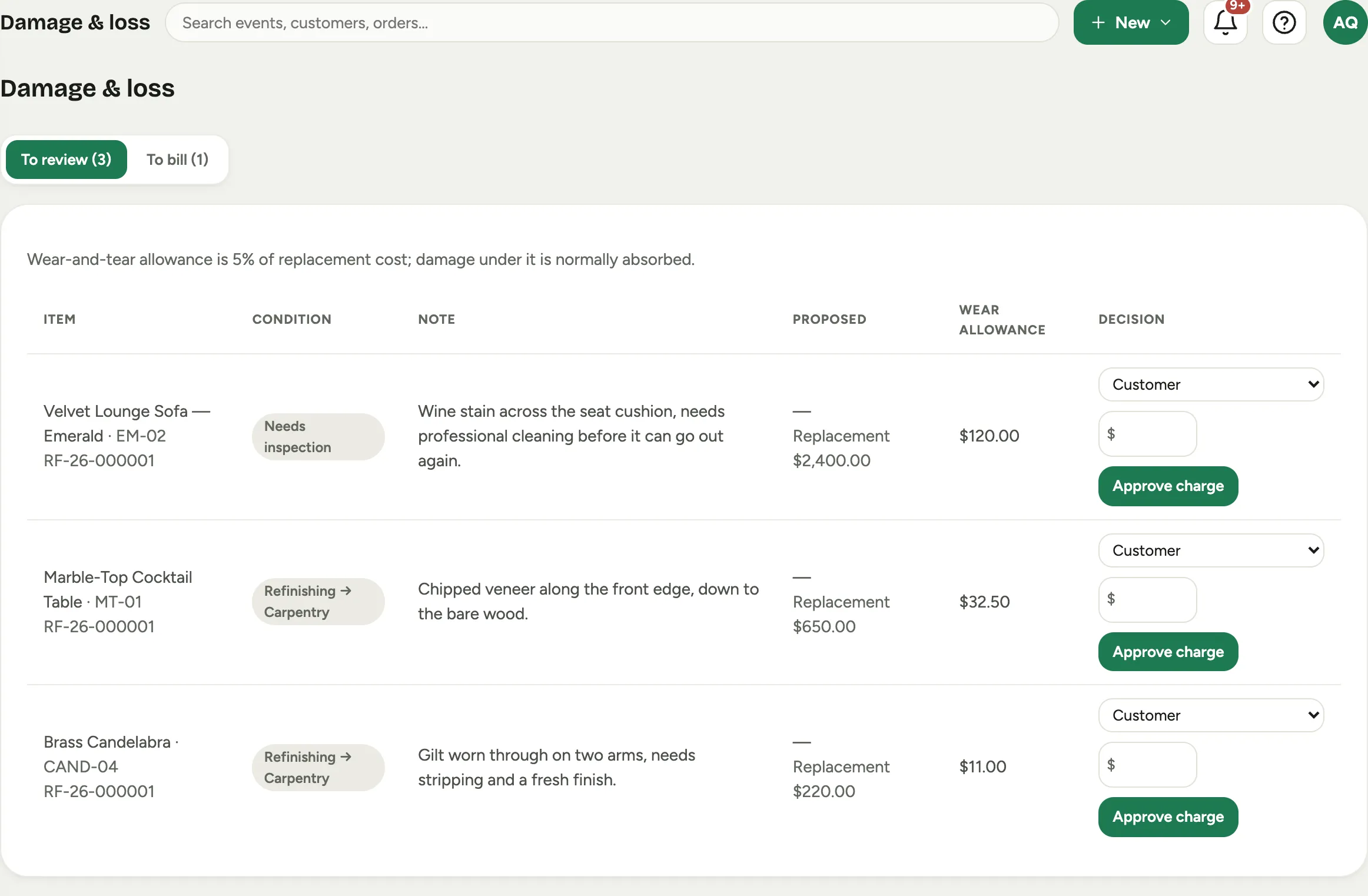 Screenshot from a demo workspace; data illustrative.
- Decide the fault. Customer means it is billable, Our handling means it is ours, and Wear & tear means it is the cost of doing business. Compare the damage against the Wear allowance: that is the share of the piece’s replacement cost a normal event is expected to consume, and damage under it is usually not worth billing.
- Enter the amount and press Approve charge, or press Absorb to close it with no charge. Only a customer fault with an amount on it goes any further.
- Move to To bill to collect. A storefront booking with a card on file can be charged in place with Charge card. An event rental has No card, so press Record billed and note the reference from your invoice.
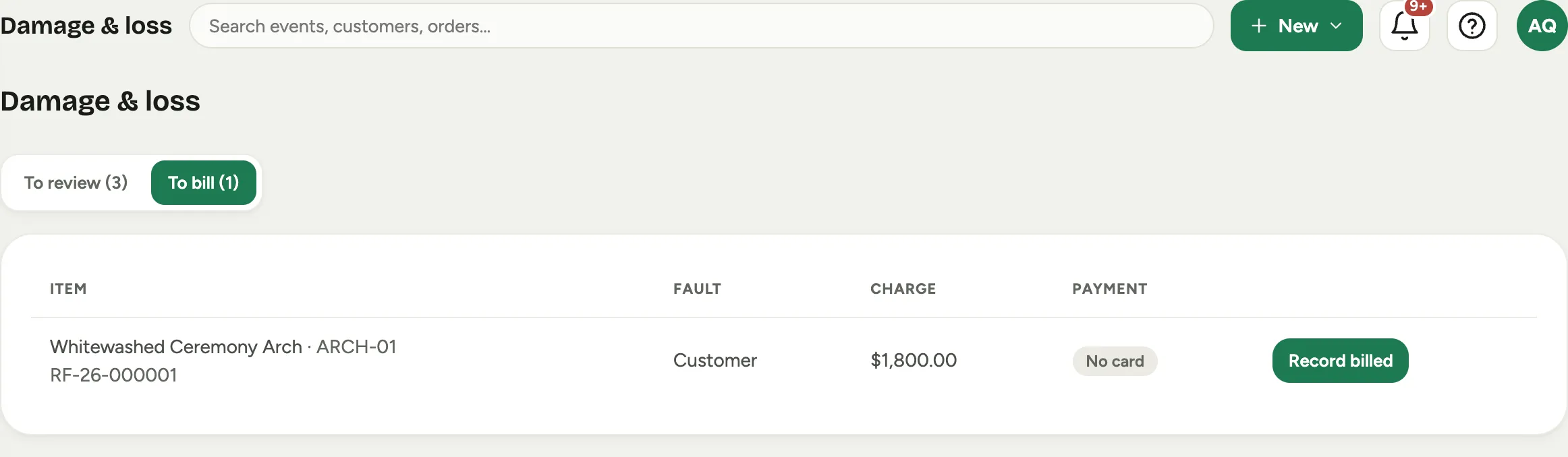 Screenshot from a demo workspace; data illustrative.
Good to know
- Absorbing is a decision, not a gap. Pressing Absorb closes the assessment and records who decided and why. Damage that quietly disappears teaches nobody anything; damage that is absorbed on the record shows up when you are deciding what to charge for that item next season.
- Availability follows the condition. A piece held out for inspection or refinishing stops counting as available straight away, so you cannot promise a customer a sofa that is in the shop.
- The refinishing choice does two jobs. It holds the piece out and raises a carpentry job carrying your note, so the bench knows what it is looking at before it sees it.
- A lost piece proposes its own replacement cost. You can still change the amount, since what you bill is a commercial decision, not an automatic one.