Import leads from a CSV
When you have a batch of inquiries in a spreadsheet, for example a stack of trade-show cards or an export from another tool, import them instead of typing each one. Florio gives you a template so the columns line up.
Before you start
- Have your list ready as a spreadsheet you can save to CSV.
- Start from the template so the columns match. A free-form spreadsheet will not map cleanly.
Steps
-
Open Leads and click Import CSV.
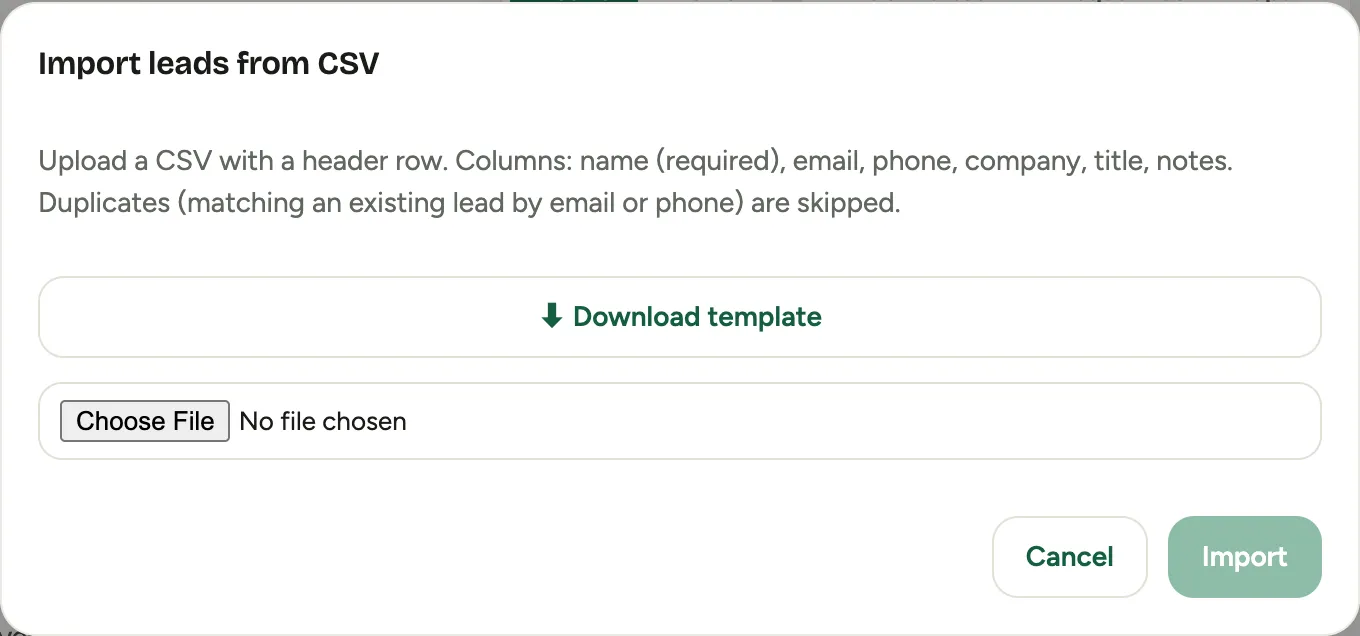 Screenshot from a demo workspace; data illustrative.
 -
Click Download template and open the file. It has a column for each lead field, with name as the one that must be filled.
-
Paste or type your inquiries into the template, one lead per row, then save it as CSV.
-
Back in the dialog, choose your file and click Import. Florio reads it row by row and reports what it created and any row it had to skip.
-
Close the dialog when it shows Done. The new leads appear in the Active view, ready to work.
Good to know
- Duplicate detection still runs on an import, so a lead that matches someone already on file is flagged rather than silently doubled.
- Imported leads carry the Import source, so you can filter the list to see exactly what came in from a given batch.
- Fix a bad file and import again. Rows that already came in are caught as duplicates, so a re-run does not create second copies.
- Where this fits: Leads and customers.