Restore an earlier version of a proposal
Florio saves a proposal as you build it, with no Save button to remember. It also keeps earlier states of the draft, so a wrong turn is never the end of your work: you can look back at what the proposal held and bring a version back.
When you would use this
- A draft came back looking empty, or with less in it than you remember adding.
- You deleted a section or reworked the pricing and want the earlier numbers back.
- You just want to see what changed since earlier in the day.
See the history and restore a version
-
Open the draft proposal.
-
In the actions on the right, open the Manage group and choose Version history.
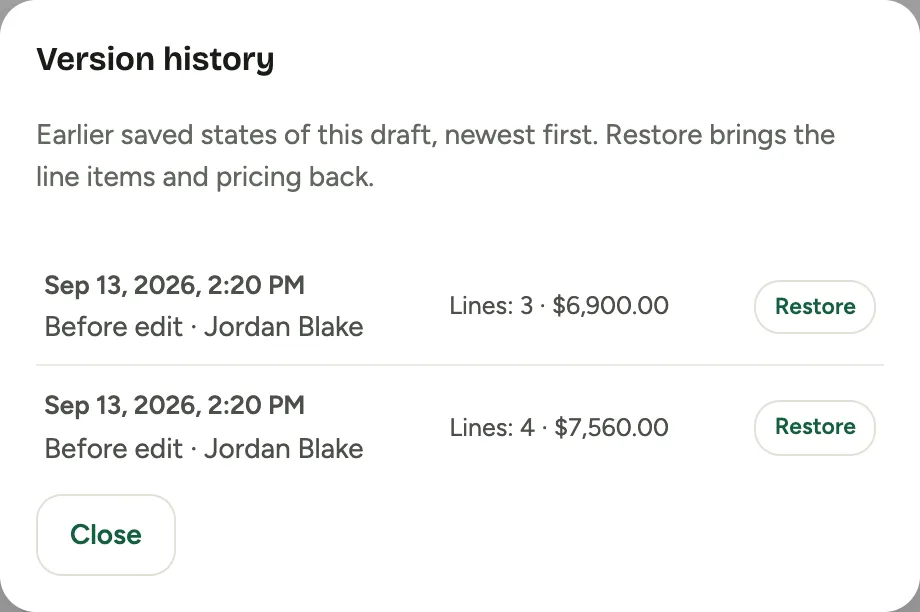 Screenshot from a demo workspace; data illustrative.
 -
Each row is an earlier save, newest first, with its line count and total so you can tell the versions apart.
-
Choose Restore on the version you want. Florio replaces the current line items with that version and recomputes the total. It saves the current state to the history first, so a restore is never a one-way door.
Good to know
- You cannot empty a proposal by accident. A save that would remove every line from a proposal you have already built is refused, and Florio reloads the last good version instead. This is what stops a stray reload or a slow connection from wiping your work.
- Not saved means your latest changes are not on file yet. If a change cannot be saved, the save note shows Not saved in red, and Submit for approval and the other actions on the page stop until your changes save, so nobody receives an older copy. Keep the page open and try again in a moment; Florio asks before you close or reload a page with unsaved changes.
- History is per draft. Once a proposal is approved or sent it is locked. To change it, create a new version, which starts its own history.
- Photos are not part of a restore. Restoring brings back the line items, descriptions and pricing; re-attach any photos the earlier version had.
- Full detail: Proposals and your photo library.