Map your items and accounts
Every line Florio writes on a QuickBooks invoice references one of your own products or services, and each of those carries the income account it posts to. Mapping is you telling Florio, once, which item each kind of billing uses. Florio never invents items or accounts: every picker on this screen lists your company’s real products, services, and chart of accounts, read live from QuickBooks, so mapping is choosing, never typing account numbers.
This is the second stage of the QuickBooks setup journey.
Before you start
- Connect QuickBooks Online first; the pickers are empty until the connection is live.
- Have your products and services list open in QuickBooks (Settings, then Products and services). If a line of business has no item yet, create it there first with the income account your accountant wants, then come back; Florio picks it up on the next sync.
- This is the screen to walk through with your accountant. Each mapping is a posting decision, and getting them right here means never cleaning them up later.
Map the income items
-
Go to Admin, then QuickBooks, and find the Invoice items card.
 Screenshot from a demo workspace; data illustrative.
 -
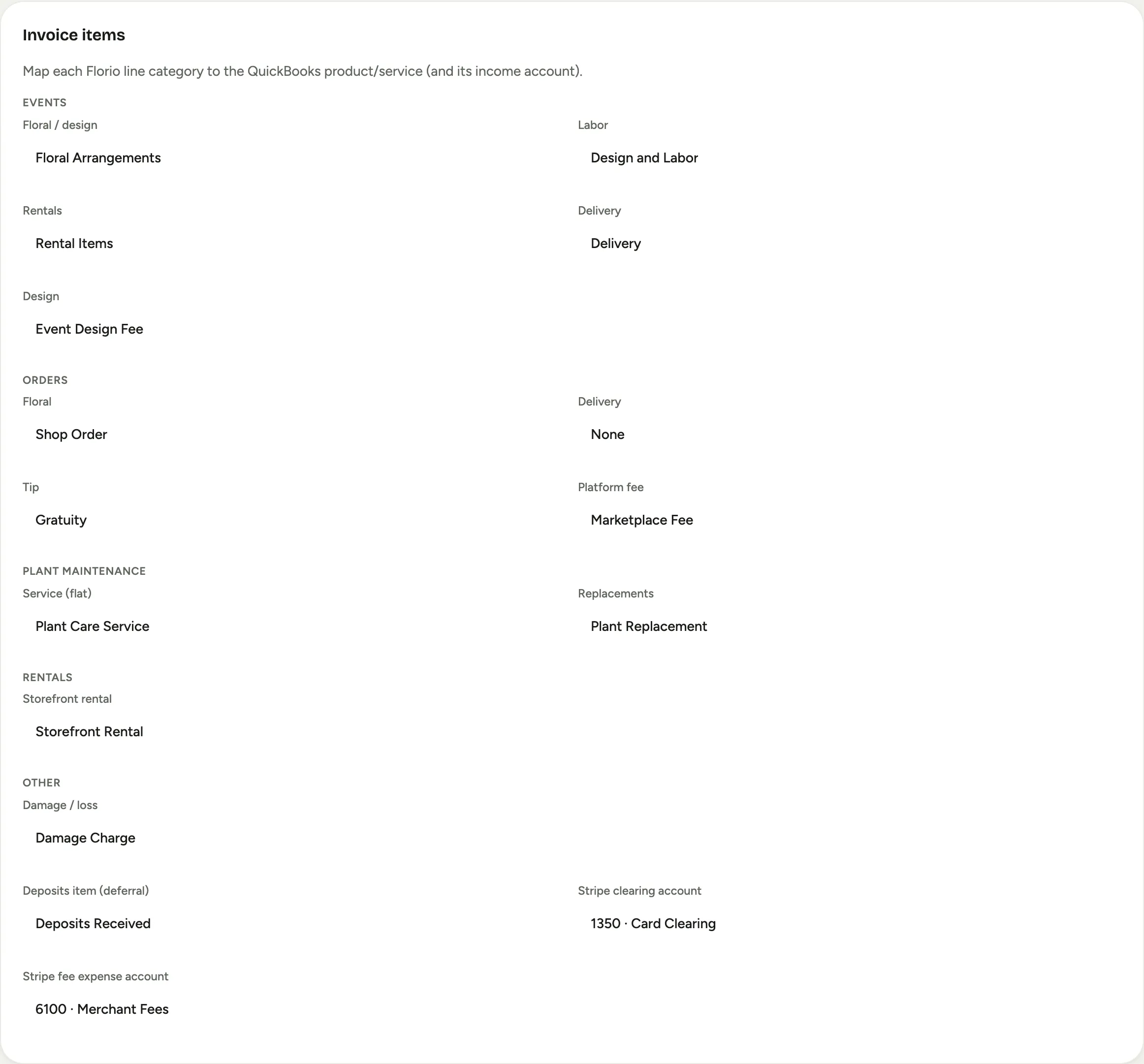
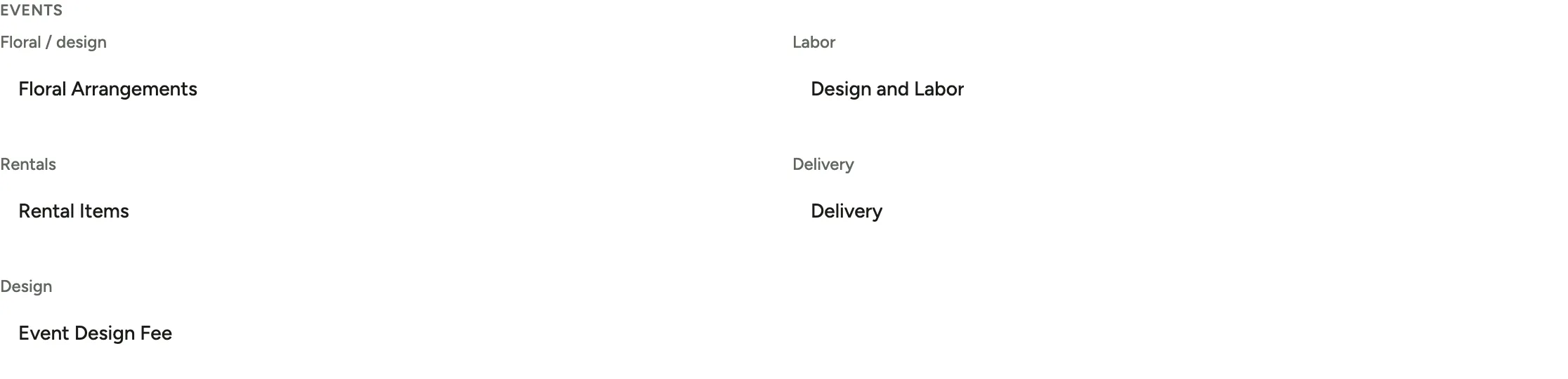
Under Events, map the five event line categories: Floral / design, Labor, Rentals, Delivery, and Design. When Florio bills an event, each proposal line posts as the item you pick for its category, so revenue lands in the same income accounts your P&L already uses.
 Screenshot from a demo workspace; data illustrative.
 -
Under Orders, map Floral, Delivery, and Tip. These are the lines on a delivered flower order’s invoice. If you take marketplace orders, map Platform fee too. Map delivery and tip even if they feel minor: a missing mapping here would mean those lines cannot post, and the readiness check in stage five will hold you until they are set.
 Screenshot from a demo workspace; data illustrative.
 -
Map the rest of your lines of business the same way: under Plant maintenance, Service (flat) and Replacements; under Rentals, Storefront rental; and under Other, Damage / loss. Skip any group your studio does not use.
 Screenshot from a demo workspace; data illustrative.
The deposits item, and why deposits post as a liability
A deposit is money you are holding, not money you have earned: the event has not happened yet. Accountants keep that distinction by posting deposits to a liability account (usually an Other Current Liabilities account named something like Deposits Received or Customer deposits) instead of to income. Florio follows that practice exactly. Deposit invoices post to the deposits item; when the final invoice goes out, dated to the event date, it carries the real revenue lines and draws the deposits back out of the liability. Your income shows up when the event happens, which is what your accountant wants, and the liability account always equals the deposits you are actually holding.
-
In the Invoice items card, set Deposits item (deferral) to the product or service whose income account is your deposit liability account.
 Screenshot from a demo workspace; data illustrative.
 -
If you do not have such an item, create one in QuickBooks: a service item, named something like Customer deposit, whose income account is the deposit liability account. Your accountant will recognize this pattern immediately.
The payment accounts
When a client pays by card through Florio, the money is collected by the card processor and paid out to your bank in batches, minus its fee. Two account mappings keep that clean in your books:
-
Set Stripe clearing account to the account where card payments should land before the payout reaches your bank. Payments post here at the full amount the client paid. Many books use an account like Undeposited Funds or a dedicated clearing account for this; when the payout arrives in your bank feed, matching it clears this account back to zero.
 Screenshot from a demo workspace; data illustrative.
 -
Set Stripe fee expense account to the expense account where card processing fees belong. Florio books each payment’s fee there automatically, so the clearing account and your bank deposit reconcile to the penny.
 Screenshot from a demo workspace; data illustrative.
Classes and departments, if you use them
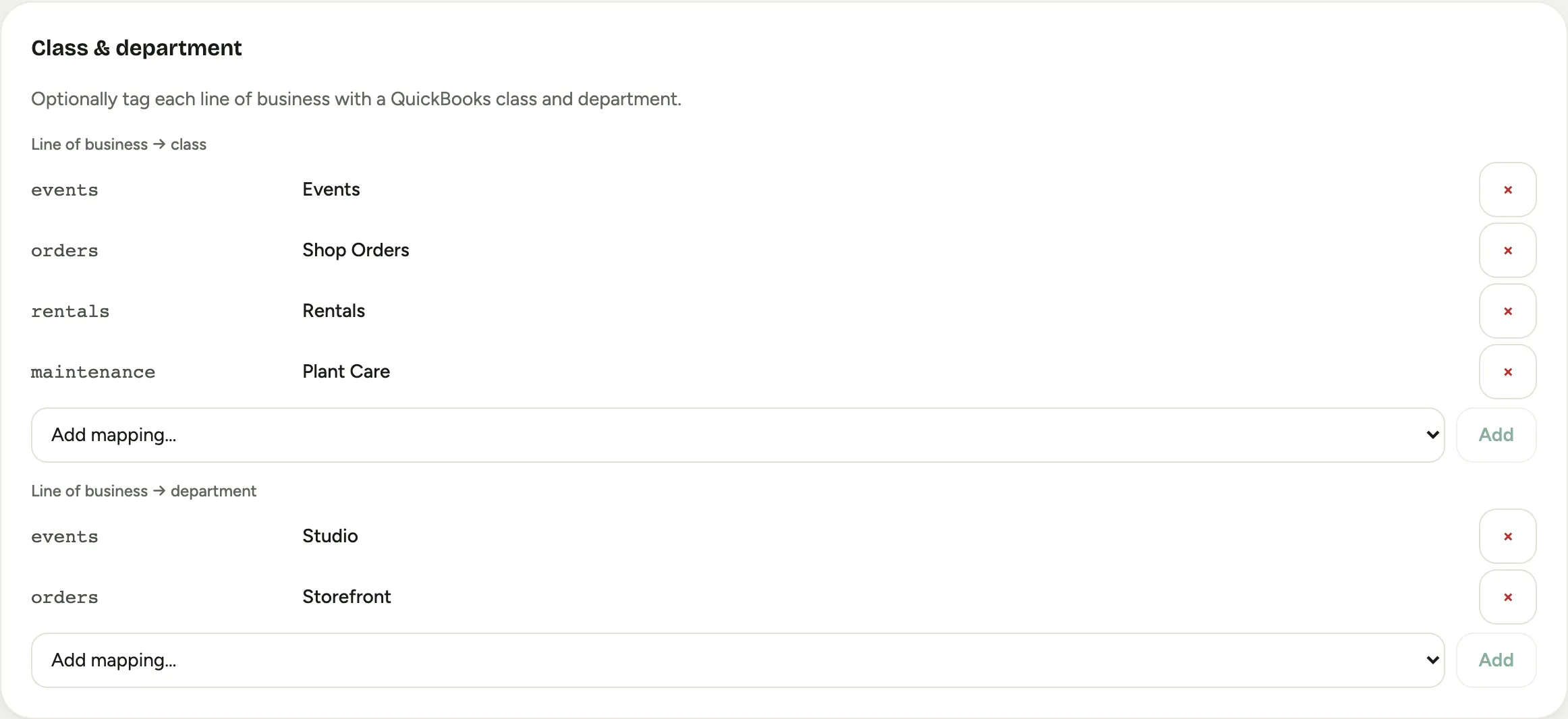
If your company tracks classes or departments (locations) in QuickBooks, the Class & department card lets you tag each line of business, so every document Florio posts carries the tag and your class-based P&L keeps working without anyone remembering to add it.
-
In the Class & department card, add a row per line of business under Line of business → class, and the same under Line of business → department if you use departments.
 Screenshot from a demo workspace; data illustrative.
 -
If your company does not track classes, skip this card. Florio notices on its own and simply posts without tags.
Map your cost accounts, so job costing works
The Actuals → Scorecard card is the read direction: it tells Florio which of your QuickBooks expense accounts hold job costs, so vendor bills recorded in QuickBooks flow back onto the matching event as real costs.
-
In the Actuals → Scorecard card, add a row for each cost account your bookkeeper codes event purchases to (flower purchases, rentals, freight, and so on), and pick the Florio cost component each should feed.
 Screenshot from a demo workspace; data illustrative.
 -
If a vendor bill later arrives against an account you did not map, Florio tells you on this same screen after the next sync, with the unmapped account named, so nothing is silently dropped.
Good to know
- Mappings apply going forward. Changing a mapping affects documents posted from then on; it never rewrites documents already in QuickBooks.
- Every change here is recorded. Mapping changes appear in the admin activity log with who changed what, which your accountant will appreciate at review time.
Next stage: Set up sales tax.