Run the day on the Day board
The Day board is the logistics meeting in one screen. The top band is the work you owe, the two bands under it are the people and trucks you have, and they share a single clock so you can see the mismatch instead of calculating it. You staff by dragging, and everything that still does not fit collects in one list you can empty.
Before you start
- Anyone with schedule view permission can look. Dragging and editing need schedule manage.
- The day needs blocks. Frame the event first: Build an event’s work framework. If the buttons there are off, the client’s acceptance has not been recorded yet: Unlock scheduling for an event.
- Trucks and driver authorizations come from the fleet: Add a vehicle and authorize drivers.
Steps
1. Pick the day
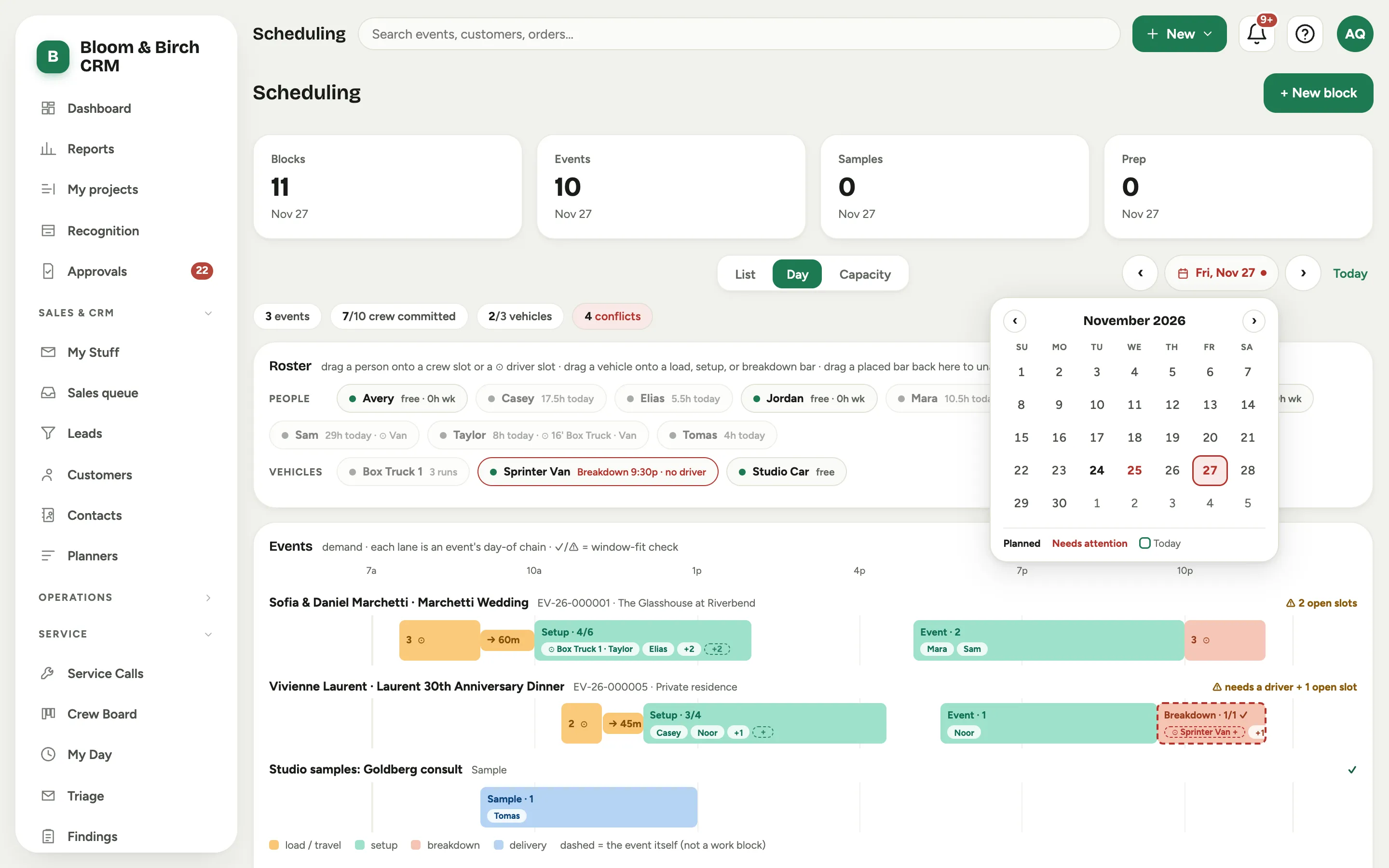
Open Scheduling and choose Day. The arrows either side of the date step one day at a time, and Today jumps back.
Click the date itself for a month grid. A date with work planned on it shows in bold, and a date that needs attention shows in red, so you can see the trouble a week out without opening each day. The legend under the grid names the three marks: Planned, Needs attention, and Today. The date button itself turns red when the day you are looking at is one of them.
Whatever date you pick carries across List, Day, and Capacity, so switching views never loses your place.
 Screenshot from a demo workspace; data illustrative.
2. Read the three bands
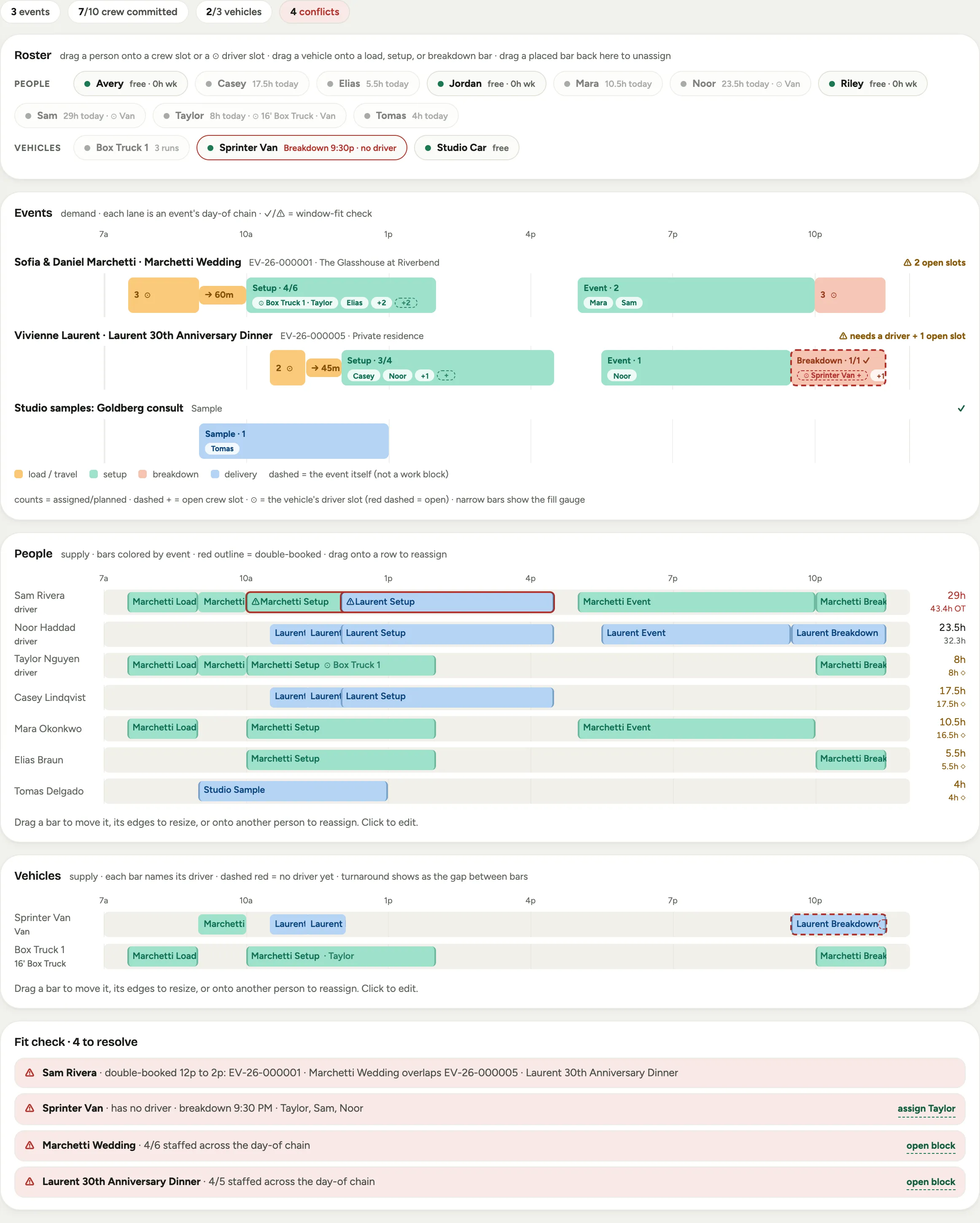
The four chips across the top count the day: how many events, how much of the crew is committed, how many vehicles are out, and how many conflicts are open.
- Events is what you owe. One lane per event, each holding that event’s chain of phases, with the event itself drawn as a dashed ghost bar so you can see the work against the party. The right of each lane header carries its fit flag: fully staffed, or a warning naming what is short, such as needs a driver.
- People is who you have. One row per person, bars colored by event, a red outline wherever someone is in two places at once.
- Vehicles is what you can move it in. One row per truck, each bar naming its driver, with the turnaround between runs showing as the gap between bars.
All three share one time axis, so a setup bar in the Events band sits directly above the people and the truck doing it. The axis fits itself to the day, with a floor of eight hours so a single afternoon stop cannot zoom to absurdity. When the real work is shorter than that floor, the leftover is drawn as a quiet hatch labelled floor padding · nothing scheduled. Nothing moves under your pointer: the axis re-fits after you drop, never during a drag.
 Screenshot from a demo workspace; data illustrative.
3. Staff from the roster rail
The Roster lists everyone who could work today under People, and every truck under Vehicles. Each chip carries a one line read: free all week, free after a time, hours already on them today, or a day off.
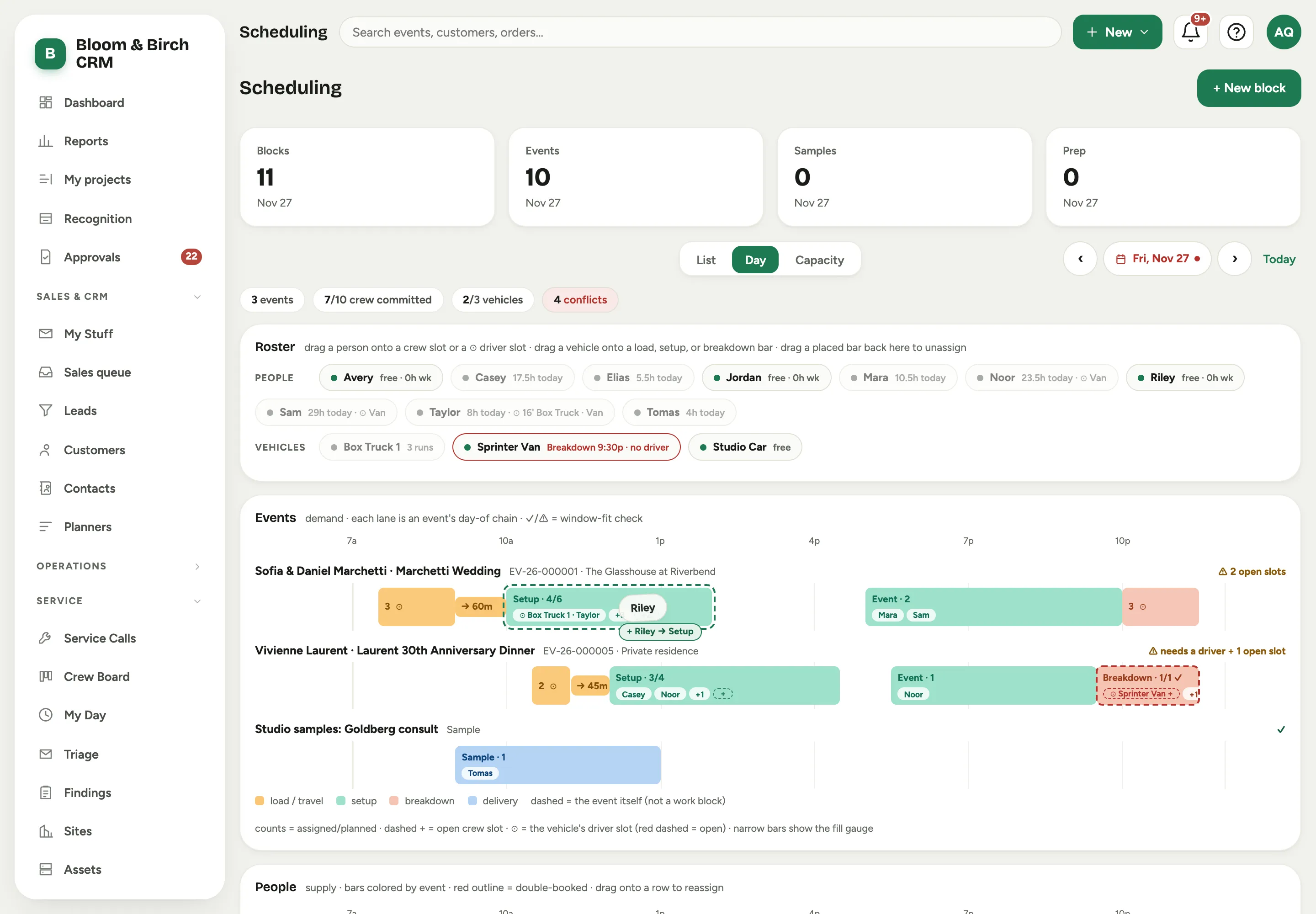
Drag a person’s chip onto any phase bar to put them on that crew. Drag a truck’s chip onto a bar to attach it. Drag a placed bar back onto the rail to take the assignment away again; the rail marks itself as a drop target while you hold something over it.
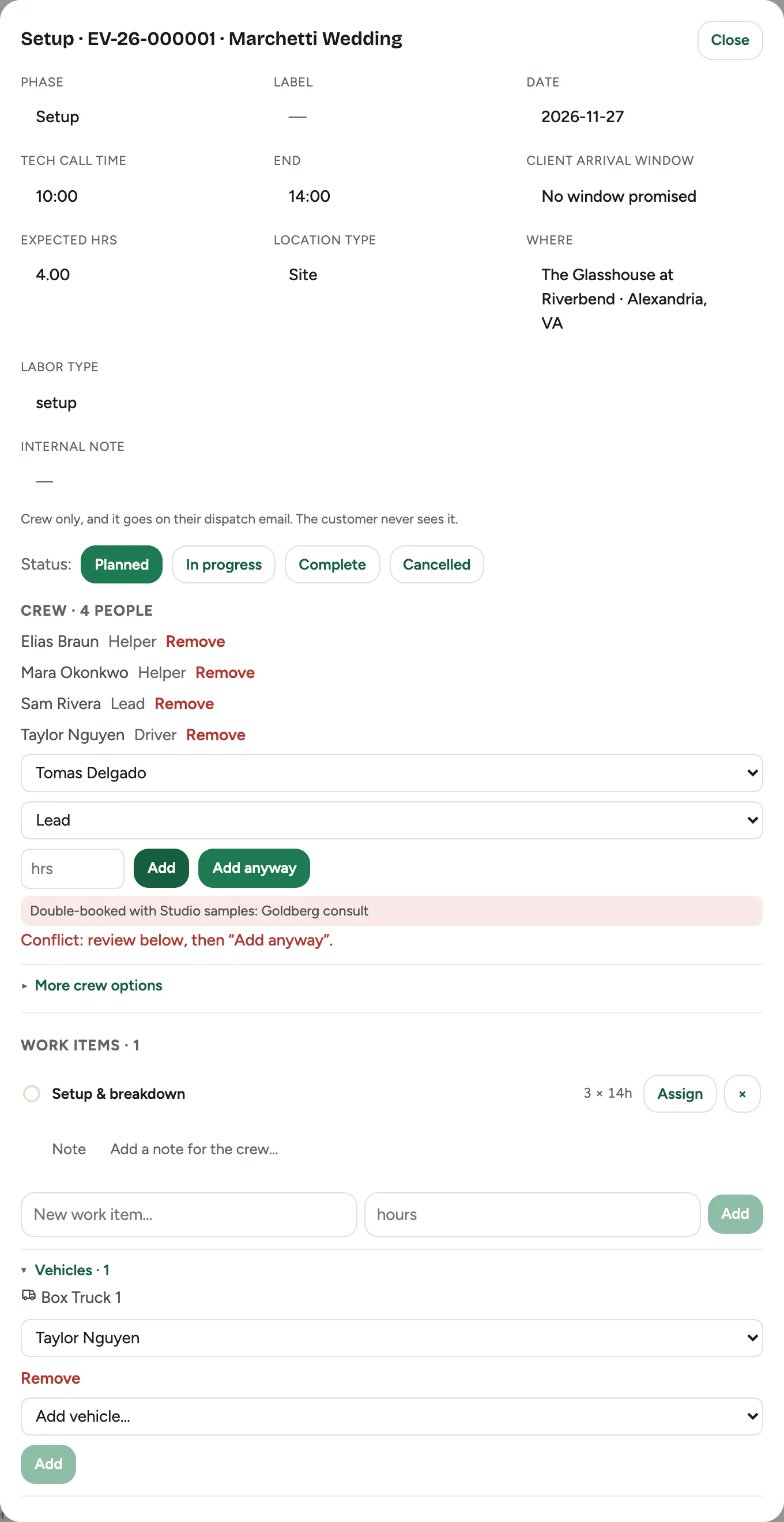
Someone whose day off is today cannot be dragged out of the rail at all. If you genuinely need them, open the block and add them there, where the conflict is spelled out and you confirm with Add anyway.
 Screenshot from a demo workspace; data illustrative.
 Screenshot from a demo workspace; data illustrative.
4. Fill an open crew slot
Every phase bar shows the crew on it against the crew that was planned, for example four of six. The missing ones are drawn as dashed slots on the bar, one per person still needed, and each is its own drop target. Drop a person on a slot or anywhere on the bar, it does the same thing; the slots just make the gap visible from across the room.
A bar too narrow to hold slots collapses to a small fill gauge showing the same numbers. More people than planned is allowed: the bar outlines itself as a warning and the check mark drops off, but Florio never stops you.
Planned crew size is not edited on the bar. Change it from the fit check rail’s suggestion or by re-running Plan backward.
 Screenshot from a demo workspace; data illustrative.
5. Put a driver in a truck
Every truck attached to a bar gets its own driver slot on that bar, naming the truck. An empty one is dashed red. Drop a person on it and they are driving; if they were not on the crew yet, they join it in the same motion. Dropping a person on the truck’s own bar in the Vehicles band does the same thing.
While you drag, Florio tells you whether that person is authorized for that class of vehicle. An unauthorized drop still lands, because a licence is a conversation, not a system error, and it comes back as a warning you can see and clear.
A vehicle that is running with nobody driving is flagged twice: no driver on the bar, and needs a driver on the event lane.
6. Move crew between events
Drag a person’s bar out of one event’s phase and onto another event’s phase bar. Florio moves the assignment in one step, so a spare hand on the quiet wedding becomes the sixth body on the difficult one without opening a form.
7. Retime, resize, reassign
In the People and Vehicles bands:
- Drag a bar sideways to move it. It snaps to quarter hours.
- Drag its left or right edge to change when it starts or ends.
- Drag it onto another person’s row to hand the work over.
- Drag it to the roster rail to unassign it.
- Click an empty stretch of someone’s row to start a new block there, with the person and the start time already filled in.
Blocks with no time yet sit in a No time set list under the band. Click one to give it a time.
8. Glance, pin, act
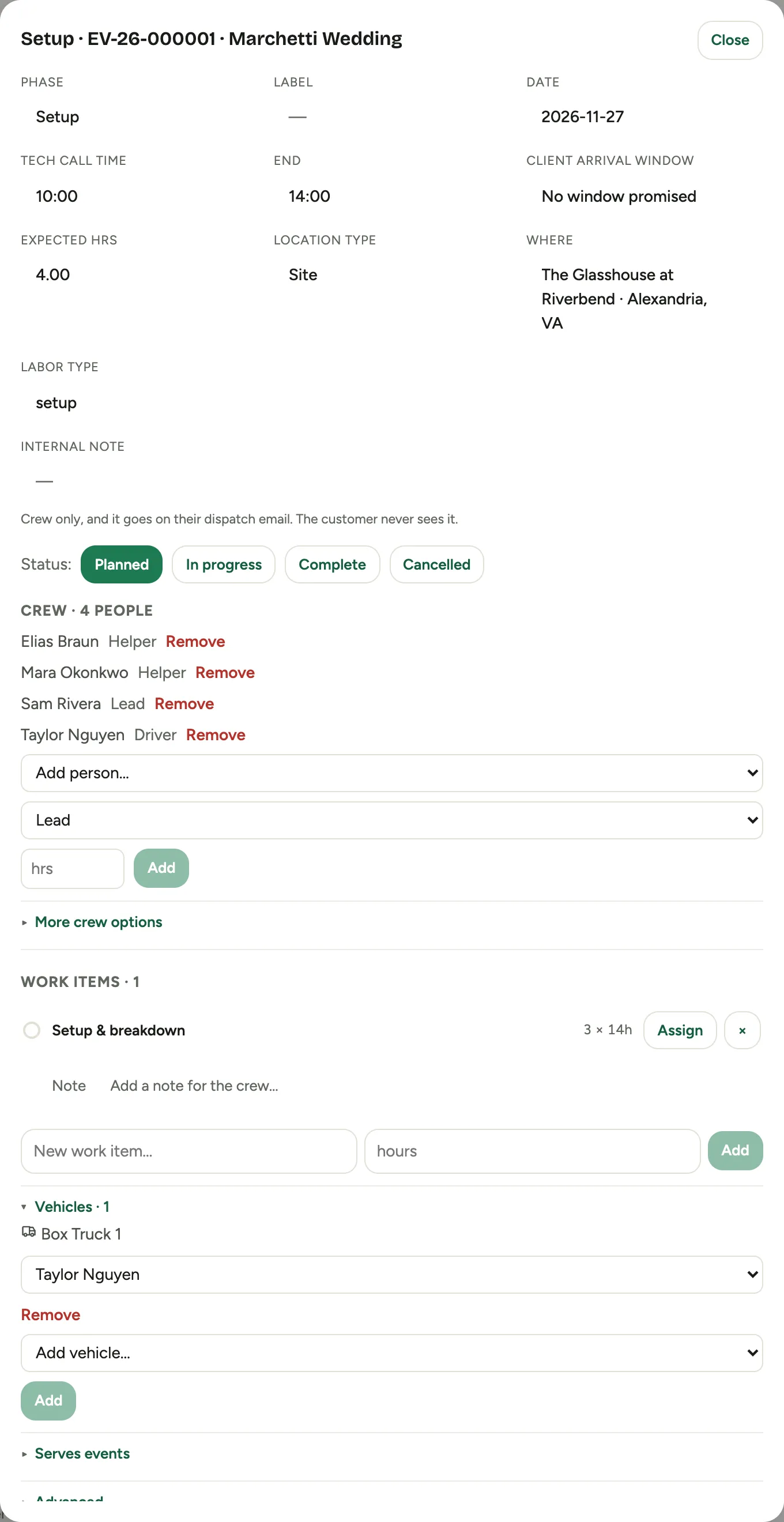
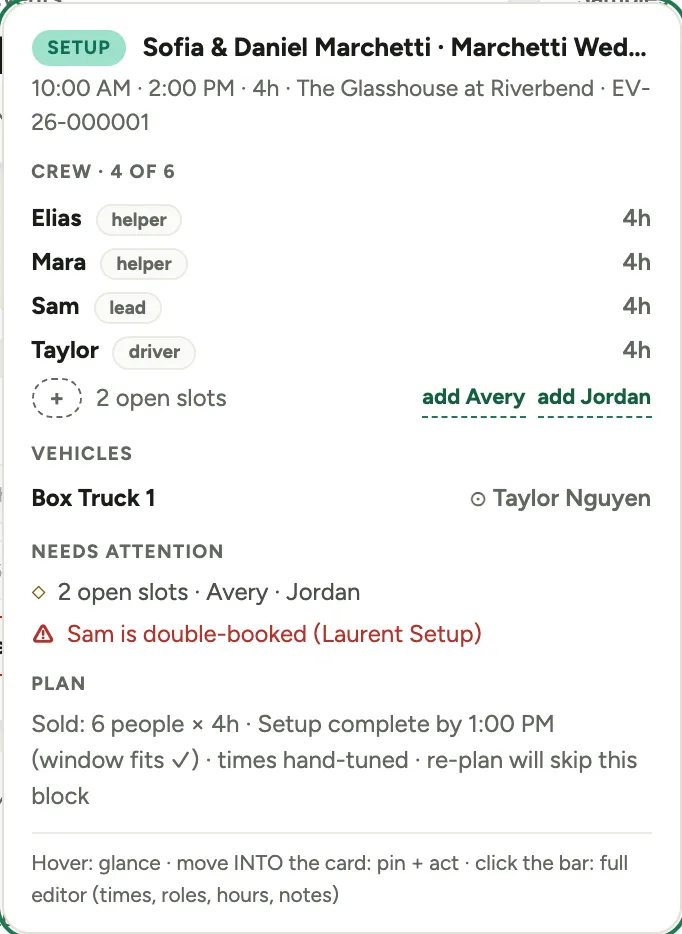
Hover a bar and a card appears after a moment: for a phase, its crew with roles and hours, its trucks and who is driving, anything needing attention, and the plan it came from, including the sold crew and the deadline it was fitted to. Hover a person’s bar and you get their whole day in order, their remaining room before overtime, and any collision. Hover a truck’s run and you get its driver, its turnaround, and what it does next. Hover the dashed ghost and you get the event itself; click it to open the event.
Move your pointer into the card and it pins, which is when its buttons become live. Those buttons act: put a free person on an open slot, or make someone the driver. They deliberately do not edit. Times, roles, hours, crew size, and notes all live in the block editor, which is one click on the bar away.
 Screenshot from a demo workspace; data illustrative.
The card is a mouse convenience. On a touch screen a tap opens the editor instead.
 Screenshot from a demo workspace; data illustrative.
9. Work the fit check down to nothing
The rail on the right lists everything about the day that does not add up: a setup window too tight for the crew planned, a person double-booked, a truck whose turnaround is shorter than the drive, a vehicle with nobody driving, an event chain that is short of people. Where there is an obvious fix, the row carries it: raise the crew to the size that would fit the window, put a named authorized driver in the truck, or open block to go straight to the one that needs work.
The same rail tells you what you still have spare, and calls out event work that is not attached to any event, because crew opening that block would see no context at all.
Fix rows until the rail reads “Everything fits. Nothing to resolve today.” That sentence is the meeting’s finish line.
Good to know
- The board warns, it does not block. Drags always land, and anything questionable comes back as a fit check row after the board reloads. That is deliberate: the person running the day is allowed to know something the software does not.
- Over-staffing never appears in the fit check. Only shortfalls do.
- The stat chips follow the view. On Day they count the selected day; on List and Capacity they count the week.
- If a change bounces back, the board reloads and shows the reason at the top. Nothing is half-applied.
- The old Dispatch tabs are gone. Everything they did, by person and by vehicle, is in the People and Vehicles bands, now next to the demand that drives them.
- Where this fits: Scheduling: crews, the backlog, and the week.