Scheduling: crews, the backlog, and the week
Event work comes in two shapes. Some of it is timed: the truck loads at 7:30, setup finishes before the planner walks the room at 2:00. The rest is flexible: the floral build, the carpentry, the props pull, the cleanup after. It has to happen inside a window, but nobody cares whether it happens Tuesday or Wednesday. Florio’s Scheduling page treats those as one system, so the flexible work fills the quiet days instead of piling onto the frantic ones.
Both shapes start in the same place: the proposal the client signed. Every sold line carries the people and hours you priced it at, and those numbers become the work.
 Screenshot from a demo workspace; data illustrative.
Blocks: the unit of scheduled work
Everything on the schedule is a block: a chunk of work with a phase (Load, Leave, Setup, Event, Breakdown, the prep kinds, Recondition), a location, expected hours, and a crew. A block can belong to an event, a rental reservation, a client sample session, or stand alone. Because it is one shape everywhere, the same tools work everywhere: crew assignment, vehicles, conflict checks, punch in and out, and field photos.
Standing alone is not permanent, and it does not always mean one event or none. A block created without an event can be given one later, and a single batched session can name the several events it covers, each with a share. See Attach studio work to its events.
The sold work reaches a block one of two ways, and knowing which one you are looking at explains most of what the crew sees. A day-of phase carries work items: the individual jobs inside it, one per sold line, and that is what the crew punches against. A prep block off the backlog carries no items at all, because the block is itself one sold line. Either way the job sheet describes the same content; it just hangs it a level up on prep.
Scheduling starts with the sold proposal
Nothing on an event schedules until the client’s acceptance is recorded. Until then the event’s Schedule panel is visible but its buttons are off, with a plain reason line and a link to the page where you record acceptance. See Unlock scheduling for an event.
Once acceptance is recorded, three buttons on that panel turn the sale into work:
- Scaffold day-of creates the day’s phase chain and fills each phase with the hours and headcount you sold, plus a work list built from the sold lines.
- Plan backward lays the chain out on the clock, working back from the time setup has to be complete.
- Seed backlog creates the flexible prep work as undated tasks: one per sold line, one remainder per prep category holding the sold labour nobody itemised, and a recondition allowance for after the event. It is always a person pressing this button; nothing seeds a backlog on a schedule.
See Build an event’s work framework.
Teams decide who you see
Your people are organized into teams (flower production, carpentry, props, delivery, design), managed under Admin, then Teams. Each team has one or more managers, and the Capacity view shows one team at a time: its people, their hours, and its backlog. A person can sit on more than one team, which is normal for a shop where the carpenter also loads trucks.
Three views, one page
- List is the week at a glance: every block, day by day, with its crew and vehicles.
- Day is one day with every event, every person, and every truck on one shared timeline. This is the view for the logistics meeting.
- Capacity is a team’s week as a grid of person-days, with the team’s backlog waiting below. This is where a department manager turns flexible work into someone’s Tuesday.
Florio remembers which view you were in and which date you were on, so the page opens where you left it. The old Dispatch tabs were replaced by the Day board, and a bookmark or a saved preference that pointed at them now opens Day.
 Screenshot from a demo workspace; data illustrative.
The Day board
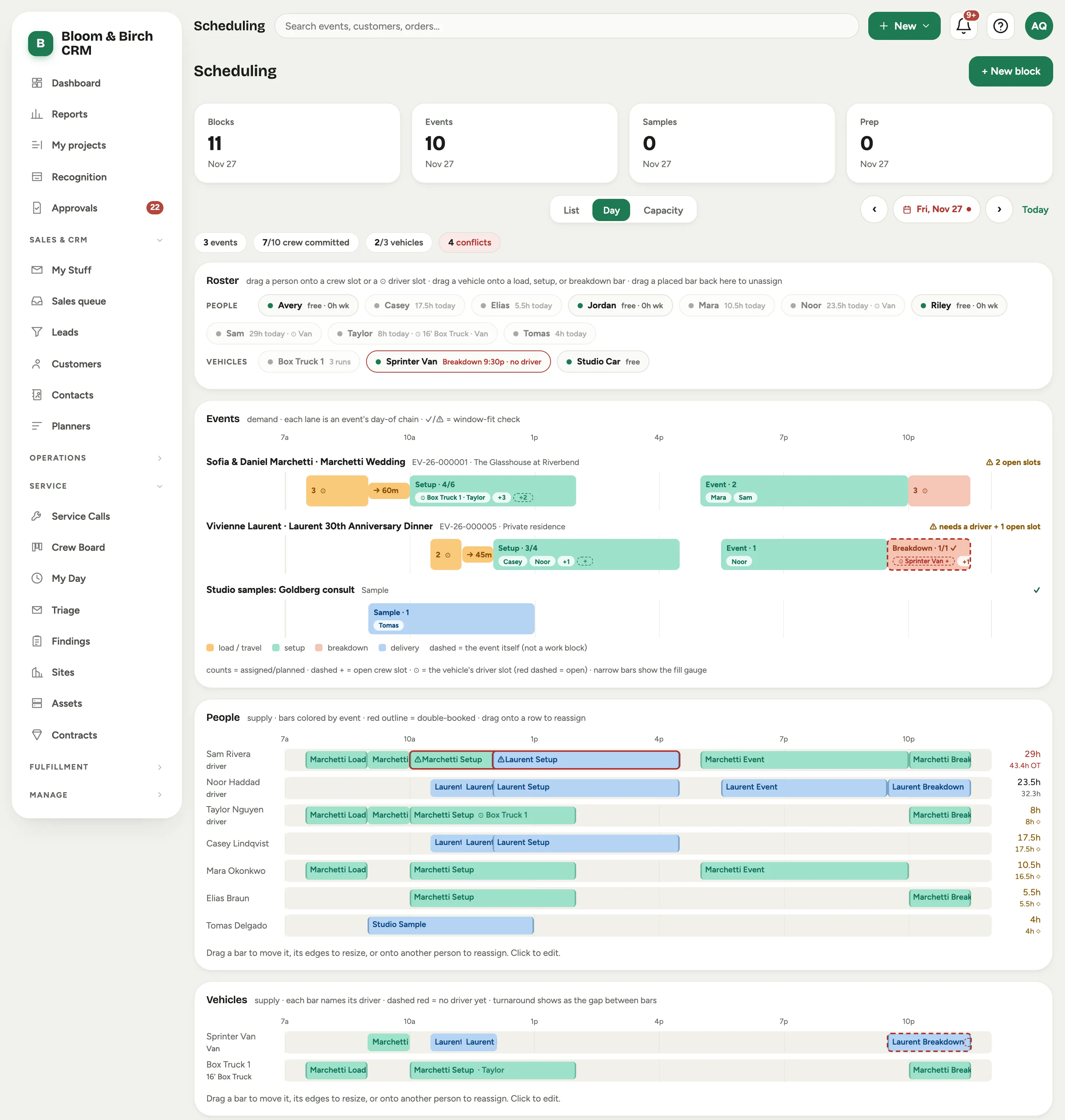
The Day board answers one question: does the work I have fit the people and trucks I have? It shows three bands, stacked on a single time axis so a bar in one band lines up with the bar above it.
- Events is demand. One lane per event, holding that event’s day-of chain, with the event itself drawn as a dashed ghost bar behind the work. Each lane carries a fit flag: fully staffed, or a warning naming what is short.
- People is supply. One row per person, their bars colored by event, with a red outline where someone is double-booked.
- Vehicles is supply too. One row per truck, each bar naming its driver, with the turnaround gap between runs visible as empty space.
Down one side sits the Roster: everyone who could work today and every vehicle that could run, each with a one line read on their day. You staff by dragging from that rail onto the board, and you unassign by dragging a placed bar back to it.
On the bars themselves, each phase shows how many people are on it against how many were planned. Dashed slots are the ones still open, and every attached truck gets its own driver slot that turns red when nobody is driving.
The board also keeps a running fit check: a list of everything that does not fit yet, each row with a one click fix where one exists. Work it down and it ends at “Everything fits. Nothing to resolve today.” See Run the day on the Day board.
 Screenshot from a demo workspace; data illustrative.
The backlog: work with a window, not a date
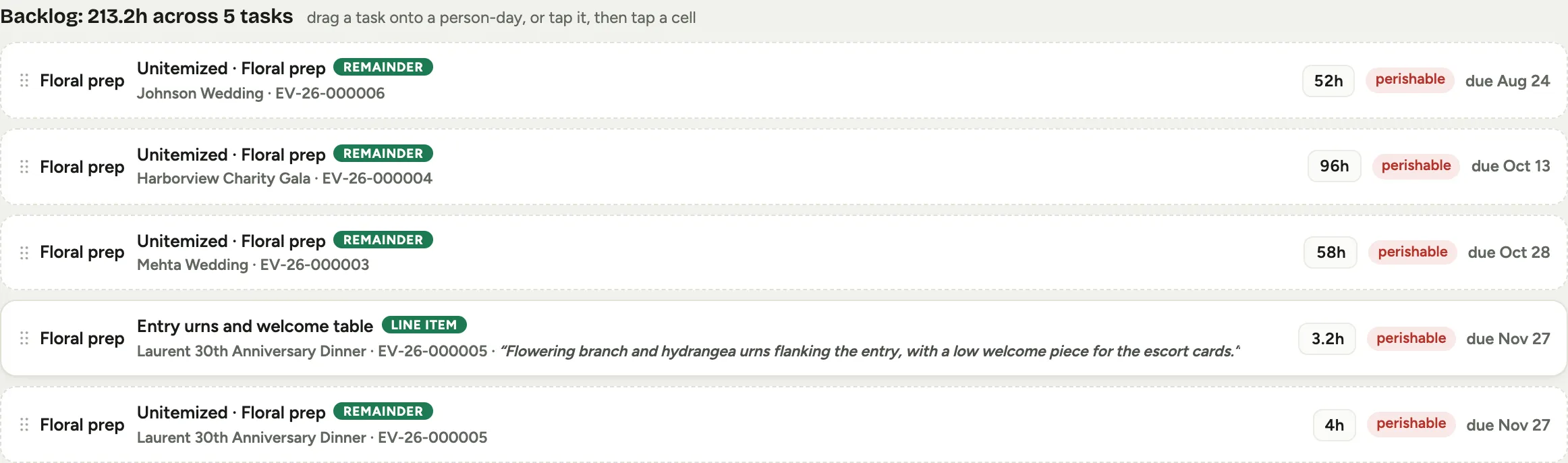
Backlog tasks carry hours, a headcount, and a due date instead of a fixed day. There is one task per sold line, labelled with the line as the client saw it and badged line item, so a manager places “Ceremony arch installation, 3 people, 12 hours” rather than a lump of floral hours.
When the proposal’s cost detail does not add up to the full labor on the scorecard, the difference rides on one extra card per prep category, badged remainder and shown as Unitemized. It does not recalculate on its own: itemize more of the sale and the number only moves the next time someone presses Seed backlog on that event, which is also when new line item cards appear beside it. Once the lines cover the whole number, that same press retires the card, unless it has already been placed on a day, in which case it stays and is flagged for a manager to look at. Treat it as the nudge to finish costing, not as a mystery.
Each task also shows its window class:
- perishable work clusters tight to the event. Fresh flowers get processed and built in the last few days, no earlier.
- durable work is the opposite lever. A bar facade or a props pull can be built weeks ahead, so you place it in the slow days and flatten the crunch that causes overtime.
Above the backlog, a strip headed “Assigned to no one” collects blocks that have a day but nobody on them, so a phase that lost its last crew member cannot quietly vanish from the board. See Schedule backlog work on the Capacity board.
 Screenshot from a demo workspace; data illustrative.
Hours, overtime, and days off
Every view keeps an eye on people. Day and Capacity both show day and week totals per person, flag a light week, and flag overtime past your weekly threshold. Recurring days off, approved time off, and pending requests all appear right on the grid.
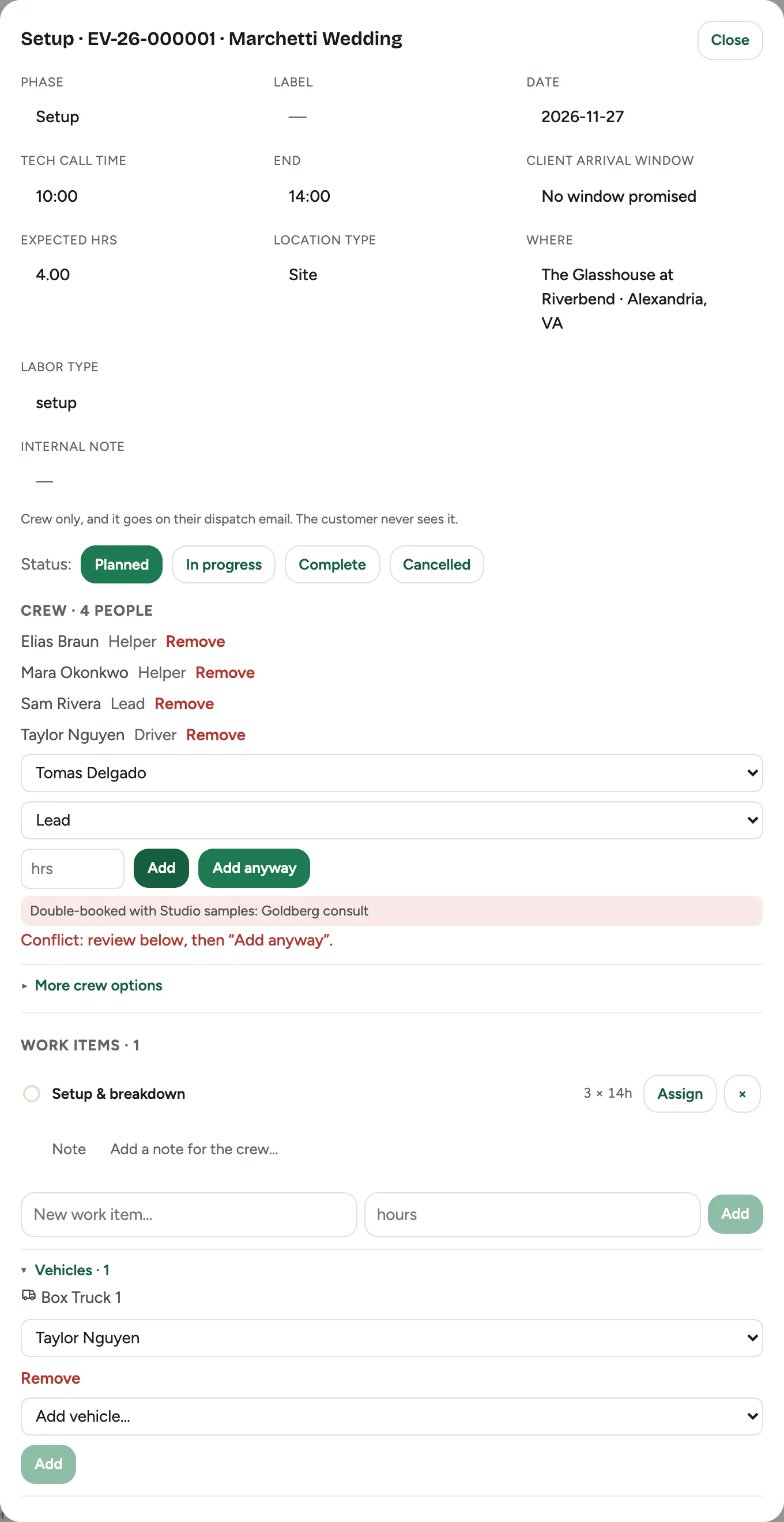
Staffing from the board is deliberately permissive: a drag always lands, and anything questionable comes back as a row in the fit check rail rather than a wall. Adding crew from inside the block editor is the stricter path: a hard conflict (a double-booking, or a whole day of approved time off) has to be confirmed with Add anyway, and days off, part-day time off, overtime, and an unauthorized driver show as warnings you can accept.
 Screenshot from a demo workspace; data illustrative.
The field crew side
Crew members see their own day on the Time page and in the Florio app. My schedule lists each assignment with its client and event, who else is on it, which truck is going and who is driving, and the work items inside it, with one tap to punch against the exact item. Prep rows carry the sale instead: a one line description of the piece, its reference photo, the date it is Due, and whether it is perishable or durable. See See your day and punch in.
Tapping through opens the job sheet: the full sold description, the designer’s internal notes, the manager’s instructions, and reference photos of what to build, per item on day-of work or for the block itself on prep. The sheet also carries the venue address, the time the install has to be finished, and the crew’s own field photos read back. See Read your job sheet.
Hours flow straight into time tracking, so the schedule you planned and the hours you pay are the same numbers.