Raise and sign a change order
A change order is how a contracted project changes its price, its scope or its cost without losing the record of what was agreed. In Florio a change order is a document of its own on the project’s contract ledger: it carries the lines it changes, its value is what those lines do to the client’s price, and its cost is what they do to your estimate. Any number of them can be open at once, internal and client alike, and none of them waits for another. This page follows one through from the Materials tab to the ledger, and a client change order on to the signature.
Before you start
The project needs a live contract, which it gets automatically when the client accepts a proposal (see the contract card). You need the permission to manage contracts to open, author, submit or void a change order, and the permission to approve contracts to approve one or to record a signature the client took elsewhere. Anyone who can view contracts can read them.
Two kinds of change order
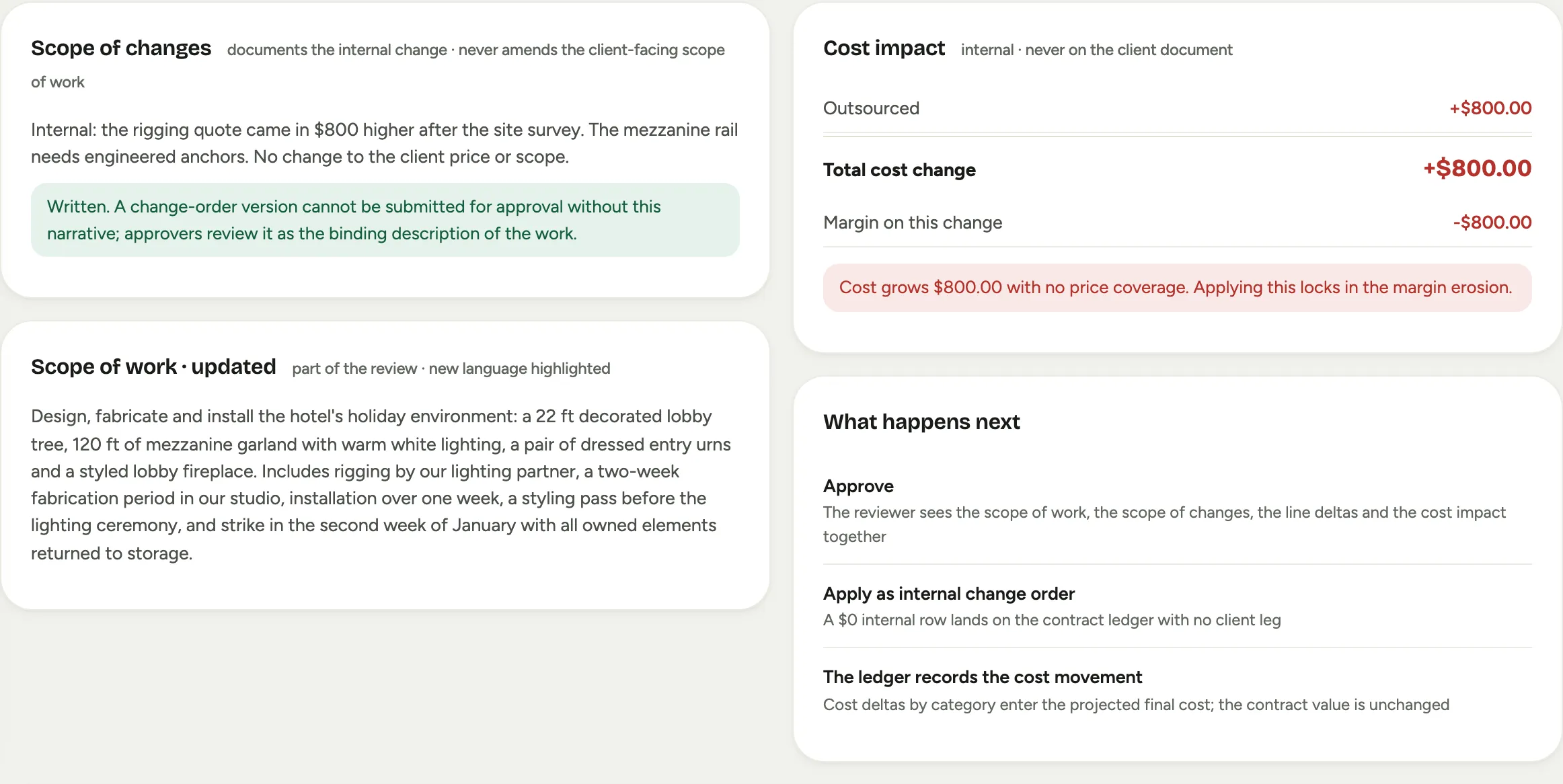
- An internal change order changes what you buy and what it costs, and holds the client’s price. Substituting a part, changing a quantity, dropping a line while keeping its money. It needs your own approval and nothing from the client.
- A client change order changes the client’s price. New scope, a priced substitution, a credit. It needs your approval and then the client’s signature, and it is worth nothing to the contract until that signature is on record.
The kind is chosen when you open the change order. An internal one refuses any line that carries a price; a client one carries prices on its added lines.
Start from the materials
Most change orders begin with parts. On the project’s Materials tab, tick the rows you want to change and choose Add to change order. The dialog offers a new change order or one already open, and for each row asks what happens to it:
- Quantity or cost adjusts what you buy or what it costs.
- Swap the part for another.
- Remove it from the job.
- Decide later puts the row on the change order and lets you choose in the composer.
A row is refused, with the reason beside it, when its part is already on a purchase order (take it off the order first), has been received, or is already carried by another open change order. One open change order per line: the dialog names the change order that already carries a row, and you can open that one instead.
From the moment a row is on a submitted change order it is held on the purchasing queue and reads “Held · CO-3 awaiting approval”, naming the change order, so nobody orders a part that is about to change.
You can also open an empty change order from the Change orders tab with New change order, and add lines to it from the composer.
The composer
The composer is the change order’s own page while it is a draft. At the top, its number and title, and on a client change order the number the client will see once it goes out. Under the header, three running figures that are the sums of its lines: Value to the client, Cost and Lines. They update as you work.
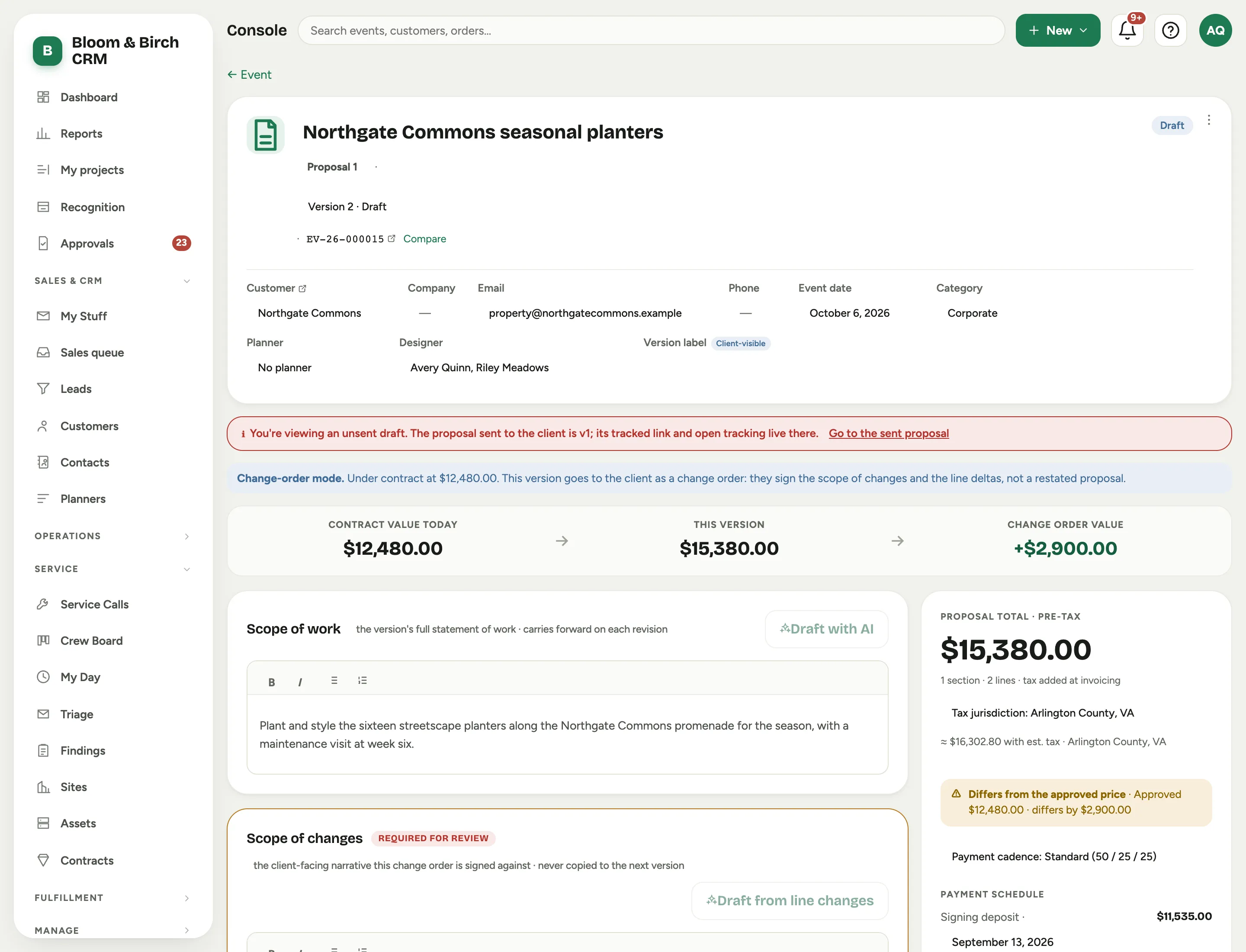
A client change order also has a Scope of changes box. Write what is changing and why, in the client’s terms; it leads the document the client signs. The box is the proposal builder’s editor: bold, italic, bulleted and numbered lists, saved when you click away. Draft from line changes writes a first draft from the lines already on the change order, for you to edit; it is greyed out until AI drafting is set up for your workspace, and it asks you to decide the lines first when none is decided yet. The box is marked Required for review: Submit for approval and Approve are refused until it says something, as in the proposal builder. Once the client signs, the scope of changes becomes an amendment on the project’s SOW tab; while it waits for the signature it shows there muted, as in flight.
Swap or remove a part
Each line shows what it does (Added, Quantity, Swapped, Removed, Adopted or Not decided), what it was, and what it costs now against what it cost before. Cost details opens the same cost drawer the proposal builder uses, so labor hours and material cost are edited the way you already know. Under a line:
- Change this opens the editor for its effect. Swapping a part asks for the new part’s name, part number, buy quantity and unit cost, and lets you pick it from the catalog. Removing a part asks whether its labor comes off too.
- Take off this change order removes the line; the materials row is untouched and its hold is released.
The add bar at the foot adds a line of your own (Add something new), a part from the catalog (Add from the catalogue), more rows from Materials (Add lines from Materials) (the Materials tab opens with this change order already chosen, and adding brings you back), or, on an internal change order, Adopt a part already bought for a part that was bought outside any change order, which approves what was paid without moving anything.
The gate under the lines says what still stands between the change order and approval: an undecided line, a cost with no category, a priced line on an internal change order. Submit for approval waits until it is clear.
If a line is added to a change order that is already awaiting approval, it goes back to draft and says so in its foot until it is submitted again.
Approve
Approvers see change orders in Approvals, in their own section, beside the re-estimates. The change order’s own page has Approve too.
- Approve and apply on an internal change order applies it at once. Its cost enters the projected final cost by category, its lines close, the holds lift, and the project’s materials follow: a swapped part updates in place, an adjusted quantity changes, a removed part leaves the Materials tab, and an added part joins it. A row already released to purchasing reads “Changed · CO-3” on the queue, with what it was before.
- Approve on a client change order moves it to Out for signature. Its lines stay held, and nothing reaches the contract value until the client signs.
Approved change orders are never edited. A mistake is corrected with another change order, and an open one that is no longer wanted is voided; it keeps its number and its lines and holds are released.
Getting a client change order signed
An approved client change order’s page shows Getting it signed, with two ways that both count.
Send it from Florio
The left card is the same compose the team uses to send a proposal: the same recipient list, the same role chips, the same Add someone else. One difference: the person pre-checked is whoever signed the contract, or its latest signed change order, not the project contact, because a change order goes to the party bound by it. A general contractor recorded in the project’s third-party slot is on the list too.
Each person gets their own link, so who opened it and who signed is never a guess. Send to 1 person mails the change order. Under the foot, Opened says how many times the links have been opened and when, and see the trail lists each recipient.
Two more ways out sit beside Send. Copy a signing link gives you a link to paste into your own email or a portal; it counts as sending, so the change order is released the same way. Copy a read-only link gives a link that shows the document and cannot be signed, and changes nothing.
Download the document
Download the client’s PDF, at the top of the page, is the untracked way: once the file is in a portal or an email attachment nobody can see it opened, which is exactly why the other half of the card exists.
The number printed on the document is the client’s own count of change orders on this contract, and it is frozen the first time the change order goes out, whichever way. Two change orders out at the same time cannot print the same number, and voiding one cannot renumber another.
The client signs
The link opens the change order document, not a restated proposal, with the scope of changes, the changed lines grouped under the sections the client already knows, the totals, and the contract value before and after. The client types their name, adds a drawn signature if they like, and accepts. From then on the same link opens the signed document, and the signed copy is mailed to the signer.
On the signature the change order is approved: its value enters the contract, its cost enters the projected final cost, its lines close, the holds lift, and the materials follow exactly as they do for an internal change order. The page shows the signature on record under Signature: who signed, when, and how, with Download the signed copy.
Record a signature taken elsewhere
The general contractor signs in their own portal, or on paper. The change order is just as real. On the right card, choose the signed PDF, enter Signed on and Signed by (the name, with a title after a comma if you like), pick who Countersigned for your company (you, unless you change it), and choose Record the signature.
Recording needs the permission to approve contracts, because it writes the same three things a signature in Florio writes: the value into the contract, the cost into the estimate, and the lines into materials. The uploaded PDF is kept as the document of record on the project’s files, and the activity log says who recorded it and who countersigned.
What it does to the draws
What it does to the draws shows every payment draw on the project with today’s amount beside the amount on signature. The rule is simple: an invoice that has gone out does not move. The change order’s value lands on the draws that have not been billed, keeping their relative weights, and invoices the client already holds are left exactly as they are. When nothing is left unbilled, the change order adds a draw of its own rather than reopening anything.
A change order that reduces the contract by more than what is still uninvoiced is refused at approval, naming both amounts, because that difference is a credit, which is issued in QuickBooks and recorded here.
The client’s document
Below the draws, The client’s document says what the client signs: the changes grouped under the sections they already know, the scope of changes at the top, the totals and contract values, and the signature block. The rows come from the change order’s own lines. A removal prints the price the client was charged and the section it sat in, both frozen onto the line when it was gathered. The document never shows your terms and conditions, the payment schedule, internal costs or part numbers.
The Change orders tab
The project’s Change orders tab lists every change order since the contract was signed: number, title, kind, status, value and cost, and who opened it. The chips filter it (open, client, internal, all) and the tab remembers your choice. Any row opens the change order. Under the list, the contract ledger’s own rows show the same change orders as revisions, with Client CO and Out for signature spelled out, and the project’s activity log names the change order on every row it writes: sent, released, opened by the client, signed, signature recorded, payment draws adjusted, applied to materials.
Unapproved cost
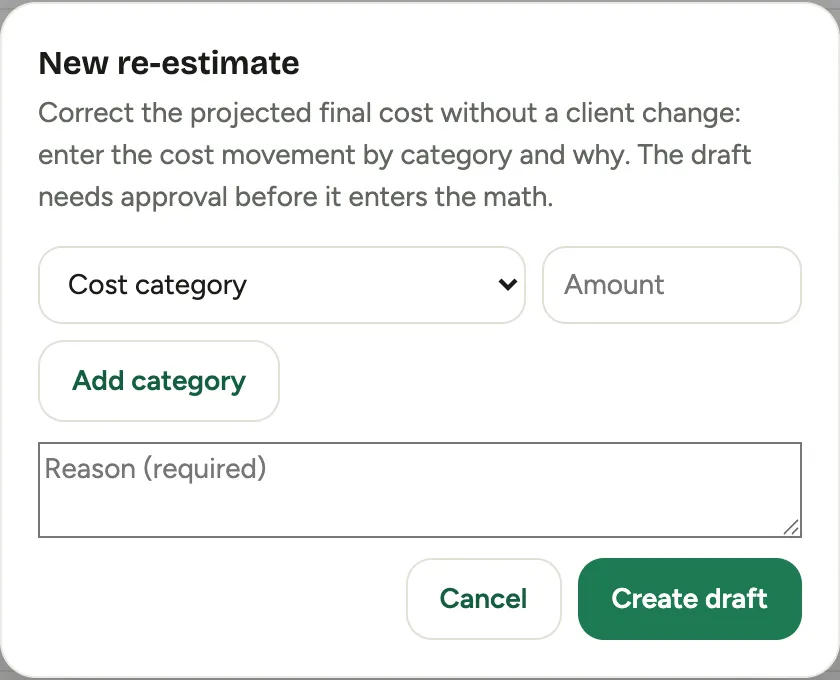
Parts bought outside any change order show on the project’s Unapproved cost card. Open an internal change order there opens one with every such row already gathered, so the cost is approved with the lines behind it. New re-estimate stays for a labor re-forecast with no lines: enter the movement by cost category with a reason, and it goes through the same approval.
 Screenshot from a demo workspace; data illustrative.
The purchase order and the project, in brief
A purchase order number anywhere on a change order’s history, or on the Materials tab, opens a small card with the order’s vendor, status, lines and tracking, without leaving the page. On the purchasing queue, a project’s name opens the project card: what waits in the queue, what is already on which orders, what a change order holds, the ship-to, the next day on site, the project lead with a phone number, and whether the project is tax exempt.
When the whole document changes
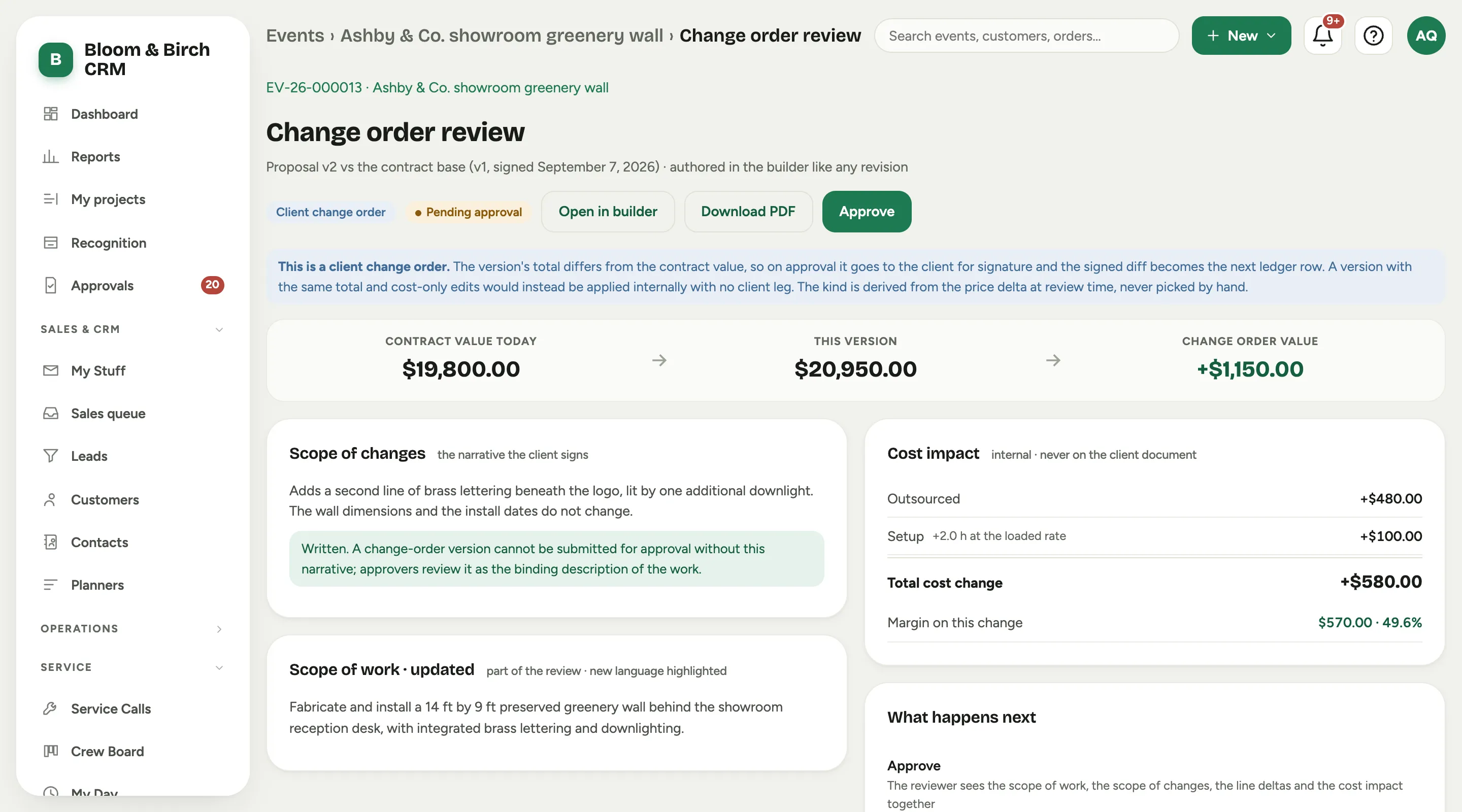
For a change that restates the whole proposal, the proposal builder path still exists. On the event’s Financials tab, choose New change order on the Contract card. Florio copies the signed version into a new draft in the builder, tags every line against what the client signed (Added, Changed, Removed with a Restore button), and asks for the Scope of changes before Submit for approval. The Change order review states the kind from the price, shows the line changes and the cost impact, and after approval offers Send for signature or Apply as internal change order. Download PDF on the review, Change order PDF in the builder and download PDF on the ledger give the document as a file.
A design write-up that only moved is not a change. When the version the client signed kept a description on a $0 line of its own (events brought over from Details carry them as “New Recipe” lines) and the new version puts that description on the item it describes, the client’s change order leaves the $0 line off and shows the item as unchanged. Bringing a count in the write-up up to date (“For 8” becomes “For 10”) still counts as a move: the item’s own row shows the count change. Change the words, the quantity or the price and the line shows as Changed, as always.
If Florio cannot find the version the client signed
A contract created before Florio recorded which version the client signed has nothing to compare a change against. The builder still shows Scope of changes, because it is still required; a banner explains that the version will go to the client as a full proposal rather than a change order, and Draft from line changes is greyed out with Needs the signed version beside it. On the Contract card, the row Not linked to the version the client signed offers Link signed version to anyone with Approve contract revisions. Pick the version the client signed (the one whose total matches the contract value is chosen for you) and confirm with the button that names it. Linking moves no money: the contract value, the payments and the costs stay as they are. From then on change orders compare against that version, and the activity log records Linked to the signed version.
 Screenshot from a demo workspace; data illustrative.
 Screenshot from a demo workspace; data illustrative.
 Screenshot from a demo workspace; data illustrative.
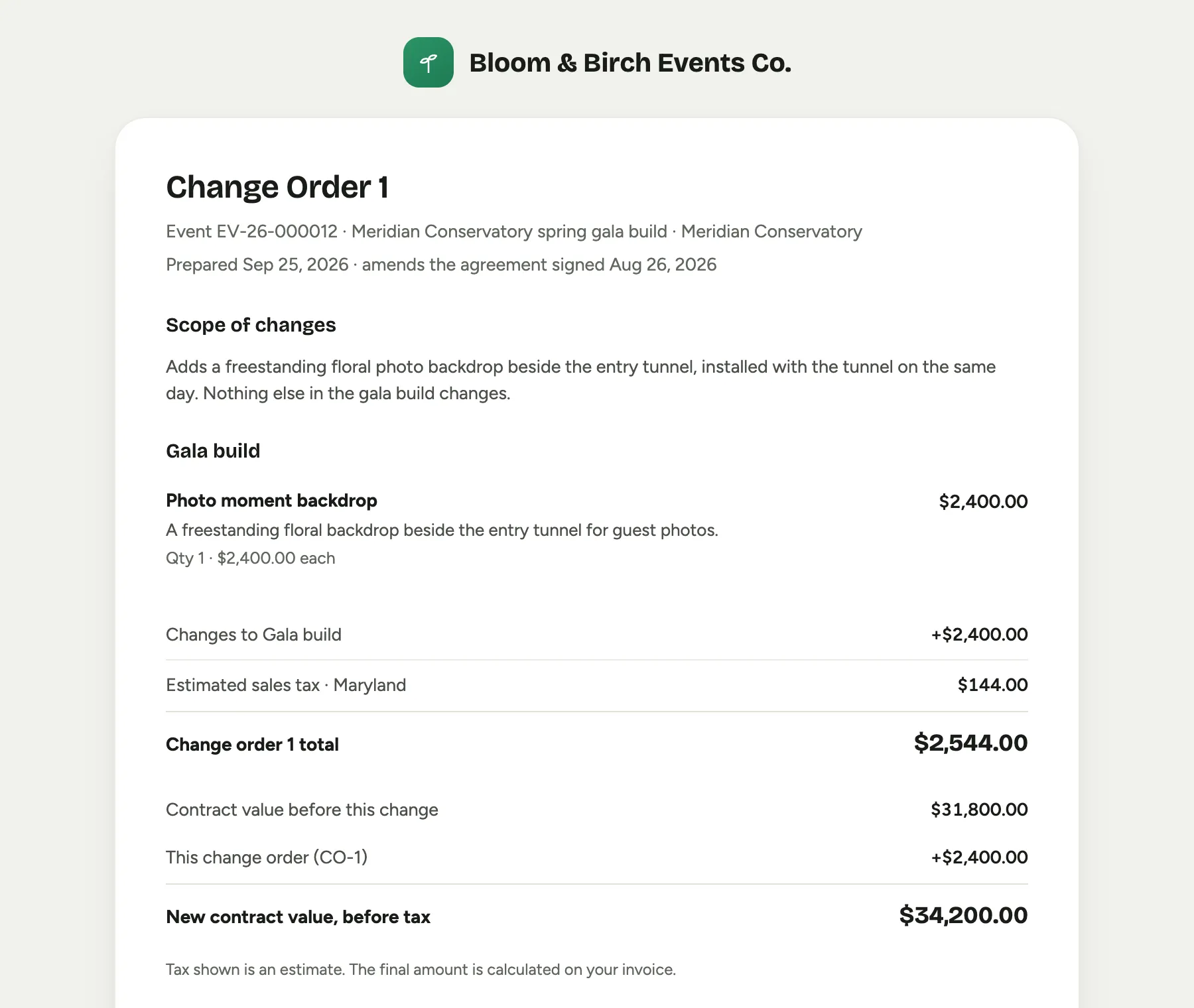 Screenshot from a demo workspace; data illustrative.
Projects brought over from another system
A change order records only what changed, so it needs something to compare against. A project Florio created has the proposal the client accepted. A project migrated from another system usually has its contract and opening cost as history instead. Florio falls back to the version the contract was opened from, which is recorded even on a migrated project, and a change order records its lines exactly as it would anywhere else. If a migrated project has no priced version at all, the builder path stops and points you at a re-estimate; the materials path does not need one.
Change orders brought over with such a project are change orders of their own. The header says the change order was brought in from the previous system and names the order it was there, and a line it carried reads brought in with the imported order. Its history lists what happened to the order in the previous system, newest first, at the time it happened and under the person who did it; its approval and opening come from that history. A client change order shows the scope the client read and, when one was filed, its signed copy; its internal notes carry what the order said internally and the client contact it went to. The admin activity report leaves this history out.
Good to know
- One open change order per line. A row that another open change order already carries is refused by name; open that one, or take the row off it first.
- Approved is not signed. A client change order that is approved but not yet signed is numbered and visible, and worth nothing to the contract, the projected final cost or live profit until the signature is on record.
- A change order on a project that is already closed is refused and recorded, so a late change never disappears silently.
- The projected final cost moves by the change, never by a restated total. A line you did not touch contributes nothing.
- The ledger reads newest first: the latest change at the top, the baseline last. A voided change order keeps its number and stays on the list.
- A change order’s own history reads newest first too. Once it is approved, its internal notes show under the scope of changes; they never print on the client’s document.