Write and present a Summary of Findings
A Summary of Findings is the write-up you present to the customer at the end of a diagnostic visit: what is wrong, what you recommend, and what each fix costs. You write it on the tablet from the visit, hand the tablet over, and the customer ticks what they want, signs with a finger and pays by card, all before you leave the driveway. This page walks the whole thing in the order you meet it.
The one rule that shapes every screen: the customer never sees your build-up. Parts, hours and rates are how you compute a number, and they stay inside Florio. The customer sees a title, two or three sentences, and one price per finding.
Before you start
- The office books the call in Summary of Findings pricing and chooses the diagnostic fee at booking, because the customer is told the amount on the phone. You see the fee, you do not set it.
- You need the technician permission to build findings, and the visit has to be released to your My Day.
- Have the tablet charged and on the site’s connection. The customer signs on your screen.
Steps
1. Check in, then open the builder from the visit
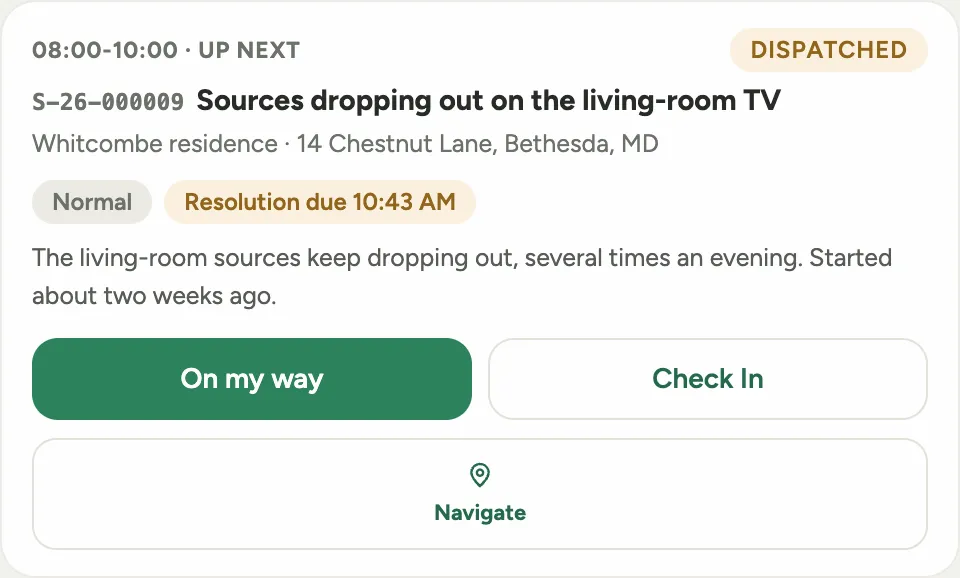
- Open My Day and tap Check In on the stop, the same as any visit.
 Screenshot from a demo workspace; data illustrative.
- Once you are checked in, the stop gains a Summary of Findings button. Tap it. It opens the builder for this call, and the link at the top brings you back to the visit.
 Screenshot from a demo workspace; data illustrative.
2. Read the diagnostic fee
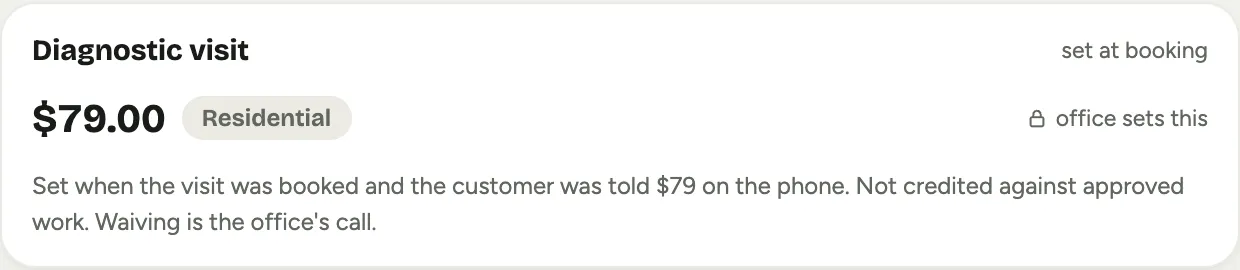
The Diagnostic visit block at the top shows the fee the office chose when the visit was booked, residential or commercial, and whether it is credited against approved work. It is read-only for you. If the customer questions it, the office can waive it at any time from the call page.
 Screenshot from a demo workspace; data illustrative.
3. Write A, the problem they called about
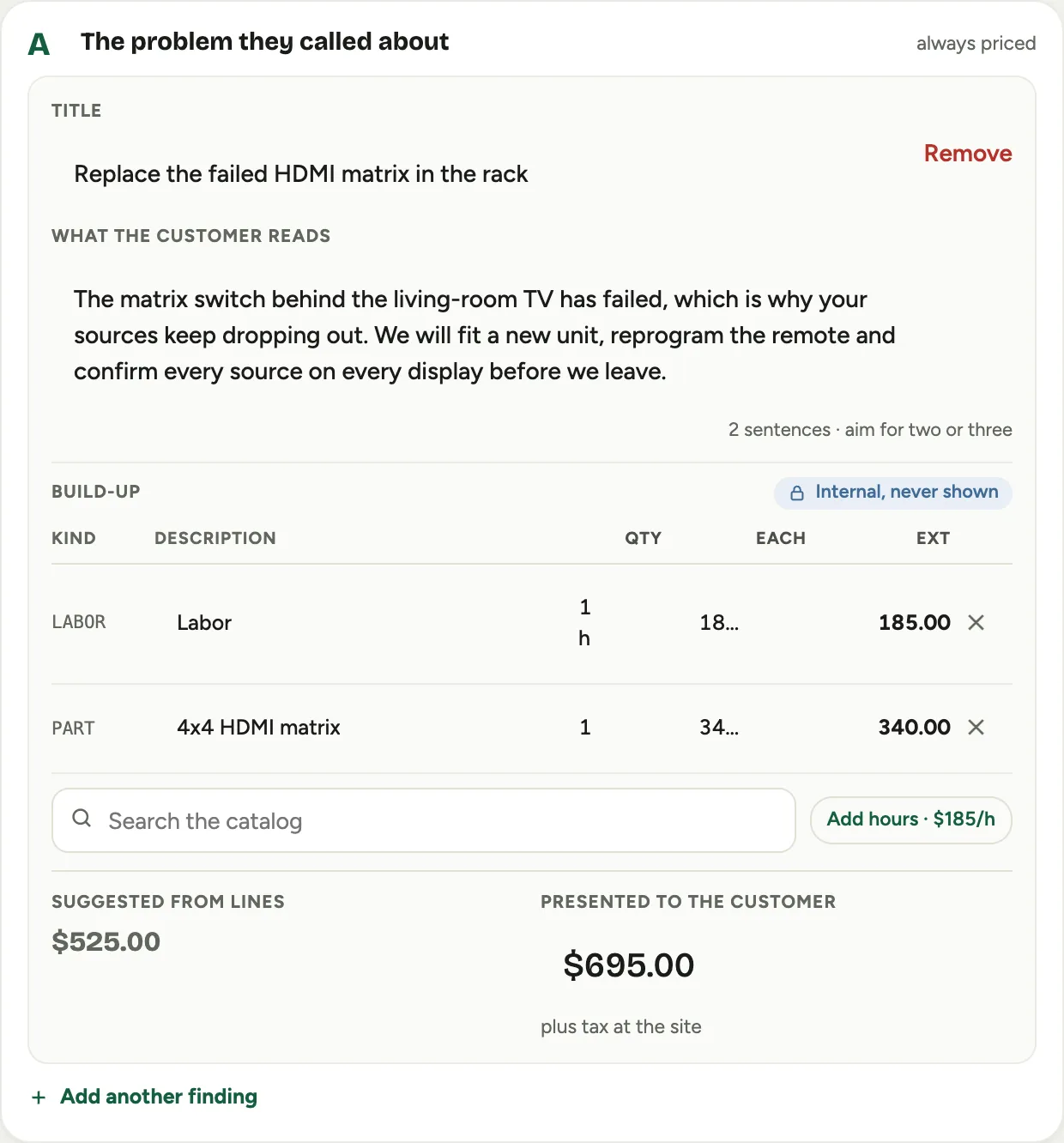
Section A is the fix for the problem the customer reported. It is always priced by you; the customer cannot see the page without it.
- Tap Add the fix. A new finding opens with its title selected, so just type over it.
- Give it a Title the customer will recognise, for example “Replace the failed HDMI matrix in the rack”.
- Write What the customer reads: two or three sentences saying what is wrong, what you will do, and what it fixes. The counter under the box is a nudge, not a limit.
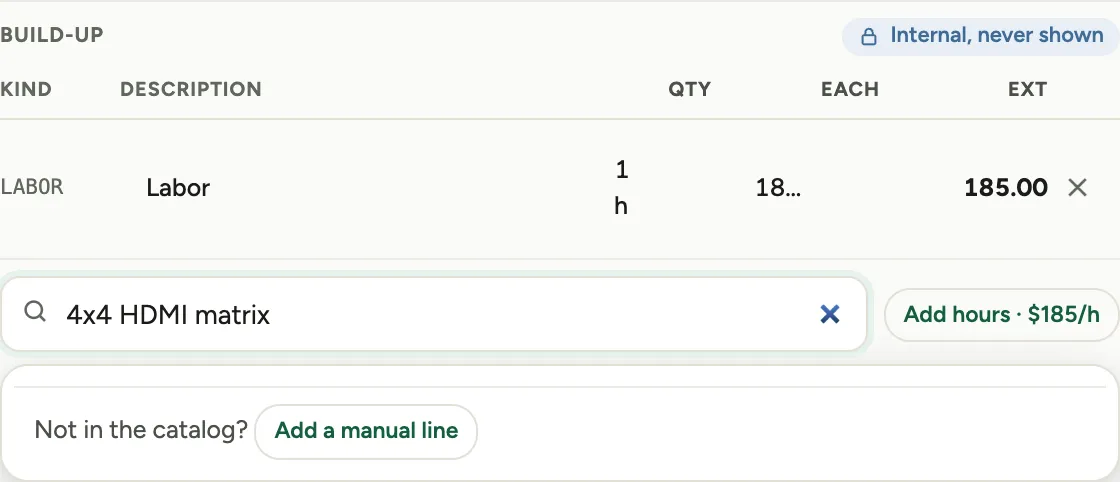
- Build the number under Build-up. Tap Add hours to add a labor line at the findings labor rate (the rate shows on the button), then set the hours. Search the catalog for parts; if a part is not in the catalog, type its name and choose Add a manual line, then set its price.
- The lines add up to Suggested from lines. Type the number you actually want to present under Presented to the customer; it does not have to match the suggestion.
 Screenshot from a demo workspace; data illustrative.
The catalog search shows prices only. Costs and margin never appear on your screen.
 Screenshot from a demo workspace; data illustrative.
4. Write B, everything else you found
Section B is for the other things you found during the evaluation, so there are no surprises or callbacks later. Add one finding per item.
- If you can price it on site, switch Office to price off and build the number the same way as A.
- If you need the office to quote it, leave Office to price on and type what the office needs in the note box, for example the part you need a price on. The customer sees the finding with “Pricing to follow from our office”, and the office emails them when it is priced.
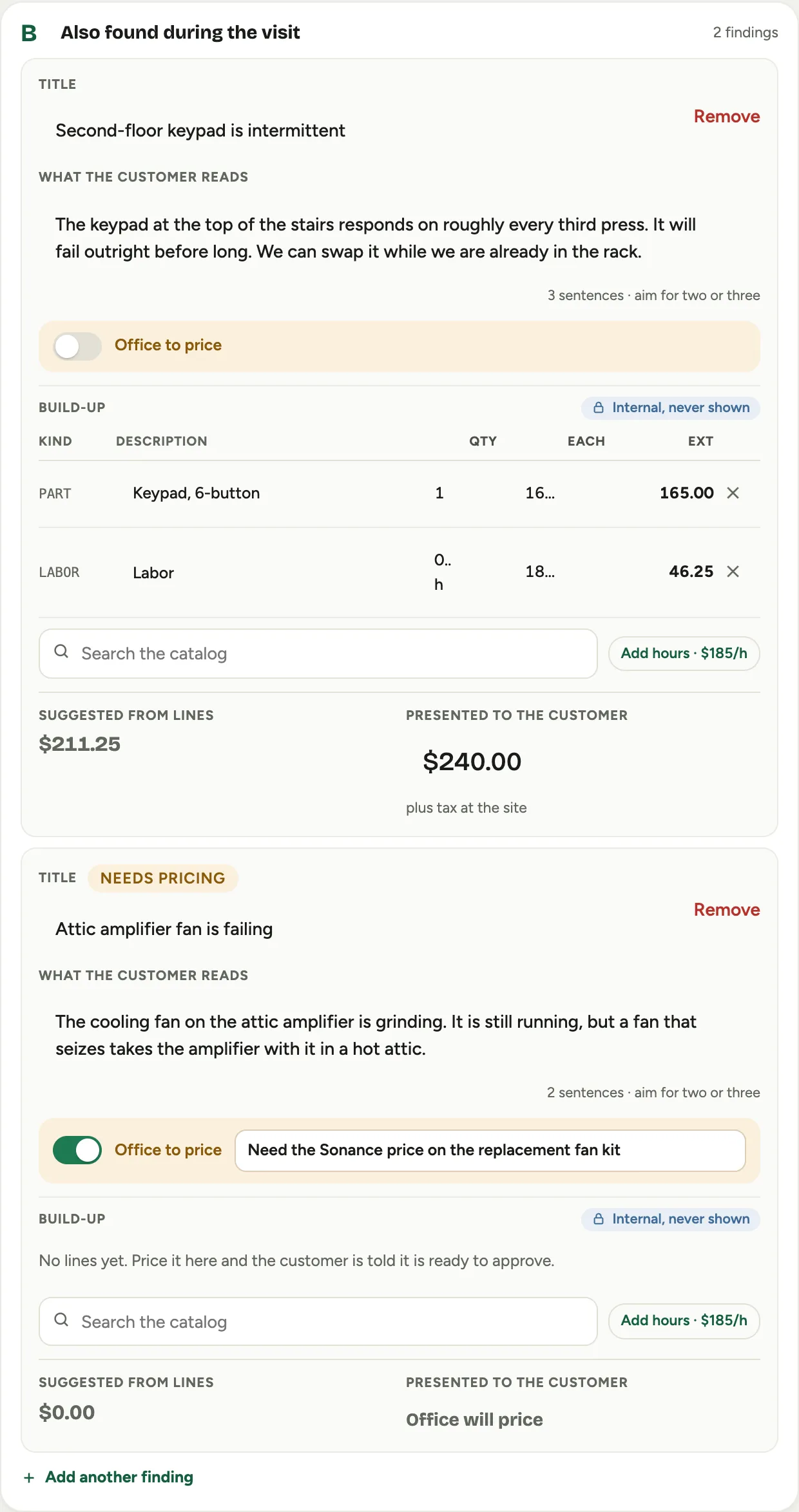 Screenshot from a demo workspace; data illustrative.
5. Write C, the longer term
Section C is advice with no price: the receiver that is ten years old, the system that will eventually stop. Tap Add a longer-term item, write the title and the sentences, and add a Note for sales with anything the sales team should know. The customer can ask to discuss it, and that raises a lead for the sales team. Nothing in C is ever charged.
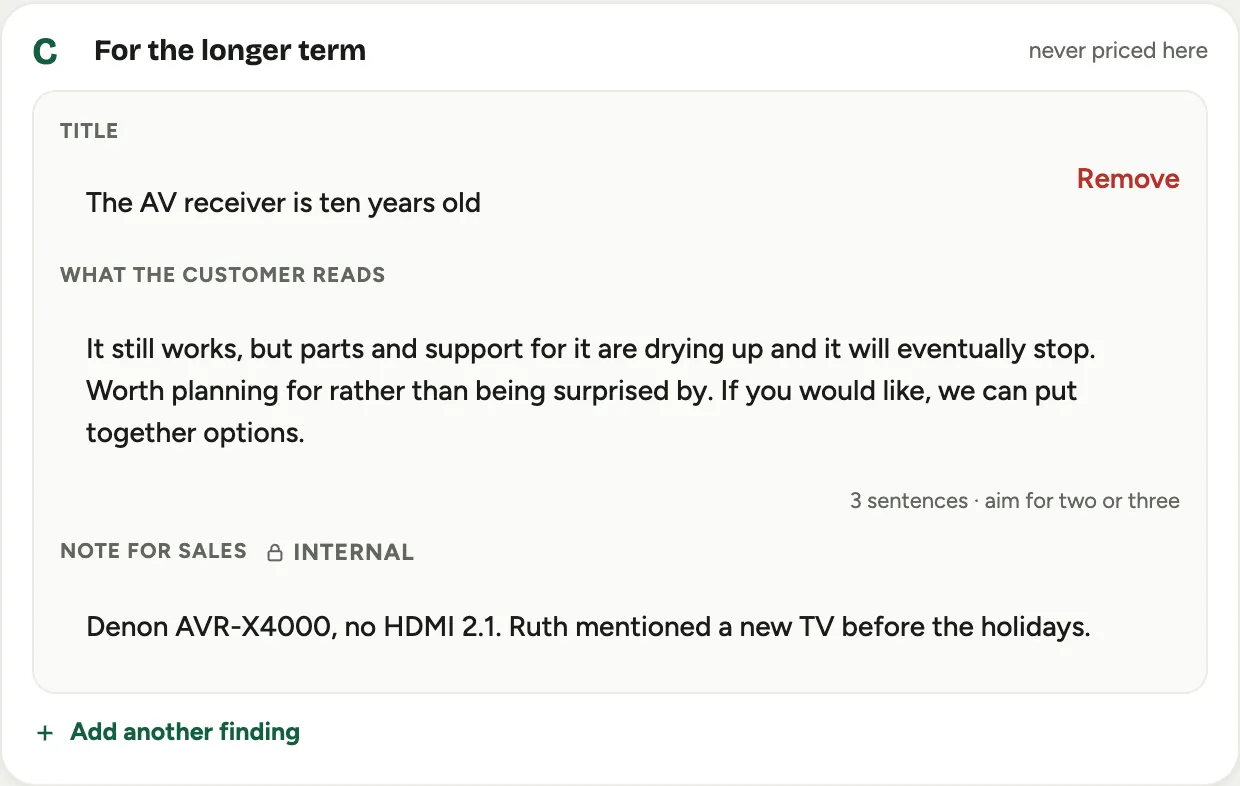 Screenshot from a demo workspace; data illustrative.
6. Check the footer, then present
The footer tells you whether the page can be presented. While something is missing it reads “Not yet” and names the reason: A has no price, or a priced finding has no build-up. A price with no lines behind it cannot go out, because the build-up is what the sales tax and the books are read from.
 Screenshot from a demo workspace; data illustrative.
When it reads Ready to present you have two ways to hand it over:
- Present and hand over opens the customer’s page in a new tab on your tablet. Hand the tablet to the customer.
- Email the link sends the same page to the customer’s email address instead, for when the decision-maker is not in the room. The button shows the contact’s first name.
 Screenshot from a demo workspace; data illustrative.
After you hand over, the builder shows that the page opened and keeps a link to open it again. Every finding is now presented and dated.
 Screenshot from a demo workspace; data illustrative.
7. What the customer does on your tablet
The page opens with a quiet caption that it is on your tablet and you are nearby. It shows the three sections, then the money, the card and the signature.
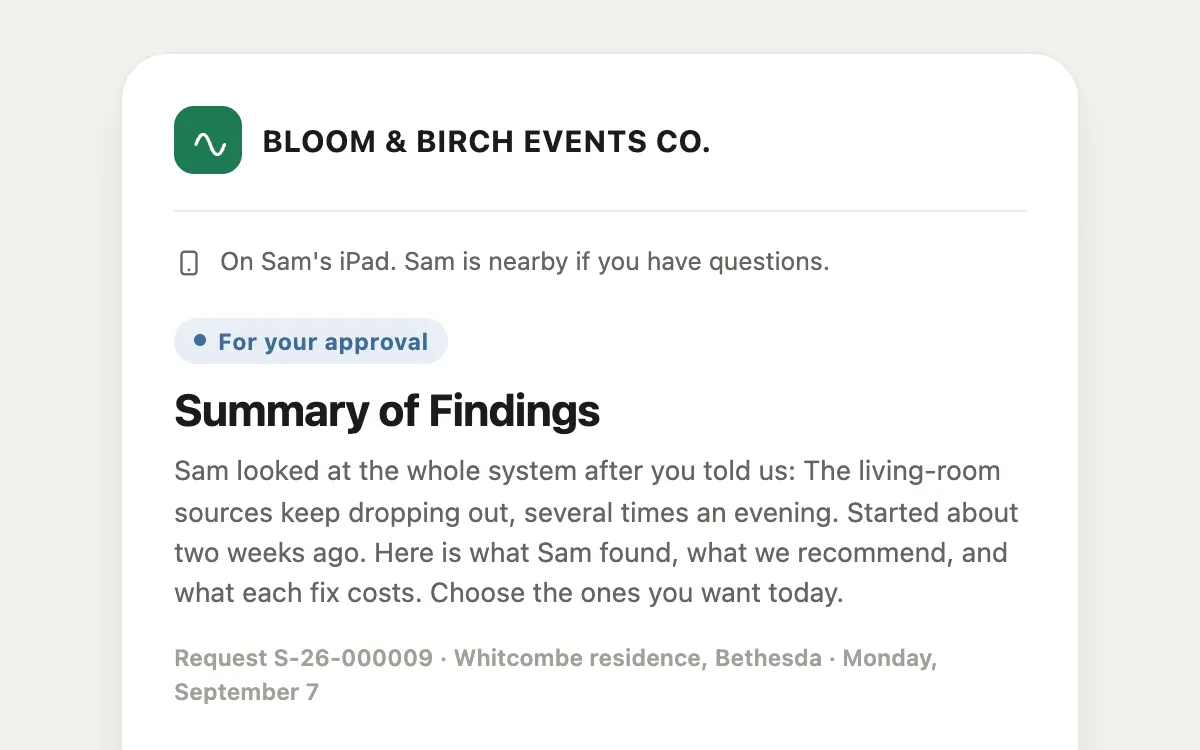 Screenshot from a demo workspace; data illustrative.
- The customer ticks the findings they want. The totals update as they tick: Approved work, Diagnostic visit, Sales tax and Total today.
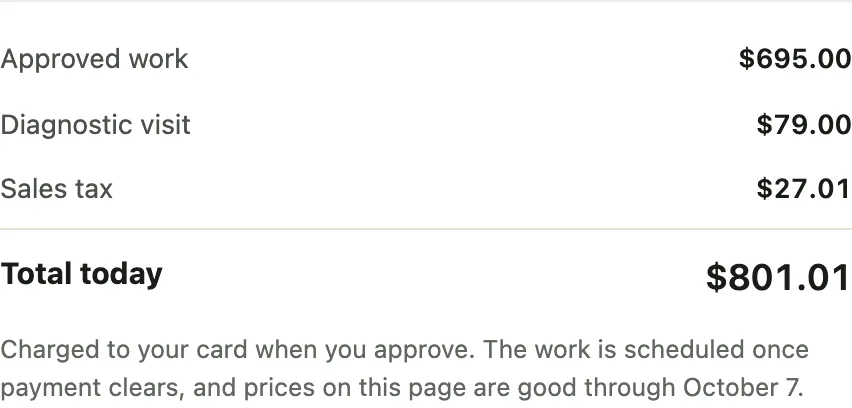 Screenshot from a demo workspace; data illustrative.
- They choose the card on file or Use a different card, type their name, sign with a finger, and tick the line agreeing to the service terms.
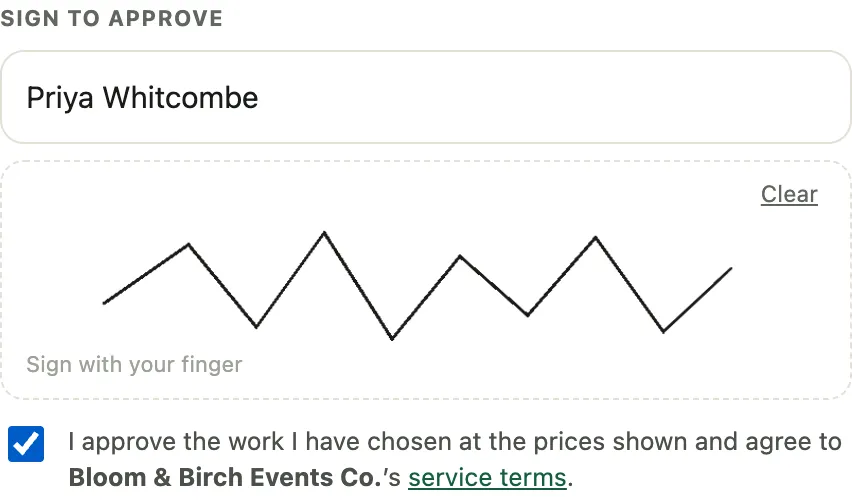 Screenshot from a demo workspace; data illustrative.
- They tap Approve and pay. The approval is recorded first, then the card is charged. The page turns into a receipt showing what was approved, who signed, and what was charged, and a receipt email goes out.
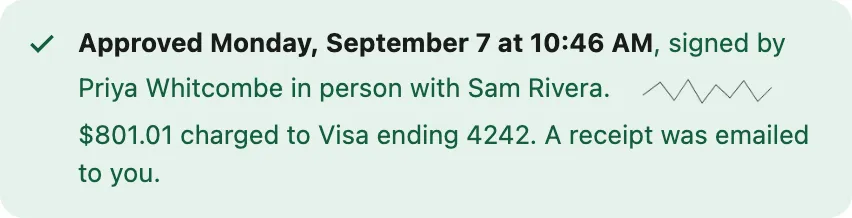 Screenshot from a demo workspace; data illustrative.
If the customer chooses nothing, they still sign and pay for the diagnostic visit, and that is recorded too. If the card is declined, their approval stands and the office chases the payment; you do not need to do anything on site.
8. Close out the visit
Take the tablet back, return to My Day and tap Complete Visit as usual. The debrief gains a Customer sign-off panel: type who is signing and have them sign. This is the second signature, the one that says the work of this visit is done, and it lives on the visit. The findings signature lives on the call.
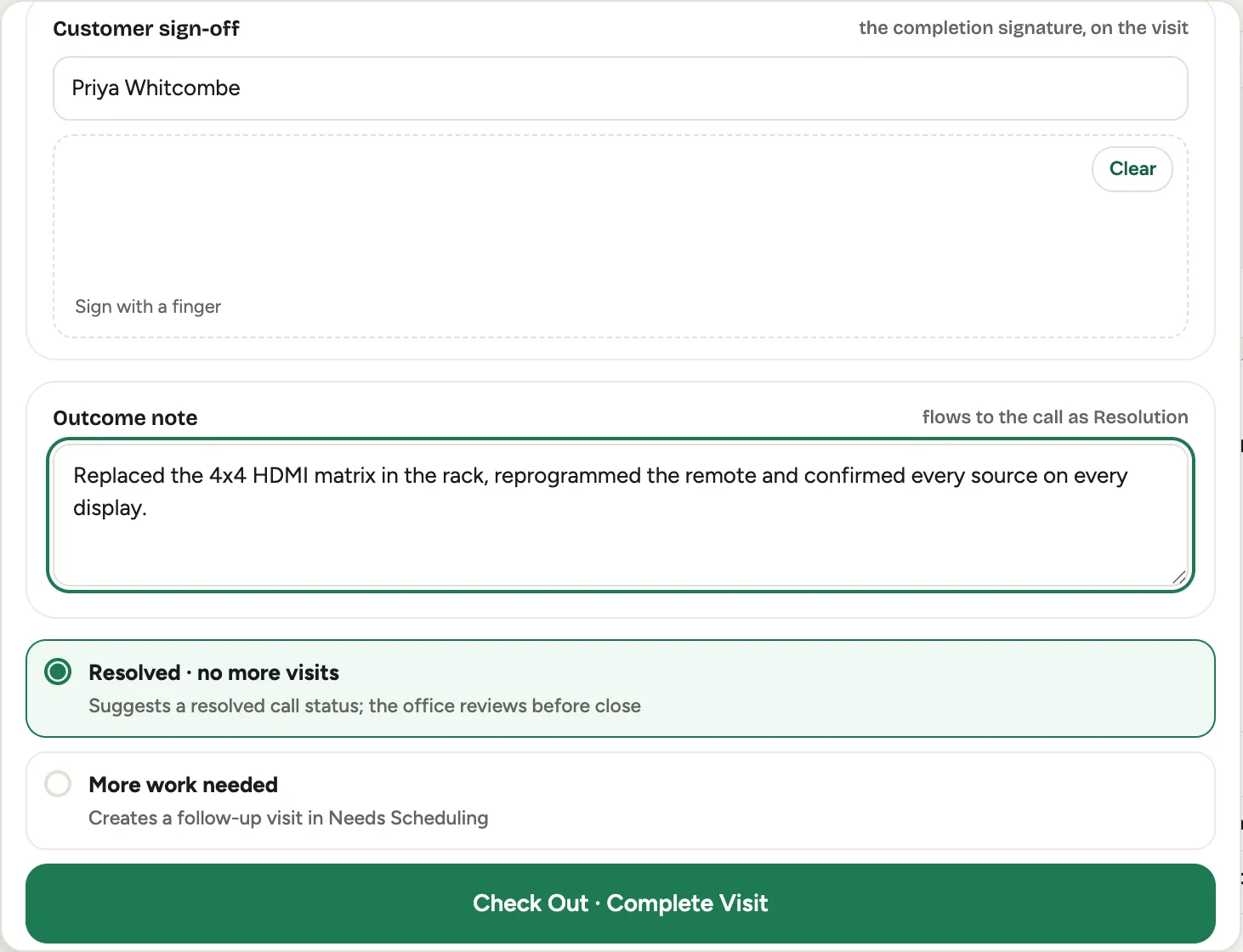 Screenshot from a demo workspace; data illustrative.
Good to know
- You can edit a finding after presenting as long as the customer has not approved it. An approved finding is frozen.
- A finding the customer did not tick stays open on their page. They can approve it later from the emailed link, and the office follows up.
- The page you handed over expires at the end of the day, so a tablet left on a counter is not a standing invitation. The emailed link lives on.
- Prices on the page are good for the period the office sets, thirty days by default.
- Office view at the bottom of the builder opens the call page, which the office uses. You can look, but pricing hand-offs, waivers and follow-ups are the office’s.