Match your customers to QuickBooks
Your QuickBooks customer list is years of billing history, and the first invoice Florio posts for a client must land on that existing customer, not on a fresh duplicate with a zero balance. This stage links your Florio customers to their QuickBooks records: an automatic pass does most of it, a short worklist covers the rest, and nothing ambiguous is ever guessed.
This is the fourth stage of the QuickBooks setup journey. Everything on this page is read-only against QuickBooks: linking changes what Florio knows, never what is in your books.
Before you start
- You need the Manage QuickBooks integration permission.
- Give the connection time to finish its first full invoice sync (the Connection card shows sync progress). The automatic matcher uses your billing history, so it does its best work after the history is in.
Run the automatic match
-
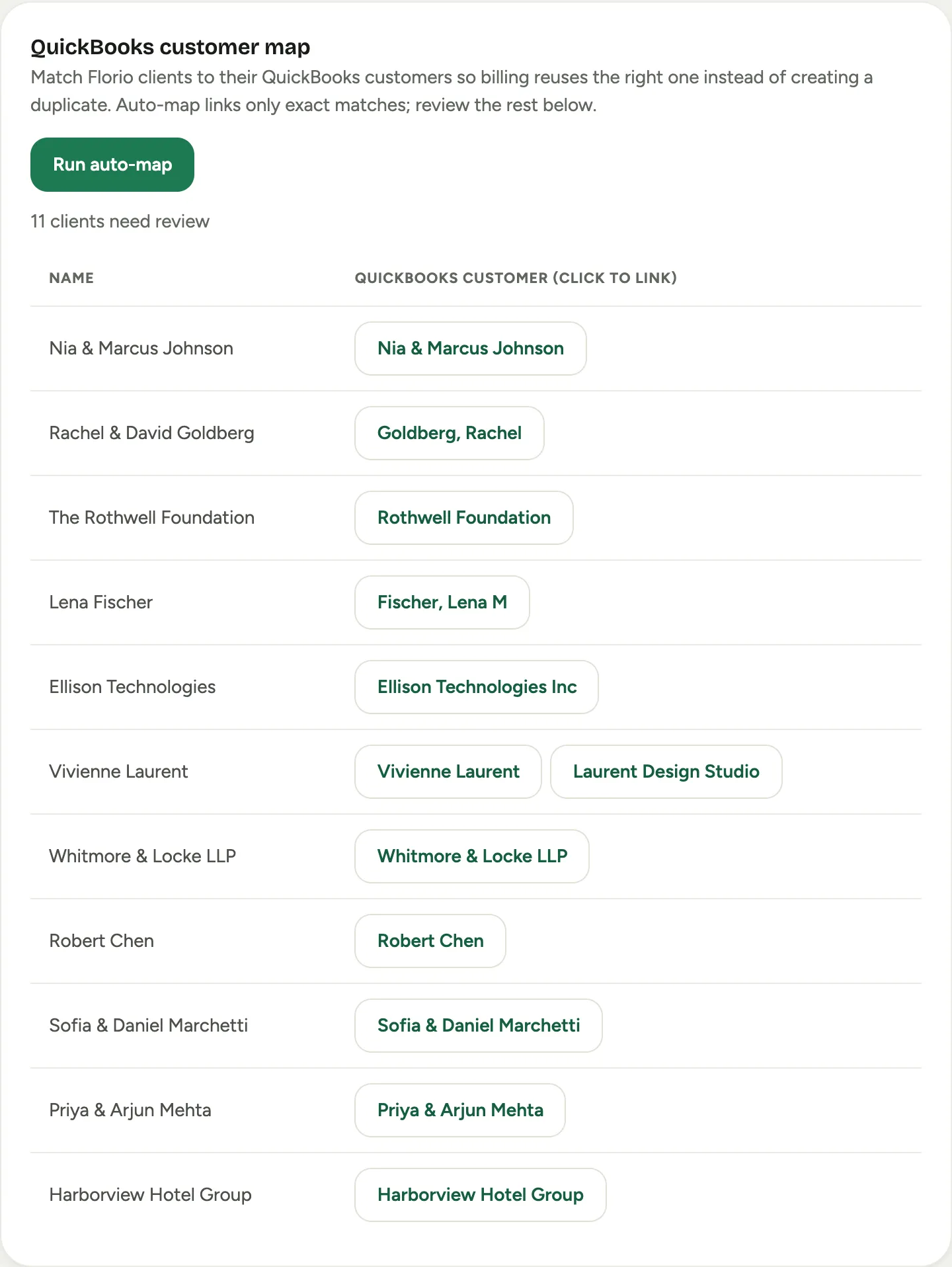
Go to Admin, then QuickBooks, and find the QuickBooks customer map card.
 Screenshot from a demo workspace; data illustrative.
 -
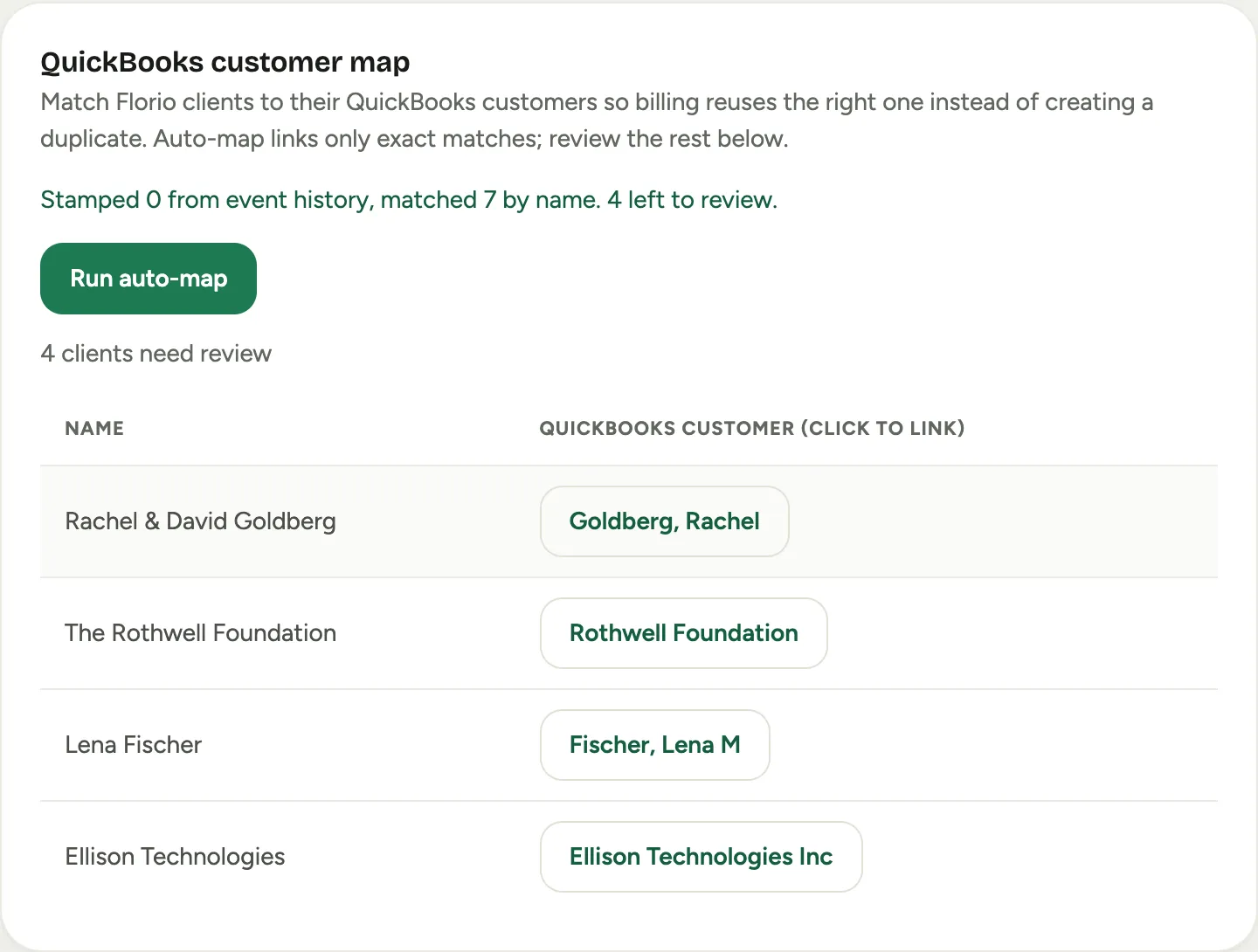
Click Run auto-map. Florio links customers two safe ways: from billing history (a client whose past events were invoiced in QuickBooks is linked to the customer those invoices bill), and by exact name match against your QuickBooks customer list. If two records could both be the match, Florio links neither and leaves the case for review; a wrong link mis-bills real money, so only certain matches link on their own.
 Screenshot from a demo workspace; data illustrative.
 -
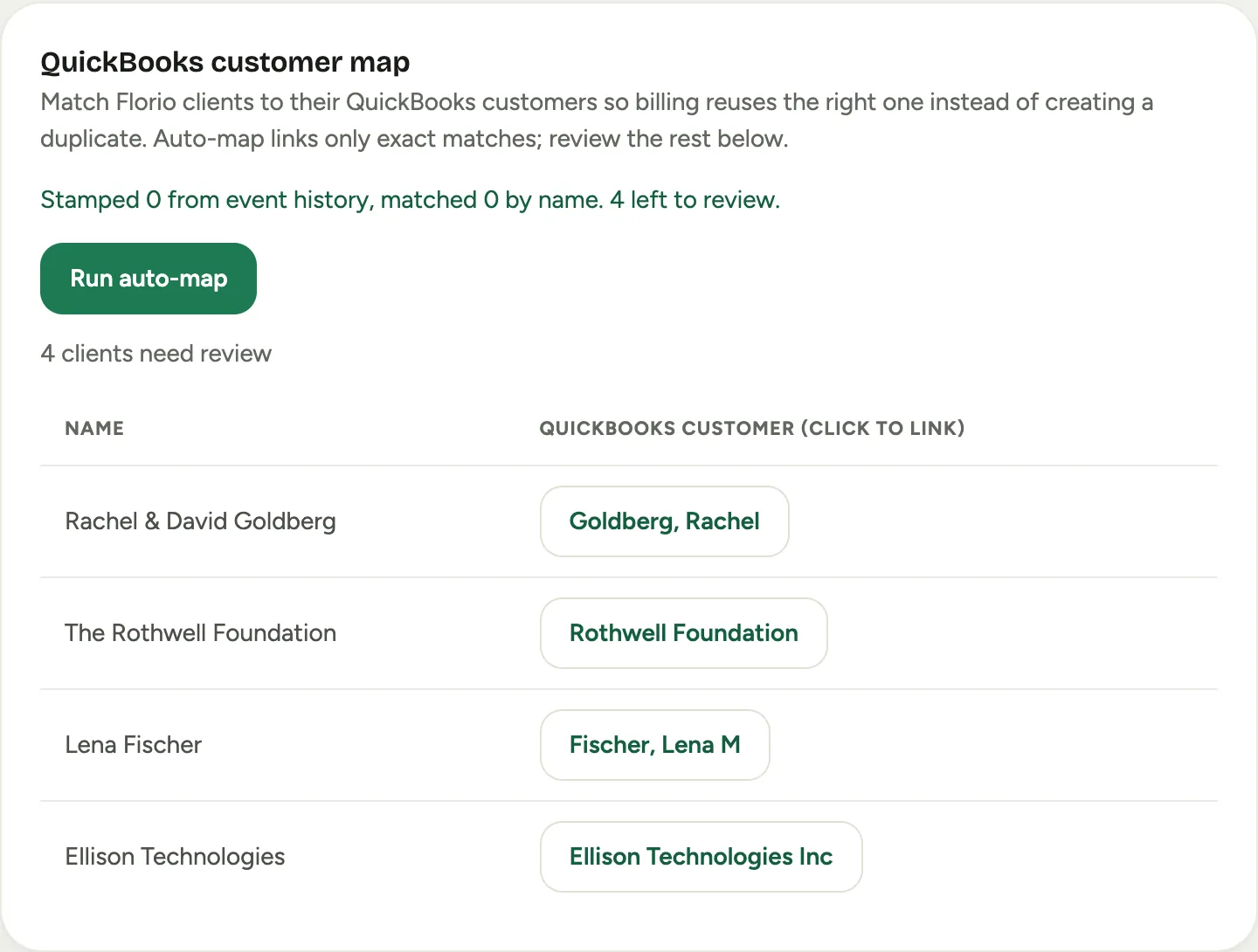
Read the summary line: how many were linked from history, how many by name, and how many are left for a person.
 Screenshot from a demo workspace; data illustrative.
You can run it again whenever you like; it only ever fills gaps, never overwrites a link someone made by hand.
Work the review list
-
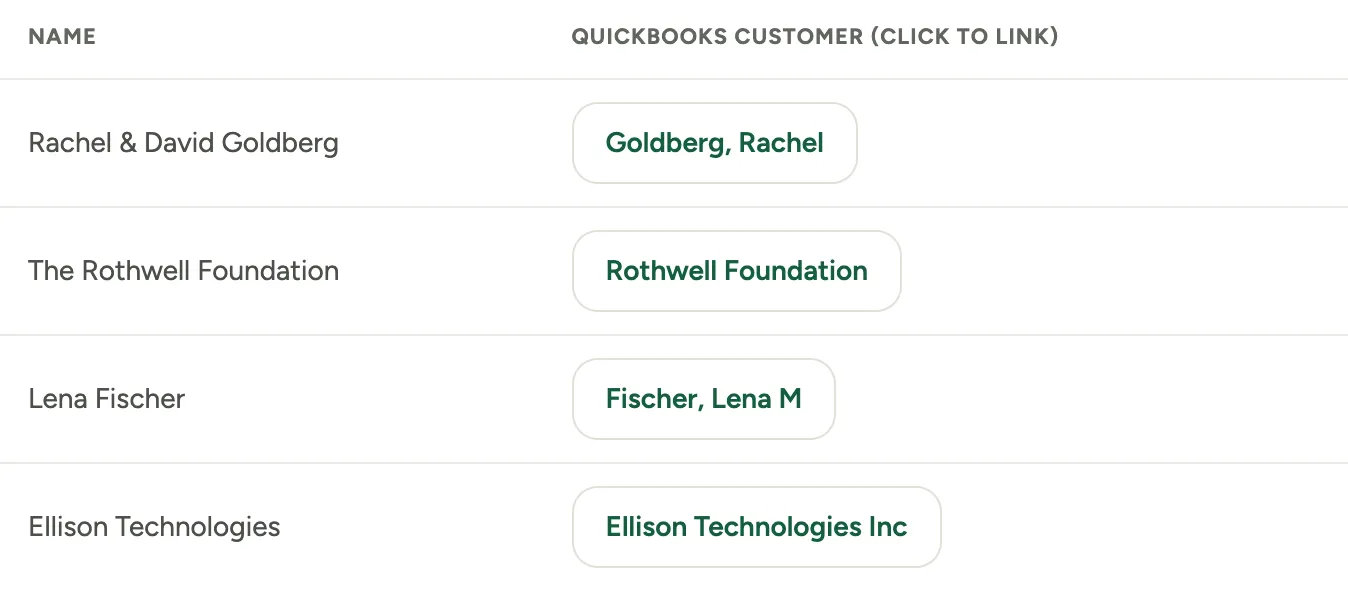
Below the button, the card lists each customer still needing review, with its best QuickBooks candidates beside it.
 Screenshot from a demo workspace; data illustrative.
 -
Click the right candidate to link it. The row leaves the list, and the link is recorded in the activity log with who made it.
-
Keep going until the list is empty, or at least until every customer you still actively bill is linked. Dormant customers from years past can wait; the go-live readiness check in the next stage only holds you for customers with active work.
Link one customer by hand
Some matches need human judgment: books that file “Posner, Shara” against a customer you call “Shara Posner”, a venue spelled two ways. You can link any customer directly from its record.
-
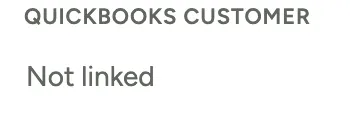
Open the customer’s record and find the QuickBooks customer field. It shows the current link, or Not linked.
 Screenshot from a demo workspace; data illustrative.
 -
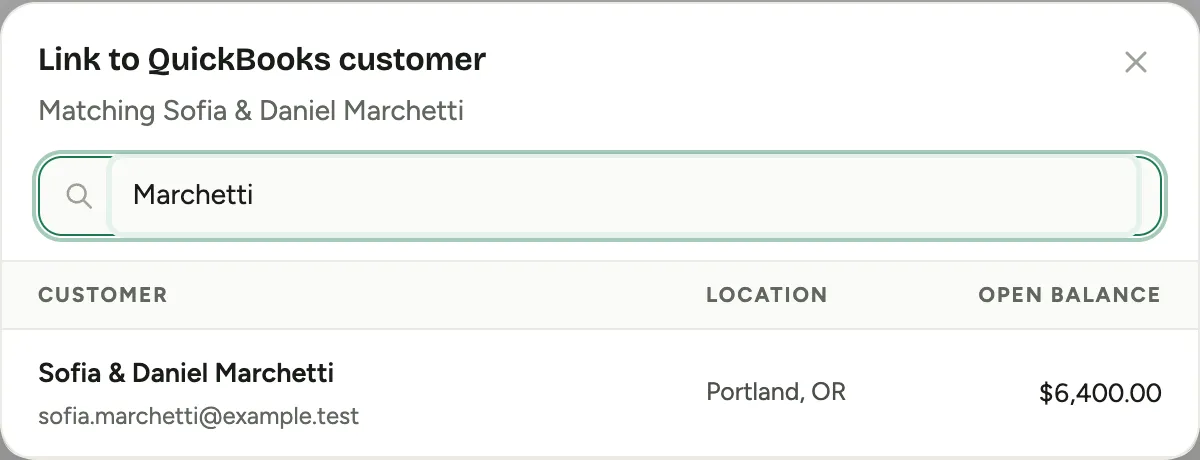
Click it and search your QuickBooks customers by name or email. Each result shows its city, state, and open balance, so you can tell two similar names apart.
 Screenshot from a demo workspace; data illustrative.
 -
Click Link on the right one.
-
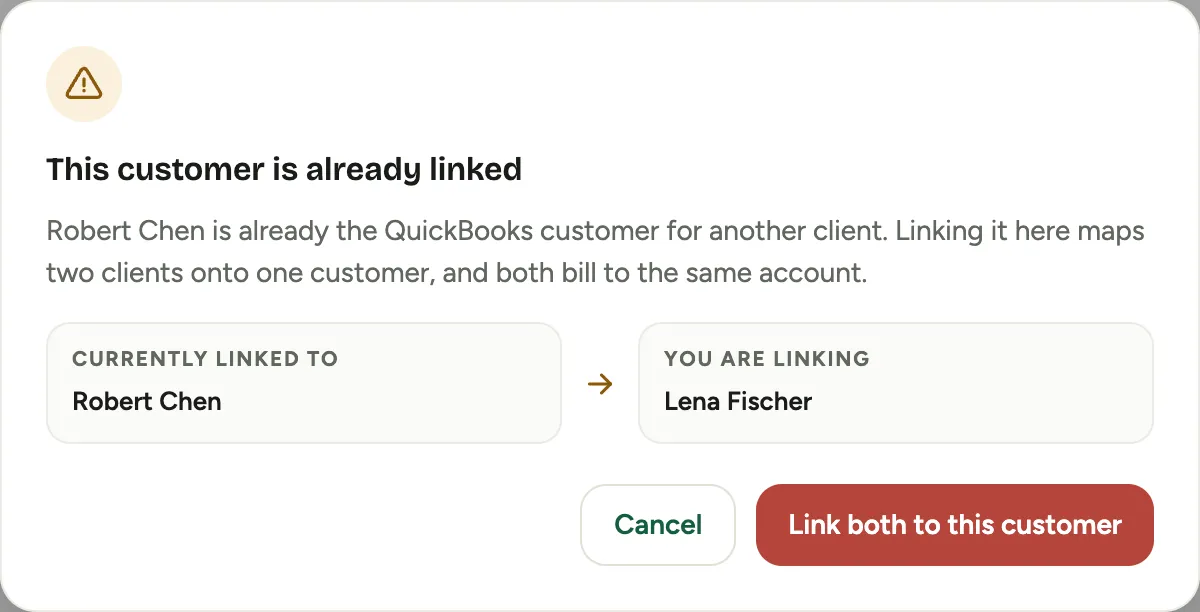
If the customer you pick is already linked to a different Florio customer, Florio stops and shows you both before it lets you continue, so a mismatched pick can never quietly send two clients’ billing to one account. Confirm only if they genuinely bill together.
 Screenshot from a demo workspace; data illustrative.
How events appear under a customer
When Florio bills an event, it files the event’s documents under a job of the customer (QuickBooks also calls these sub-customers): the customer is the parent, each event is a job beneath it, named by its Florio number. That keeps each event’s invoices and payments grouped, while balances and statements roll up to the parent customer, so a statement you send still shows everything the client owes across all their events. Your reports read the same way your accountant’s customer reports always have.
Good to know
- Brand-new customers create themselves. A client with no QuickBooks record at all needs nothing from you: at first billing, Florio creates the customer, stamps the default tax code from the previous stage, and links it. This page is about the customers who already exist in your books.
- Fixing a wrong link. Open the customer record and pick the right QuickBooks customer; the new link replaces the old one and both changes stay in the activity log.
Next stage: Go live.