Go live and turn on posting
This is the final stage of the QuickBooks setup journey: the moment Florio goes from reading your books to keeping them. It is deliberately hard to do by accident. Florio checks its own readiness, shows you exactly what will post the moment you turn writes on, asks you to confirm, and records who did it and when.
Before you start
- Finish the earlier stages: items and accounts, sales tax, and customers.
- Agree on a go-live date with your accounting team, and make sure everyone who enters invoices in QuickBooks knows it: from that date, Florio enters its own documents, and hand-entering them too creates duplicates.
Read the readiness card
-
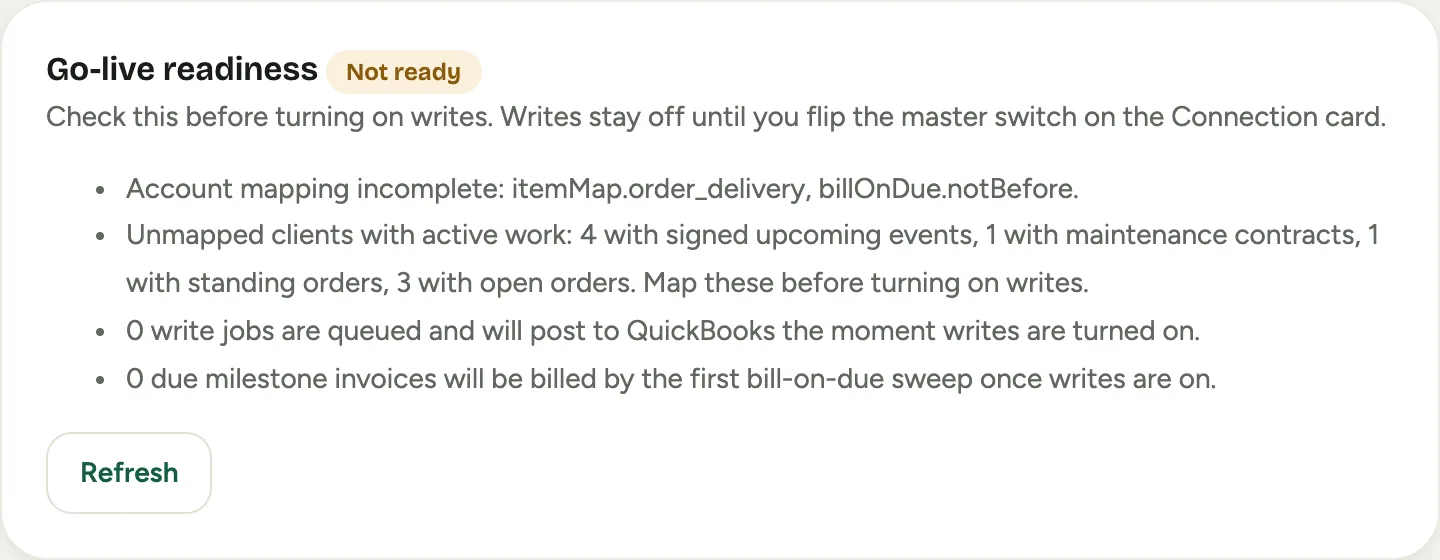
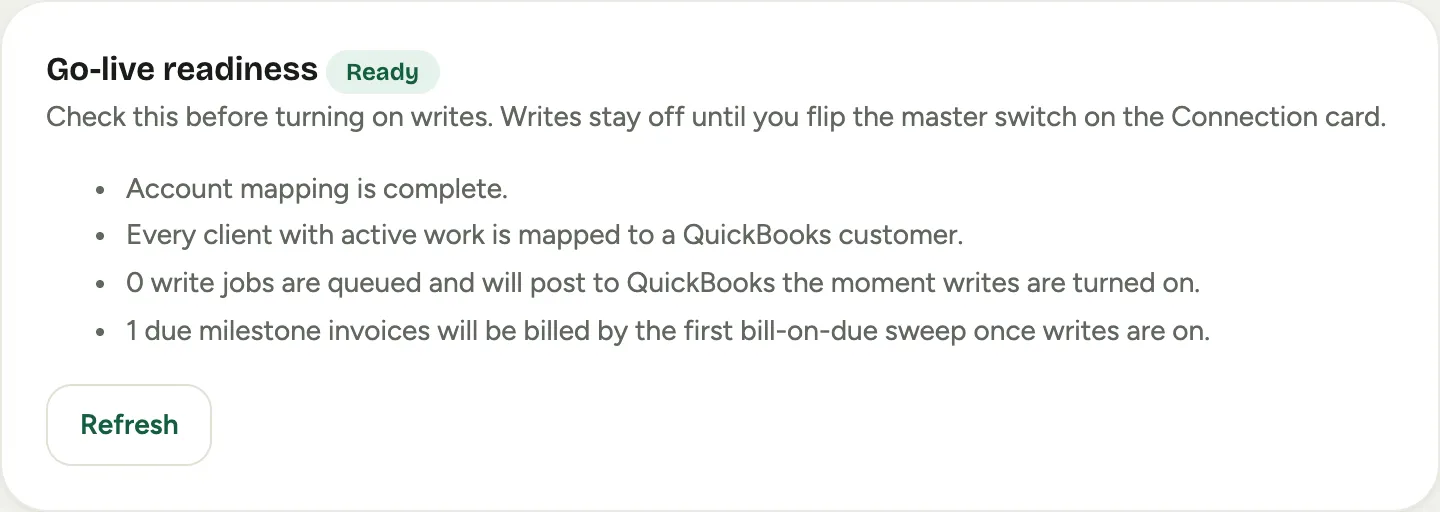
Go to Admin, then QuickBooks, and find the Go-live readiness card. It shows Ready when every check passes, and Not ready with the reasons when not.
 Screenshot from a demo workspace; data illustrative.
 -
Work the first two lines until the card reads Ready. Only those two decide it: the mapping and the unlinked customers. The other two lines are there to tell you what will happen when you flip, not to hold you back.
 Screenshot from a demo workspace; data illustrative.
Account mapping. If mapping is incomplete, the card names each missing piece by its setting name. Here is what each one means and where to fix it:
| What the card names | What it means | Where to fix it |
|---|---|---|
itemMap.… entries | An income item for that line category is unmapped (for example itemMap.order_floral is the Floral item under Orders) | The Invoice items card; see Map your items and accounts |
deferralItemId | No deposits item is set, so deposit invoices have nowhere safe to post | Deposits item (deferral) in the Invoice items card |
clearingAccountId | Card payments have no account to land in | Stripe clearing account, in the Invoice items card |
feeExpenseAccountId | Card processing fees have no expense account | Stripe fee expense account, in the Invoice items card |
taxCodeMap | No jurisdiction has a tax code and no customer default is set. Either one clears it | The Sales tax codes card; see Set up sales tax |
dailySalesCustomerId | You bill some walk-in orders to a generic customer, but no generic customer is chosen | Daily Sales customer ID in the Invoicing options card |
surcharge.itemId | The card surcharge is enabled but has no item to post its fee line as | Surcharge item in the Invoicing options card |
billOnDue.notBefore | The go-live cutover date is not set yet | The next section on this page |
Two things about this list surprise people:
- It only asks for what you actually use. The delivery and tip items are demanded once you pick order statuses to auto-post; the plant-care items once you switch month-end posting on; the surcharge item once you enable the surcharge. So reaching Ready and then turning on the switches further down this page can put the card back to Not ready. That is correct, not a bug: you just asked Florio to post something it has nowhere to post to. Work the readiness card again after you set those switches.
itemMap.event_floralaccepts a catch-all. If you would rather post every event line to one item, map the event default instead and the card stops asking.
Customers with active work. The card counts customers who have signed upcoming events, active plant-care contracts, standing orders, or open orders but are not yet linked to a QuickBooks customer. Billing any of them would create a duplicate customer, so link them first; see Match your customers to QuickBooks.
Queued write jobs. Work that has been waiting while posting was off. This line is informational: a non-zero count does not stop the card reading Ready. Everything queued posts to QuickBooks the moment you turn writes on. If the number is not zero and you do not know what the queued work is, stop and ask us through the request form before going further.
What the first sweep will bill. The card counts the milestone invoices that are already due and will be billed as soon as posting is on. It is informational too, and it reads zero while the cutover date below is unset, which looks the same as having nothing to bill. Set the date first, then read this line. Review that exact list before you flip: open Reports, then Cash / Receivables, and read the Ready to bill lane. If the count looks wrong, check the cutover date below.
 Screenshot from a demo workspace; data illustrative.
Set the go-live cutover date
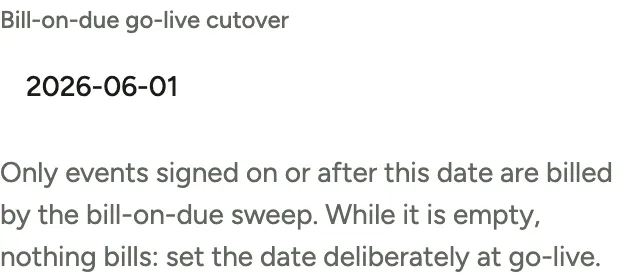
The cutover date draws the line between the books your team kept by hand and the books Florio keeps. Only events signed on or after this date are billed automatically; events signed before it stay with your existing manual process forever, so nothing that was already invoiced by hand can ever be billed a second time.
-
In the Invoicing options card, find Bill-on-due go-live cutover.
 Screenshot from a demo workspace; data illustrative.
 -
Set it to your agreed go-live date. Until a date is set, the automatic sweep bills nothing at all, deliberately: turning on posting without a cutover date is safe and inert for events.
-
Choosing the date: the day your team stops hand-entering event invoices is the right answer, and for most studios that is the same day you turn posting on.
Choose what posts automatically
Each area of automatic posting has its own switch, all in the Invoicing options card, so you can go live one area at a time if you prefer.
-
Auto-push orders to QuickBooks: tick the order statuses that should trigger the invoice, usually Delivered and Picked up. When an order reaches a ticked status, its invoice (or sales receipt, when it is already paid in full) posts on its own. Leave all unticked to post orders only by hand with the button on each order.
 Screenshot from a demo workspace; data illustrative.
 -
Auto-stage events in QuickBooks on acceptance: when a proposal is accepted, Florio stages the event’s estimate and its deposit and final invoices in QuickBooks, built from the payment schedule, for your bookkeeper to review and send.
 Screenshot from a demo workspace; data illustrative.
 -
Auto-post maintenance invoices on month-end close: when a plant-care billing month is closed, its consolidated invoice (the flat fee plus any replacements) posts on its own.
 Screenshot from a demo workspace; data illustrative.
Turn on posting
-
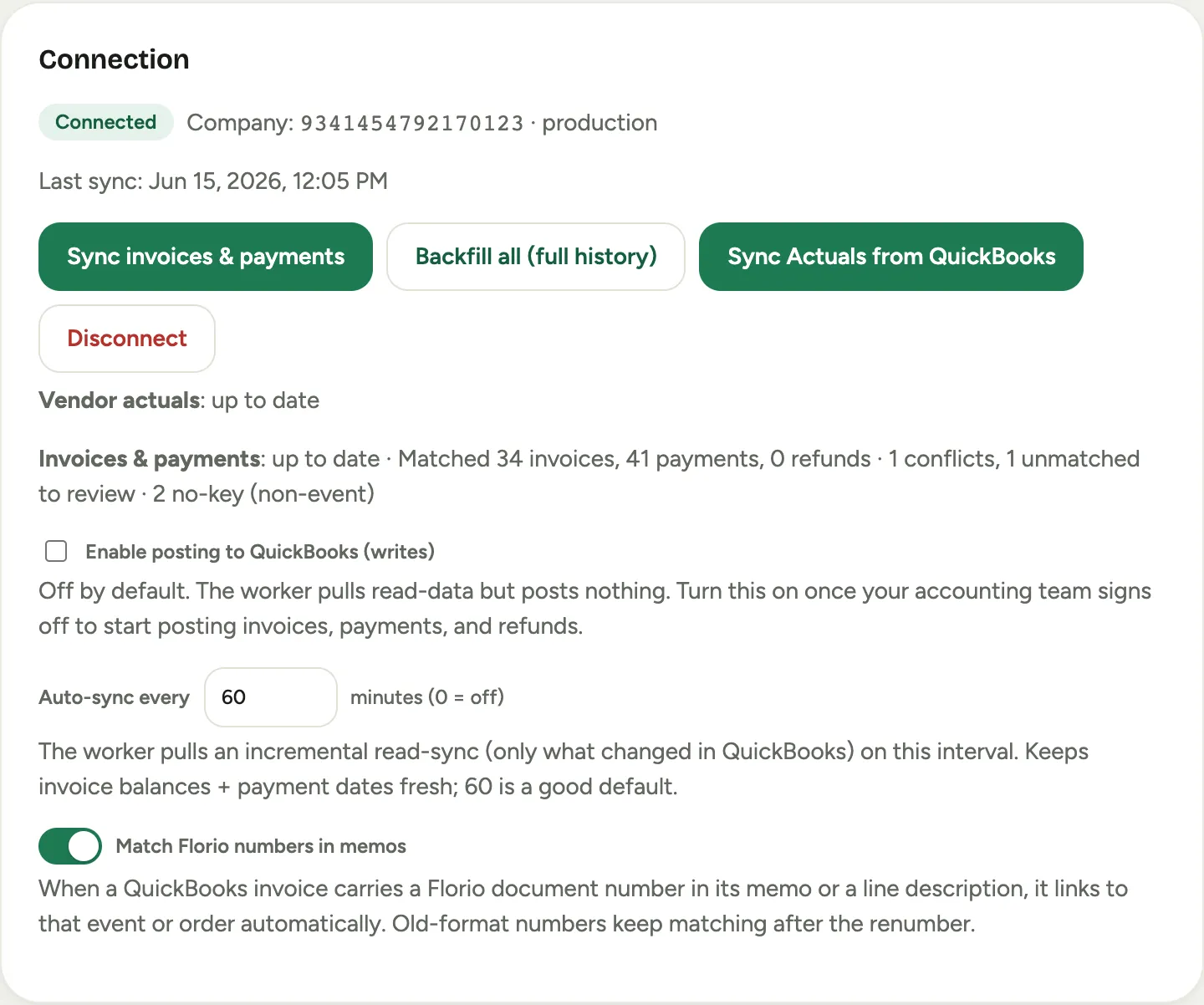
On the Connection card, tick Enable posting to QuickBooks (writes).
 Screenshot from a demo workspace; data illustrative.
 -
A confirmation opens, and it is more than an are-you-sure. It shows the live readiness result, the queued work that will post immediately, and the size of the first billing sweep, so the decision is made looking at the facts.
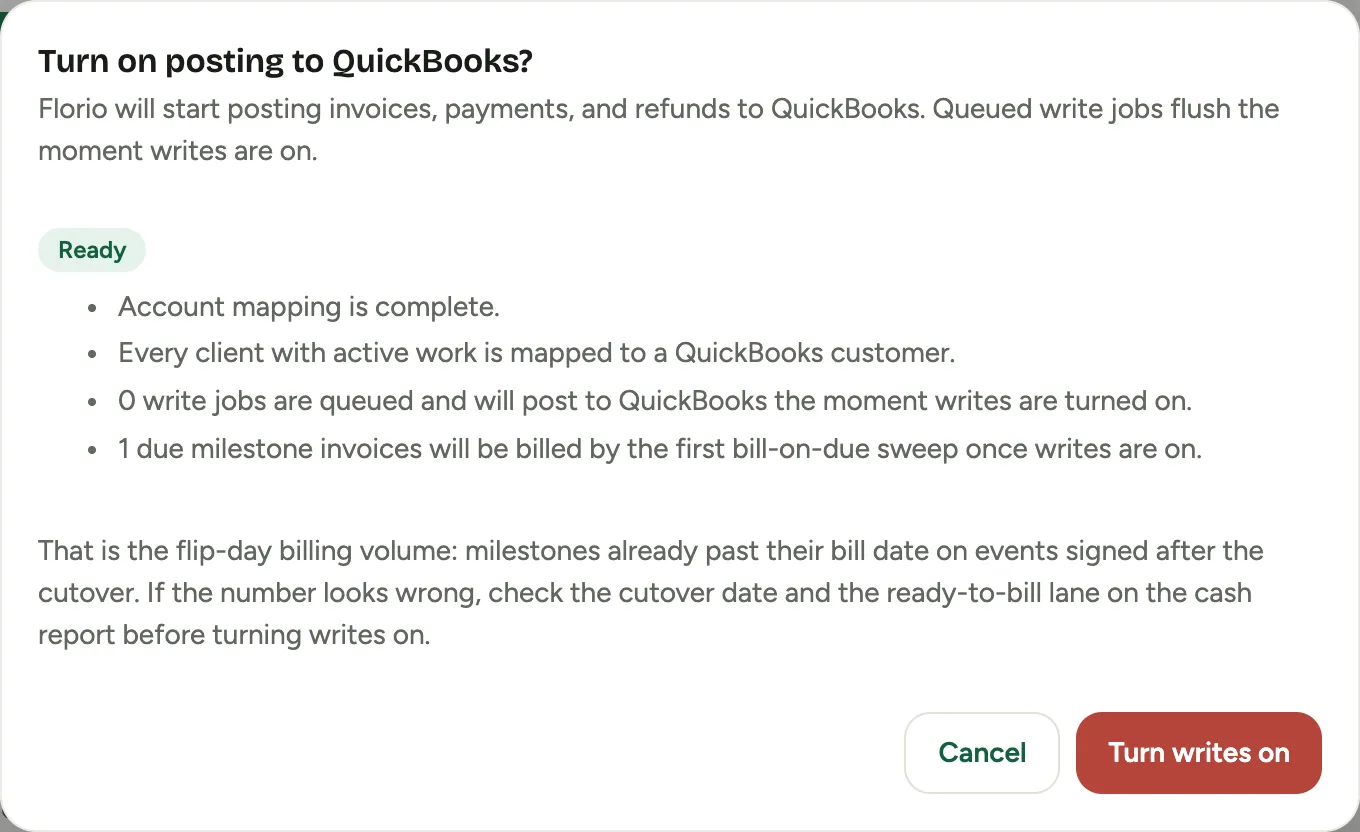 Screenshot from a demo workspace; data illustrative.
 -
If readiness is not passing, Florio warns you and asks for an extra acknowledgement before the button enables. You can proceed deliberately (a partial go-live, say, orders first while events wait), but never accidentally.
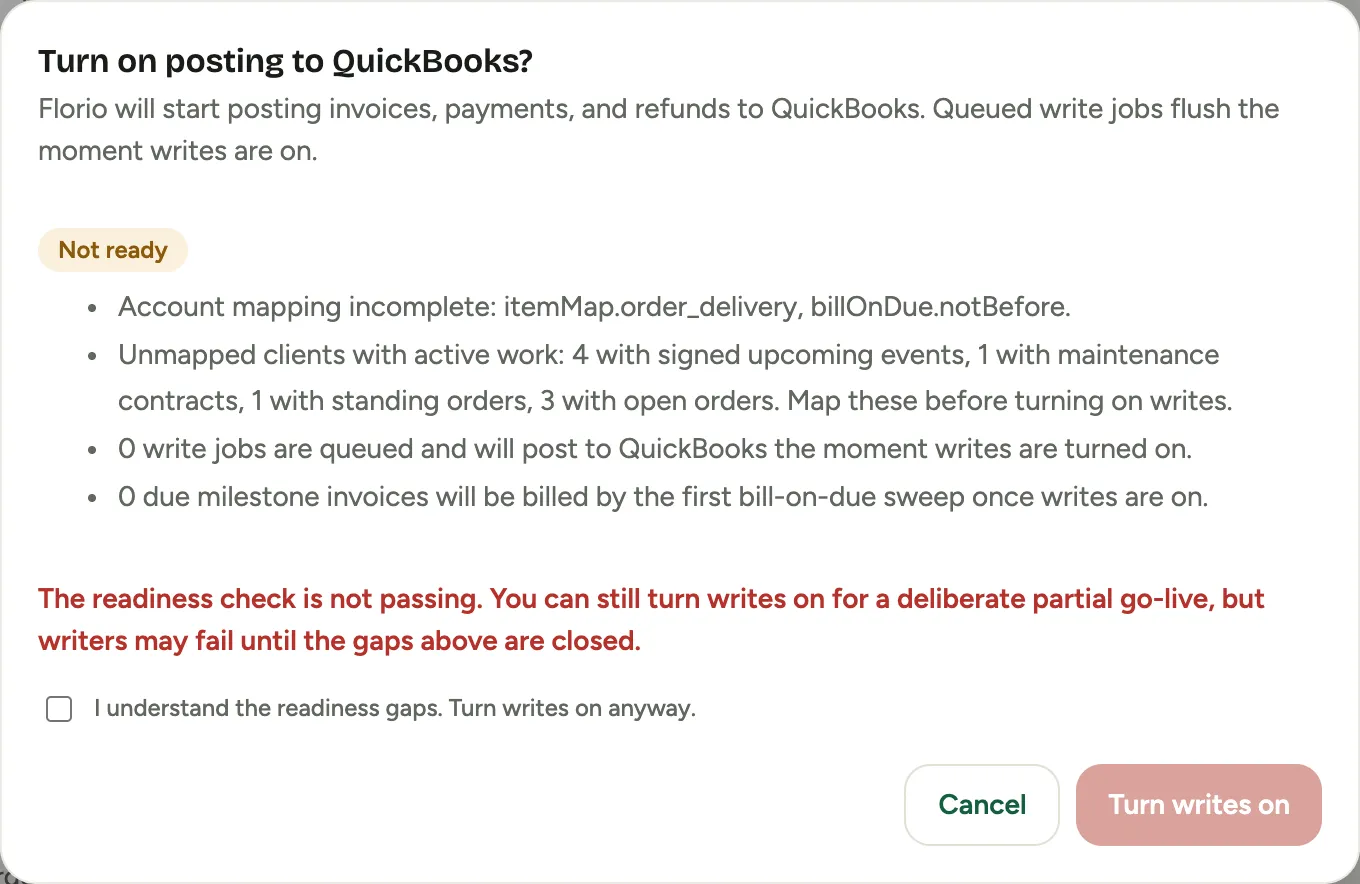 Screenshot from a demo workspace; data illustrative.
 -
Click Turn writes on. From this moment: orders post as they reach the statuses you ticked, due deposits on post-cutover events are billed, month-end plant-care invoices post if enabled, and card payments and refunds are recorded against their documents.
-
The flip itself is recorded in the admin activity log, with who did it and when, as is every settings change on this screen.
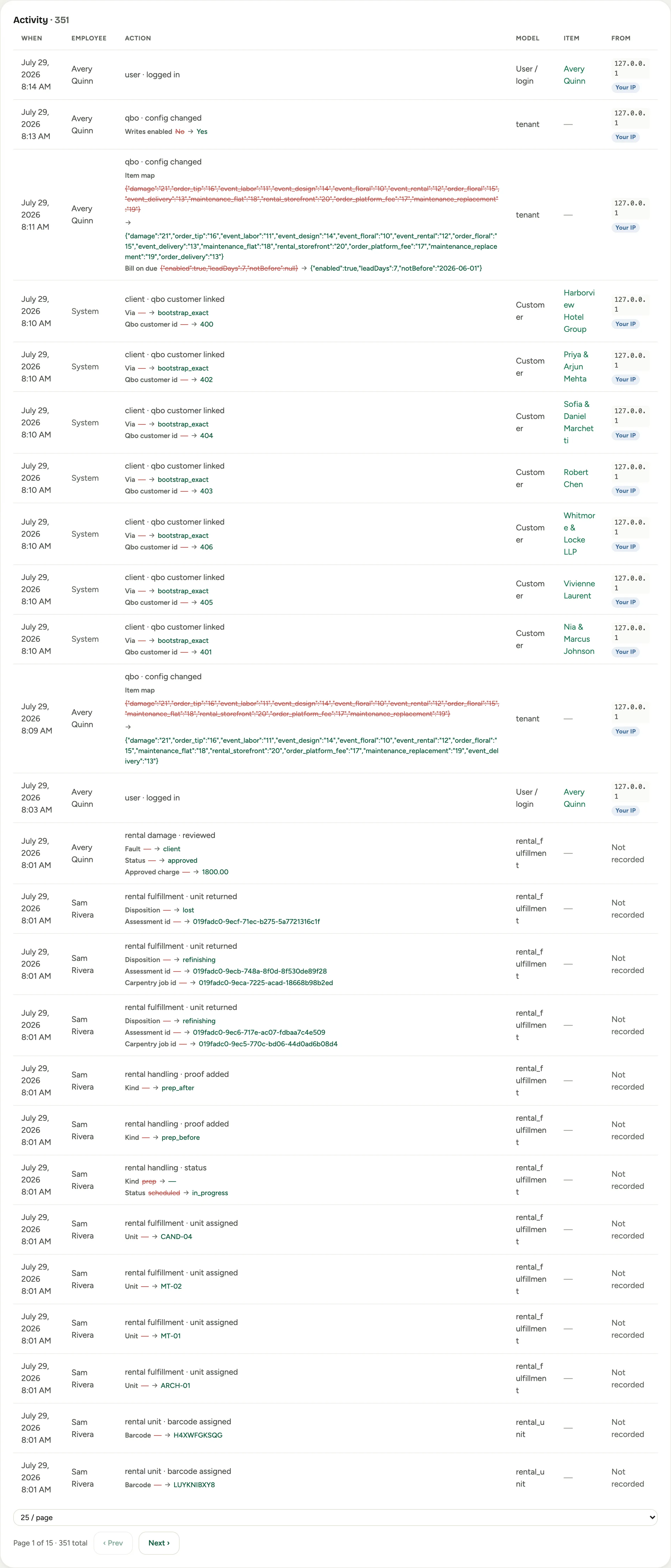 Screenshot from a demo workspace; data illustrative.
Good to know
- Turning posting off is the same switch. Untick it and Florio stops posting immediately; reading continues, and queued work waits until posting returns. The same confirmation appears on the way off.
- The manual push buttons respect the switch. While posting is off, the push buttons on orders, events, and plant-care billing are disabled and say why, so read-only means read-only no matter who clicks what.
- Who can do this. Everything on this page needs the Manage QuickBooks integration permission.
After go-live, read Work with QuickBooks day to day: what posts, what it looks like in your books, and the one habit your team must drop.