Work the service triage queue
When a service request arrives from an email or the public form and Florio cannot tell which customer it belongs to, it lands in Triage instead of being lost. This is where you place it.
Before you start
Florio Service must be on, and you need the permission to manage service calls to match or mark spam. Set up the intake mailboxes and the request form first in Set up Florio Service.
Steps
- Open Triage from the Service group; its entry in the sidebar shows how many requests are waiting. Triage opens on All: every request waiting for someone, newest first. Each card starts with the lane it belongs to: Needs Match for a request waiting for a customer, or one of the lanes that hold mail for a look (below). Choose a lane’s pill to see only that lane; Recently Matched and Spam, after the divider, are history. The pill you choose stays while you work in that browser tab, and Triage opened fresh starts on All again. The stat cards show how many requests are waiting (how many need a match and how many are held for a look), how many were matched today, the oldest one waiting, and the spam cleared in the last 30 days.
- Read the request. Each card shows the sender, the subject, the message, and when it came in. A request that reached you through a service that forwards requests (a device portal’s support button, your answering service) shows the person Florio read from it, with their phone, and a chip that reads “via” and the service’s name; see Relay senders.
- If it is a real customer, choose Match to Client and pick the customer. The request becomes a normal service call on that customer, and Florio remembers the caller’s own email and phone so their next request matches on its own. It never saves a forwarding service’s address on a customer.
- If it is junk, choose Mark Spam. It clears in one click, and that sender is remembered too.
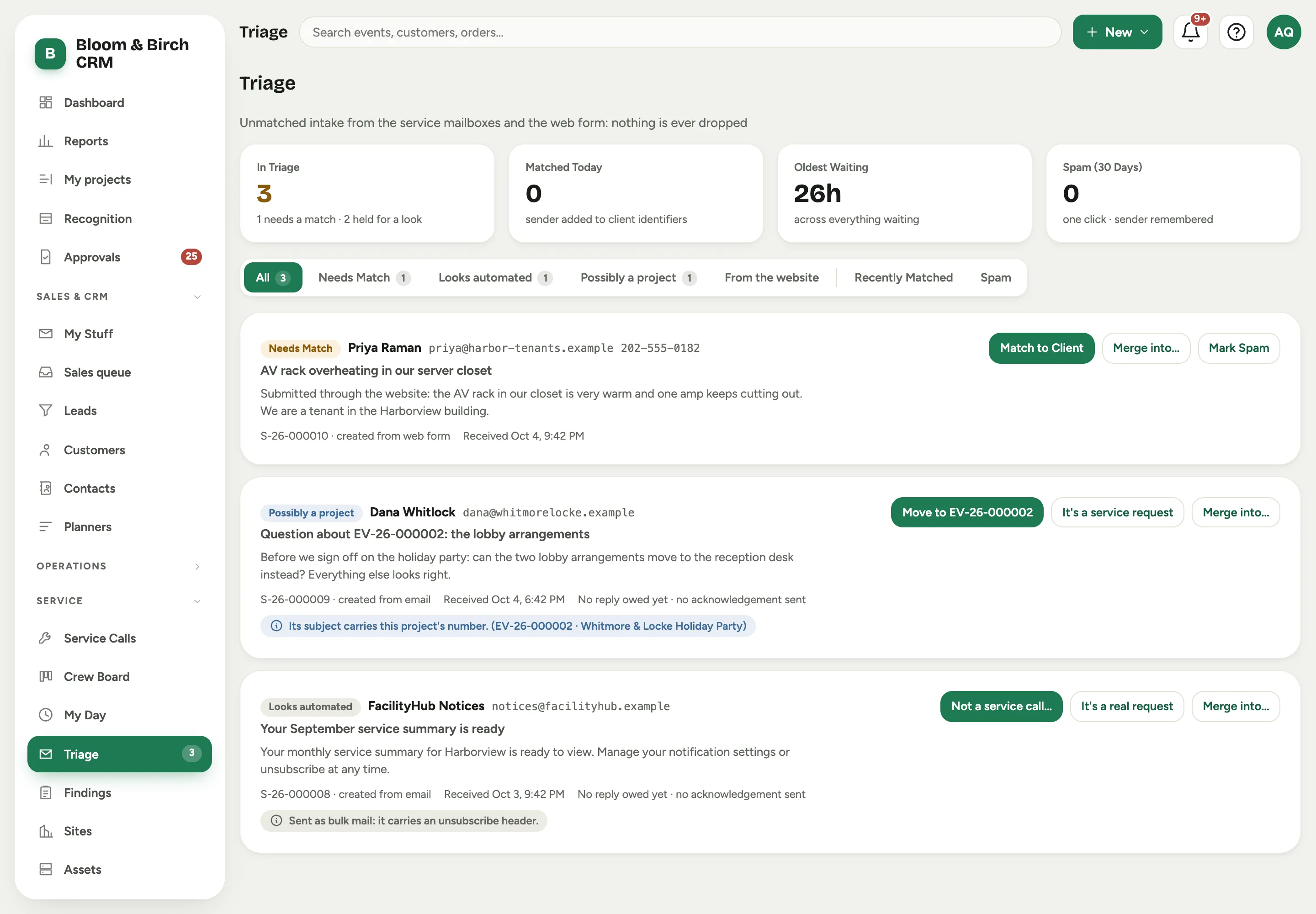 Screenshot from a demo workspace; data illustrative.
Merge a duplicate
A request often reaches you twice: once through a service that forwards it, and again when the customer replies to whoever called them back. Each opens its own call. When a card is probably the same request as another open call, a line under it says Possibly the same as that call, with the evidence: the same email address or phone number, the same email conversation, or the same customer together with similar wording. Similar wording alone is never enough, and a forwarding service’s own address never counts.
- The line’s merge button opens the merge with that call already chosen. The call with a customer is the one that stays; when both or neither have one, the older call stays, so the button says either merge into the other call or merge the other call into this one.
- Not the same hides the pair on both calls for good.
- Merge into… on every card opens the same dialog with a search: every open call when this one has no customer yet, and only that customer’s open calls when it has one.
- The dialog lists up to three suggested calls with their reasons, then What happens for the call you pick: how many emails, notes and files move, which blanks the kept call fills (its problem description, the caller’s name, email and phone, the contact), and whether it leaves a hold. When this call is still waiting on a first response, choose whether to carry that reply to the kept call or mark it Already answered; Florio picks Already answered for you when it has seen a reply to the customer on the kept call since this request arrived. Nothing is sent to the customer.
- After Match to Client, when that customer has another open call from the last 14 days, an offer at the top of the lane names it, with a merge button and Keep both. Keep both records the pair as not the same.
- Merging into a held call takes it out of its hold without starting a reply clock or sending an acknowledgement; only a reply the other call still owed carries over.
- A call with visits, punched time, parts or a presented quote is real work, not a duplicate: its Merge into… is unavailable and says why. A merge cannot be undone; detaching an email into a new call remains the fix for a wrong one.
Mail held for a look
Mail that carries bulk-mail headers (a newsletter, a system notice), or that replies to a project conversation (mail sent from a project, mail already filed on one, a project number in the subject, or a reply to a colleague’s own email that copied the service address and keeps that email’s subject), opens its call in Looks automated or Possibly a project instead of the working lists. A reply that starts a subject of its own is a new request, so it is never held for that. Nobody owes a reply on a held call and the sender gets no acknowledgement. Each card says why it was held.
- It’s a real request (It’s a service request on a project hold) releases it: the call joins the open list with its reply clock running from when the email arrived, and the acknowledgement goes out.
- Not a service call closes it, exactly as from the call’s own page. On a hold that names the project, the move button opens it with that project already chosen.
- A sender with a real service call on record is never held as automated, so an answering service’s messages keep opening working calls.
- An admin can turn both lanes off with Hold likely non-service mail in Triage on the Ignore at intake card (Set up Florio Service).
- Held cards carry suggested merges and Merge into… too. A reply that opened a second call usually points straight at the call already being worked.
Good to know
- A request in Needs Match already has its first-response clock running; a held one starts its clock when you release it. Oldest Waiting covers every lane, so it is worth watching: it is the customer’s wait, not yours.
- On the Service Calls list, the Triage chip shows the same requests as All, each with its lane.
- This queue is separate from the AI Inbox Triage for sales leads. This one is only for service intake that could not be matched to a customer.