Read the Live profit panel
The Live profit panel sits under the contract card on the event’s Financials tab and answers one question while the job is still running: are we going to make the margin we sold it at? It is recomputed every night, and again whenever the contract changes, from things that already exist: the contract’s approved cost, the stock that has shipped to the job, the crew hours a manager has approved, and the payment milestones that have been billed. Nothing on it is typed in.
Before you start
The panel renders only for people who can see project money; everyone else sees the contract card without it. A project needs a live contract, which the client’s acceptance creates.
The fact strip
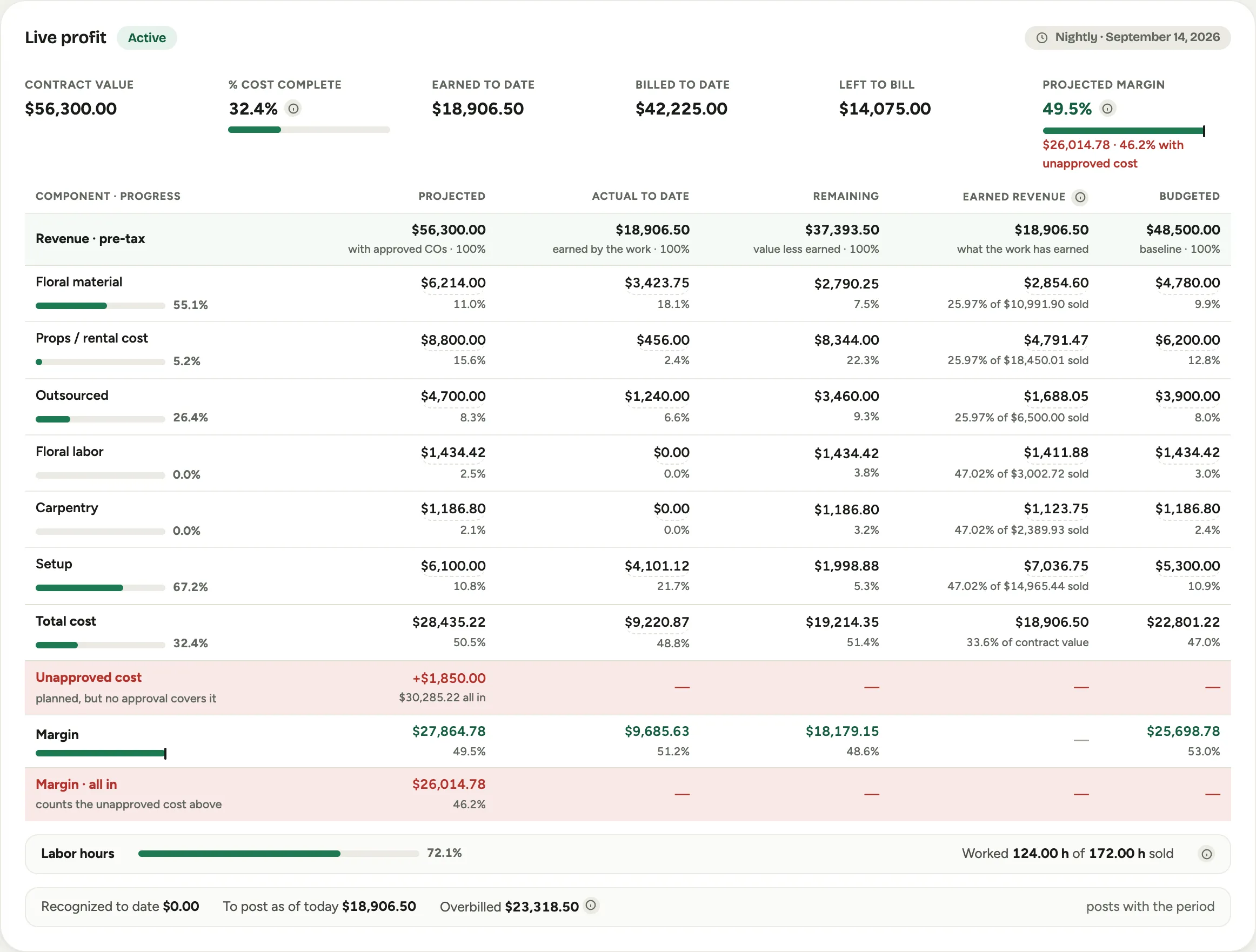 Screenshot from a demo workspace; data illustrative.
- Contract value is the base plus every approved change order, pre-tax.
- % cost complete is actual cost to date divided by the projected final cost, with every component counted. Its tooltip shows the exact division. On a management-only workspace the label is % complete.
- Earned to date is the revenue the work has earned so far. Each component’s sold revenue is released at its own completion percent, so a job that is all labor so far earns through the labor it has done.
- Billed to date (or Invoiced to date on a management-only workspace) is the sum of the payment milestones that have been invoiced or paid.
- Left to bill is the contract value less what has been billed.
- Projected margin is the margin at the projected final cost. The small bar beside it is a bullet: the bar is the margin on work to date, the tick is the projected margin, and the scale runs to 50%. A bar short of the tick means the work so far is running thinner than the plan. When unapproved cost is standing, a second red line shows the margin with that cost included.
The grid
One row per cost component, with the same five columns on every row:
- Projected is the approved projected cost. The percentage under each amount is its share of the contract value, which is why the Total cost row’s share is the exact complement of the projected margin.
- Actual to date is what has landed so far: shipped stock, approved hours at their loaded rate, and, once your accounting connection reads bills, vendor bills coded to this job. The progress bar at the left of each row is actual against projected.
- Remaining is projected less actual.
- Earned revenue is that component’s sold revenue released at its completion percent. The sub-line shows the math: “47.02% of $3,002.72 sold”. The total reads as a share of the contract value.
- Budgeted is the baseline from the accepted proposal, before any change order, so you can see how much of the margin the changes consumed.
Freight, consumables and miscellaneous expense fold into one Misc. line when your workspace is set up that way; the line still counts in totals and in the percent complete.
When planned materials are standing without an approval, an Unapproved cost row appears between the total and the margin. Its projected column adds the unapproved amount and shows the all-in figure, and the margin splits into two rows: Margin reads the approved plan alone, and Margin · all in below it counts the unapproved cost too, so the risk is a line of its own rather than a footnote. The event’s Financials tab shows an alert dot, and the header’s projected margin carries the same warning, while this is standing. See Approve planned cost.
Open the lines behind a figure
Every figure in the grid that has lines behind it is a link. A cost figure opens the documents that make it up, a labor figure opens the crew entries with the rate broken down, Projected and Budgeted open the proposal’s cost lines, and Earned revenue shows its arithmetic. The total at the top of each list is the figure you clicked. Opening a figure is its own permission; without it the panel is the same report with plain numbers. See Open the lines behind a profit figure.
The strips under the grid
- Labor hours compares hours worked, which are approved punches on this job, with hours sold, which are the labor hours on the accepted proposal plus approved change orders. It is a sanity check beside the money: a labor-heavy job can be 70% through its hours and 15% through its cost when the vendor bills have not arrived yet.
- The recognized strip reads what is recognized through the last close, To post as of today, and the billing position: Overbilled when billing is ahead of what the work has earned, Underbilled when the work is ahead of billing. The position tooltip shows the two numbers behind it. A deposit-heavy job is overbilled for most of its life; that is normal, and the strip is telling you how much of the cash is not yet earned.
Banners
The panel says so when a number should be read with care:
- Labor is partly estimated. Some punched hours are costed at the workspace’s default loaded rate because the employee’s burden is not set yet. The figures update when it is.
- A pending revision is excluded until approved, and the banner names it.
- A projected loss when the projected final cost exceeds the contract value, with the loss already taken through the work to date and the provision for the rest.
- No revenue to earn in this period. The project is on hold, cost has not moved, and billing alone never earns revenue.
Management only and cost to cost
The same panel speaks two vocabularies, set by the recognition method on the contract:
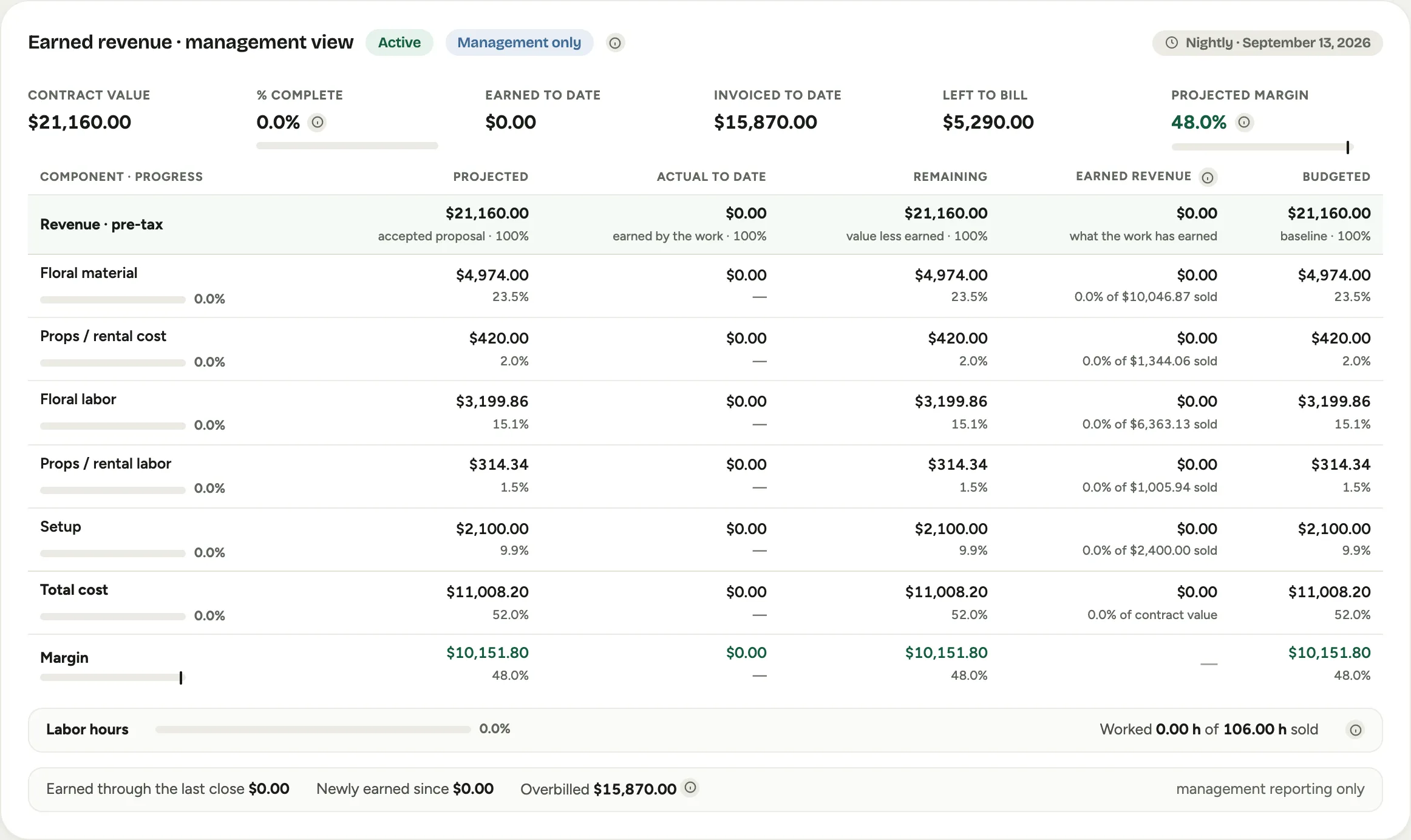 Screenshot from a demo workspace; data illustrative.
- Management only, the default for a studio, carries a Management only chip. The title reads Earned revenue · management view, billing is Invoiced to date, the work-ahead position is Ahead of billing, and the strip reads Earned through the last close and Newly earned since. Earned revenue here is a management measure and never posts to accounting; costs are real and land exactly as they do everywhere else.
- Cost to cost carries the recognition vocabulary: % cost complete, Billed to date, Underbilled, what is recognized through the close and To post as of today, and the contract takes part in the monthly recognition close.
Which method a new contract gets is set under Admin, then Recognition; see Set up Projects.
Good to know
- The panel shows the date it was computed at the top right. The nightly run computes every open contract; opening the panel computes the day’s run if the night has not yet.
- Hover any of the small information icons: every figure that is a calculation carries its own tooltip with the numbers behind it.