Add contacts and important dates
A customer is rarely one person. This is how you attach the humans, the bride and her mother, the office manager, the assistant who actually answers, and record the dates that turn a one-time client into a repeat one.
Before you start
- Open the customer you want to add people or dates to.
- Some contacts appear on their own, created when mail capture sees a new person writing about the customer’s work. You confirm those rather than re-adding them.
Steps
-
On the customer record, find Related people (a company customer calls the same section Contacts). Click + Add person, or Add contact on a company.
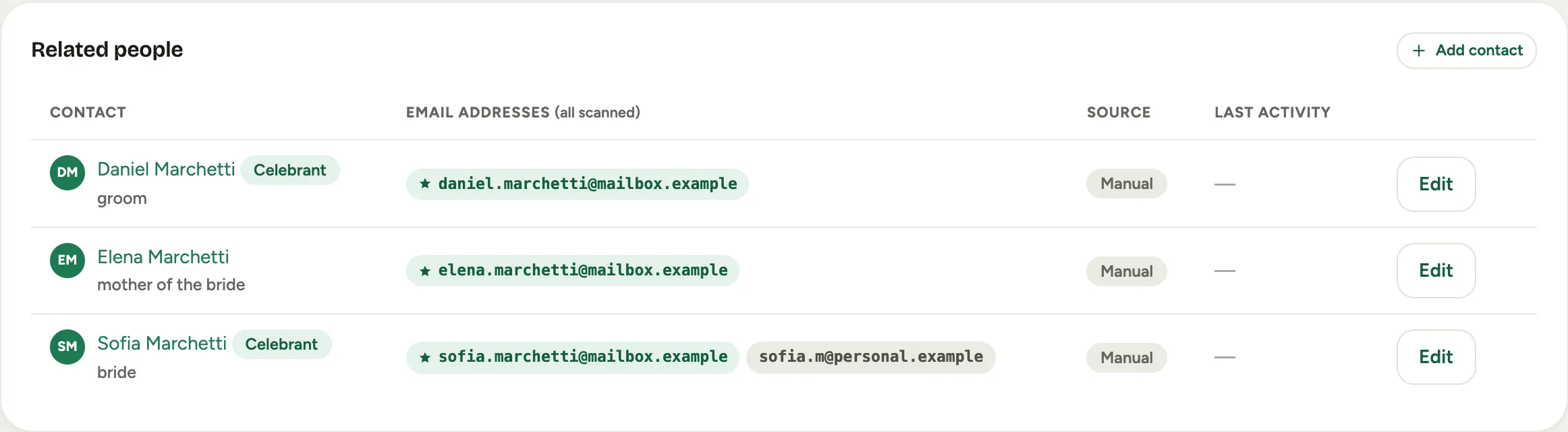 Screenshot from a demo workspace; data illustrative.
 -
Enter the person’s name and their Relationship to the customer (spouse, daughter, mother-of-bride), plus email and phone. Turn on Celebrant if the important dates are about them.
-
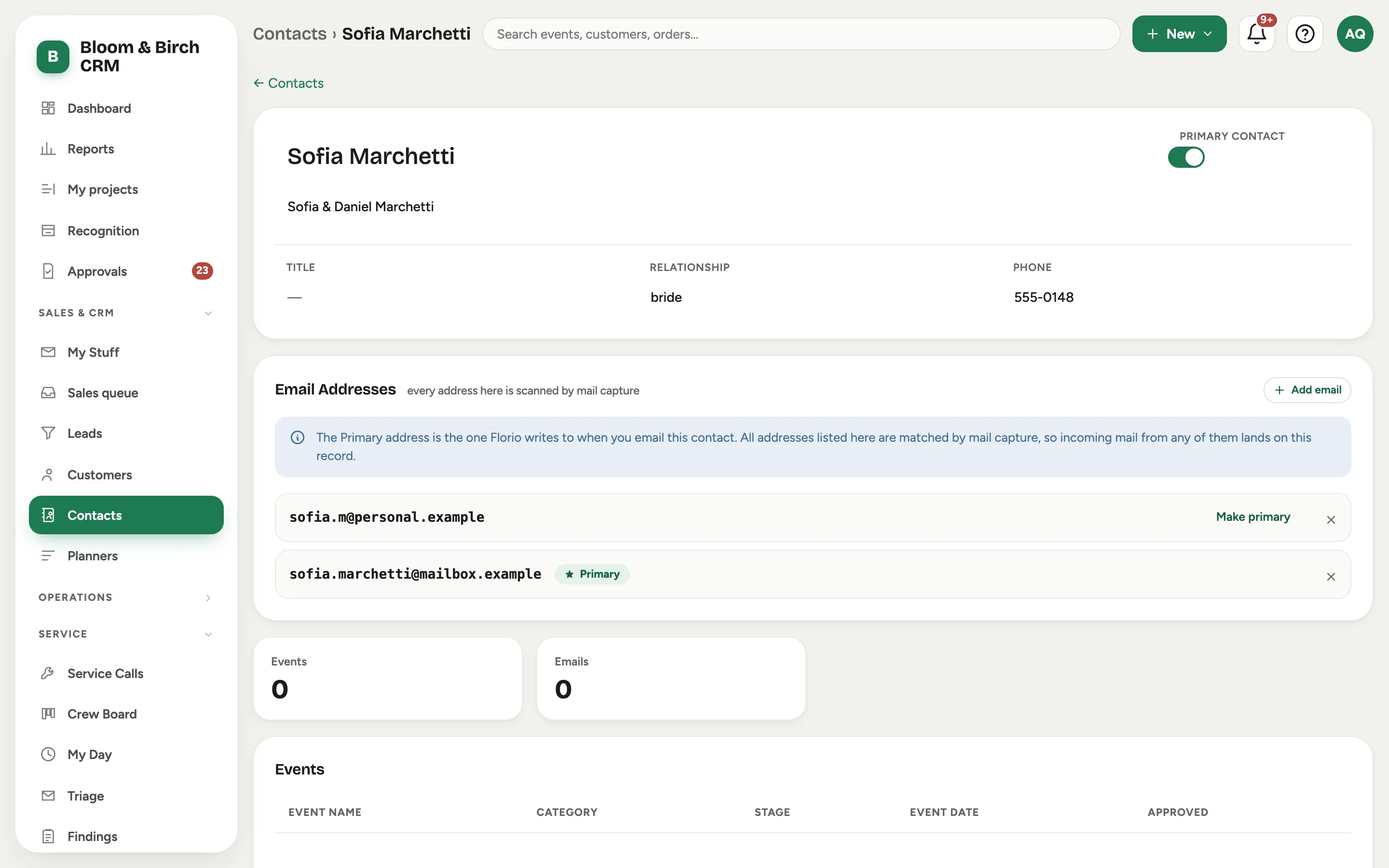
Open a contact to manage how you reach them. The Email Addresses card holds every address that person uses: Add email for a new one, Make primary to pick the one Florio prefers, and Remove address to drop an old one. The Primary contact toggle marks the person you deal with most.
-
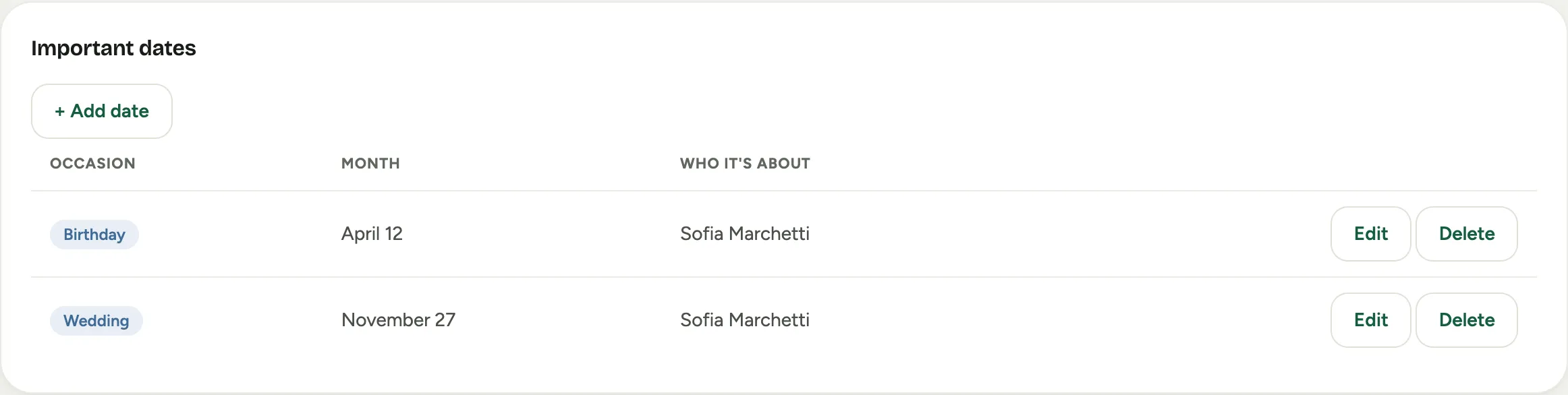
Record the dates worth remembering. In Important dates, click + Add date, choose the Occasion (Birthday, Anniversary, or Wedding), set who it is about, and the day.
Good to know
- A contact created by mail capture wears an Auto · unverified tag and a Confirm contact banner. Open it, fix the name if needed, and confirm, and it becomes a normal contact.
- Every address on the Email Addresses card is watched by mail capture, so adding the assistant’s address means their mail lands on the customer’s timeline too.
- Important dates feed the Upcoming important dates panel on the Customers list, which is your marketing worklist for cards and calls.
- Where this fits: Leads and customers.