Read your job sheet
The schedule card tells you where to be. The job sheet tells you what to build. It is one tap from any assignment, it holds everything that was sold on that job in the words the designer wrote, and it is designed to be read on a phone with cold hands.
Before you start
- Open it with Open job sheet on any row of My schedule.
- You see a job sheet for any block you are on. My schedule at the top takes you back.
What is on it
The header
The title names the job: the client and the event, or the block’s own name when the work belongs to no event. When the block has both, you get both, the client and event on top with the block’s own name under them. Below that, in one line, the day, the time range, and the hours allocated to you, and then From proposal with the line this work was sold as.
A block that belongs to no event says so instead, and there are two versions of that. Not tied to an event means event work that has lost its event, which is worth a word to your manager. Standing studio work · not tied to an event means the studio’s own standing job, which is exactly as it should be. A block that covers several events names them all.
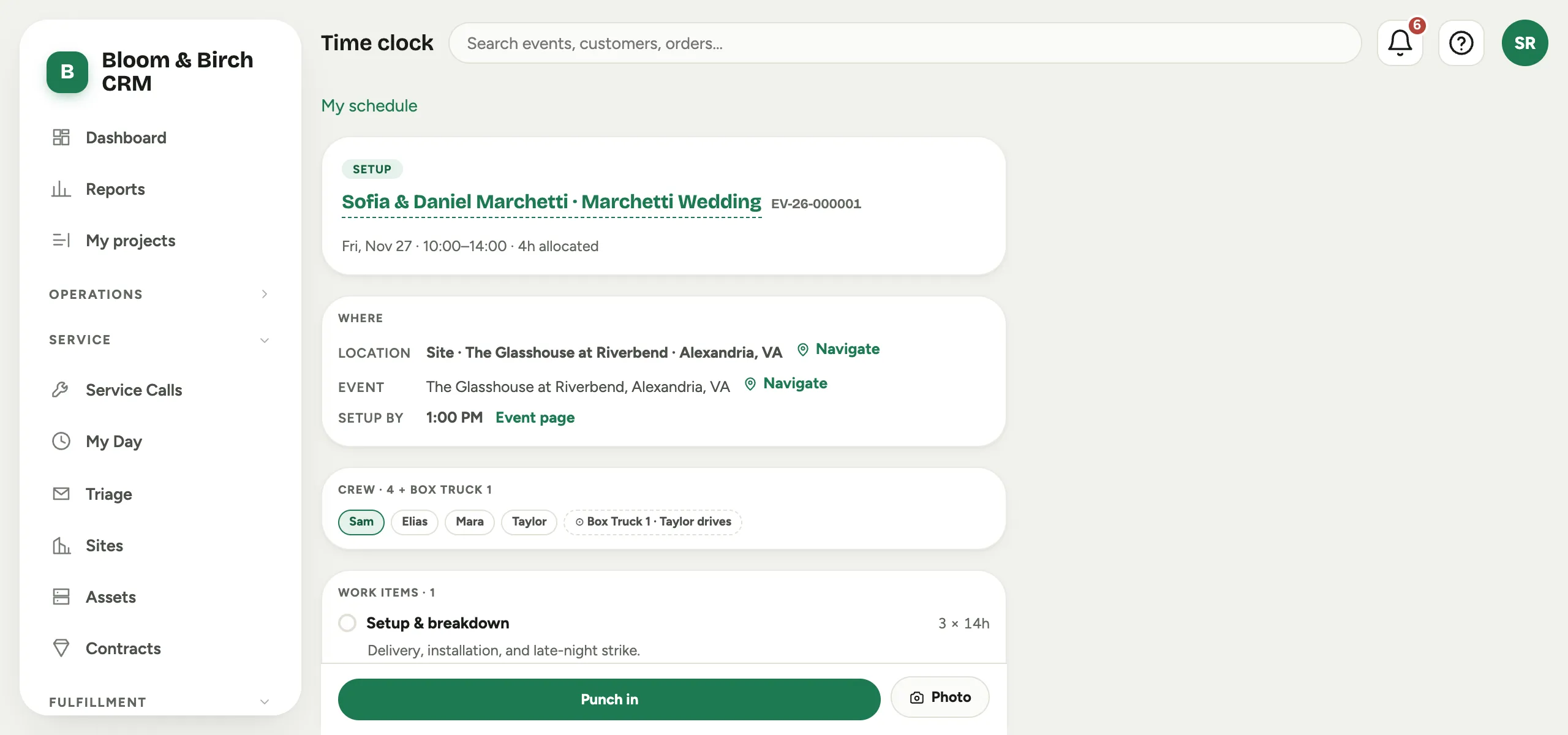 Screenshot from a demo workspace; data illustrative.
Where it is, and when it has to leave
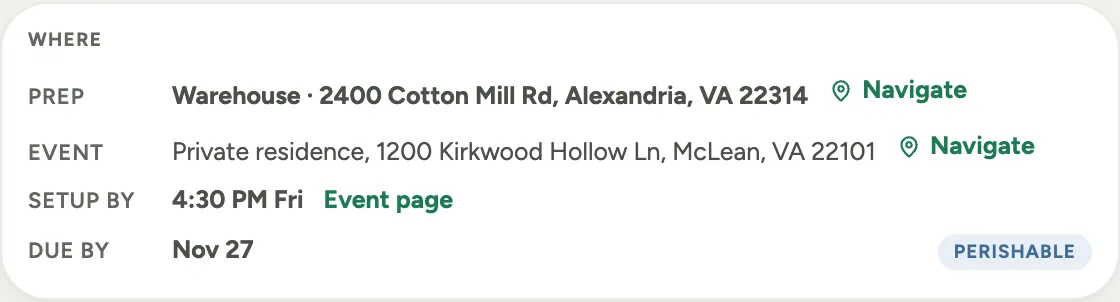
The Where panel answers two different questions, which is why it can carry more than one address.
- Prep on warehouse work, or Location on everything else, is where you do the job. A prep block with no address of its own falls back to your studio’s warehouse address, so Navigate always has somewhere to point.
- Event is the venue: where the work is going, with a Navigate of its own. On prep those are two different places, and the two links open two different destinations.
- Setup by is the time the install has to be finished on site. It answers “when does this have to be out the door”, not the time you may arrive. When the prep runs on a different day from the event, the weekday comes with it so a 4:30 PM cannot be read as today. Event page beside it opens the event, if you have permission to open events.
- Due by is the prep deadline: the date the work has to be finished by, not the date to do it. Beside it is the window, perishable for work that has to stay close to the event or durable for work that can be pulled weeks forward.
 Screenshot from a demo workspace; data illustrative.
Crew
The Crew line lists everyone on the block and adds the trucks going with it. It is the answer to “who am I meeting there”.
What you are building
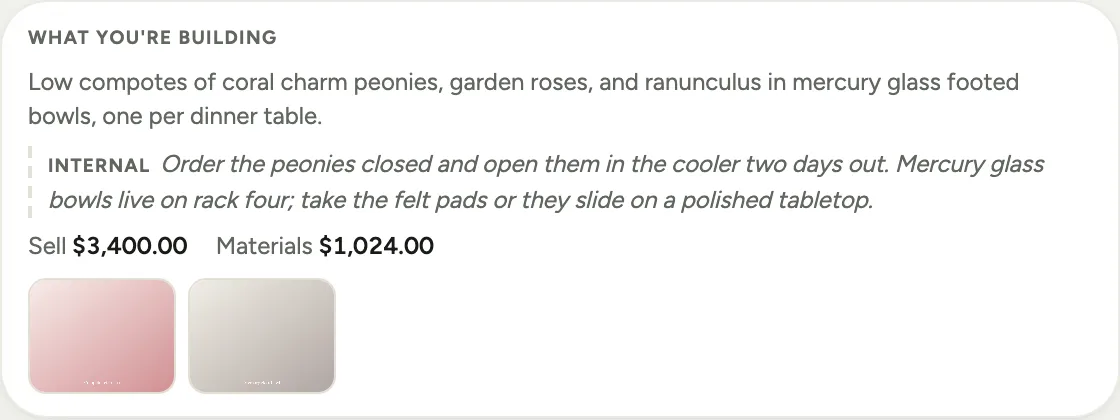
Prep work off the backlog has no list of items inside it, because the block is itself one thing that was sold. Everything that line carries renders under What you’re building:
- The full description as it was written on the proposal. Long ones are trimmed to three lines with a More control, and Less to fold them back.
- Internal, when the designer left a note for the shop on that line. It is written for you, never shown to the client, and it never appears on a warehouse wall display.
- The Sell and Materials pair, in studios that show crews what a line was worth.
- Reference photos of what to build. Tap one to see it large, tap again to close. When there are none, the sheet says No photo yet · ask your lead, which is a real instruction, not an error.
 Screenshot from a demo workspace; data illustrative.
A block with no sold line behind it, such as the leftover hours named Unitemized, has nothing to show here and says so: Nothing itemized on this block yet. The empty panel is the honest answer, not a page that failed to load.
The work items, on day-of work
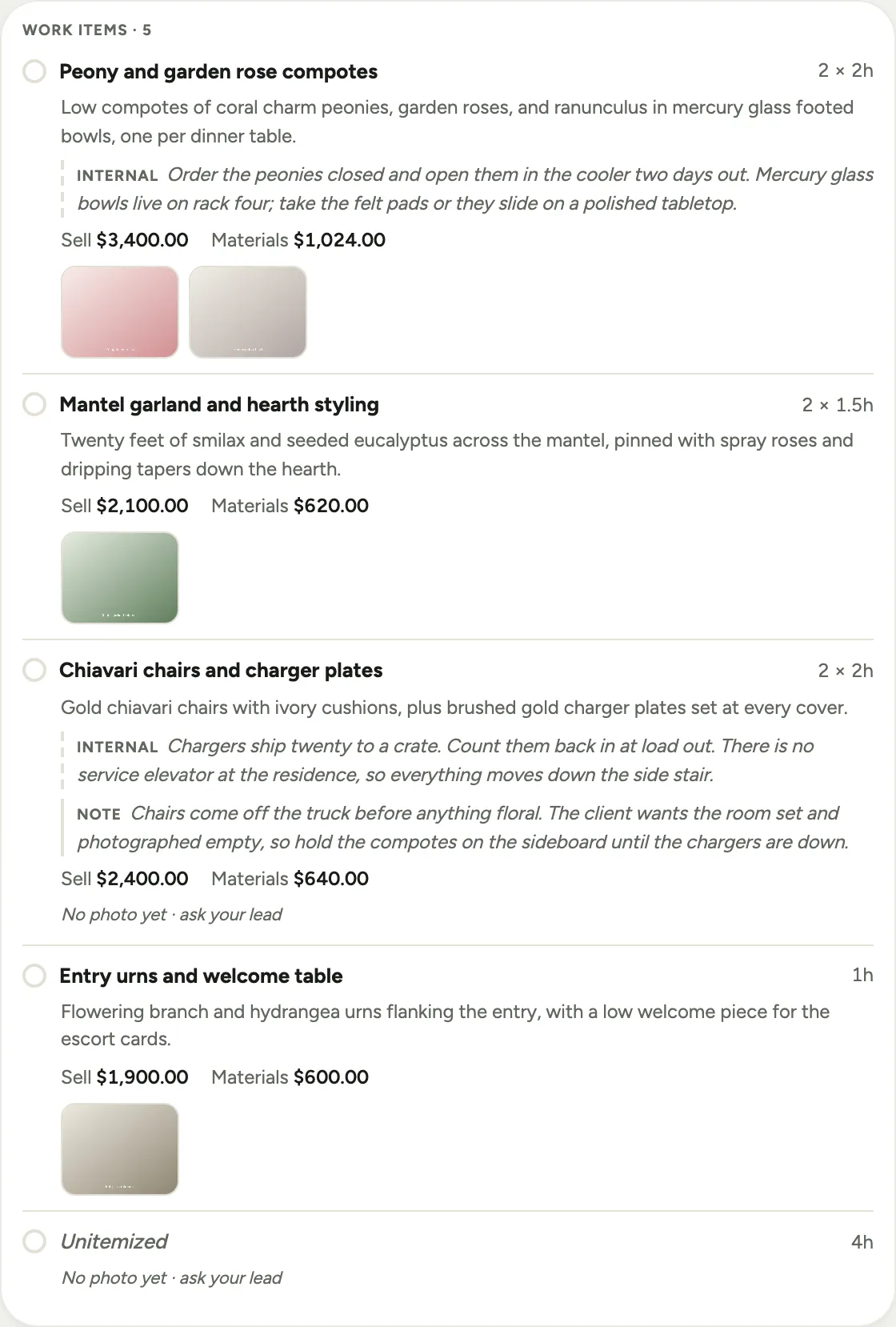
Setup, breakdown and the other day-of phases do have a list inside them, one entry per thing that was sold, and that list is the rest of the sheet. Each entry carries as much or as little as the proposal did:
- The label and its size, for example three people for four hours, with the ring to its left to mark it complete.
- The full description, Internal, and reference photos, exactly as above.
- Note, when your manager added an instruction for this specific item. If the note says the same thing as the description, Florio hides it rather than printing the same sentence twice.
 Screenshot from a demo workspace; data illustrative.
The money line, if your studio uses it
Some studios show crews what a line sold for and what its materials cost, as a Sell and Materials pair. It sits in both the places the sold content does: under What you’re building, and under each work item. The screenshots on this page come from a workspace that has it on. Most studios do not.
It is off unless your studio turns it on, and it is a workspace-wide choice rather than a personal one. When it is off the figures are not dimmed or blanked, they are simply never sent to your device. Crew and operations wall displays carry no money at all whatever the setting, and the per-line Sell and Materials pair reaches no display board of any kind.
An administrator turns it on in Admin, then Notifications, on the Crew job sheet card. It applies to everyone who signs in, so it is a decision about the whole crew rather than about one person. See Choose who gets notified.
Your photos
Photos you take from this job sheet, or from your schedule card, come back to you here under Your photos, each captioned with the day and time it was taken. Send one and you can still check it afterwards, which matters when the question is whether the damage was there before you touched it.
 Screenshot from a demo workspace; data illustrative.
The punch bar
On a block dated today, the punch bar stays at the bottom of the screen as you scroll: Punch in, Punch out, and Photo for a picture of the whole block. The clock still runs one job at a time, so starting here stops whatever was running. See See your day and punch in.
Open a job sheet for a later day and the bar is not there: those sheets are for reading ahead, and the clock belongs to the day the work happens. A cancelled block has no bar either. The one exception, both ways, is a clock you already started on that block, which keeps its Punch out so you can always close a shift you opened.
The manager’s note for the whole block
When there is an instruction for the job rather than for one item, it sits in its own Note panel at the bottom of the sheet.
Good to know
- Everything you read here comes from the proposal version the client accepted, and it is read fresh every time you open the sheet, so the crew and the client are never reading different documents.
- There is no way to mark a whole block done, and that is deliberate. The rings complete work items; a manager sets a block’s status. A prep block you have finished still reads as planned until they do.
- Unitemized is the leftover hours that were never broken out into their own line. It has no description and no photos by design, whether it appears as a whole block or as an item, and it is a signal to the office rather than to you.
- An item marked skipped was dropped from the sale after work had already been logged against it. It stays on the sheet so the history makes sense.
- Where this fits: Scheduling: crews, the backlog, and the week.