Write the scope of work
Line items say what the client is buying. The scope of work says what they will experience: the lobby tree is 22 feet, it is installed over one week, it comes down in the second week of January. On a project that runs for weeks it is the document everyone goes back to, so Florio keeps it on the proposal itself, carries it forward with every revision, and assembles the executed version on the project’s SOW tab from the signed baseline plus every signed amendment, newest first.
Before you start
You need permission to edit proposals. The AI drafting buttons appear on every workspace but only work once AI drafting has been configured for yours; until then they are disabled and their tooltip says so.
Write it in the builder
- Open the proposal in the builder. The Scope of work card sits above the sections, with a small rich-text editor: bold, italic, bulleted and numbered lists.
- Write the scope as the client would read it: the functionality being delivered, in plain prose. Leave the quantities and prices to the lines.
- It saves with the proposal. When you revise the proposal, the scope of work comes with it, so you edit what is there rather than starting again.
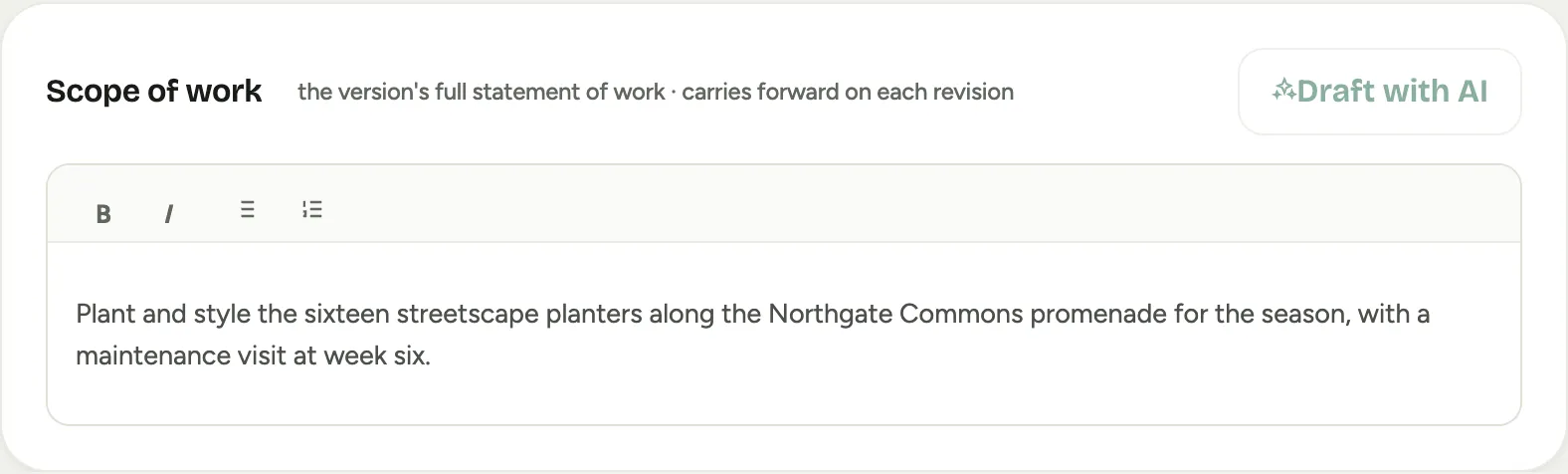 Screenshot from a demo workspace; data illustrative.
Once the client signs, that version’s scope of work becomes the contract’s baseline and the project gains a SOW tab, between Proposals and Financials, that shows it.
Amend it with a change order
On a contracted project every revision is a change order, and the builder shows a second card, Scope of changes, marked Required for review. This is different from the scope of work:
- The Scope of work is the whole statement, updated. Change the sentence about the lobby tree if the tree changed.
- The Scope of changes is the narrative of this change only, in the client’s terms, and it is what the client signs on the change-order document. It is never copied to the next version.
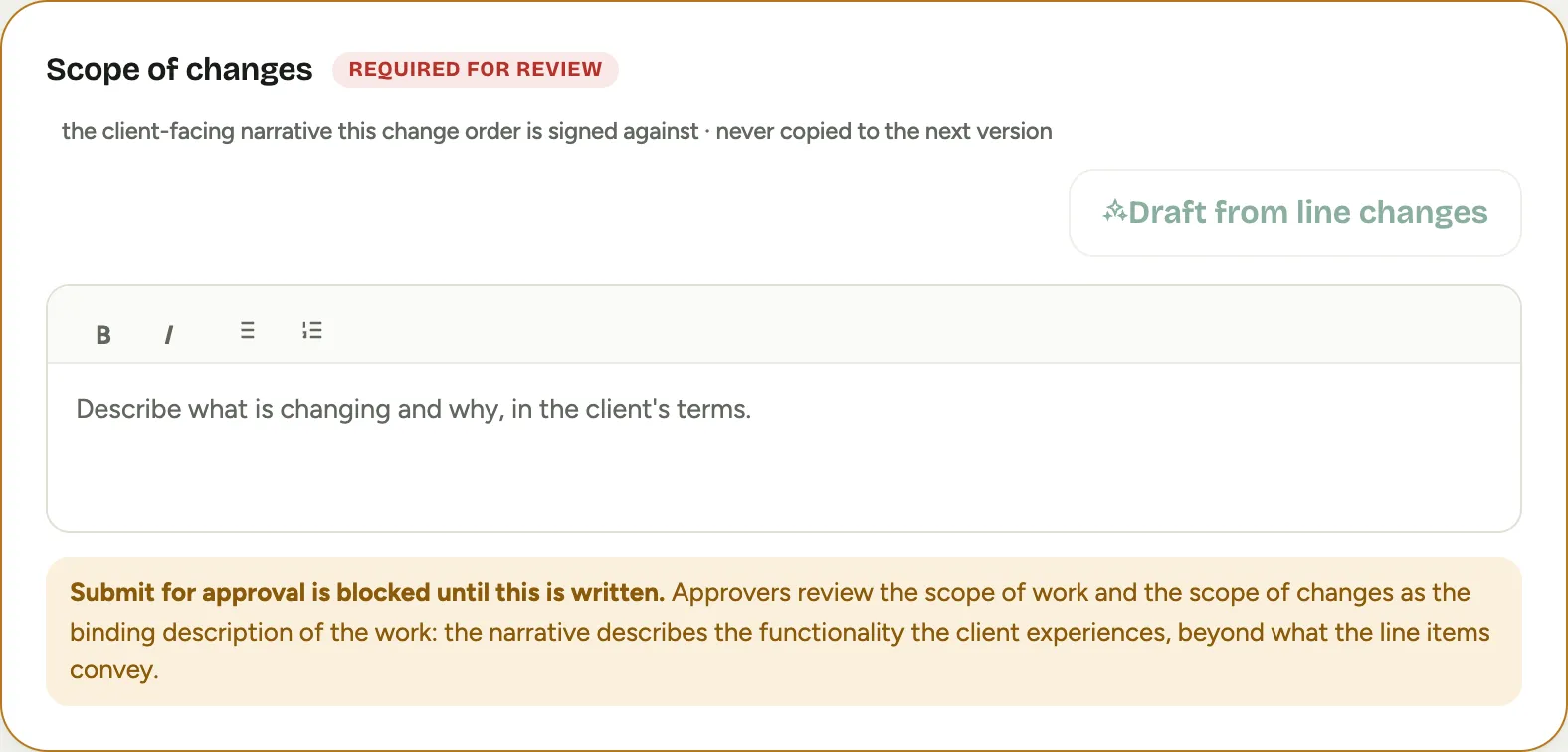 Screenshot from a demo workspace; data illustrative.
Submit for approval stays blocked until the scope of changes is written. Once it is, the card confirms it, and approvers see both the updated scope of work (new language highlighted) and the scope of changes on the review screen.
When the client signs, the scope of changes becomes a signed amendment on the SOW tab. Internal change orders do not amend the client-facing scope; their note documents the internal change and stays internal.
A change order written on its own page (see the composer) carries its scope of changes on the change order itself, in the same kind of box, also marked Required for review. It reaches the SOW tab the same way.
Read it on the SOW tab
The SOW tab appears on a project as soon as an executed scope exists: a signed baseline with a scope of work, or a signed change order with a scope of changes. It reads newest first, so the question a project manager brings to it, what changed lately and did the client sign it, is answered at the top:
- Amendments, newest first. Each is the short scope of changes the client signed, labelled with its change-order reference, the value it added or removed, the date it was signed, and where it was written: in the builder (with the proposal version and author), on the change order itself (with the number the client saw and the person who opened it), or brought in from your previous system with the order it came from. View CO document opens a builder change order’s review; View change order opens the change order’s own page, with its document, signature and history; Ledger row jumps to that row on the Financials tab.
- A change order that has gone to the client but is not yet signed (sent, shared as a signing link, or downloaded as its PDF) shows above the signed ones, muted, so you can see what is in flight without it reading as agreed. A change order that is approved but has not gone to the client, drafts, and versions still waiting for approval do not appear.
- Baseline, in full, below the amendments. The Jump to the baseline link skips a long list of amendments.
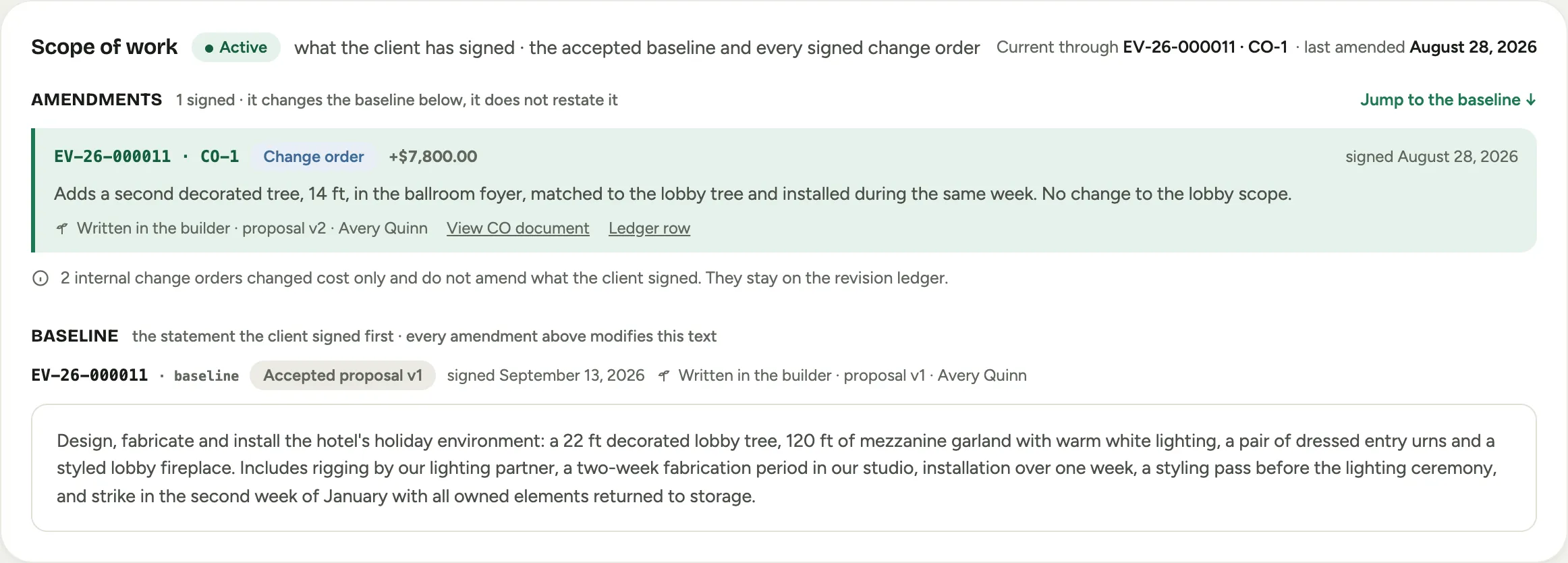 Screenshot from a demo workspace; data illustrative.
A quiet line under the amendments counts what the tab leaves out on purpose: internal change orders, which change cost only, and imported change orders that carried an order title but no scope text. Both stay on the revision ledger.
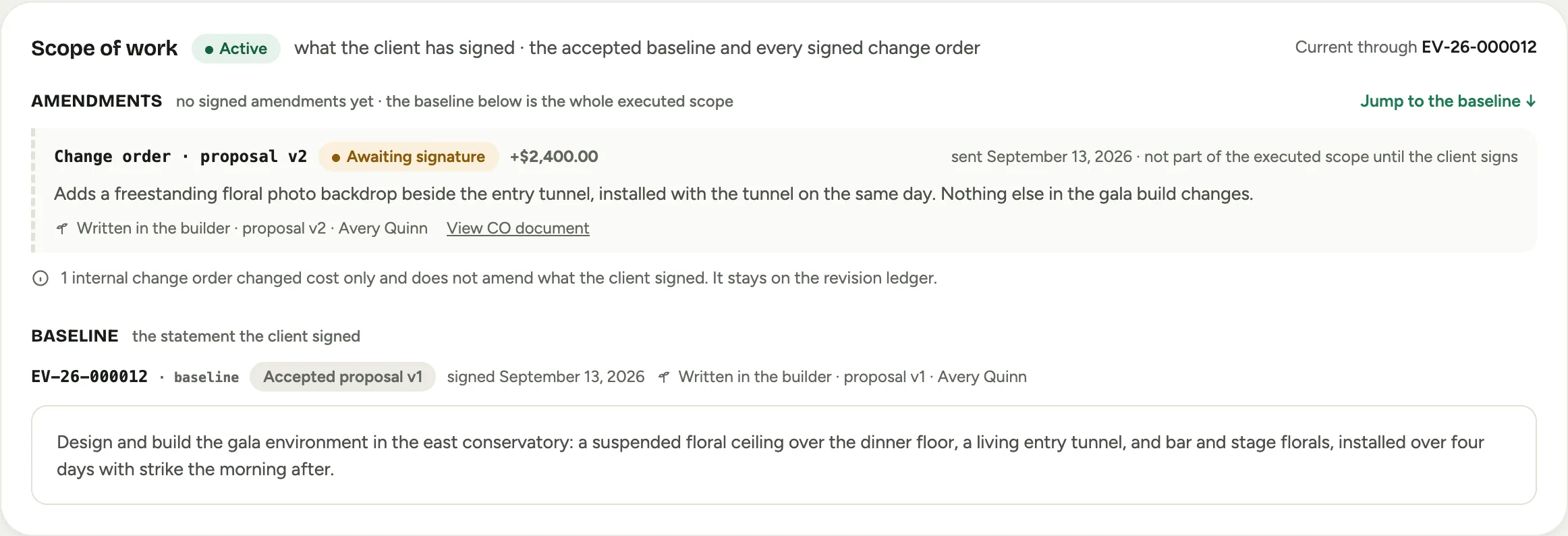 Screenshot from a demo workspace; data illustrative.
The tab’s count is the number of signed amendments. The revision ledger on the Financials tab reads the same way, newest first.
Draft it with AI
Two buttons can write a first draft for you, when AI drafting is configured for your workspace:
- Draft with AI on the scope of work card reads the proposal’s lines, titles and descriptions and writes a scope in prose. It does not invent items that are not on the proposal. The draft lands in the editor for you to edit before it goes anywhere.
- Draft from line changes on the scope of changes card reads the difference between this version and the signed one and writes the narrative of the change. It also writes a one-sentence amendment and appends it to the scope of work, so both stay in step.
Both are drafts. Read them, fix them, and make them yours before you submit.
Requiring a scope of work
A workspace can require a scope of work on every proposal version, new proposals and change orders alike. When it is on, the Scope of work card in the builder carries a Required badge, and Submit for approval stays blocked until the scope is written. It is a workspace setting; ask your administrator to turn it on.
Good to know
- The scope of work prints at the front of the client PDF, on its own page after the cover, and under the header of the internal cost sheet. The Preview page shows the same block above the sections.
- The editor keeps formatting to bold, italic and lists so the text renders the same on the review screen, the client’s signing page and the PDF.
- The contract card shows the section only when there is a scope of work or at least one amendment to show; a project signed with an empty scope simply has no section yet.