Approve time for payroll
Florio now reviews every time entry twice before it reaches a paycheck: once by the person’s manager, and once by whoever runs payroll. Nothing about recording time changed. Punch in and out from the web, the kiosk, or your watch exactly as before.
Adding an entry by hand
Not every hour arrives as a punch: someone forgets to punch out, or a subcontractor sends in a paper timesheet. On the Time clock page, managers have Add an entry by hand for exactly those. Pick the person and the work type, and under Working on search for the project or service call the hours belong to and choose it from the list. That link is what carries the hours onto the job’s labor cost, so give every entry its job whenever the timesheet names one. Enter the in and out times and a note, and the entry goes into the same approval flow as any punch.
Correcting an entry
The entry list under All entries on the Time clock page is where corrections happen: a forgotten punch-out, disputed hours, the wrong work type. The job an entry is charged to is editable there too. Click it and search for the project or service call the hours really belong to, or choose Charge to no job for hours that belong to neither. The hours, and their cost, move with it.
Some entries deliberately do not offer this. Hours punched against a scheduled day or a site visit already carry their job from the punch, along with details from the field, so they read as plain text. So does an entry that has had final approval, until payroll reopens it. If an entry has already been paid on a released subcontractor bill, Florio says so and names the bill: the thing to fix is the bill.
Deleting one asks first. Delete opens a confirmation naming the entry it is about to remove: whose it is, the work, the day, In, Out and how long, with Added by employee when the person reconstructed the hour rather than punching it, and the reason if they asked for it to go. It cannot be undone, so when only the times are wrong, correct In or Out instead. Some hours will not delete and say why: an hour created when a plant care visit was checked out is that visit’s time record, an hour paid on a released subcontractor bill belongs to the bill, and an hour payroll approved has to be reopened first. An entry’s History names who did what to it, including an hour the employee added themselves.
What managers do
Open Time, then Approvals to see your team’s entries for the current pay period, grouped by person and day. Each entry shows the punch times, what the work was linked to, the hours, and any note the employee left.
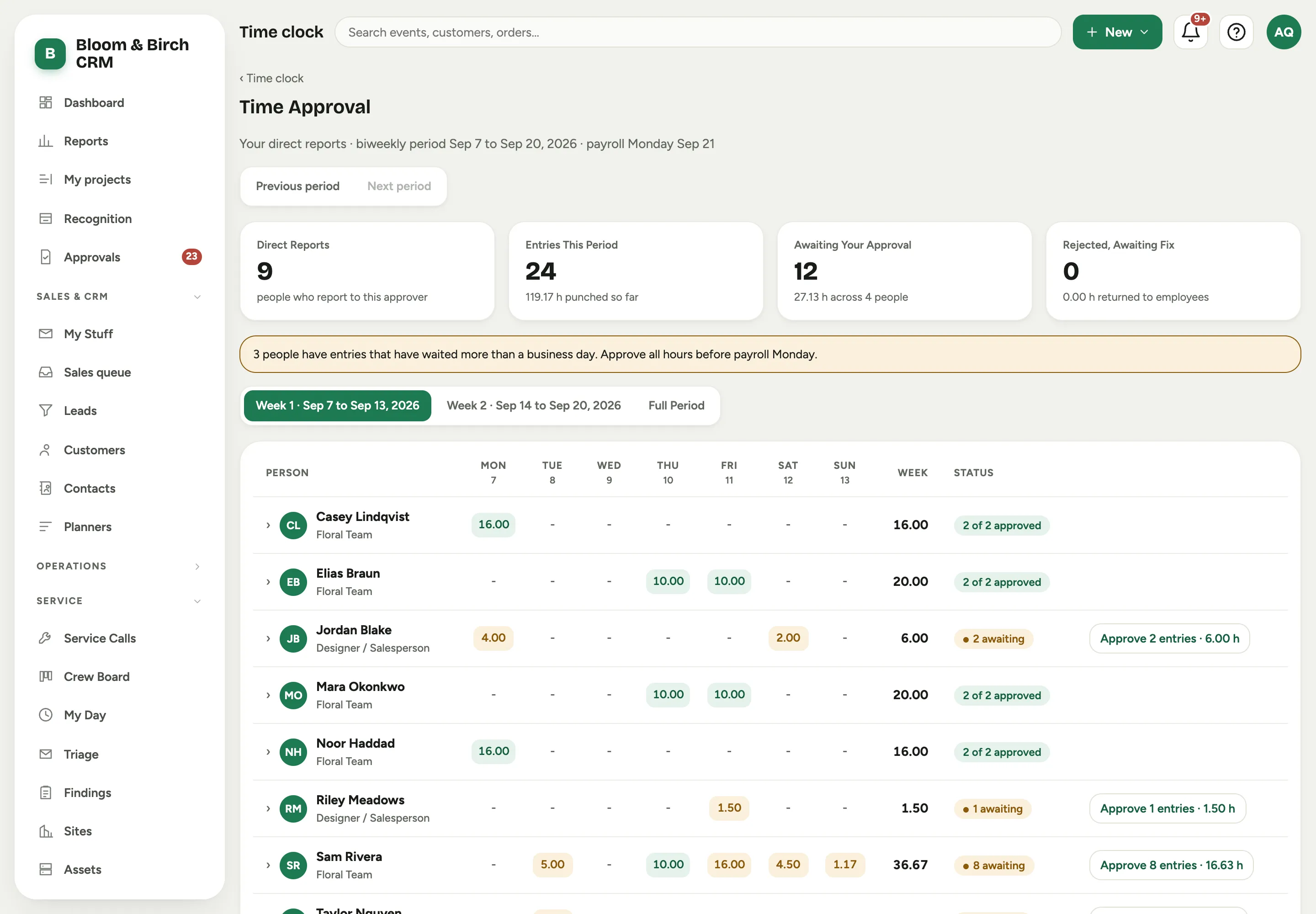 Screenshot from a demo workspace; data illustrative.
- Approve entries one at a time, or approve everything shown for a person.
- Send one back when something looks off. Add a short note saying why. The employee sees it, fixes the entry, and it returns to your queue.
- Hours an employee added after the fact carry an Added by employee chip. Nobody’s clock captured them: the employee rebuilt them from memory and confirmed they are right. Approve or send them back like any entry; the chip is there so you know which is which.
The best rhythm is a quick pass each morning covering yesterday. If entries are waiting, Florio sends you a reminder the next business morning, and a summary on payroll Monday of anything still open.
What payroll admins do
The payroll view shows the whole period at a glance: which managers still have entries waiting, and which entries are fully approved. Use Previous period and Next period to move between pay periods; you can step back as far as your records go, which matters when a timesheet is entered after the fact and lands in a period that has already passed. Only fully approved entries are included in the payroll export, and the Generic (full detail) export splits every entry into regular and overtime hours: overtime is the hours past 40 in the Monday to Sunday week, counted in the order they were worked. The Payroll Export card counts only the people that file pays: subcontractors paid by vendor bill get a line of their own, since their hours are paid from the Subcontractor bills card instead, and once every payroll hour has final approval the card says Every payroll hour is HR-approved. Once an entry has final approval it locks. If something needs to change after that, a payroll admin can reopen it from the entry’s row, with a note saying why; that note is kept with the entry, both approvals are cleared, and it goes back through review. An entry already paid on a released subcontractor bill will not reopen, and Florio names the bill instead.
Delete requests
An employee who wants a punch, or an hour you already approved, taken off asks you with a reason. The entry shows Delete requested with that reason in the entry list and on the approval grid, and you get a notification. Delete it and the confirmation shows who asked and why; or choose Keep it… and say why, which the employee sees on their row. Approving the hour also clears the request.
What employees see
Nothing new to do day to day. If a manager sends an entry back, you get a notification with their note. Fix the entry and it automatically returns for review. If you forgot to punch, add the hours yourself: Add time you forgot to punch. To fix your own hours, remove time you added by mistake, or ask for a delete, see Fix or remove your own time.
The approvals report
Reports includes a new Approvals view showing how quickly time gets reviewed: median time to approval, the share approved within one business day, and how often entries were sent back for clarification. Managers see their own numbers.
What we don’t publish
The internals of period math, locking, and the payroll export format are intentionally not documented here.