Plan an event's locations and day-of schedule
Two panels on the event record hold the where and the when: Locations, on the Overview tab, for the venues, and the Day-of schedule, on the Schedule tab, for the timed moments of the event itself. Getting the location right does more than help the drivers; it sets the tax jurisdiction for the booking.
Before you start
- This is the event’s own timeline, not crew scheduling. Assigning designers and drivers, booking vehicles, and tracking hours is the Schedule panel, covered in Scheduling and crews.
Steps
-
Open the event. The Locations panel is on the Overview tab, under the event’s details.
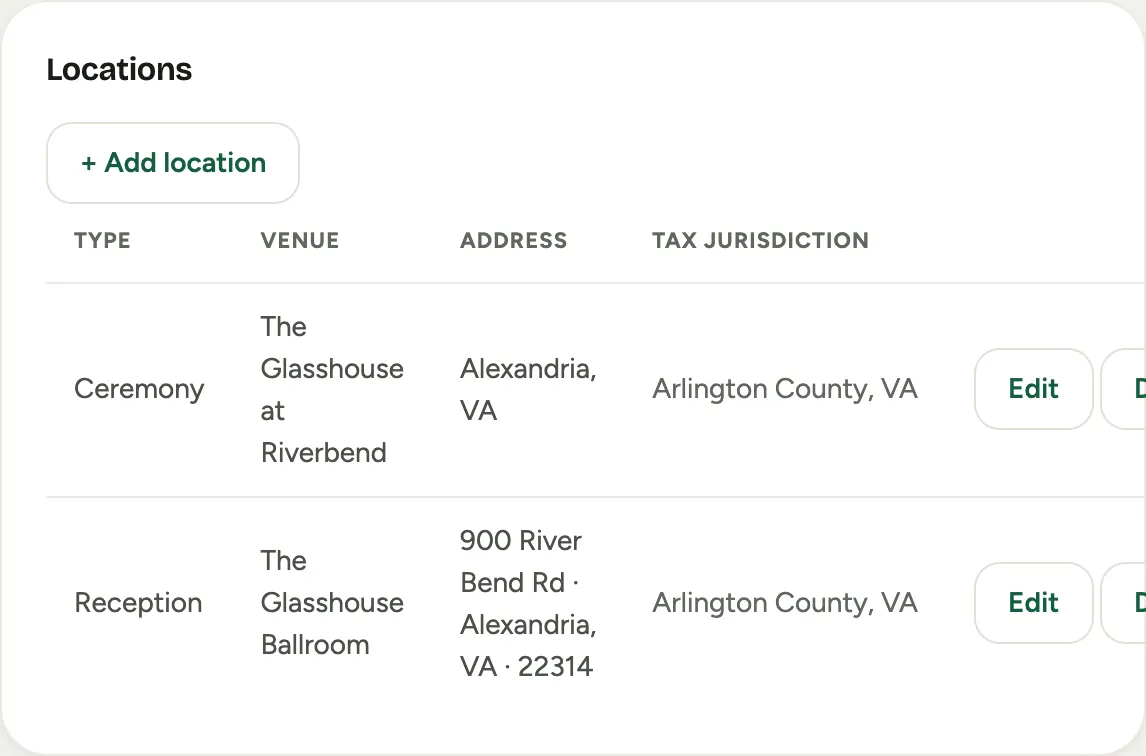 Screenshot from a demo workspace; data illustrative.
 -
Add each venue with its address: the ceremony site, the reception hall, a staging warehouse. The address decides the tax jurisdiction, so enter it accurately.
-
Switch to the Schedule tab. In the Day-of schedule, add the timed moments of the event, load-in, ceremony start, guest arrival, strike, so the whole team can see the shape of the day at a glance.
-
Back on the Overview tab, add an Event note for any logistics that ride along with the booking: parking, a loading dock code, a venue contact.
Good to know
- Location drives tax. When a venue sits in a jurisdiction where the customer holds an exemption, the Tax exemption panel appears on the event’s Financials tab. See Override the terms or tax on an event.
- Day-of schedule versus Schedule. The Day-of schedule is the event’s public shape (what happens when). The Schedule panel below it on the same tab is the production plan (who works, which truck, how many hours). They are different panels for different jobs.
- Where this fits: Events.