Record an expense and get repaid
When you pay for something for work out of your own pocket, record it in Florio with a picture of the receipt. You say what it was and what it was for, your manager and a final approver look at it, and it is repaid with a pay period. This page is for the person who paid. Approvers have their own page.
Before you start
- Your company has to have expenses switched on. If you do not see Expenses in the menu, ask an admin: see Set up employee expenses.
- Expenses are for things you paid for with your own money. A purchase on a company card is not recorded here.
Record one on the web
- Go to Expenses. The page is My expenses. Click New expense.
- Click Add the receipt and take a photo, or choose a picture or a PDF. A long receipt can have more than one page: use Add another page.
- Fill in Receipt total (what the slip says, with tax and tip), Date and Paid to.
- Under What was it? choose the category: fuel, a meal, materials for a job and so on. The list is your company’s own.
- Under What was it for? search for the job, service call, order or plant care contract it was bought for and choose it. Leave it blank when it was not for a job: Florio then treats it as a Company cost. Some categories are always a company cost, and the form hides the box and says so. Some always need a job, and the form will not send without one. A service call that has already closed is still offered, marked Closed, for as many days as your company accepts expenses; your approver sees that it is closed.
- If the category asks for a Vehicle, choose it. Add a Note when it helps the approver.
- Click Send for approval. To finish it later, click Save as draft instead.
Split one receipt between jobs
Click Split this receipt, then Add a line for each part. Each line has its own amount, category and job. A running total under the lines shows how much of the receipt is accounted for, and the lines have to add up to the receipt before you can send it.
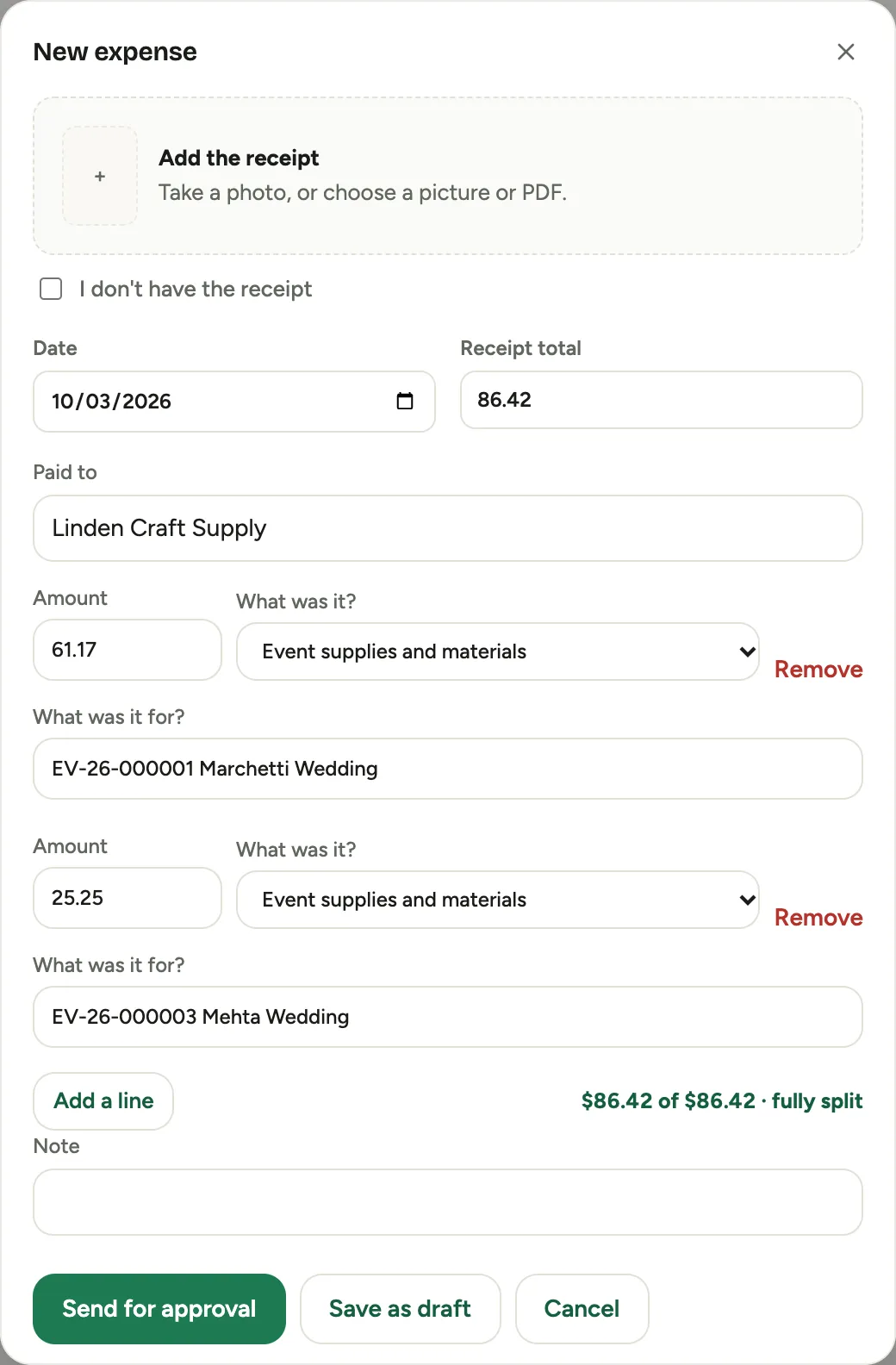 Screenshot from a demo workspace; data illustrative.
Claim mileage
Choose your company’s mileage category under What was it? and enter the Miles. Florio multiplies them by your company’s rate for you. Mileage needs no receipt. The rate in force on the day you enter the claim stays with it, even if the rate changes later.
If you do not have the receipt
Tick I don’t have the receipt and answer What happened to it? The expense can still be sent, and your approver sees No receipt with your explanation beside it.
Warnings do not stop you
Florio tells you when an expense is older than your company likes them to be sent, and it asks before sending one that looks like another of yours: A possible duplicate names the other expense, and you choose Send anyway or Not yet. Your approver sees the same warnings. None of them blocks an expense.
Record one on the phone
The Florio app for iPhone is built to take the picture first, so a receipt handed to you in a parking lot is not lost.
- Open More, then Expenses, and tap New. The camera opens.
- Fit the whole receipt in the frame and take the photo. It is saved as a draft straight away. Use Photos · Files to pick a picture or a PDF you already have, or No receipt for mileage or a lost receipt.
- Fill in Total, the date and where you paid, then What was it? and What for? The job search lists your jobs for today first.
- Tap Send, or Save as draft to finish later.
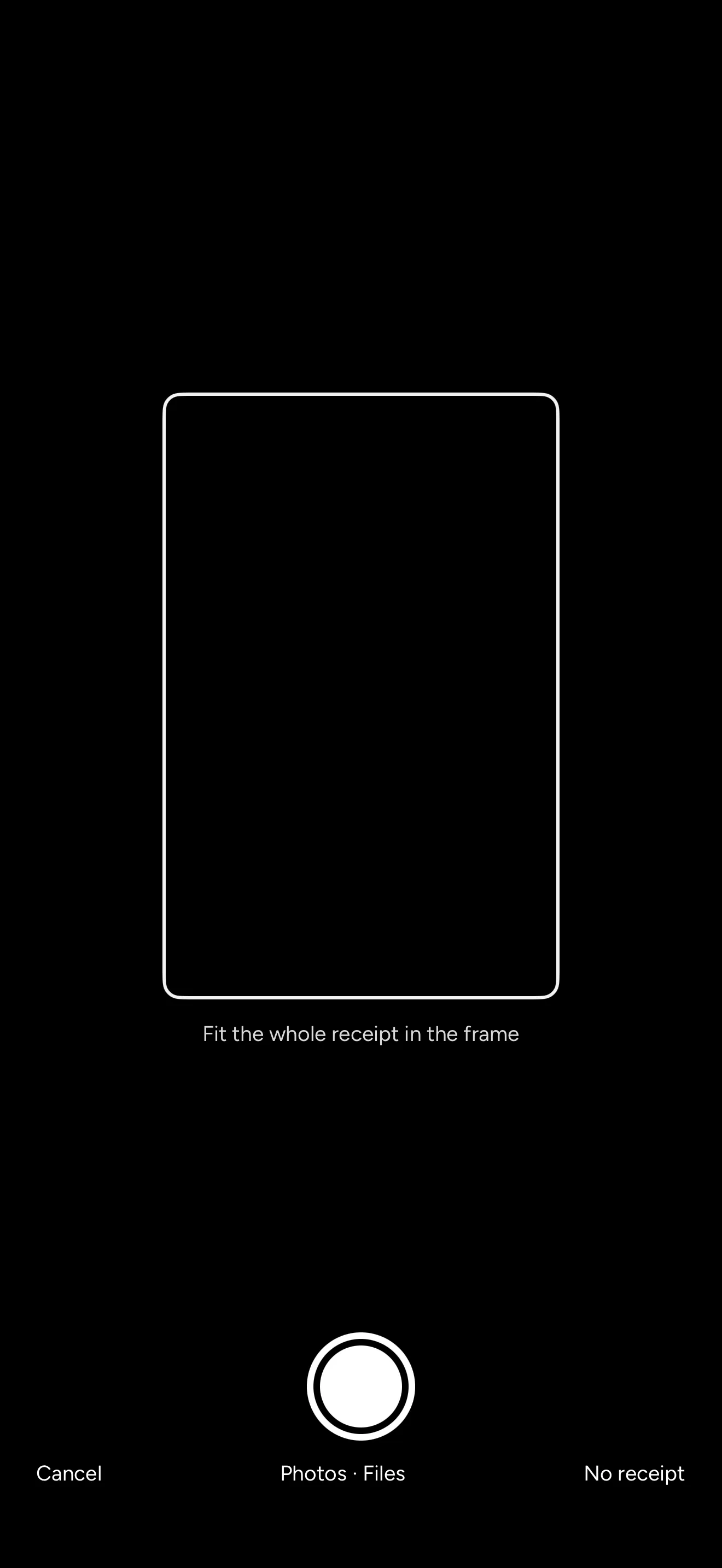
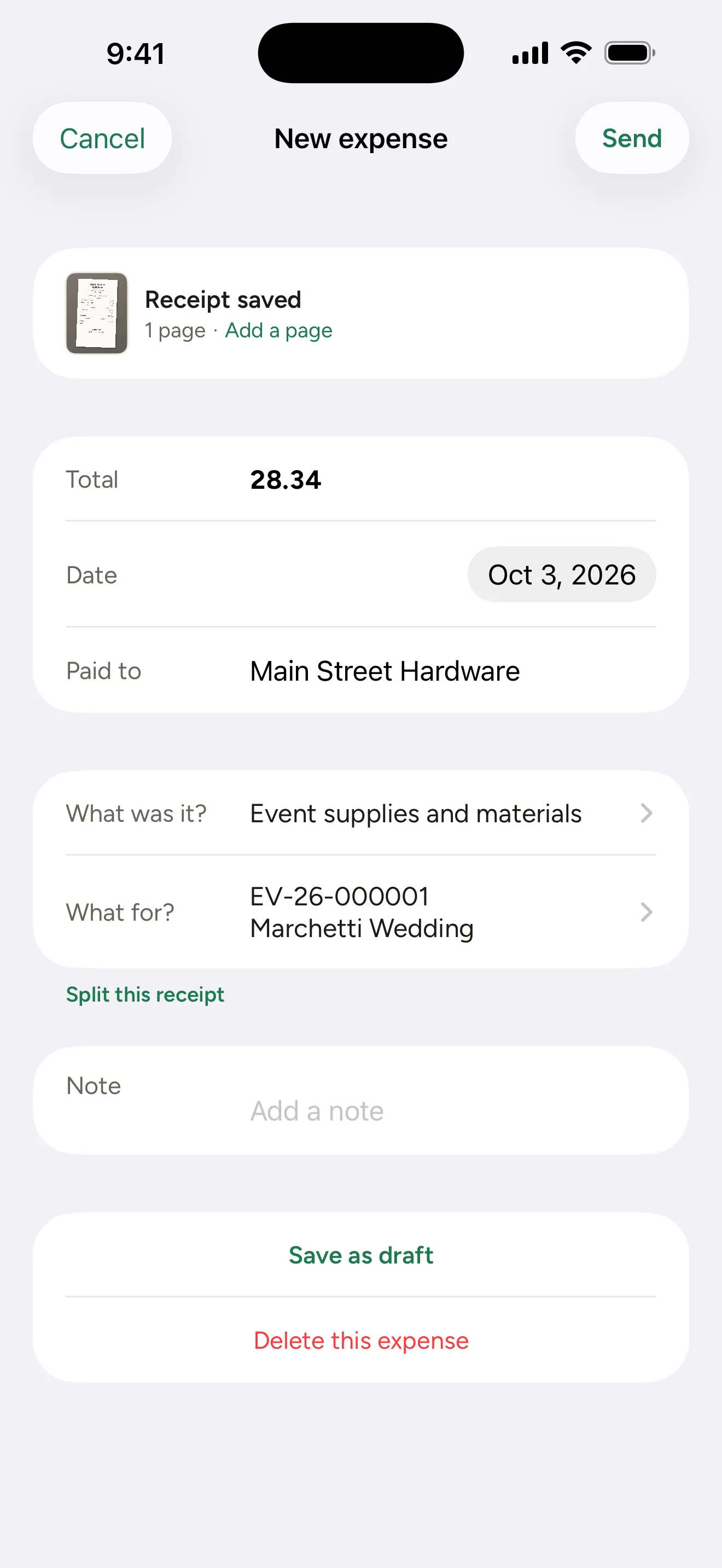 Screenshot from a demo workspace; data illustrative.
A photo taken with no signal waits on the phone and becomes a draft the next time you open Expenses in the app. Splitting a receipt, mileage and a lost receipt work as they do on the web.
A draft that holds only a photo can also be finished at a desk: open it from My expenses on the web and click Say what it was.
Follow your expenses
My expenses lists everything you have recorded. The Open view shows what still needs someone, Approved shows what is settled, and All shows both. The page remembers the view and the number of rows you chose. Across the top it counts what is Waiting for approval, what was Sent back to you, and what was Approved this pay period.
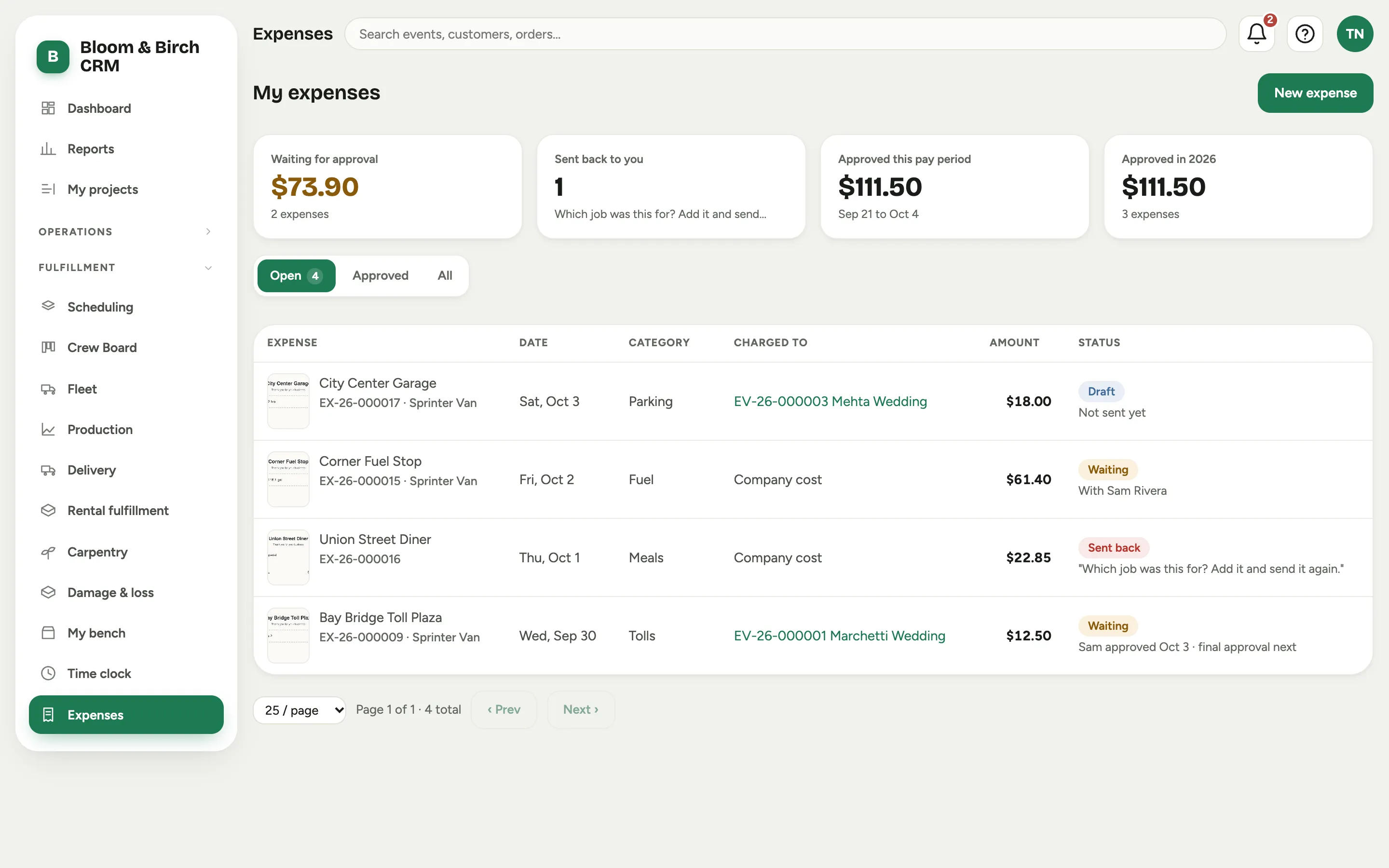 Screenshot from a demo workspace; data illustrative.
Each expense shows one of four statuses, with a line under it saying where it stands:
| Status | What it means |
|---|---|
| Draft | Saved and not sent. Only you, and whoever entered it for you, can see it. |
| Waiting | Sent and not yet fully approved. The line under it names who it is with, or, once your manager has approved it, says that final approval is next. |
| Approved | Approved and locked. The line under it names the pay period it is repaid with. |
| Sent back | An approver returned it. Their note is quoted under it. |
Florio names the pay period an approved expense is repaid with. It does not say an expense has been paid, because payroll runs outside Florio and Florio cannot see it happen. If the money has not arrived when that pay period is paid, ask whoever runs payroll.
If someone with no manager on file sends an expense, it goes straight to final approval.
In the app the same list is grouped by what needs you: sent back first, then drafts, then what is waiting, then what is approved.
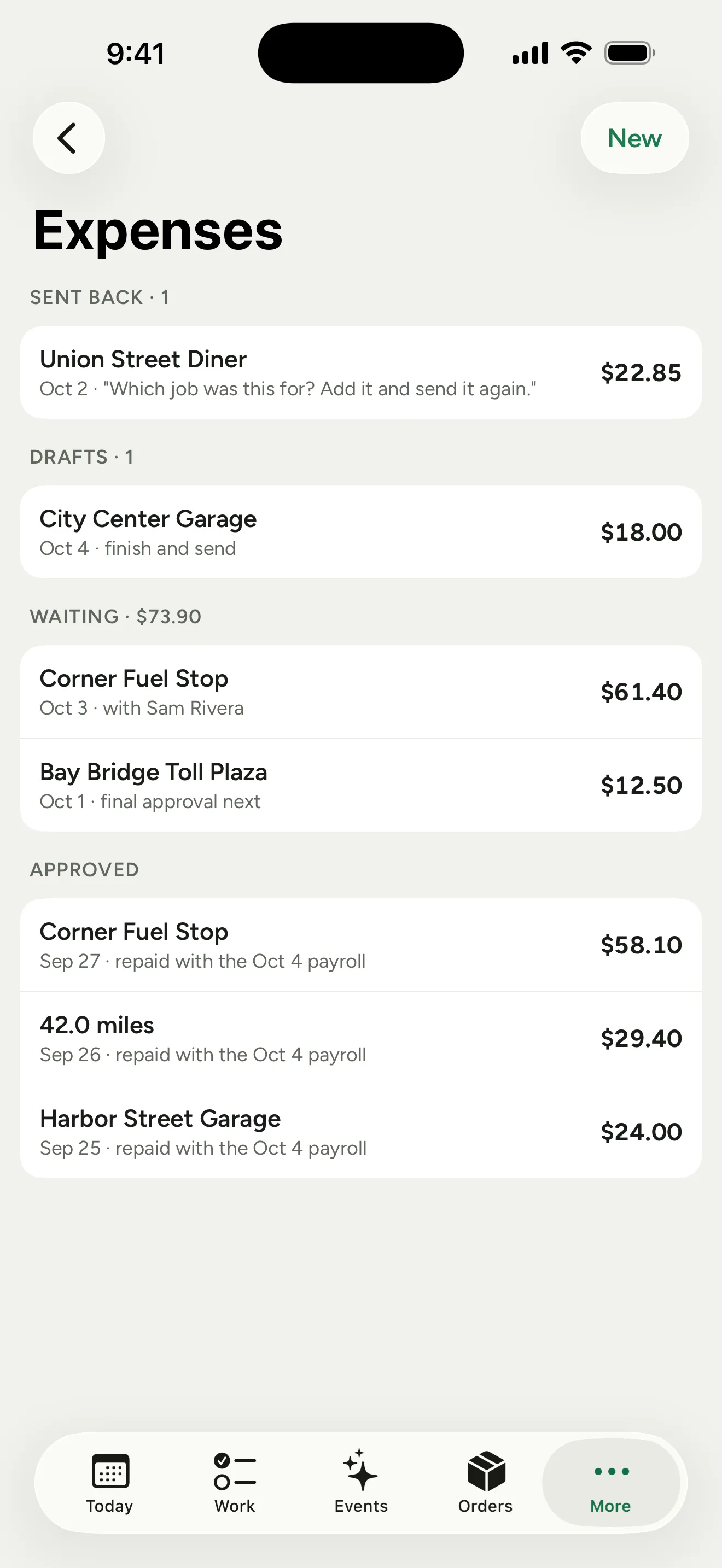
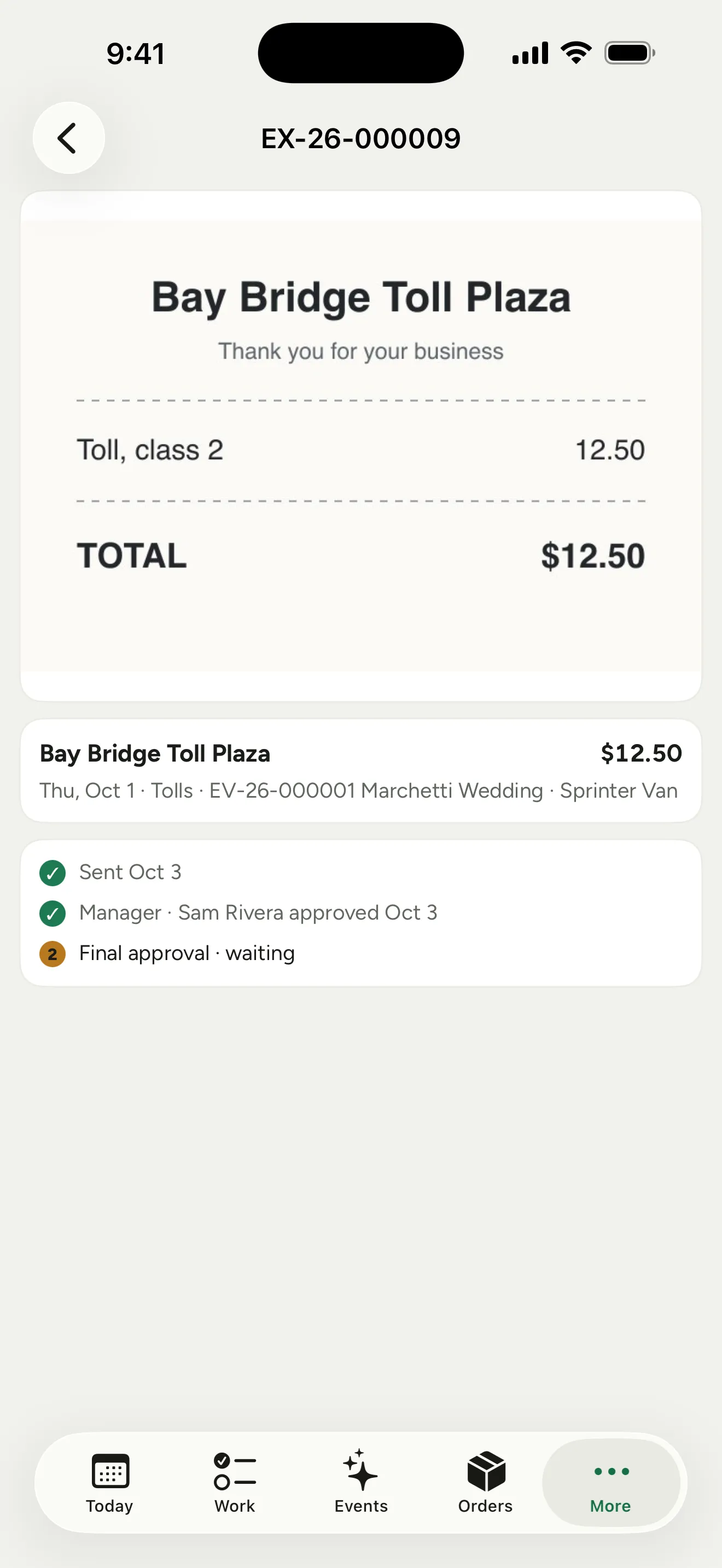 Screenshot from a demo workspace; data illustrative.
When one is sent back
You get an email and a notification with the approver’s note, and the expense shows as Sent back. Open it: the approver’s words lead the page. Fix what they asked for and click Send again. It goes back to your manager and through both approvals again. If it should not have been claimed at all, use Delete this expense.
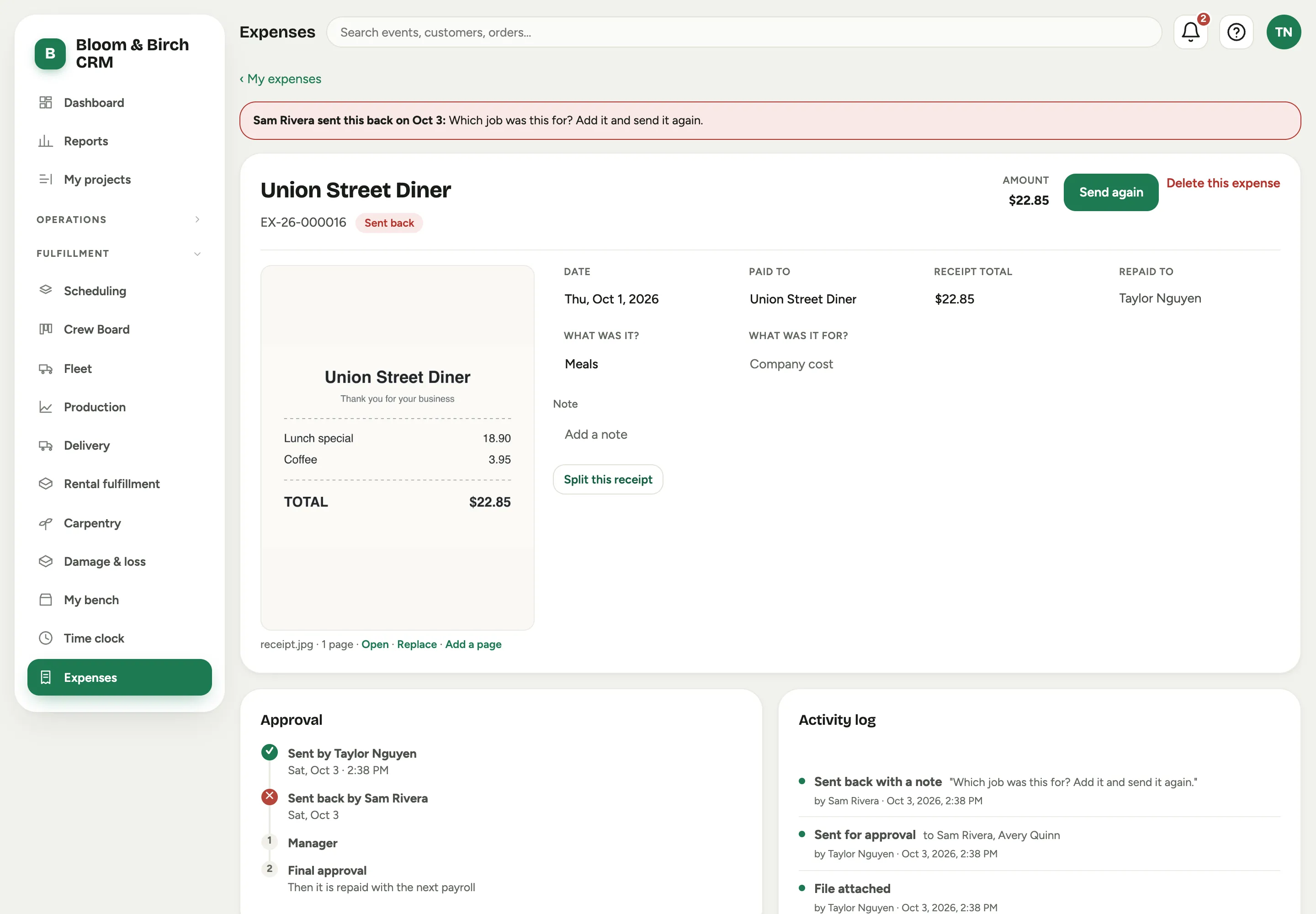 Screenshot from a demo workspace; data illustrative.
Change or remove one before it is approved
You can edit an expense while it is a draft, sent back, or still waiting on your manager, and you can delete it in those states too. Once your manager has approved it, ask an approver to send it back if something is wrong.
An approver can change how an expense is categorized without asking you, and can lower the amount to repay, but never raise it. When the amount is lowered you are told why, and the receipt total stays beside the new amount, struck through, wherever the expense appears.
Good to know
- A manager or a final approver can enter an expense for you from a receipt you hand them. You are told when they do, and it appears in your list.
- Every expense gets its own number, which is what approvers and payroll will quote to you.
- Once an expense is approved it is locked. A mistake found later is fixed by an approver, either by re-opening it or with a correcting entry: see After approval.