Florio Service: the field-service add-on
Florio Service is the add-on for shops that also maintain what they install: living walls, plant programs, holiday installs, or any equipment that keeps its own history at a client site. It adds a whole side of the business to Florio, a service call from first report to closed job, with a dispatch board, a phone view built for a job site, and a record for every location and every piece of installed equipment.
Florio Service is available on request. See the add-on entry on the pricing page, or ask us through the request form.
Once it is turned on for your workspace, a Service group appears in the sidebar with Service Calls, the Crew Board, My Day, Triage, Sites, Assets, and Contracts. This page walks each screen. Every section below is a target of the in-product help icon, so the ? on a service screen brings you straight to the matching heading here. Turning the module on and setting it up is covered in Set up Florio Service.
The service calls list
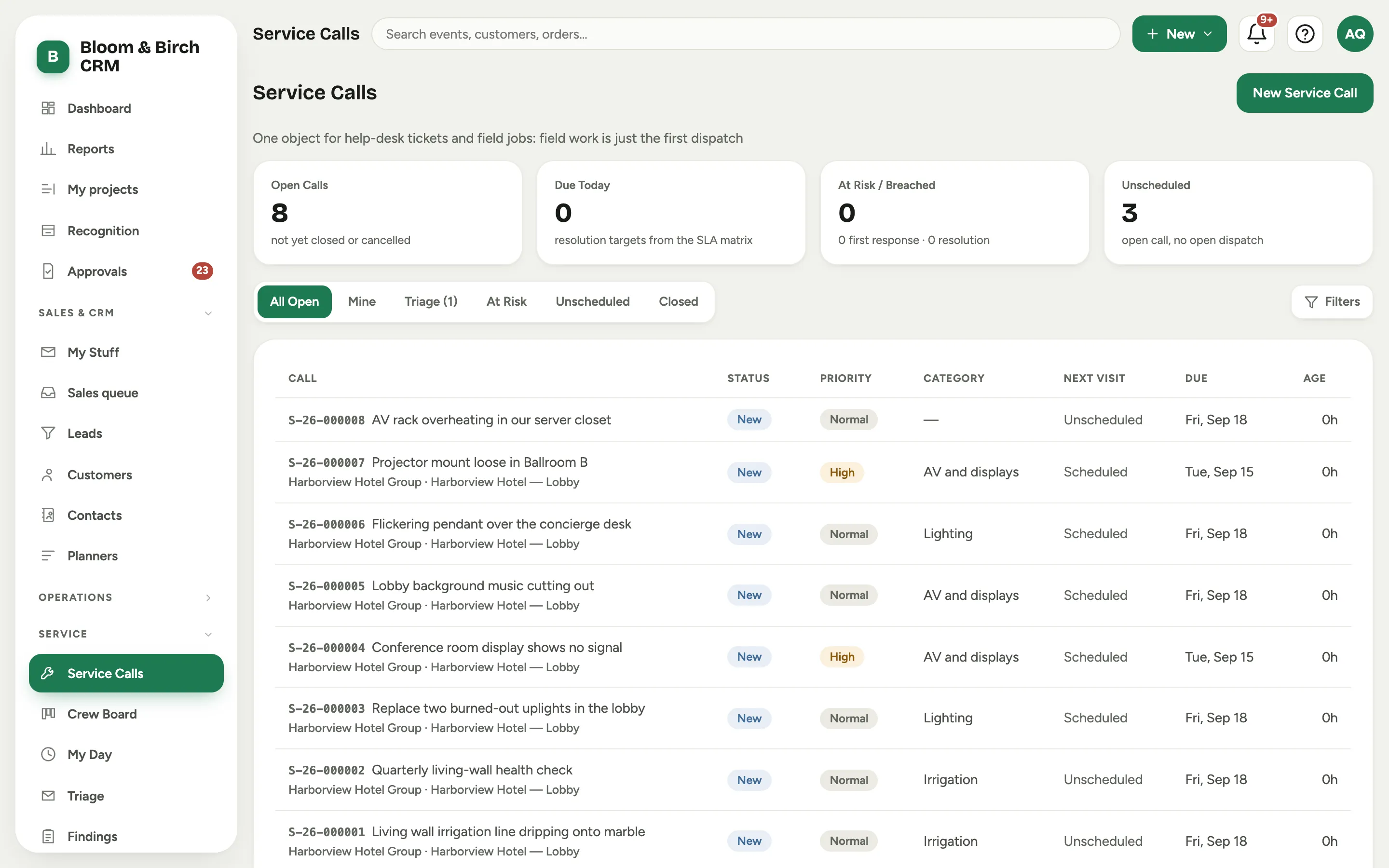
A service call is the one object for both a help-desk ticket and a field job: field work is just the call’s first visit. Service Calls is every call, with scope chips that choose what you see: All Open, Mine, Triage, At Risk, Unscheduled, and Closed.
 Screenshot from a demo workspace; data illustrative.
Four stat cards sit above the list: Open Calls, Due Today (resolution targets from your SLA matrix), At Risk / Breached, and Unscheduled (an open call with no open visit). The table columns are Call, Status, Priority, Category, Next Visit, Due, and Age. A call’s status is your own label mapped to a fixed platform stage, so it reads the way your team talks about a job. Start one by hand with New Service Call; email and the public request form open calls on their own, and an unmatched sender lands in Triage.
The service call record
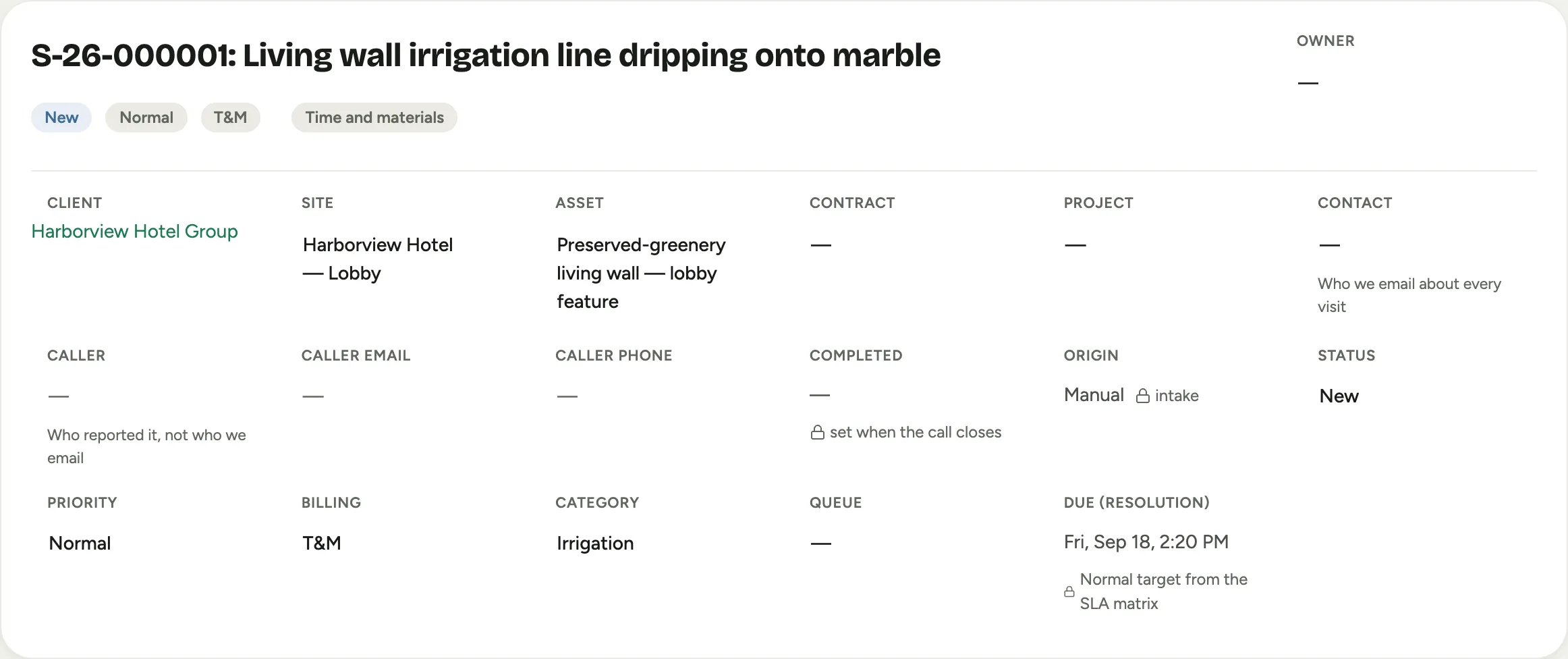
Open a call and the header carries its number and title (click the title to rename it), with chips for the status, the Priority, and the billing class, T&M, Warranty, Contract, or No charge (warranty). The facts grid below holds the customer, site, asset, contract, caller, category, queue, and the resolution Due date. A Problem card captures what was reported; the Resolution card records what was done.
 Screenshot from a demo workspace; data illustrative.
The record gathers the work under the call:
- Dispatches are the visits. Each visit schedules a technician, and it rides the same scheduling engine as the rest of the studio, so a tech can never be double-booked across a service visit, an install, and a delivery. Adding and scheduling a visit is covered in Schedule and dispatch a visit.
- Parts & Charges stages the parts and charges a job needs, with a lifecycle from needed to ordered to received to used, so the office sees what will land on the invoice before it does.
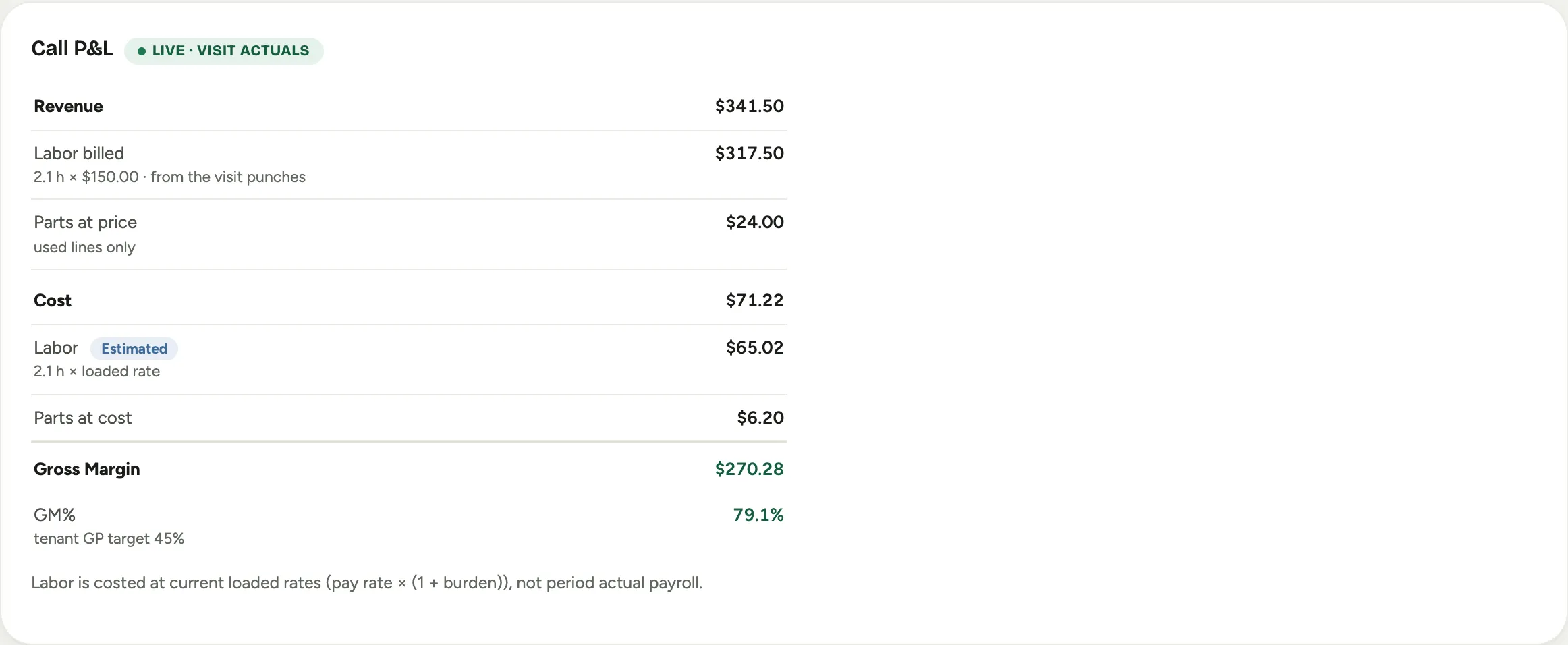
- Call P&L shows the money on the job: revenue from the visit hours and the parts at price, against the labor and parts at cost, with the gross margin. It reads live from the visit actuals, and it is visible only to roles that can see margin.
 Screenshot from a demo workspace; data illustrative.
Opening a call and its visits is in Take a service call.
Sites
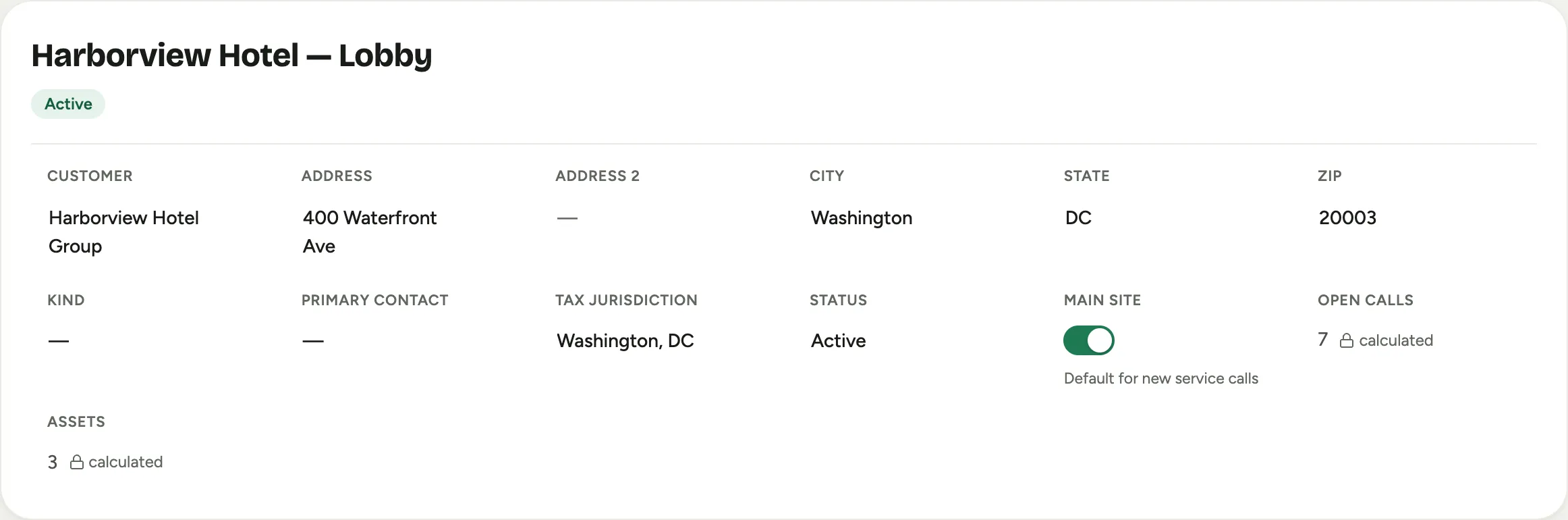
A site is where equipment lives and where a technician rolls a truck. A site can belong to a customer, or it can be a Shared venue that hosts any client’s equipment (a hotel ballroom, a convention center). Sites lists them with counts of assets and open calls, and a stat for sites that carry a service alert.
 Screenshot from a demo workspace; data illustrative.
Open a site and its record is a 360 of everything at that address: the Access & COI Notes, its Service Contract, the Installed Assets at This Site, and the Service Calls at This Site. A site alert rides at the top so the person who shows up already knows the ground rules (loading docks, marble floors, after-hours access). Setting up a site and its equipment is in Set up a site and its assets.
Installed assets
An installed asset is a piece of equipment you maintain at a site: a controller, a living wall, a set of planters. Installed Assets lists them with the site, quantity, serial or tag, and a warranty chip. An asset can be serialized (one tagged unit) or a pooled quantity line (six identical planters, no serial).
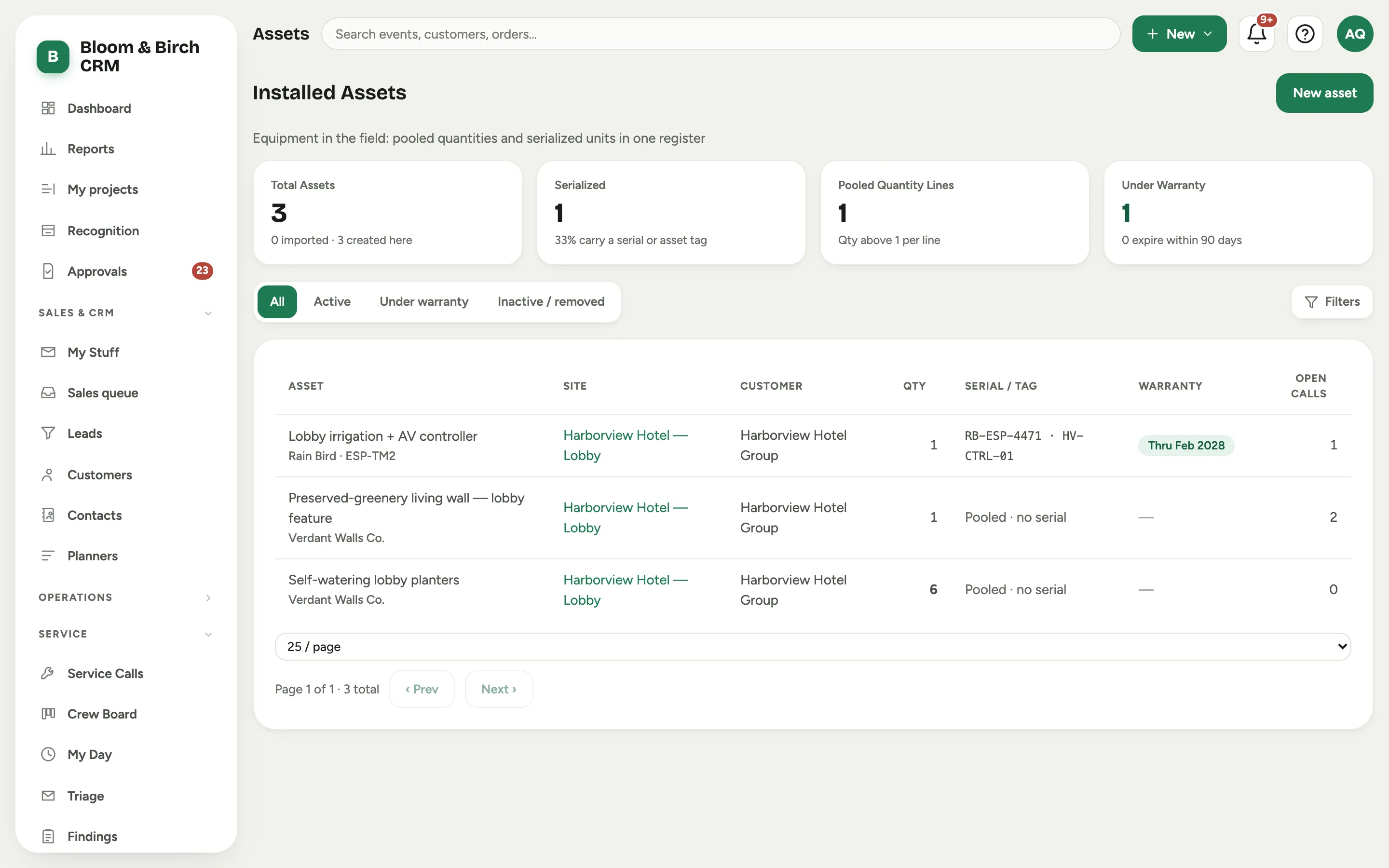 Screenshot from a demo workspace; data illustrative.
Open an asset and it keeps its own history: its manufacturer and model, warranty dates, network attributes, its Components, and every service call ever opened against it, so the tech who shows up knows what happened last time.
Service contracts
A service contract is a coverage plan for a customer and a site: a price, a cadence, and a term. Calls made under the plan are billed against the contract instead of the customer, so the plan absorbs the work.
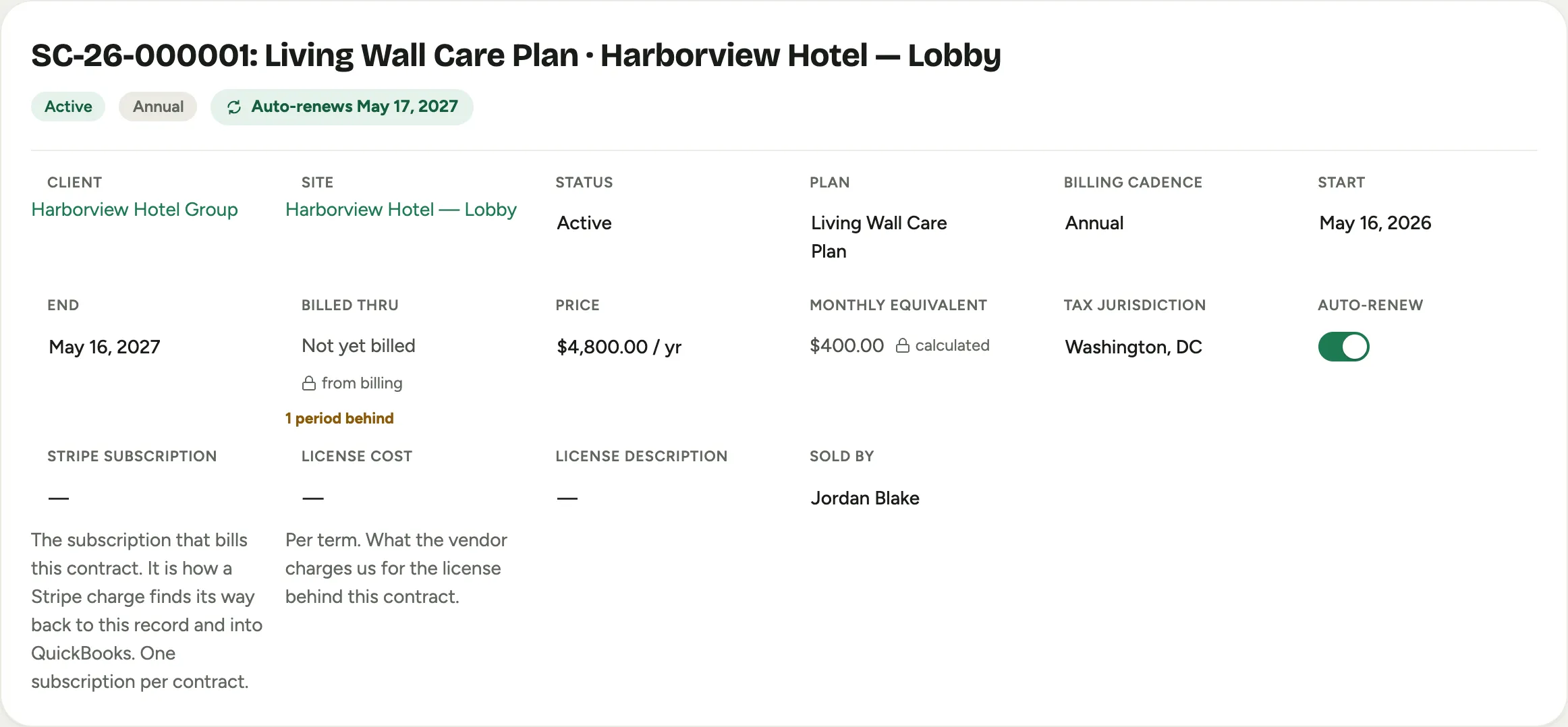 Screenshot from a demo workspace; data illustrative.
The record shows the Coverage the plan includes, the Covered Calls made against it, and Contract Profitability: the contract price against the cost of the calls it has absorbed, so you can see whether a plan is earning its keep. Selling and tracking a plan is in Sell and track a service contract.
The Crew Board
The Crew Board is the dispatcher’s day. Rows are technicians; every visit shows as a block on its tech’s row, alongside the studio’s other scheduled work (installs, deliveries), so the dispatcher sees the whole load and never double-books across lines of business.
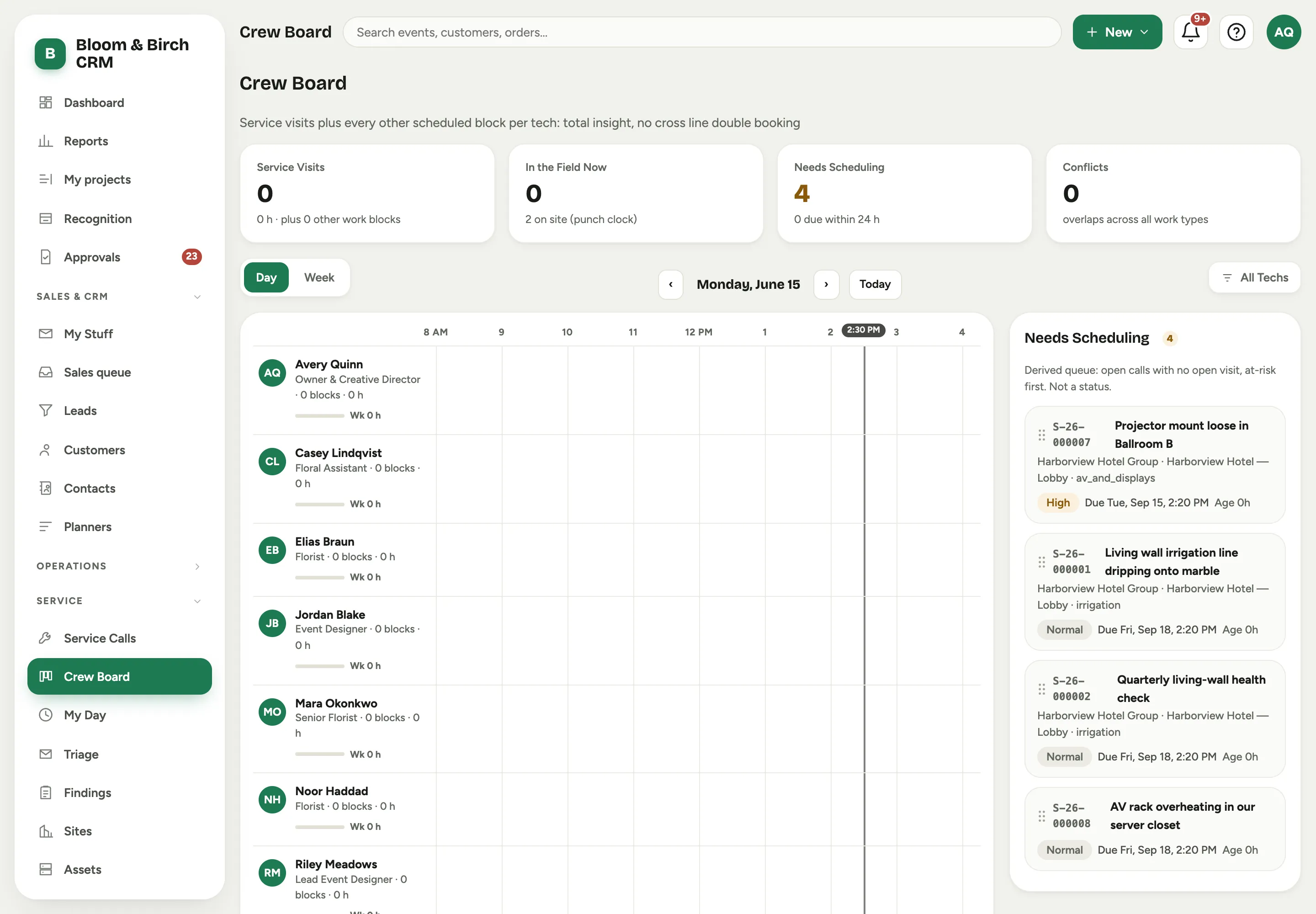 Screenshot from a demo workspace; data illustrative.
The stat cards read Service Visits, In the Field Now, Needs Scheduling, and Conflicts. The Needs Scheduling rail is the day’s real work list: open calls with a visit that has no date yet, most at-risk first, ready to drag onto a technician. The board is shared with the studio’s crewing, so it is also documented in Scheduling and crews; running the service day on it is in Schedule and dispatch a visit.
My Day
My Day is the technician’s phone view: their own stops for the day, one after the next. The current stop expands with the site access notes, the parts on the call, and a spot for on-site photos.
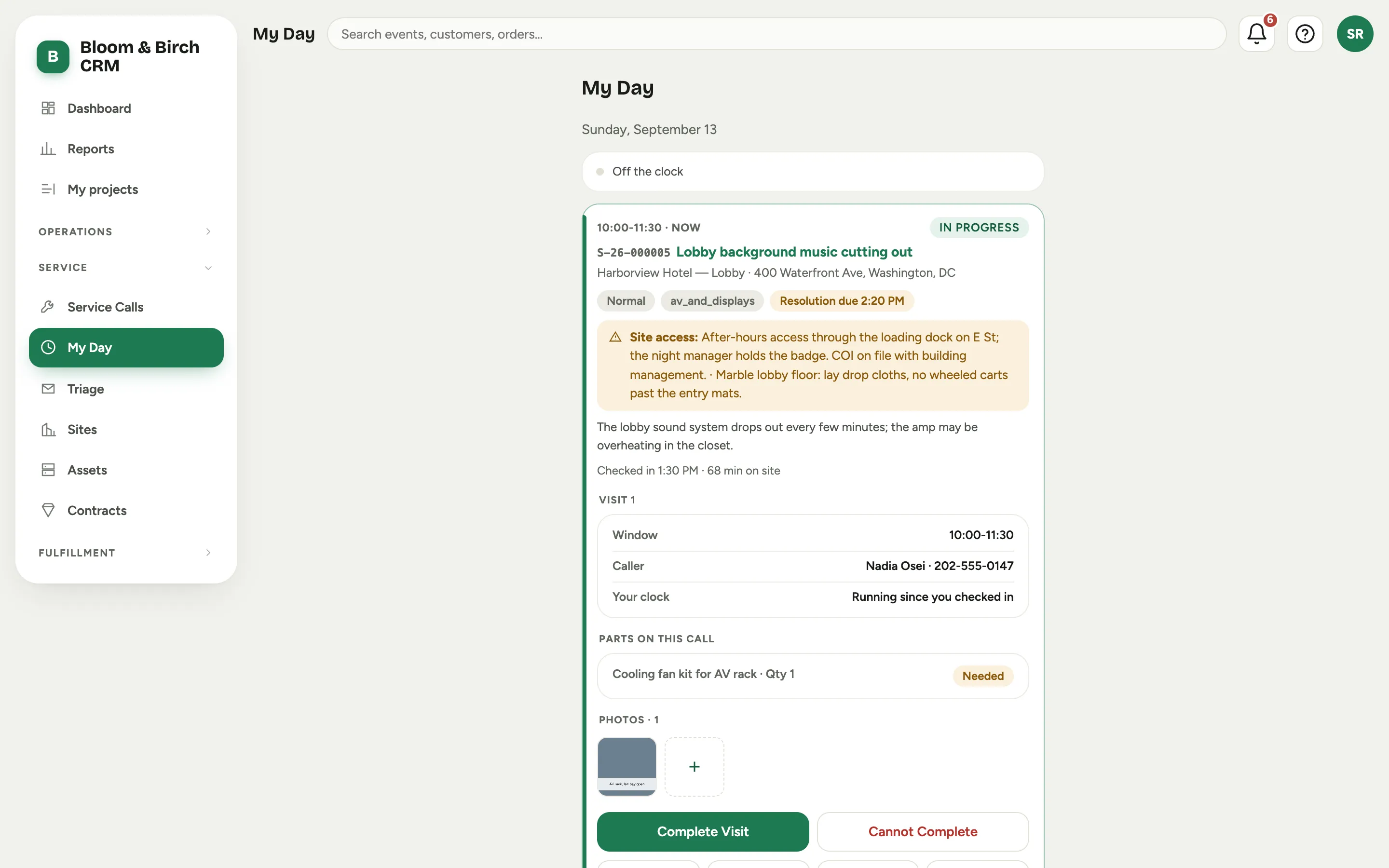 Screenshot from a demo workspace; data illustrative.
The tech taps Check In on arrival, adds photos as they work, and closes out with Complete Visit or Cannot Complete. The shift punch stays open between stops, so the clock keeps running across the day. Running a visit end to end is in Run a visit from your phone. A technician never sees a part’s cost or price here.
Triage
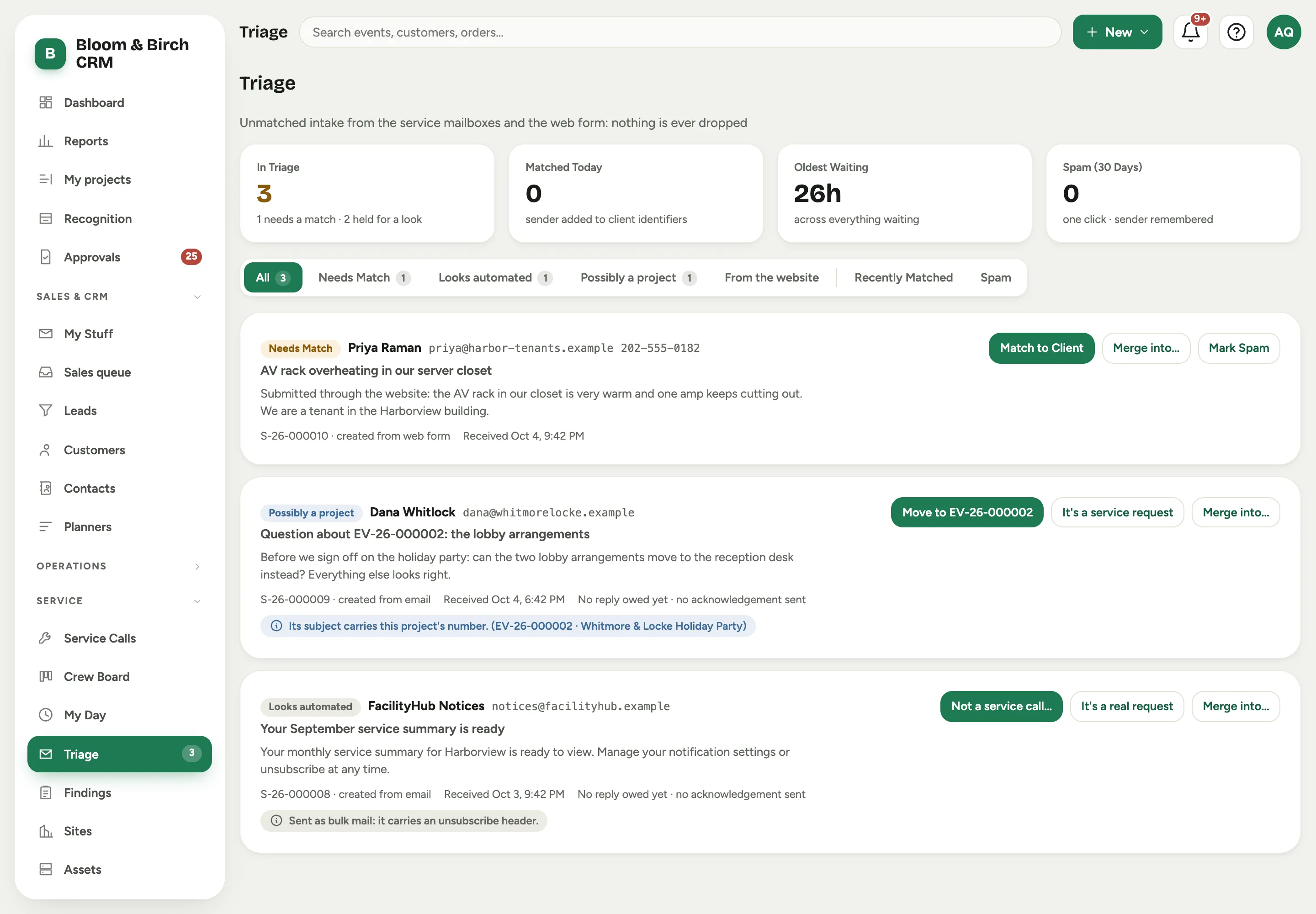
Triage is the safety net for intake that arrives without a customer: an email from an unknown sender, or a request from the public form where the address does not match a customer on file. Nothing is ever dropped, it lands here for someone to place.
 Screenshot from a demo workspace; data illustrative.
Triage opens on All: everything waiting, newest first, each card marked with its lane. The Needs Match lane holds intake waiting for a customer: Match to Client attaches the request to a customer (and remembers the sender for next time), and Mark Spam clears it in one click. The other lanes hold mail that looks automated or like part of a project until someone takes a look. Working the queue is in Work the service triage queue.
The request form
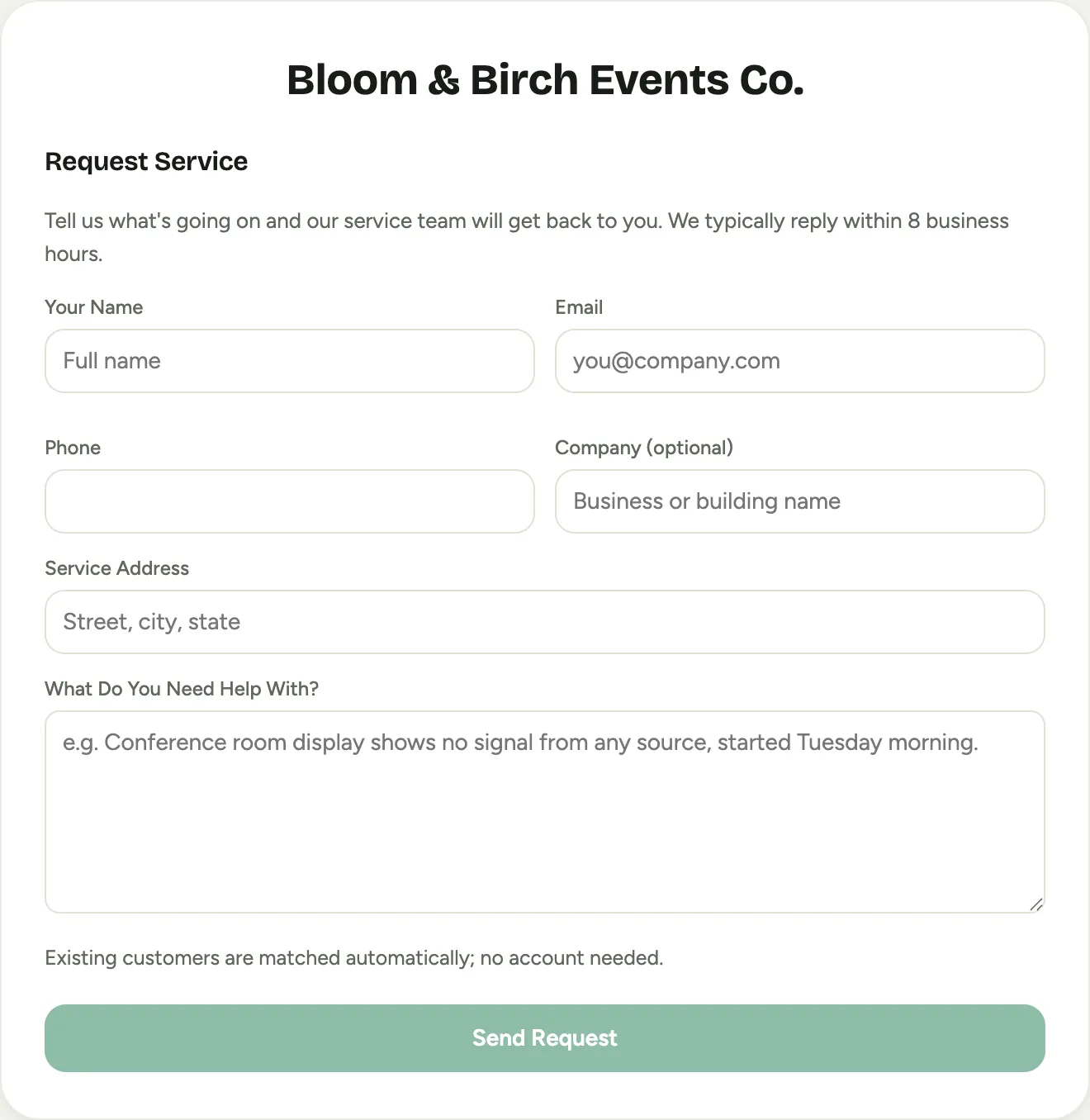
The public Request Service form is a web-to-case page you put on your own website. A customer fills it in, and it opens a service call automatically, matching an existing customer by their details or sending an unknown one to Triage.
 Screenshot from a demo workspace; data illustrative.
The form carries your brand and your reply-time promise, and it needs no account. Turning it on and getting its link is in Set up Florio Service.