Events: the record everything hangs off
An event is a booking you are designing and producing: a wedding, a gala, a corporate dinner. It is the busiest record in Florio, because everything else attaches to it. The proposal is built on the event, the margin scorecard is checked on the event, the crew is scheduled against the event, and the tasks, emails, and files all live on the event. When you want to know where a booking stands, you open its event and see the whole picture on one screen.
Events live under Sales & CRM in the sidebar. A new event is usually born the moment you convert a won lead, but you can also start one by hand. This page walks the two screens: the Events list, and the event record itself. Every section below is a target of the in-product help icon, so the ? on either screen brings you straight to the matching heading here.
The events list
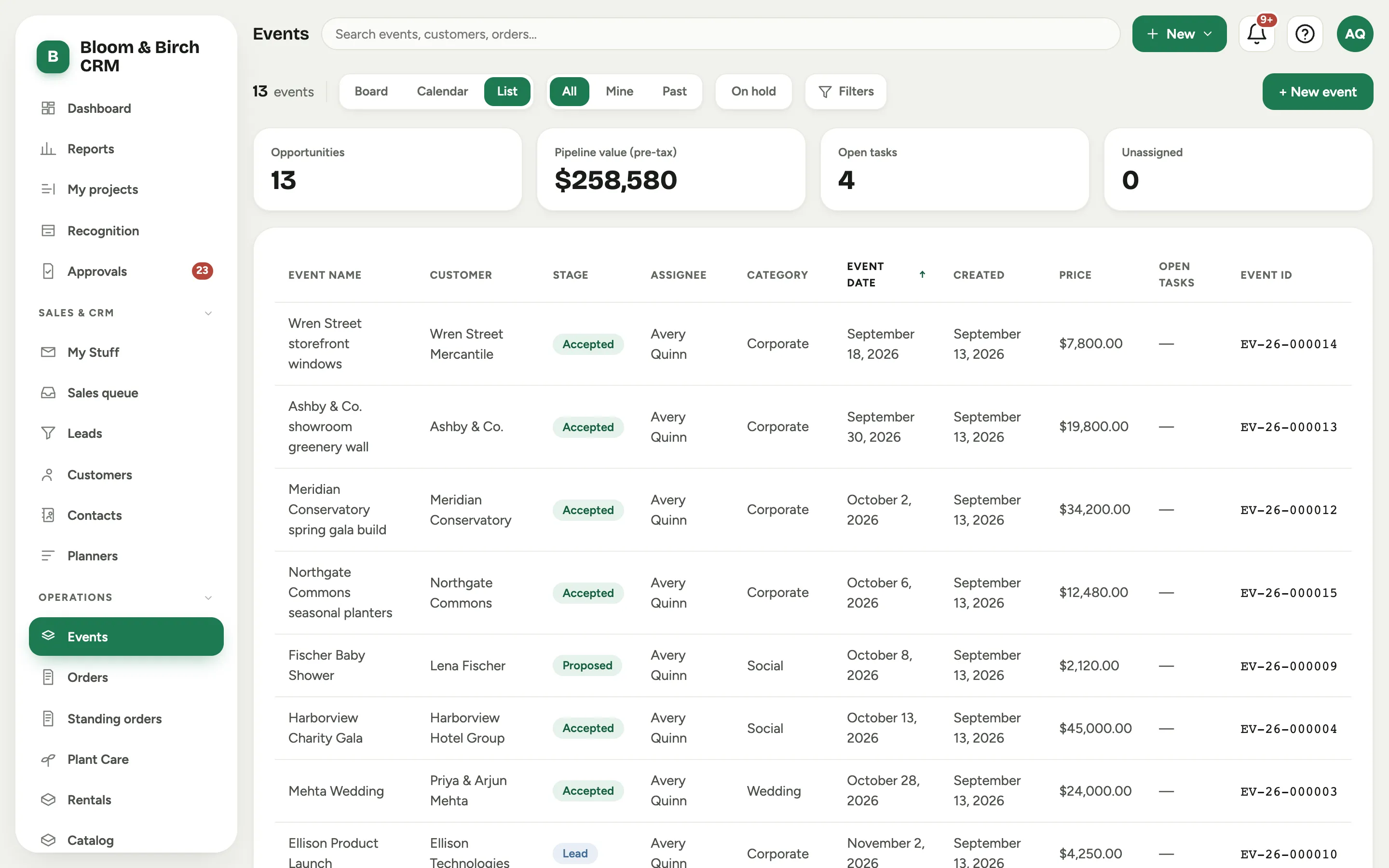
Events is every booking, and it offers three ways to look at them. The view chips choose between Board, Calendar, and List. The scope chips beside them choose whose work you see: All, Mine, and Past. All and Mine show upcoming events soonest first; Past looks backward, most recent first.
 Screenshot from a demo workspace; data illustrative.
Four stat cards sit above the list: Opportunities (how many events are in view), Pipeline value (pre-tax) (their selling prices added up), Open tasks, and Unassigned (events with no designer yet). The On hold toggle narrows the list to held events, and, in List view, Filters opens a per-column search and a stage filter. Start a booking from scratch with New event.
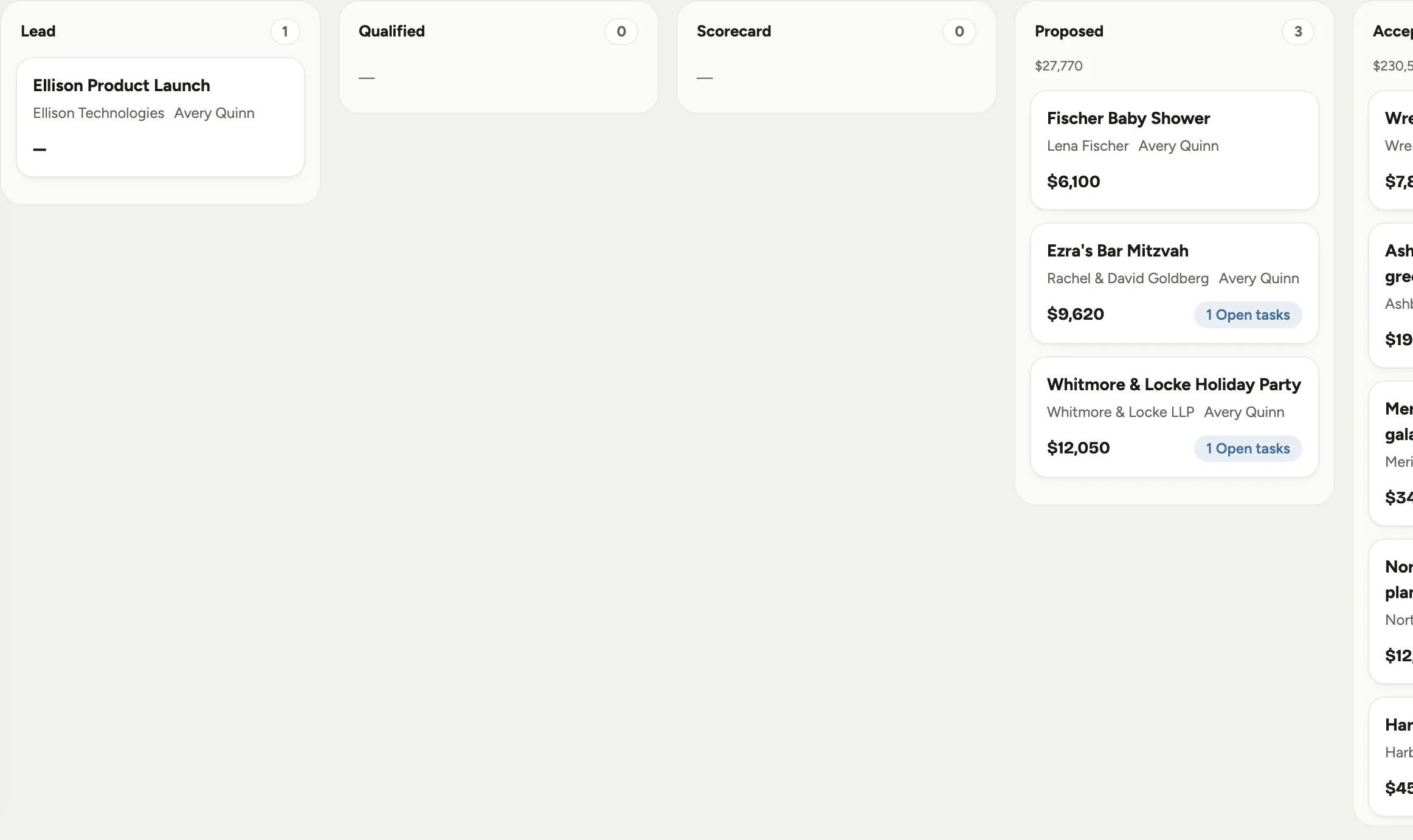
Board turns the list into a pipeline: one column per stage, each showing its count and value, so you can see the shape of the pipeline at a glance and drag a booking forward. Calendar lays the same events out by date, which is how most studios plan the season.
 Screenshot from a demo workspace; data illustrative.
The event record
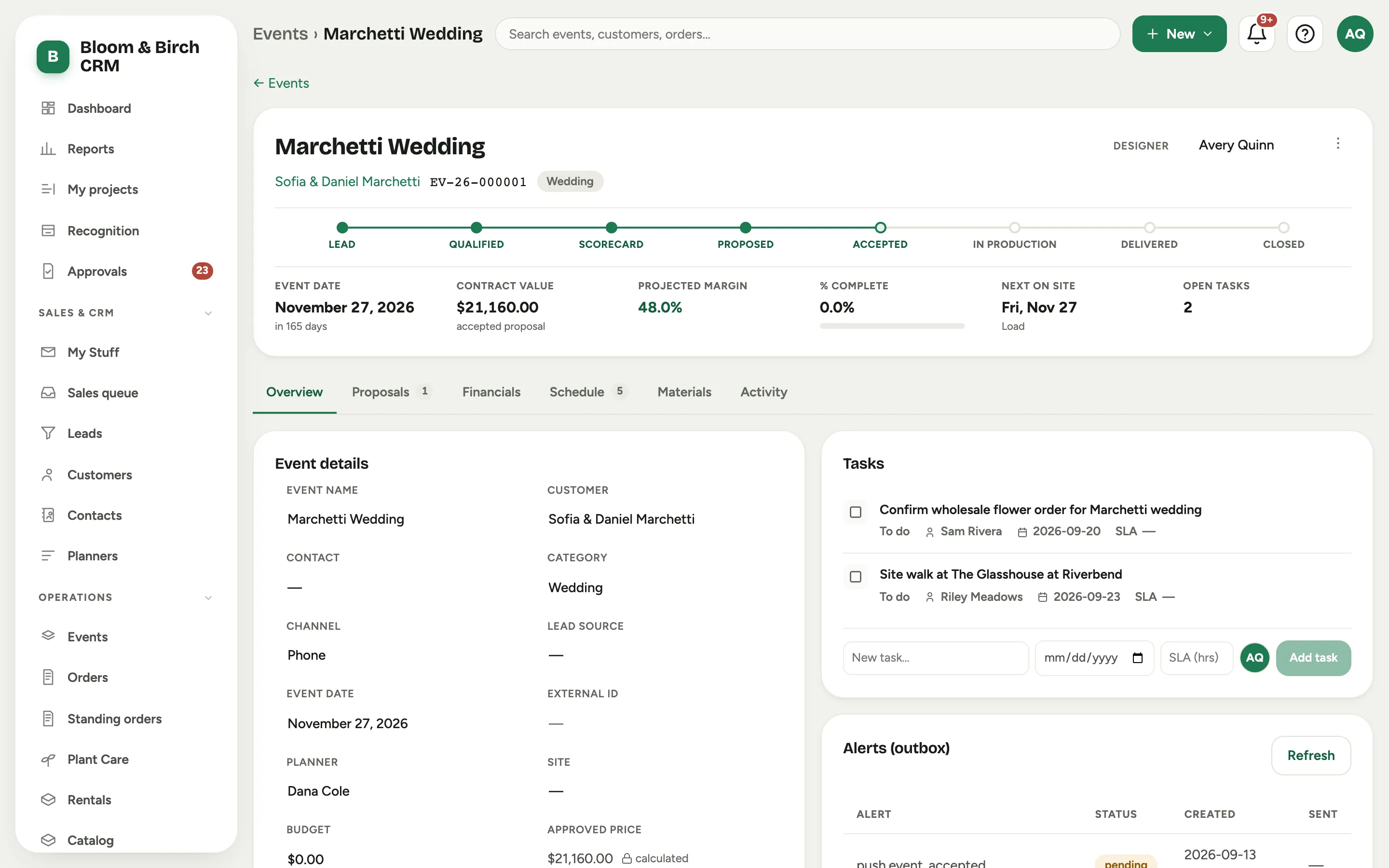
Open an event and everything above the tabs stays with you wherever you go on the record. The persistent header carries the identity: the event name, the customer, the short Event ID with its category chip, and two badges when they apply: a grey Test event badge on practice records, and an amber On hold badge when work is paused. The designer who owns the booking sits at the top right, beside the More event actions menu.
 Screenshot from a demo workspace; data illustrative.
The stage track across the header is the booking’s lifecycle. Click a stage to move the event along it. The stages are your studio’s own pipeline, set in Admin, so they read the way your team talks about a booking.
Below the stage track, a fact strip keeps the standing numbers in view on every tab. On a sold booking it reads Event date, Contract value, Projected margin, the percent complete, Next on site, and Open tasks. Before the sale it tells the pursuit story instead: the date, Opportunity age, Last activity, and Budget, joined by Proposal value and its projected margin once a priced proposal exists. Money facts appear only for people with permission to see them.
The record itself is organized as tabs: Overview, Proposals, Financials, Schedule, and Activity, plus a Materials tab on workspaces that plan project materials (see Projects). Proposals, Schedule, and Materials carry a count chip, and Financials shows a small alert dot while unapproved cost is standing on a project. The tab you are on lives in the page’s address, so a copied link or a refresh lands on the exact tab you were looking at, and the browser’s Back button leaves the record rather than walking back through tabs.
Overview is where the record opens: the event’s facts, its locations, the scorecard summary, its note, and the working side described below. The facts in the Event details card are all inline-editable: Event name, Customer, Contact, Category, Channel, Lead source, Event date, External ID, Planner, Site, and Budget. Two values are read-only because Florio calculates them: Approved price and Signed. When an event is set aside, Lost reason and Lost notes appear here too.
The More event actions menu at the top right holds the rest: Mark as test event, Copy link to event, Put on hold or Take off hold, Mark as lost, the off-ramp that ends the pipeline, Reopen event, and, for admins, Delete event. Working a booking through its stages, holding it, and marking it lost are covered in Work an event through its stages.
Scorecard, proposal, and the money
The financial spine of the record spans two tabs, and it enforces the one rule that ties Florio together: costs first, price last, and a margin gate before anything goes out.
 Screenshot from a demo workspace; data illustrative.
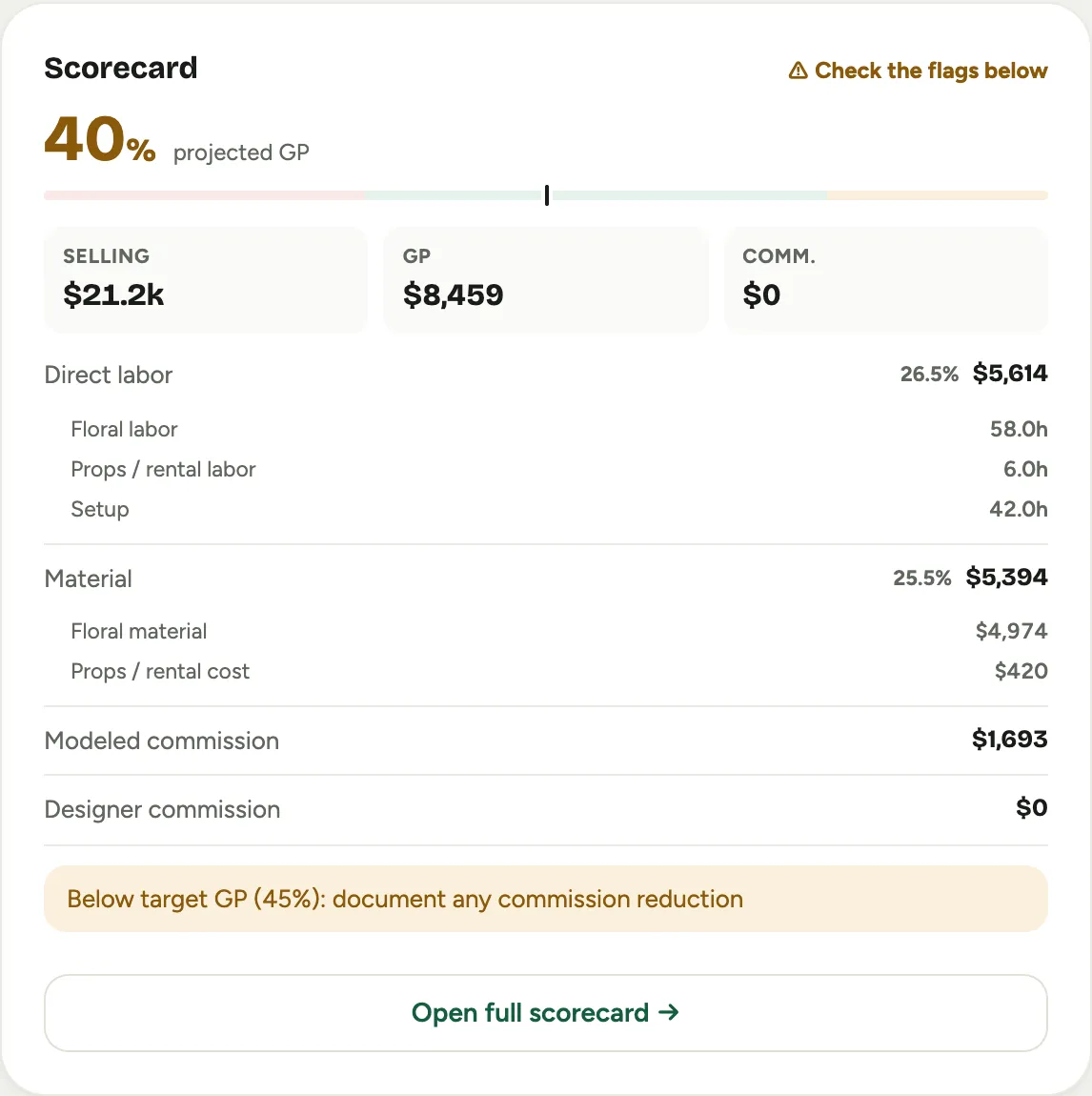
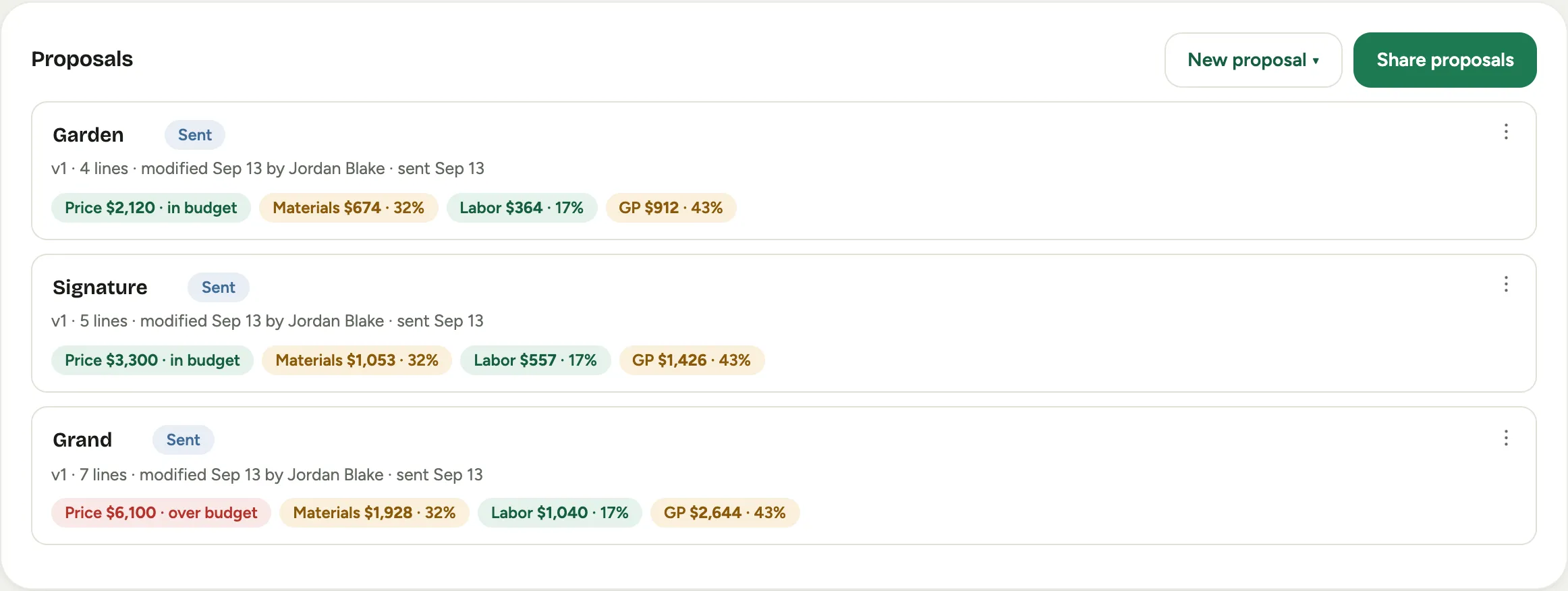
- The Scorecard panel on the Overview tab shows the event’s margin at a glance, the Selling, GP, and Comm. tiles, with the projected gross-margin percentage. Once the event is over and the real numbers are in, the panel also shows Projected against actual, so you can see where the job landed. The full idea is in The margin scorecard, and pricing an event is in Cost an event.
- The Proposals tab holds the client paper: the proposal, its versions, and its status, reconciled against the approved price so the number the client signs matches the number the scorecard cleared. Delivery tracks who opened and signed each copy that went out, and Signed contracts holds any signature PDFs collected offline. Building, versioning, and sending the proposal are in Proposals. To see it exactly as the client does, read What your clients see.
- The Financials tab gathers the money in one place. Where QuickBooks Online is connected, it shows the event’s QuickBooks estimate and a QuickBooks Invoices & Payments panel with the invoices, their due dates, and the balance, so the booking’s billing is visible on the record. See How Florio works with QuickBooks Online. On workspaces that run multi-week jobs, the contract and the live profit view live here too; see Projects.
 Screenshot from a demo workspace; data illustrative.
Locations and the day of
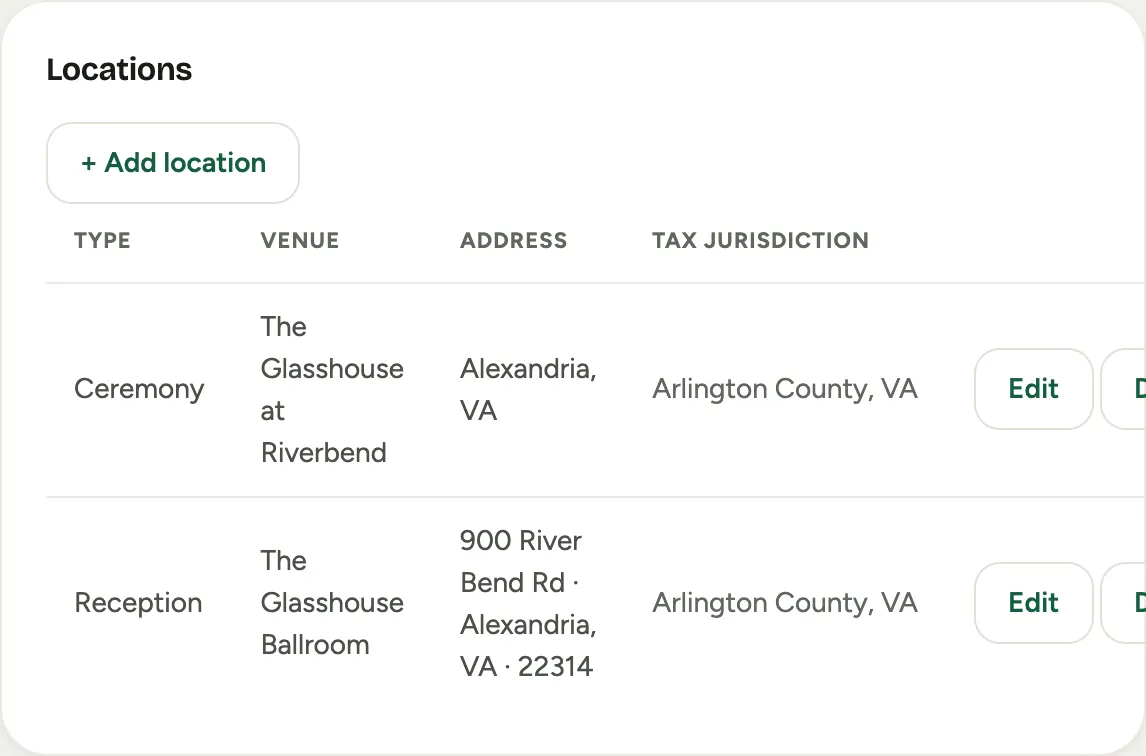
On the Overview tab, Locations holds the venues, the ceremony site, the reception hall, a staging warehouse, with their addresses. The location matters beyond logistics: it decides the tax jurisdiction and can trigger the tax-exemption panel on the Financials tab.
 Screenshot from a demo workspace; data illustrative.
The Schedule tab holds the when. The Day-of schedule lays out the timed moments of the event itself, load-in, ceremony, start, strike, so the team knows the shape of the day. Below it, the Schedule panel is the crewing side: the crew and production blocks, the vehicles, and the hours, which is the scheduling engine embedded on the event. An Event note on the Overview tab holds a free-text logistics note that rides along with the booking.
Terms and tax, per event
Two panels handle the fine print, and both start from your studio-wide defaults and let you override on this one booking.
 Screenshot from a demo workspace; data illustrative.
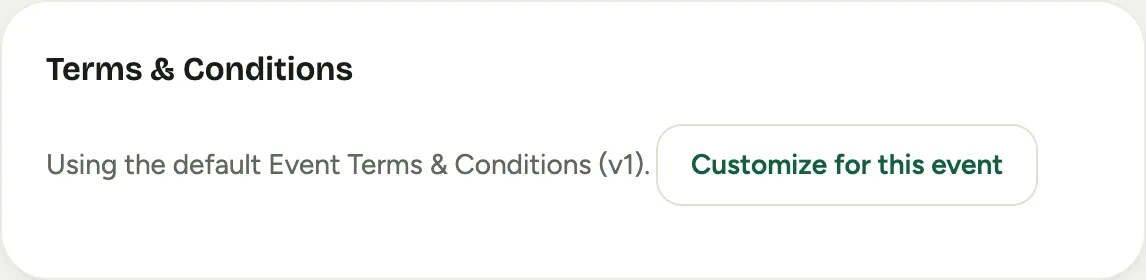
- Terms & Conditions, on the Proposals tab beside the client paper it governs, shows the terms that will appear on this event’s proposal. By default they are your studio’s standard terms, set in Admin; on the event you can override them for a venue or a client that needs different language.
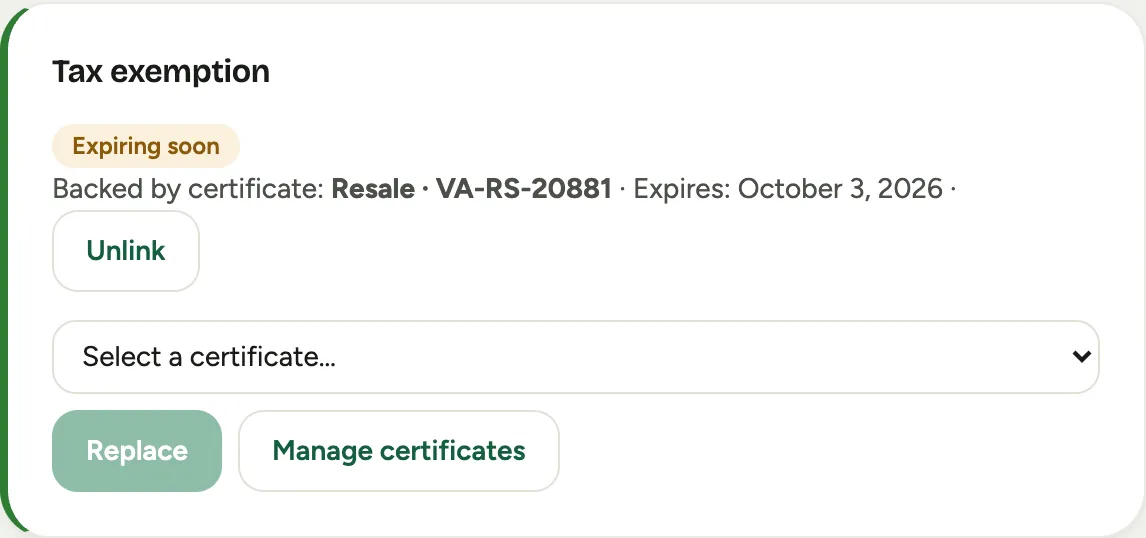
- Tax exemption, on the Financials tab, appears when a location falls in a jurisdiction where the customer holds an exemption. It ties the booking to the certificate on file so the proposal and the invoice come out untaxed correctly. Setting up exemptions and certificates is in Handle a tax-exempt customer.
 Screenshot from a demo workspace; data illustrative.
Overriding either on a single event is covered in Override the terms or tax on an event.
Tasks, files, and history
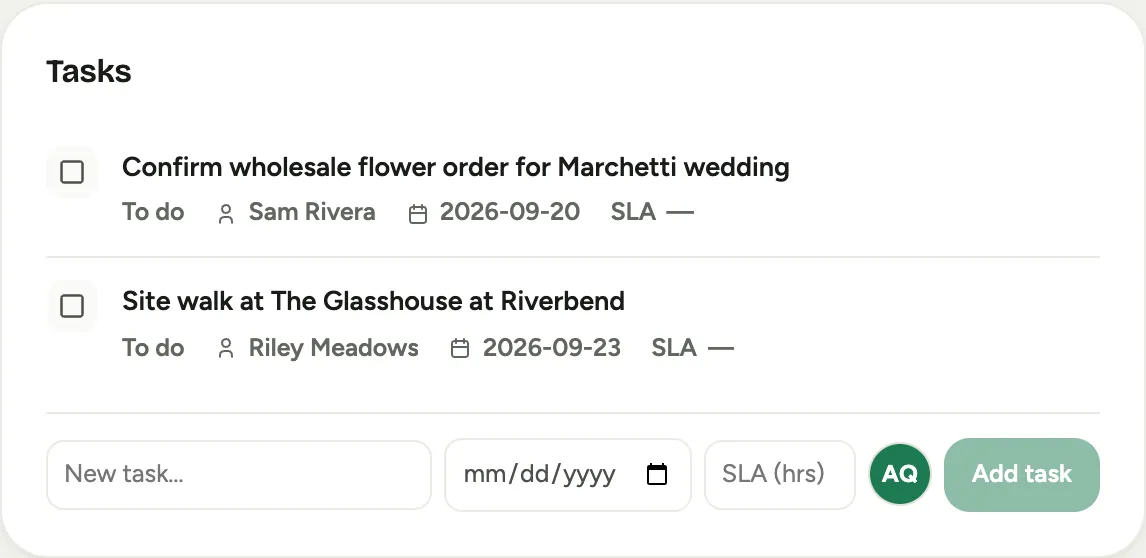
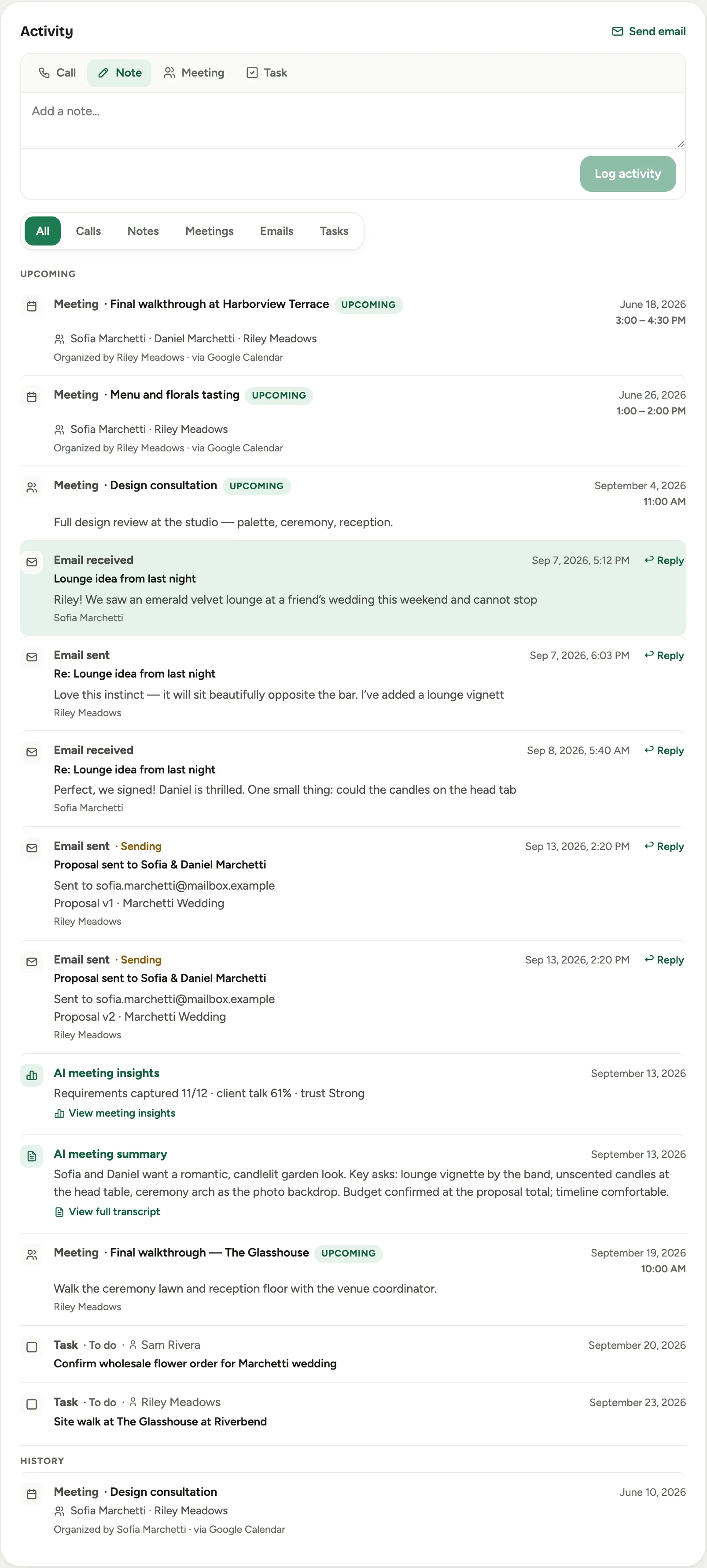
The working side of the record splits between the Overview tab, what is left to do and what is attached, and the Activity tab, everything that has happened.
 Screenshot from a demo workspace; data illustrative.
- Tasks, on the Overview tab, is the checklist for this booking, with a quick-add and the same due dates and owners as everywhere else. See Tasks and follow-ups.
- Attachments, beside it, holds the files: inspiration decks, floor plans, vendor contracts.
- Alerts (outbox) shows the automated messages Florio has queued or sent for the event.
- The Activity tab is the running record: the timeline of notes, meetings, and updates with its composer, and the Activity log beside it, the audit trail of who changed what, and when. The mail captured against the booking flows through the timeline too; filter it with the Emails chip. See Email, calendar and meetings.
 Screenshot from a demo workspace; data illustrative.