Save and reuse templates
Most studios write the same things over and over: a standard delivery-and-setup section, a boilerplate rental line, an entire starter proposal for a common package. Save those once and you never rebuild them.
Before you start
- Templates come in three sizes: a single line, a whole section, or an entire proposal. Save at the size you actually reuse.
Save a template
- A section. Open a section’s menu and choose Save section as template.
- A line. On a line, choose Save as template.
- A whole proposal. On the rail, choose Use as template to keep the entire document as a starting point.
When you save, name the template and choose its scope: keep it to yourself, or share it with everyone in your studio.
Insert a template
-
In the proposal editor, click Insert from template.
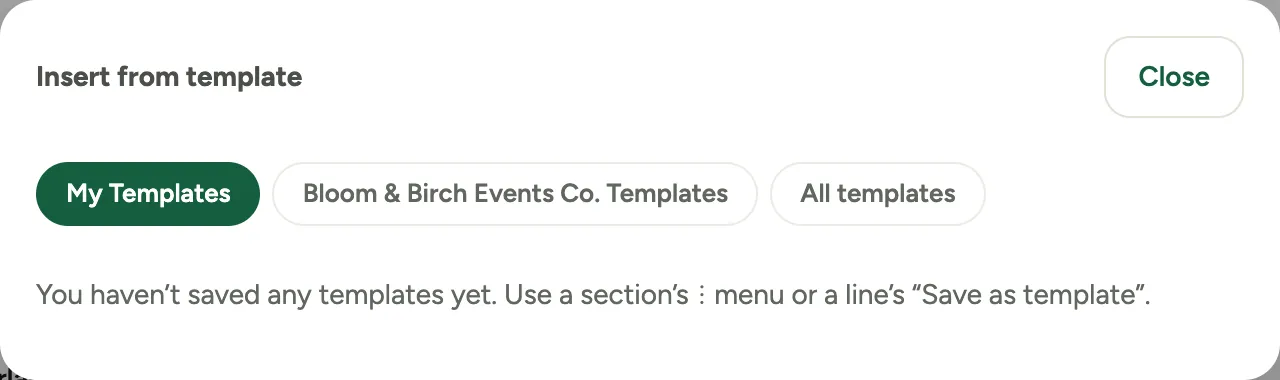 Screenshot from a demo workspace; data illustrative.
 -
Pick a template. The picker separates your own from the ones shared across the studio, and marks whether each is a Section or Line items.
-
Choose the section to insert into, then click Insert. The saved content drops in, ready to adjust.
Lines from the catalog
A line you picked from the catalog keeps its part, not a copy of it. Each time you insert the template, the line is filled from the catalog as it is that day: its name and description, price, costs and hours, and the part’s photos, so a template saved in the spring still sells at today’s price. The template keeps only the quantity, whether the line is optional, and any Photo Library pictures you added.
- In the picker and in Edit, these lines are marked From the catalog and show the catalog’s current price.
- To change a catalog line’s price or wording, change the part in the catalog; the template follows. Quantity and optional stay editable in the template.
- + From catalog in the template editor adds a part straight from the catalog.
- If a part was retired after you saved the template, its line is marked Retired in the catalog. It is still added when you insert the template, so swap it for its replacement.
- Lines you typed yourself are saved as they are, with their own price and costs.
- A template saved before October 13, 2026 kept copies of its catalog lines. Save it again from a proposal to link its parts.
Good to know
- Shared templates keep the studio consistent. A shared delivery section means every proposal describes setup the same way, in your studio’s voice, not each designer’s.
- Templates carry their costs. A saved line keeps its materials and labor, so the margin stays right the moment you insert it. A line from the catalog takes the catalog’s current costs instead.
- Where this fits: Proposals.