Propose meeting times in an email
Stop trading “does Tuesday work?” emails. Florio lets you offer real, open times inside the message you are already writing, or share a link that shows your whole availability. Either way the client picks a time and it books itself.
Before you start
- Connect Google so Florio can read your real availability.
Steps
- From a lead, customer, event, or order, start a New email or open the one you are replying to.
- In the composer, choose Propose times. Florio offers only slots that are genuinely open on your team’s calendars; pick the ones you want and choose Hold times & insert into email.
- Send it. Each time is a live link; the first one the client clicks books the consult, and the others release.
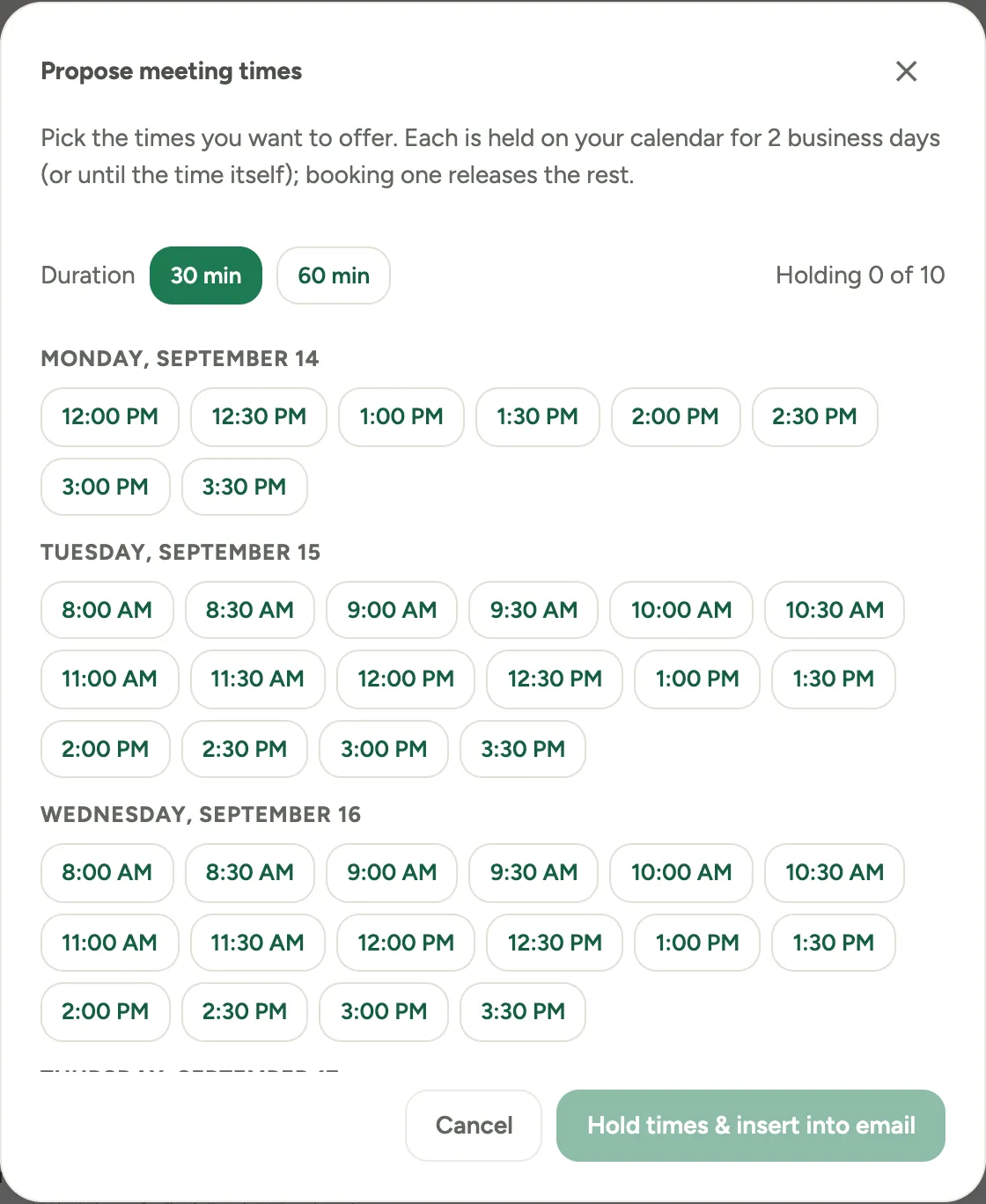 Screenshot from a demo workspace; data illustrative.
The times land in your message as a row of buttons, one per slot, above your signature. That is the client’s whole job: read the times, click one.
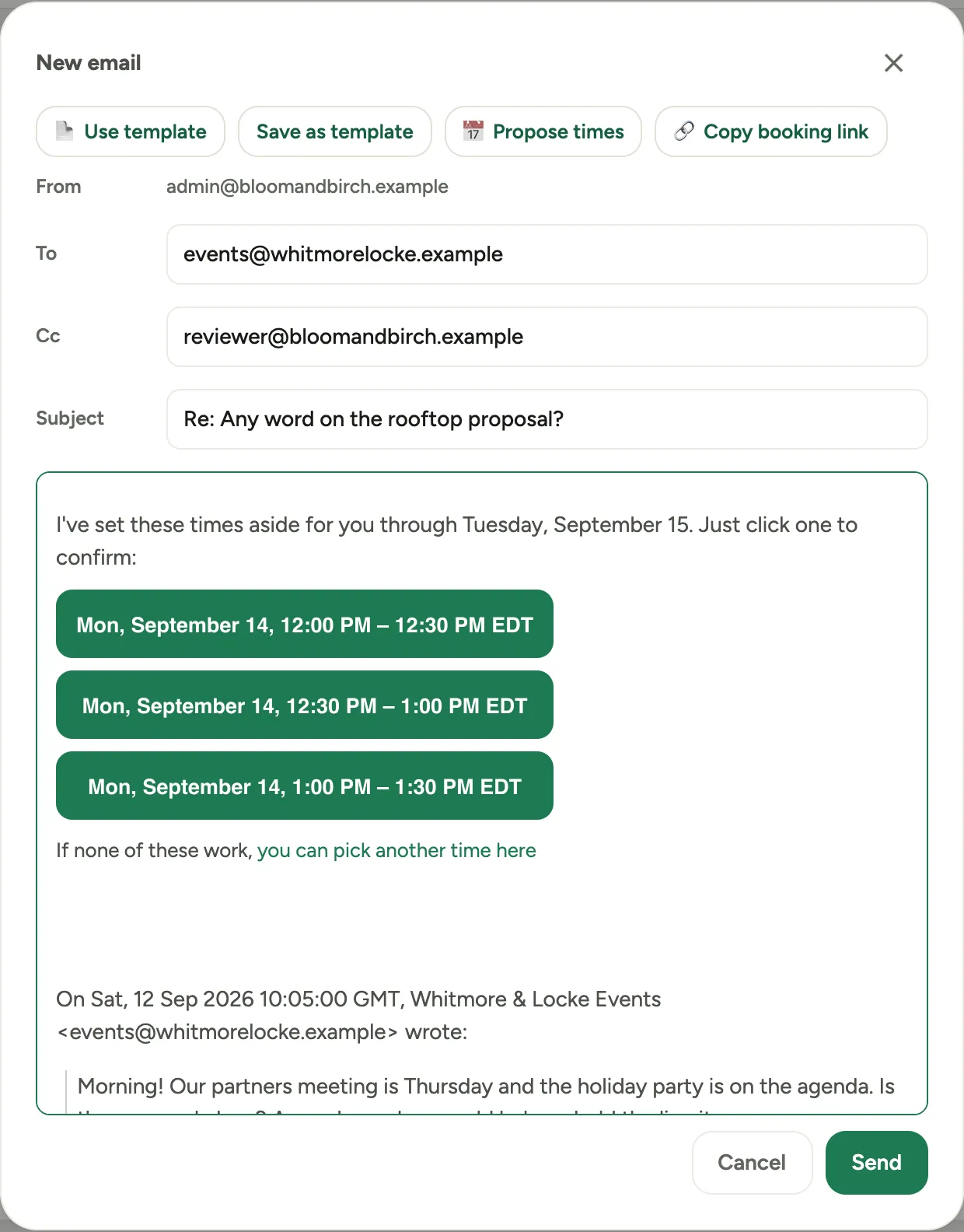 Screenshot from a demo workspace; data illustrative.
What holding a time actually does
A proposed time is not just text in the message. Each one is held on your calendar for the hold window, so the slot stops offering itself elsewhere while the client decides, and nobody on your team can book over it. You will see the holds on your own calendar as tentative entries.
Those holds belong to the email you are writing. They last until the client books one, or until the hold window runs out, or until you throw the message away.
If you change your mind
Close the composer without sending and Florio asks first. Whether you use the close button, Cancel, the Escape key, or a click outside the window, you get a question rather than an empty screen: the box says the message has not been sent, and tells you how many times you are holding. Choose Keep editing to go back to the message, or Discard email to throw the draft away.
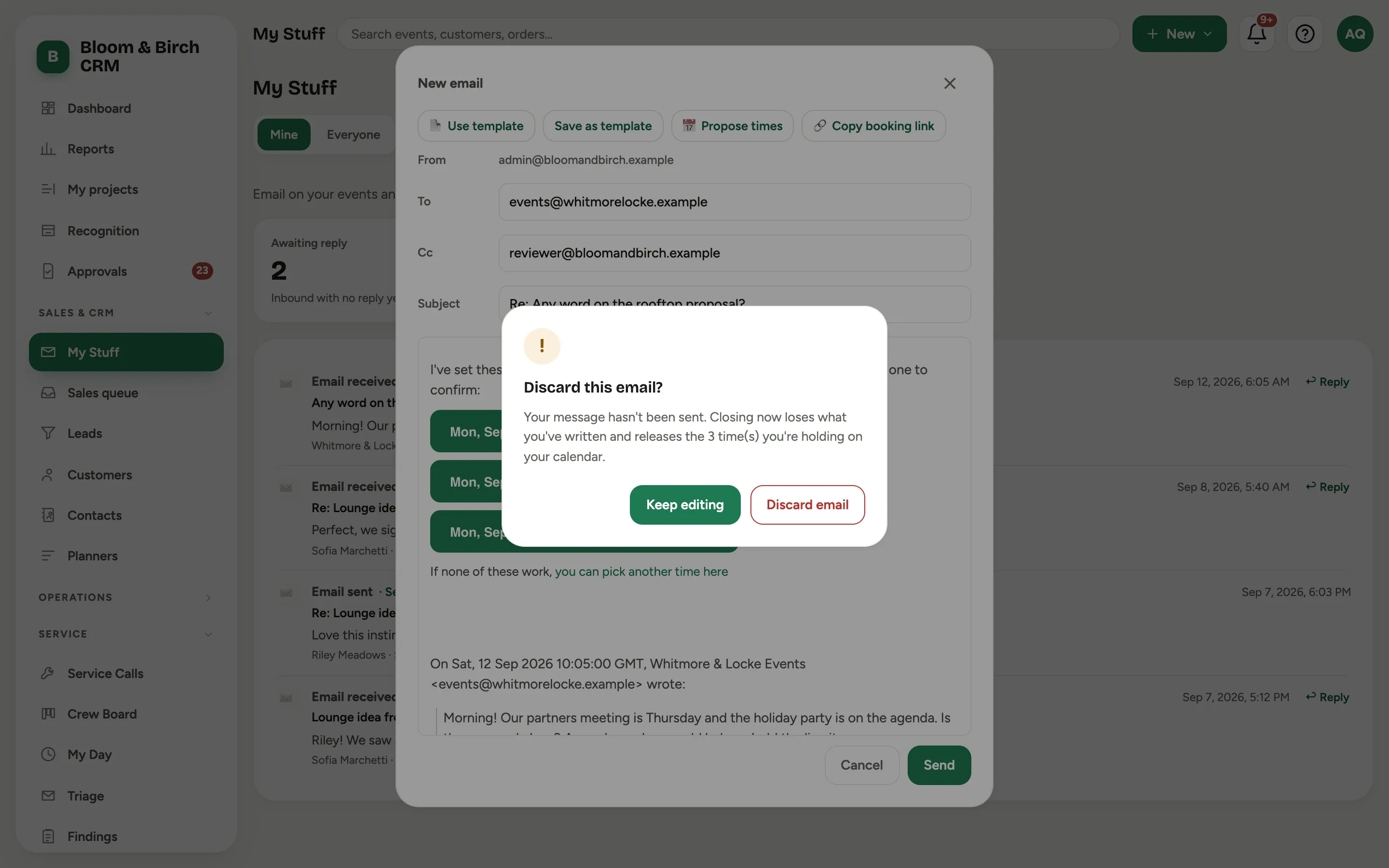 Screenshot from a demo workspace; data illustrative.
Discarding hands the times straight back. They come off your calendar, they stop suppressing your availability, and the booking link that was sitting in the abandoned draft stops working, so a time you never actually offered to anybody cannot be booked later from a stray copy of the message.
The same guard covers the smaller decisions. Backing out of the Propose meeting times window after picking times asks before it loses your selection. And if you sent a proposal with times attached and want the times back without touching the rest, the Proposed times added chip carries a Remove that releases them on its own.
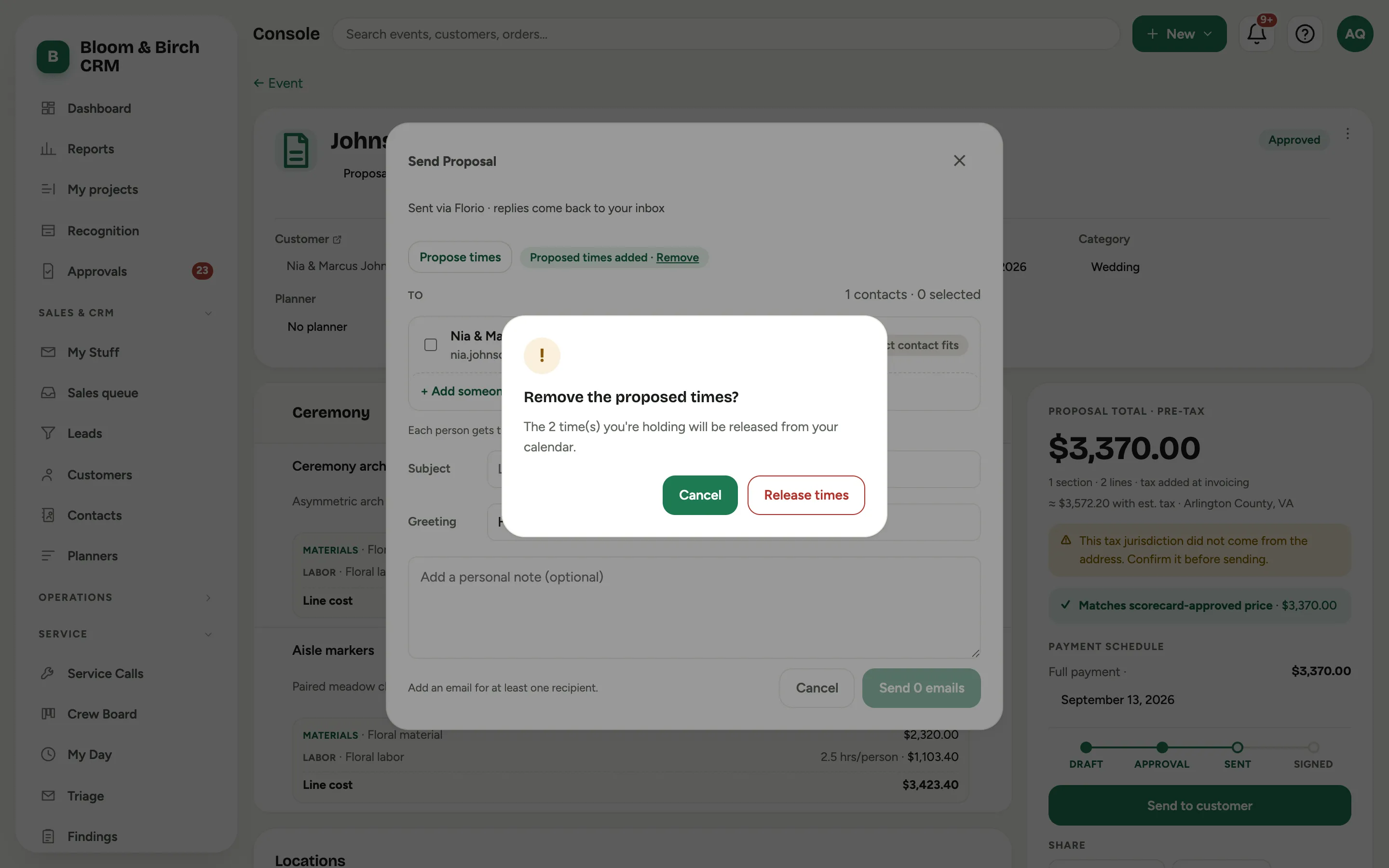 Screenshot from a demo workspace; data illustrative.
Good to know
- Prefer a link? Share a booking link instead: the client sees your real availability, picks a slot, and it lands with a video link attached.
- The reply timer clears itself once the meeting books, so it stops nagging you.
- Round-robin can spread consults across your sales team, with the lead owner getting first claim.
- More detail: How Florio handles your email and calendar.