Keep up with replies
The fast reply is what wins the booking, so Florio keeps one list of the email that is yours to answer. My Stuff gathers the traffic on your events and customers in a single feed and flags what still owes a reply, so nothing slips while you are running an event.
Before you start
- Email capture must be connected for your workspace (see Set up email capture).
- Replying uses your own Gmail; connect it if you have not (see Connect Google).
Steps
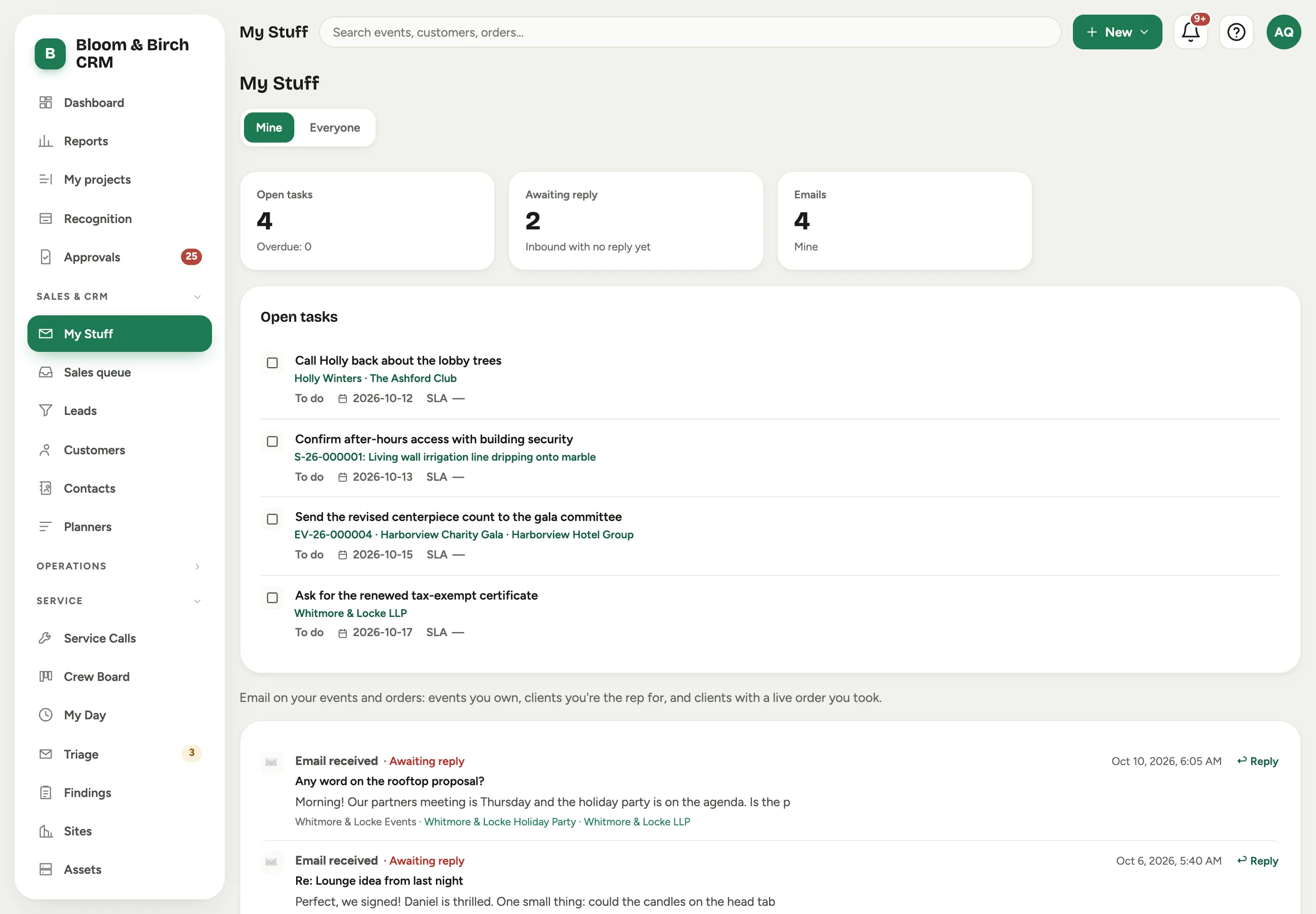 Screenshot from a demo workspace; data illustrative.
- Open My Stuff from the sidebar.
- Leave the scope on Mine to see your own work: the events you own, the customers you are the rep for, and customers with a live order you took. Managers can switch to Everyone for the whole team’s feed.
- Read the email cards at the top: Awaiting reply counts the inbound messages with no answer yet, and Emails is the total in view. The Open tasks card and the list under it are your tasks (see Create and delegate tasks); the email feed follows them.
- Work down the feed. Each row shows its state, Awaiting reply, Replied, Sent, or No reply needed. On an Awaiting reply row, choose Reply to answer without leaving the page.
- Send the reply. The row flips to Replied and drops off the awaiting count.
Good to know
- Florio watches for threads whose last word was the client’s and nudges the owner, tuned to your business hours, so the list reflects real reply pressure rather than every message.
- The studio-wide view of “replies you owe”, across the whole team, is the Sales queue, where a waiting thread shows how long it has been open and turns red once it is overdue.
- A row marked No reply needed is correspondence that does not expect an answer, so it never counts against you.