Create an event
Most events are born the moment you win a lead, but sometimes a booking comes in another way, a call from a past client, a referral, a planner you already work with, and you want to start the record directly. Either way, the event is the container everything else attaches to, so it comes first.
Before you start
- Decide whether this is a brand-new customer or someone already on file. Attaching the event to an existing customer keeps their whole history on one record.
- Most bookings should start from the lead, not here: converting carries the inquiry, its brief, and its emails onto the new event. Start by hand only when there is no lead.
Steps
-
Go to Events and click New event.
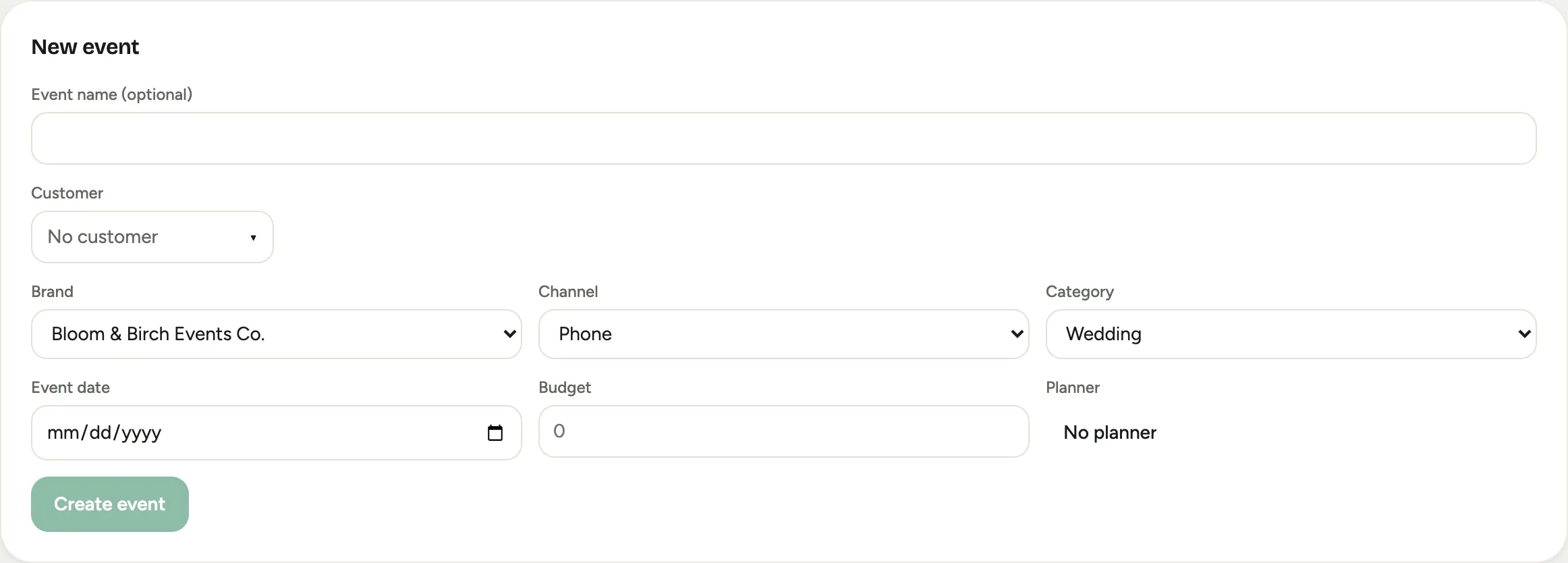 Screenshot from a demo workspace; data illustrative.
 -
Give it an Event name if you have one; it is optional, and you can add or change it later. Something like “Marchetti Wedding” reads better across the app than the ID alone.
-
Choose the Customer. Pick someone already on file, or create a new customer right from the picker. This is the relationship the booking belongs to.
-
Set the Brand (if your studio runs more than one), the Channel the booking came in through, the Category (wedding, gala, social), and the Event date.
-
Click Create event. Florio opens the new record, ready for its proposal and scorecard.
Good to know
- From a lead instead. When the booking started as an inquiry, open the lead and use Convert lead: it creates or links the customer and opens the event in one step, keeping the trail from inquiry to booking intact. See Convert a lead to a customer.
- The date can wait. If you do not know the event date yet, leave it blank and fill it in once it firms up. Undated events sort to the bottom of the list.
- For teams who quote in D-Tools Cloud, New event makes the project in D-Tools. Choose the customer (the form says whether D-Tools already has them), then fill in the opportunity: name, owner (the customer’s rep, or whoever owns the customer in D-Tools), expected close date, budget, type, contact, site and lead source. Click Review to see exactly what goes to D-Tools, then Create opportunity; Florio opens the new project with its D-Tools number. A project made in Florio alone is not offered, because nobody quoting in D-Tools would see it.
- Practice runs. To try something out without it counting, open the new event’s More event actions menu and choose Mark as test event; it wears a grey Test event badge and stays out of your real pipeline numbers.
- Where this fits: Events.