Admin and setup: standing up and running your workspace
Everything that makes Florio your studio’s Florio lives under Admin, in the Manage section of the sidebar. It is a row of tabs, each one a single job: add a teammate, decide what a role can see, set your deposit schedule, publish your terms, rename a module to match how you talk. You set most of it once when you start, then visit a tab now and then as the business changes.
This page walks every tab in turn, grouped by the kind of work it does. Each heading below is a target of the in-product help icon, so the ? on any Admin screen brings you straight to the matching section here, and most sections link out to a step-by-step guide.
People and access
Users
Users is your team roster: everyone who can sign in. The Create user form adds a person with their Email, Display name, and starting Roles; the table below lists everyone with their Name, Email, Job title, Payroll ID, and Roles. The chips across the top filter Current, Archived, and System accounts. Open a person with Edit to change their roles, add one-off Direct grants on top of those roles, edit their HR profile, and Send login invite. When someone leaves, Archive them rather than deleting, so their history stays intact.
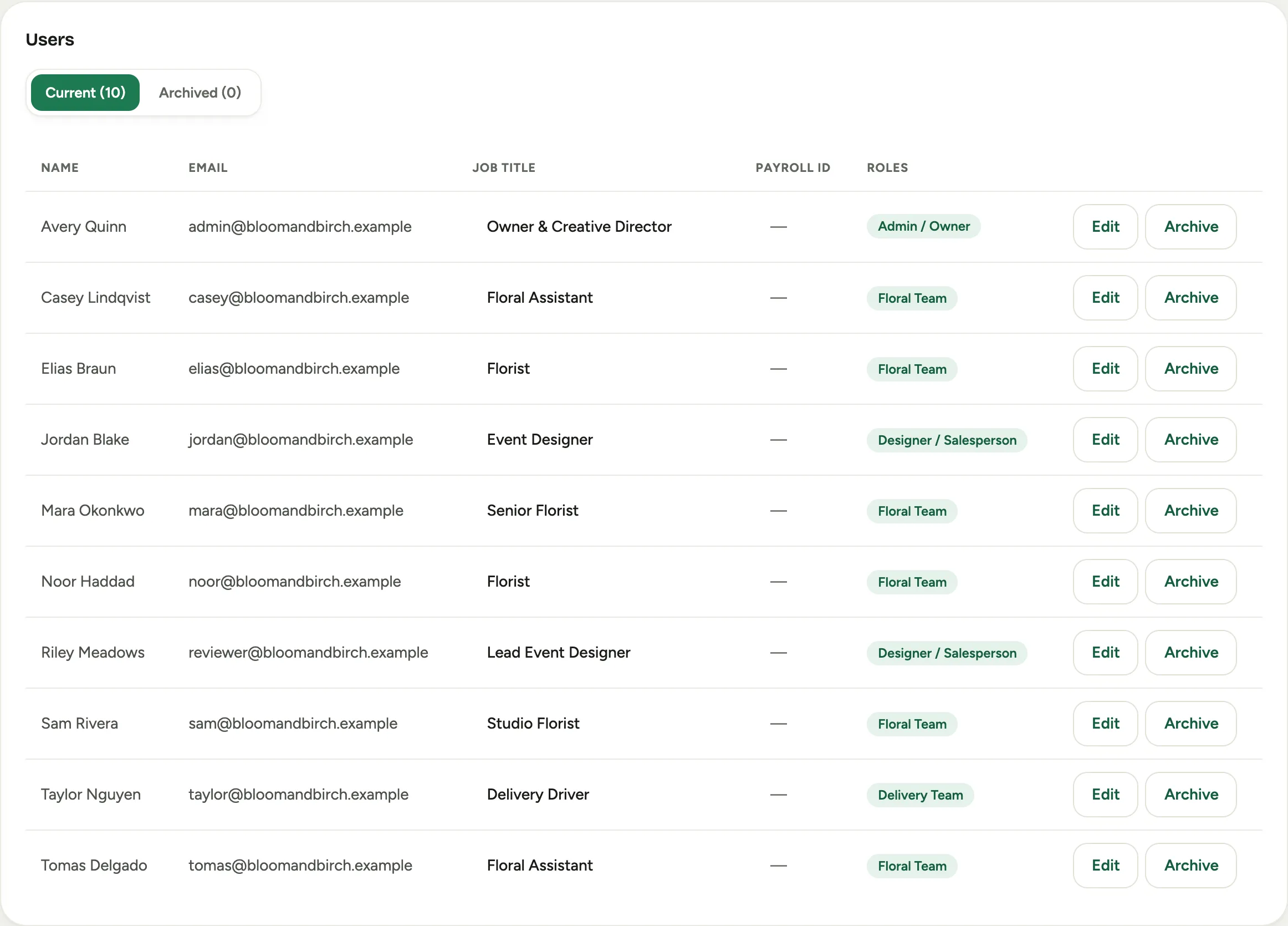 Screenshot from a demo workspace; data illustrative.
See Invite a user and assign roles.
Roles and permissions
Roles & permissions is a grid: a column per role, a row per permission, a checkbox where they meet. Tick what each role can do, then Save that column. The Admin / Owner role is a wildcard and always holds every permission, so it has no checkboxes to change. This is the single most important setup decision you make, because every screen a teammate sees is decided here.
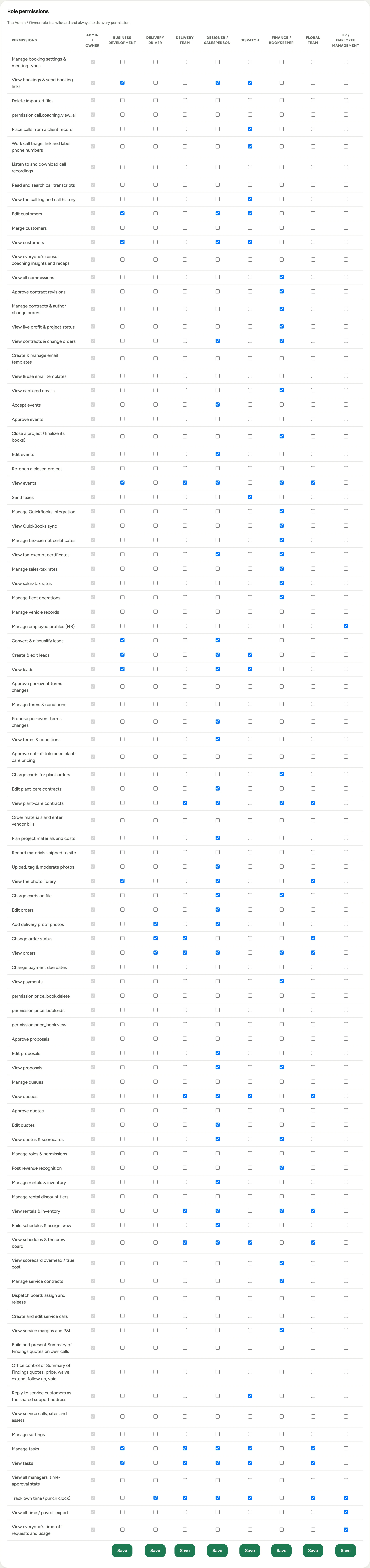 Screenshot from a demo workspace; data illustrative.
See Customize roles and permissions.
Field access
Roles decide which screens a person reaches; Field access decides which fields on those screens they can edit, only read, or not see at all. Pick a role, then set each governed field to Editable, Read-only, or Hidden. It is built for sensitive numbers: the profit, overhead, and commission figures on the scorecard, so a florist can price a proposal without ever seeing the margin math.
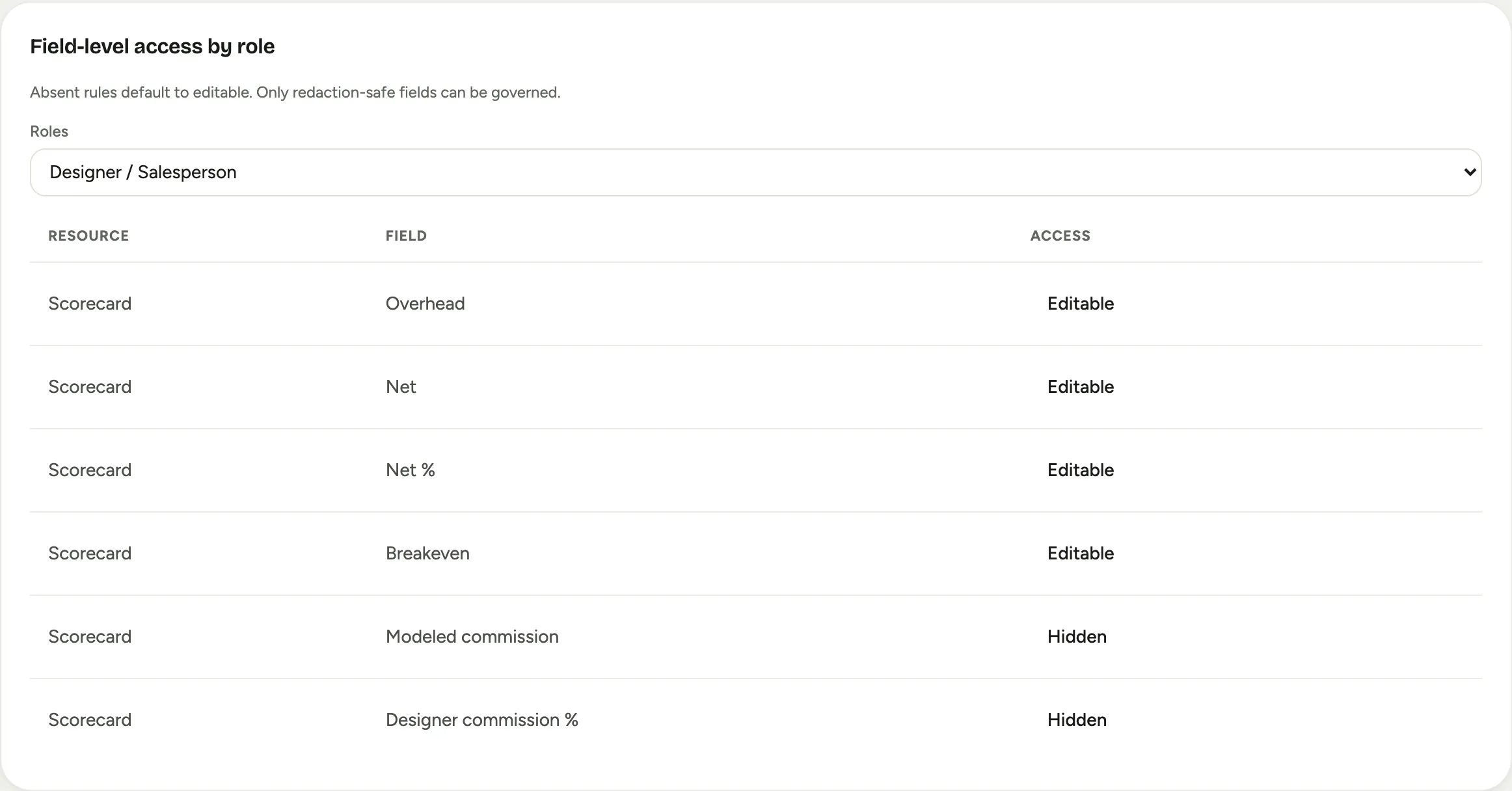 Screenshot from a demo workspace; data illustrative.
See Control who sees which fields.
Work routing
Teams
Teams are your departments, floral, delivery, design, props, and they decide who appears on the scheduling capacity board and the time clock. Add people to a team and mark who manages it. Teams are documented with the scheduling setup they drive, in Set up teams and queues.
Auto-routing
Auto-routing is how incoming work is handed out. The Lead assignment card sets how new web-form and email leads are auto-assigned to a sales rep: Round-robin (rotate evenly) or Load balance (fewest first). Below it, Assignment queues distribute or offer other work (production, delivery) to their members. The full walkthrough lives in Set up teams and queues.
SLA and escalation
SLA & Escalation is the promise clock for how fast a new lead gets a reply. You set the Business hours the timers run against, then per-policy stages that remind the assignee or escalate to a manager when a response is overdue, plus a separate Task SLA breach alert. Because the clock only counts business hours, an inquiry that lands at 9pm is not “late” at 6am.
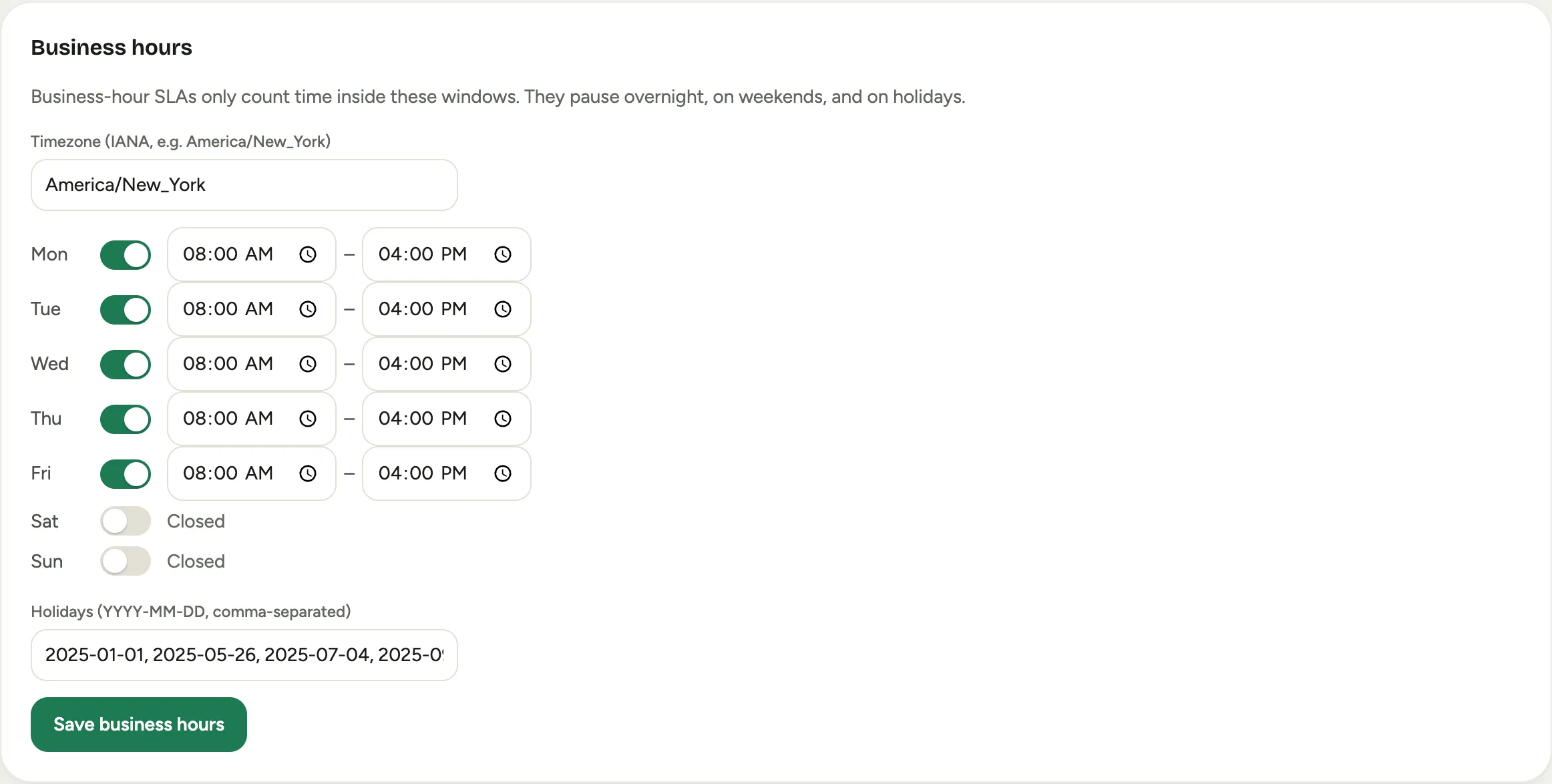 Screenshot from a demo workspace; data illustrative.
See Set response-time targets and escalation.
Notifications
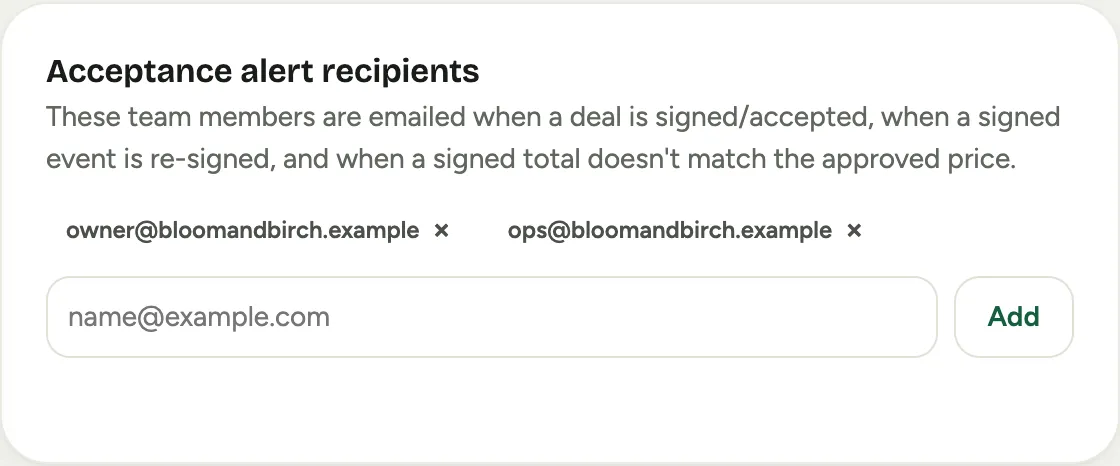
Notifications is the short list of people emailed on the money moments: when a deal is signed or accepted, when a signed event is re-signed, and when a signed total does not match the approved price. Add or remove a recipient and it saves at once.
 Screenshot from a demo workspace; data illustrative.
Morning briefing
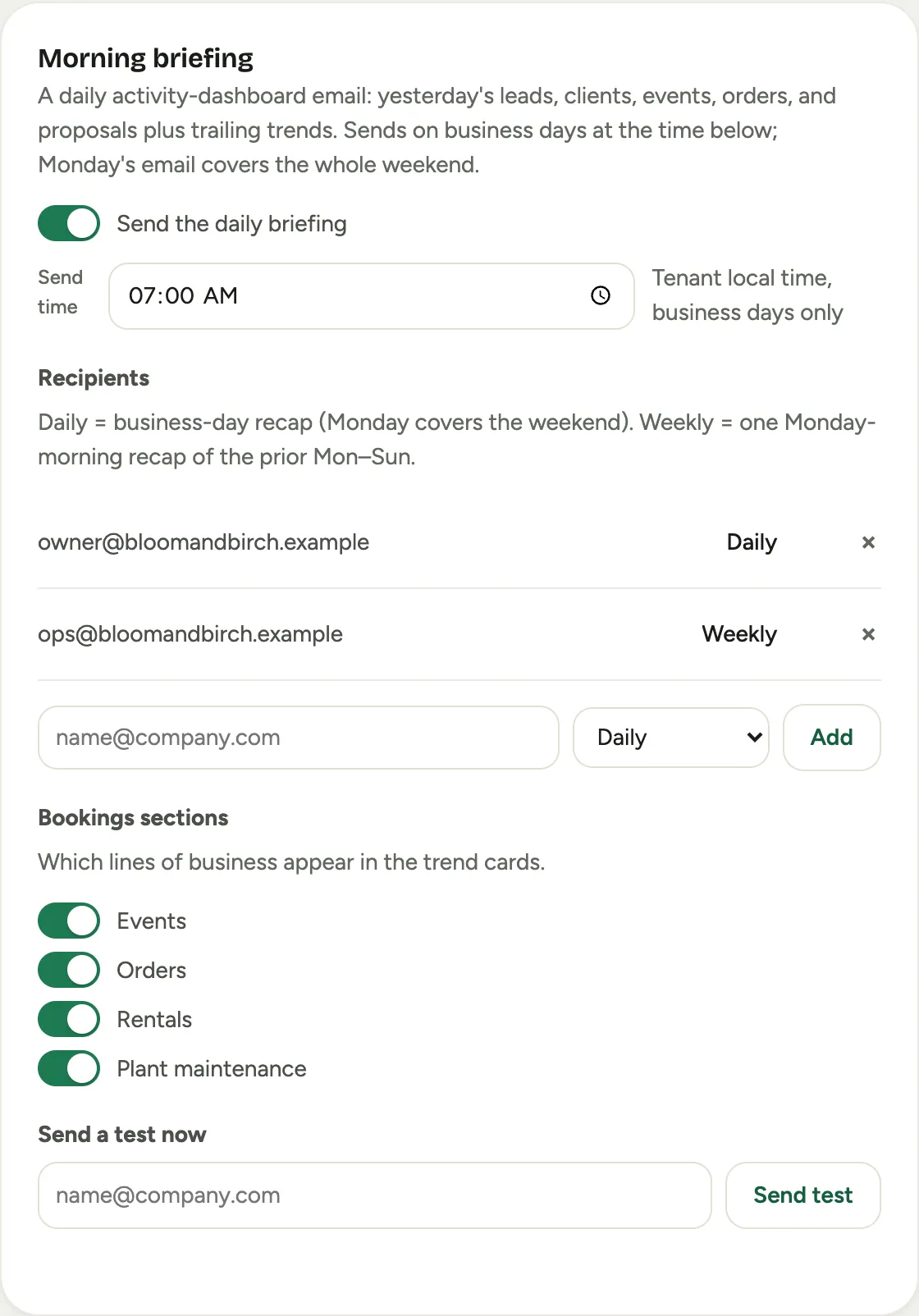
Morning briefing is a daily email recap of yesterday’s leads, customers, events, orders, and proposals, with trailing trends, plus service calls and visits in a workspace that runs field service and the phone where a phone system is connected. Turn it on, set the Send time, add recipients each on a Daily, Weekly or Daily + weekly cadence, choose which Sections it covers, and Send test to see either version. It is the one email that tells an owner how the studio did without opening the app.
 Screenshot from a demo workspace; data illustrative.
Sales and billing
Payment cadences
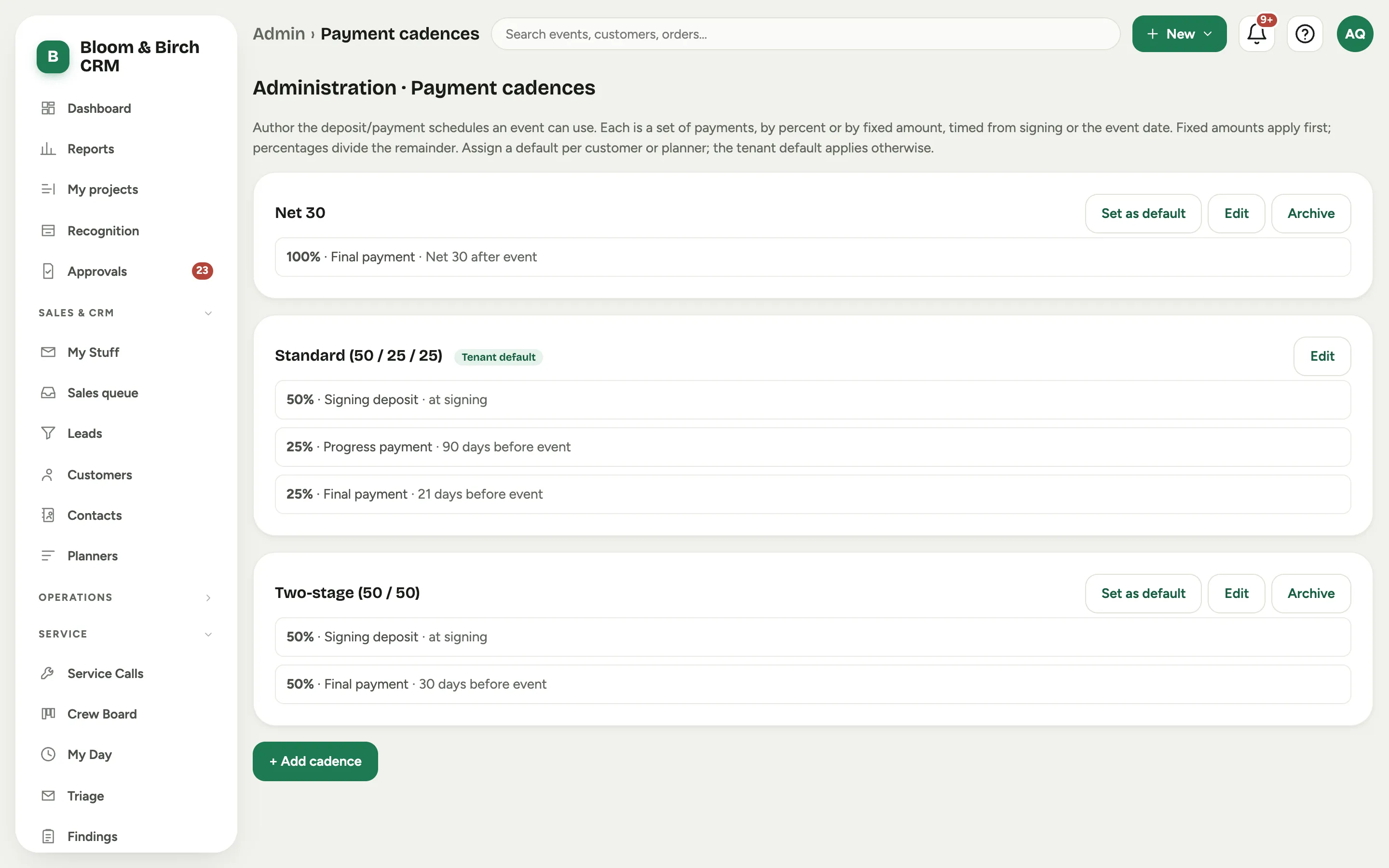
Payment cadences are the deposit and payment schedules an event can use, each a set of payments by percent or by fixed dollar amount, timed from signing or from the event date. Fixed amounts come off the signed total first and the percentages divide what is left. One cadence is the Tenant default; you can also assign a cadence per customer or planner. Florio ships three to start: Standard (50 / 25 / 25), Two-stage (50 / 50), and Net 30.
 Screenshot from a demo workspace; data illustrative.
Scorecard chips
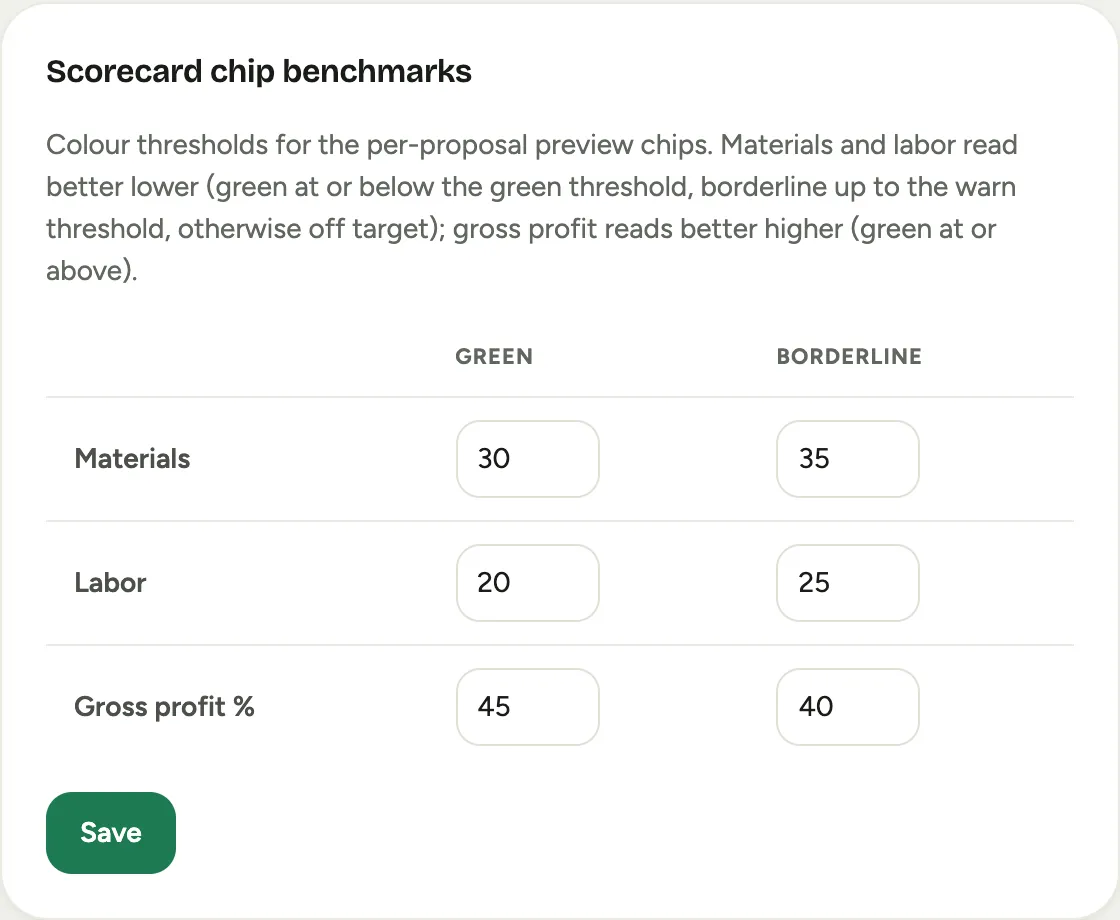
Scorecard chip benchmarks set the color thresholds for the small chips on a proposal that flag whether its materials, labor, and gross profit are on target. Materials and labor read better lower; gross profit reads better higher. Green is on target, Borderline is the warning band. These drive the color, not the math; the margin itself comes from the scorecard.
 Screenshot from a demo workspace; data illustrative.
Tax-exempt
Tax-Exempt is your sales-tax compliance surface. Set whether an exempt sale requires a valid certificate on file (or just warns), see the audit gap of Exempt sales missing a certificate, and browse the roster of Certificates on file with their type, expiry, and status. Certificates themselves are added from the customer record.
 Screenshot from a demo workspace; data illustrative.
See Handle tax-exempt customers.
Communication and capture
Email capture
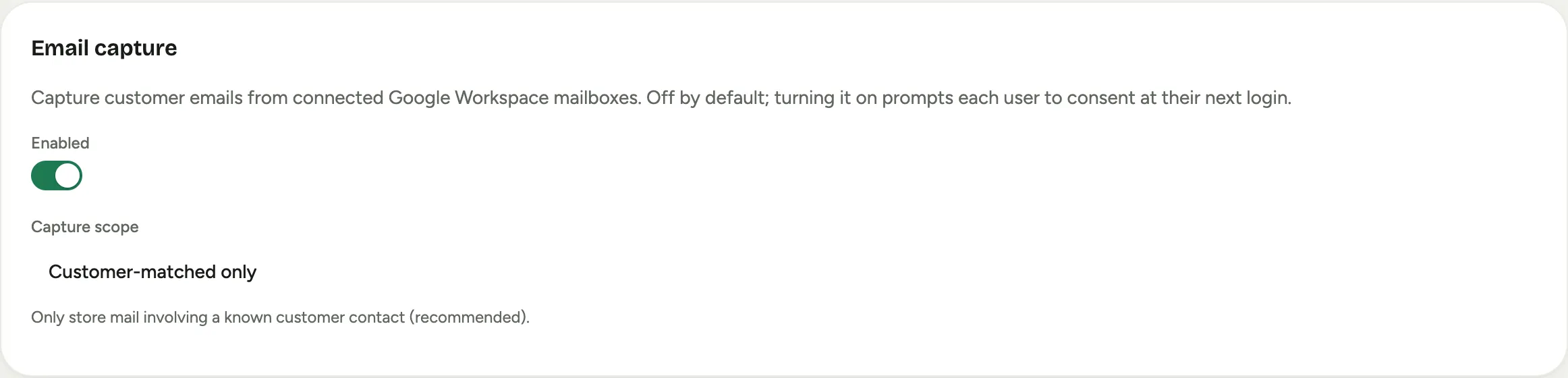
Email capture brings client email onto the timeline automatically from connected Google Workspace mailboxes. Turn it on, choose a Capture scope (Customer-matched only is the recommended default), and use Exclusions (never capture) to name senders, domains, or customers whose mail is never stored, even for a known customer.
 Screenshot from a demo workspace; data illustrative.
See Set up email capture.
Inbox Triage
Inbox triage is the AI front desk for your prospecting mailboxes: every human email becomes a lead, an attachment to a record, or a review item. You set the Watched mailboxes, the Auto-confirm threshold, Draft guardrails for suggested replies, and sender and freemail Exclusions. It is documented end to end, config and daily use, in Work the Inbox Triage queue.
Booking
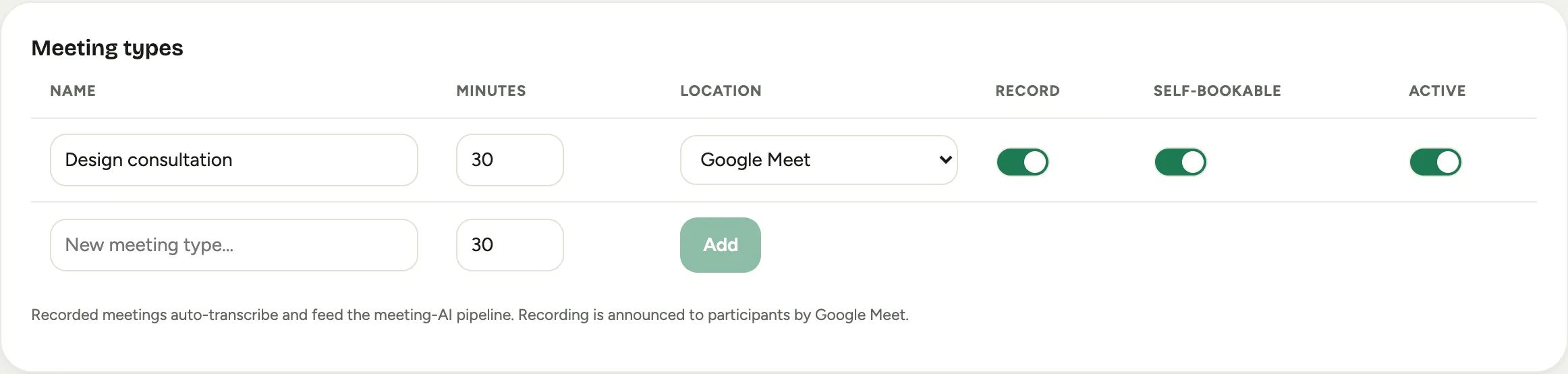
Booking is self-service meeting scheduling: the Self-booking configuration limits, the New-inquiry autoresponder that replies with a booking link, the Public booking page your website can link or embed, the Meeting types catalog, and each rep’s Calendar sync health. When the calendar is connected, a prospect books straight into a rep’s day.
 Screenshot from a demo workspace; data illustrative.
Branding and content
Terms and conditions
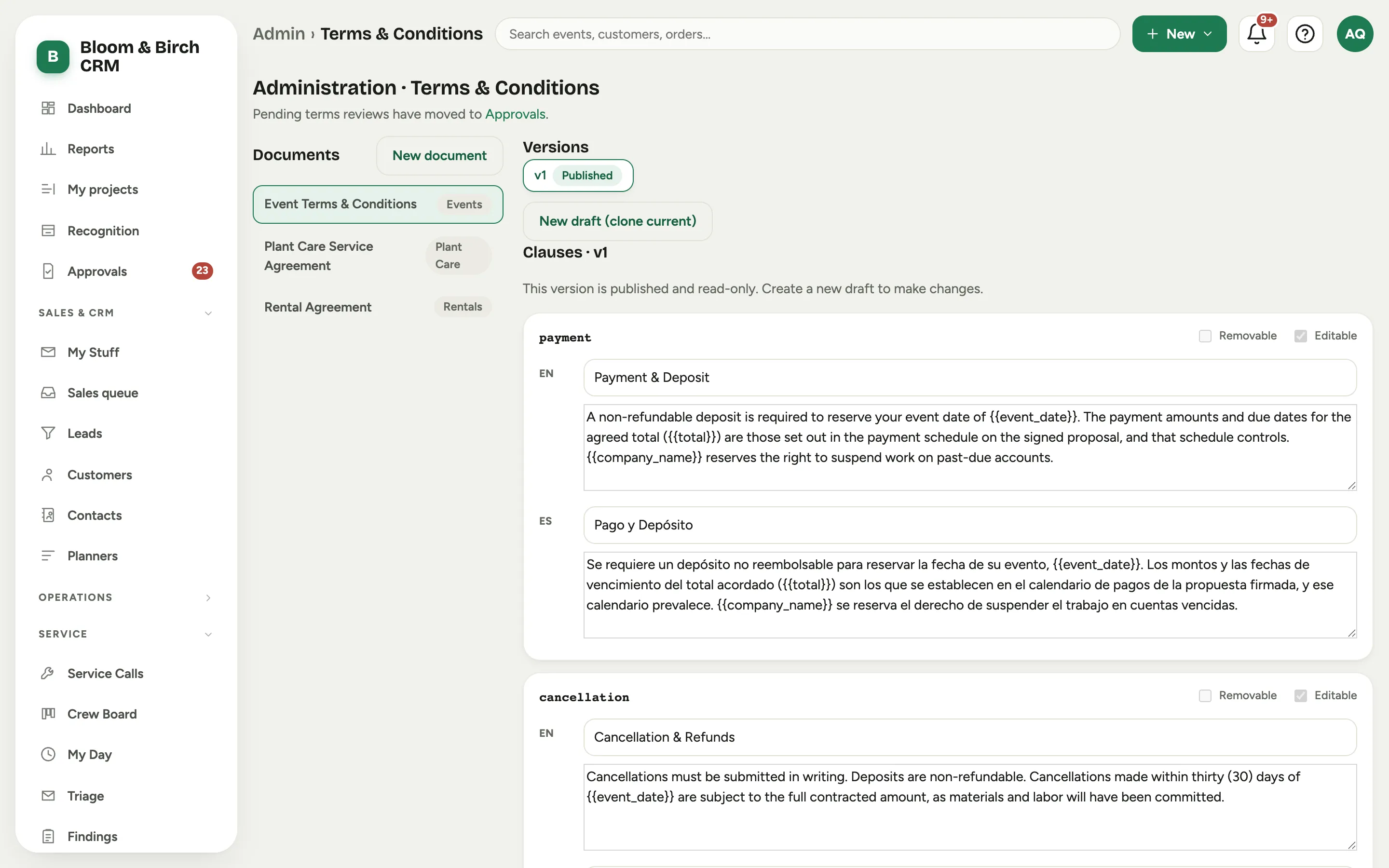
Terms & Conditions is where your legal documents live: a document per line of business, each with versions and clauses in English and Spanish, written with merge fields that fill in the customer and event. Published versions are read-only; you clone a New draft to make changes and Publish version when it is ready. Florio ships starter terms for events, rentals, and plant care.
 Screenshot from a demo workspace; data illustrative.
See Edit your terms and conditions.
Terminology
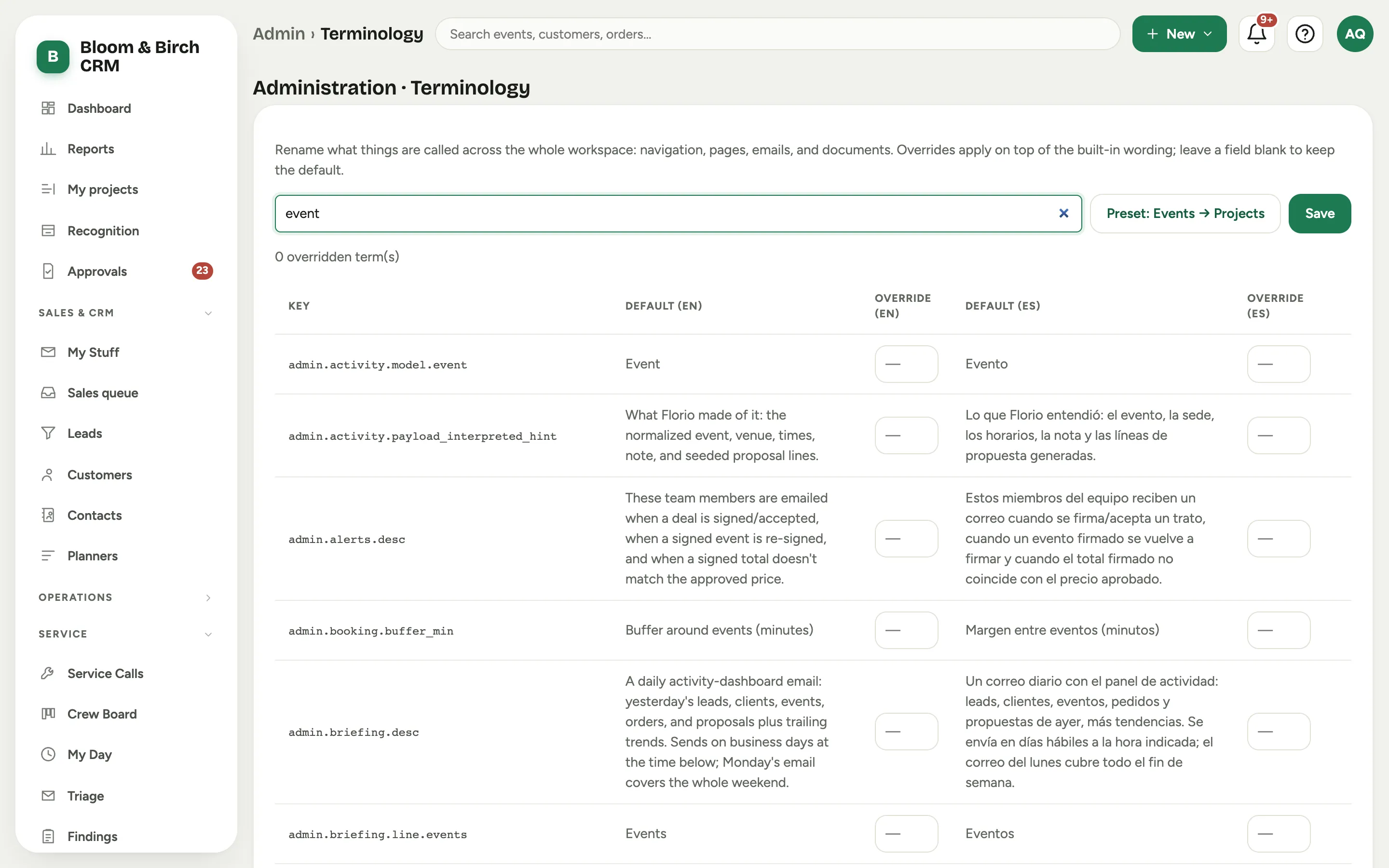
Terminology renames what things are called across the whole workspace: navigation, pages, emails, and documents. Search for a term and type an Override in English or Spanish, or use a preset. Call events “projects,” call customers “clients,” whatever fits your studio, and it applies live everywhere.
 Screenshot from a demo workspace; data illustrative.
See Rename things to match your studio.
Photo Library Settings
Photo Library Settings shows your media storage and teaches the photo tagger your studio’s language: the preferred terms and aliases it uses to tag and to expand a search. The library itself, and how tagging and search work, is covered in The photo library.
Storefront
Storefront configures the public rental shop: shopper price tiers, registered shoppers, bookings, reviews, delivery zones and fees, and checkout. The shop and how it is set up are covered in The rental storefront.
Displays
Displays pairs keyboard-less kiosk TVs in your warehouse or showroom by an on-screen code and binds each to a board playlist. Building the boards themselves is covered in Set up a display board.
Plant Care pricing
The Plant Care tab holds the pricing config for plant-maintenance quotes: care-level multipliers, visit-frequency factors, travel fees, and the tolerance thresholds that flag a contract for repricing. It is documented with the rest of Plant care.
Integrations and records
QuickBooks
The QuickBooks tab connects your QuickBooks Online company, maps accounts, items, classes, and tax codes so finance data reconciles, and holds the go-live controls for posting invoices and payments. How the integration works is covered in How Florio works with QuickBooks Online, and the full setup is a guided journey from connecting through turning posting on. Connecting Google Workspace, the other first-day integration, is covered in Connect Google Workspace.
Activity
Activity is the admin audit report: who did what to which record and when, filterable by Employee, Model, and Period, with a companion panel of captured Employee email for the same filters. It is where you answer “who changed this, and when.”
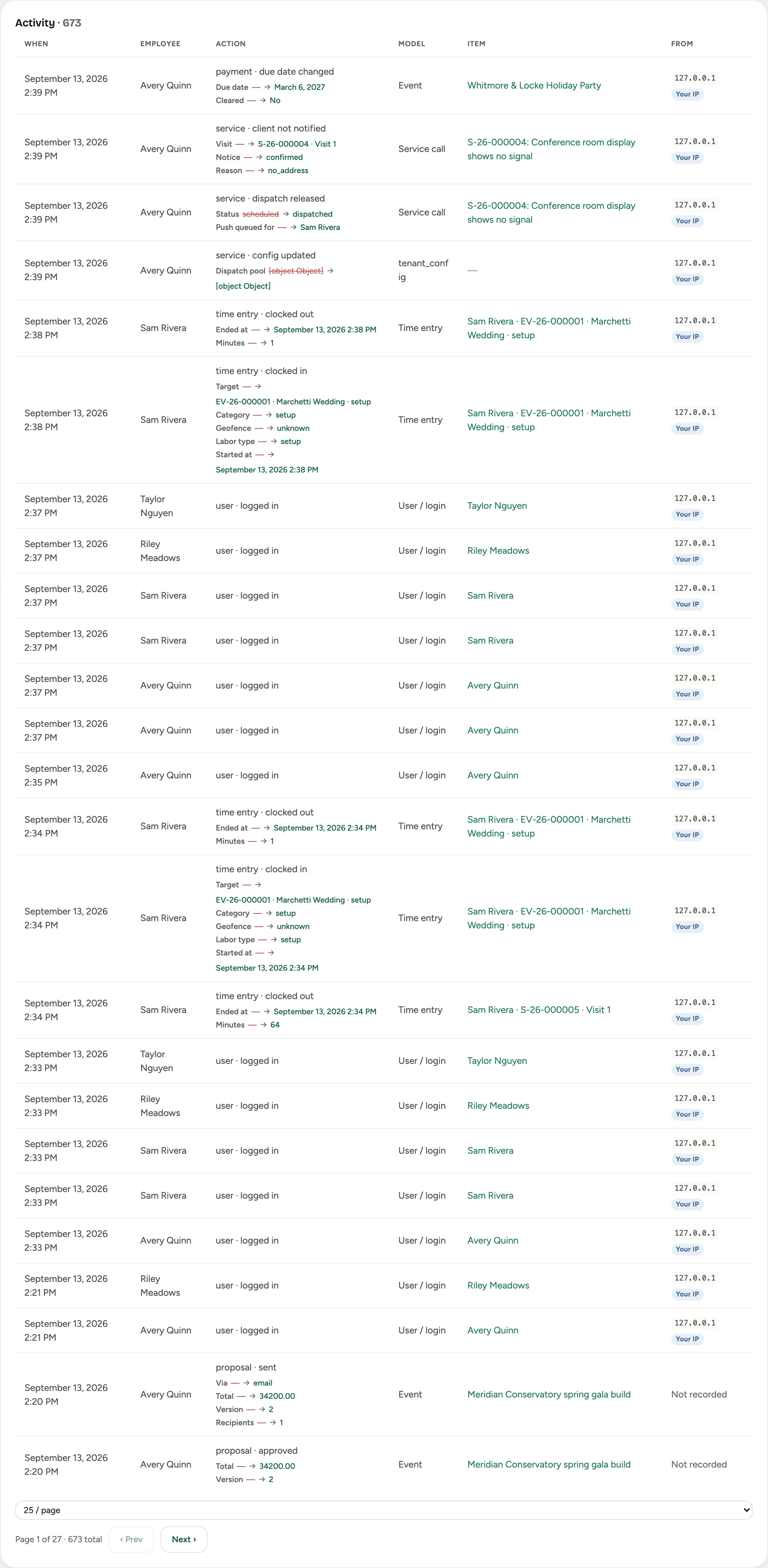 Screenshot from a demo workspace; data illustrative.
Service
The Service tab configures the Field Service add-on: the module on/off flag, your status labels, call categories, the SLA priority matrix, intake mailboxes, and queue owners. Field Service is available on request; see the pricing page.