Schedule backlog work on the Capacity board
The backlog holds work that has a window but no date yet: the floral build, the bar facade, the props pull, the post-event recondition. The Capacity board is where a team manager places that work onto people and days, and it keeps everyone’s hours visible so the plan spreads the load instead of stacking it.
Before you start
- You need the schedule manage permission.
- Your teams and their members must be set up under Admin, then Teams, and the backlog needs tasks in it. Tasks are created from the event, not from this board: Build an event’s work framework.
Steps
1. Open the board
Open Scheduling and switch the view to Capacity. Pick your team from the chips along the top. The grid shows that team’s people against the week, and the arrows step week by week.
2. Read the board before you place anything
Each cell shows that person’s planned hours for the day against a full day. Days off, approved time off, and still-pending requests are marked on the grid. The Week column totals each person and flags a light week or OT past your weekly threshold.
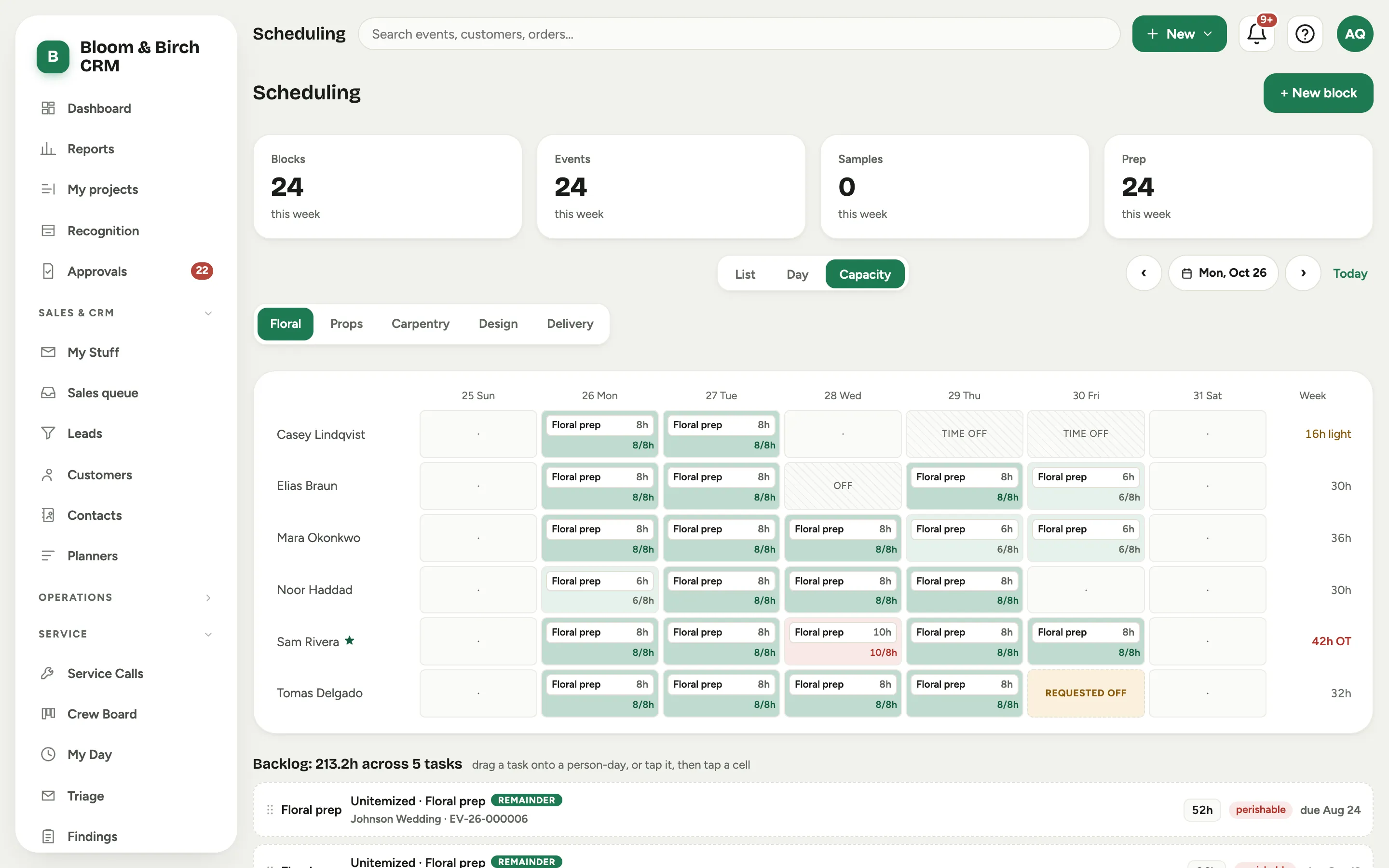 Screenshot from a demo workspace; data illustrative.
3. Read the backlog rail
Each card is one piece of sellable work:
- The phase badge, such as Floral prep or Carpentry prep.
- The title, which is the proposal line as the client saw it, with a line item badge.
- Under it, the event, its event number, and the sold line’s own description in quotes, trimmed to one line. That description is the thing that tells five near-identical prep cards apart, so read it before you place anything. When you have left a note on the block, it follows the description as Note: rather than replacing it.
- The size, written as the people and hours it was sold at, for example three people at four hours each for twelve.
- Its window: perishable clusters near the event, durable can pull weeks forward.
- Its due date.
One card per prep category can be different: a dashed card labelled Unitemized and badged remainder. That is the sold labor that has not been broken out into lines yet. That number only moves when someone presses Seed backlog on the event again: itemize more of the sale, press the button, and the remainder shrinks while new line item cards appear beside it. Once the lines cover the whole number, that same press retires it, unless you have already placed it on a day, in which case it stays and is flagged for review. Pressing the button again is safe on an event you have already scheduled: it refreshes hours and labels but never moves work you have placed. It is a prompt to finish costing, and it should not be the biggest card on your rail.
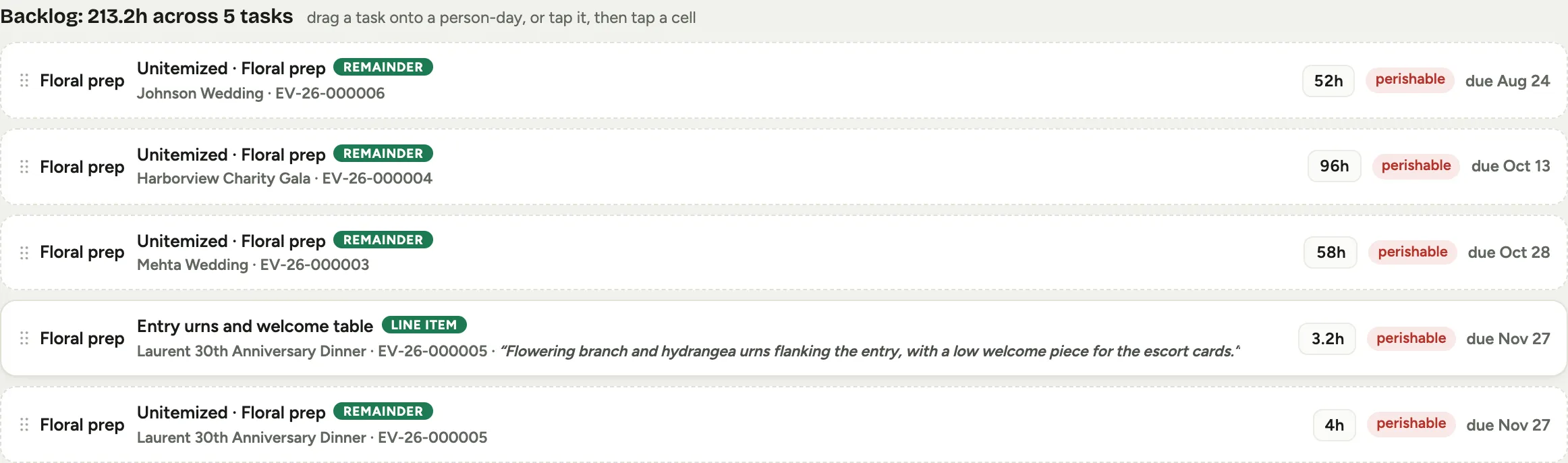 Screenshot from a demo workspace; data illustrative.
4. Place a task
Click a task to select it, then click a person-day cell. Every cell grows an add button, carrying the room left in that day when there is any, and the rail’s hint changes to tell you to pick a cell. Or skip the selection and drag the card straight onto the cell.
Every cell means every cell. A day off, approved time off and a day already full all get the button too, and a cell with no room left shows a bare add with no hours beside it. The board shows you the cost of the choice rather than making it for you.
Either way the task becomes a scheduled block on that day, with that person on the crew.
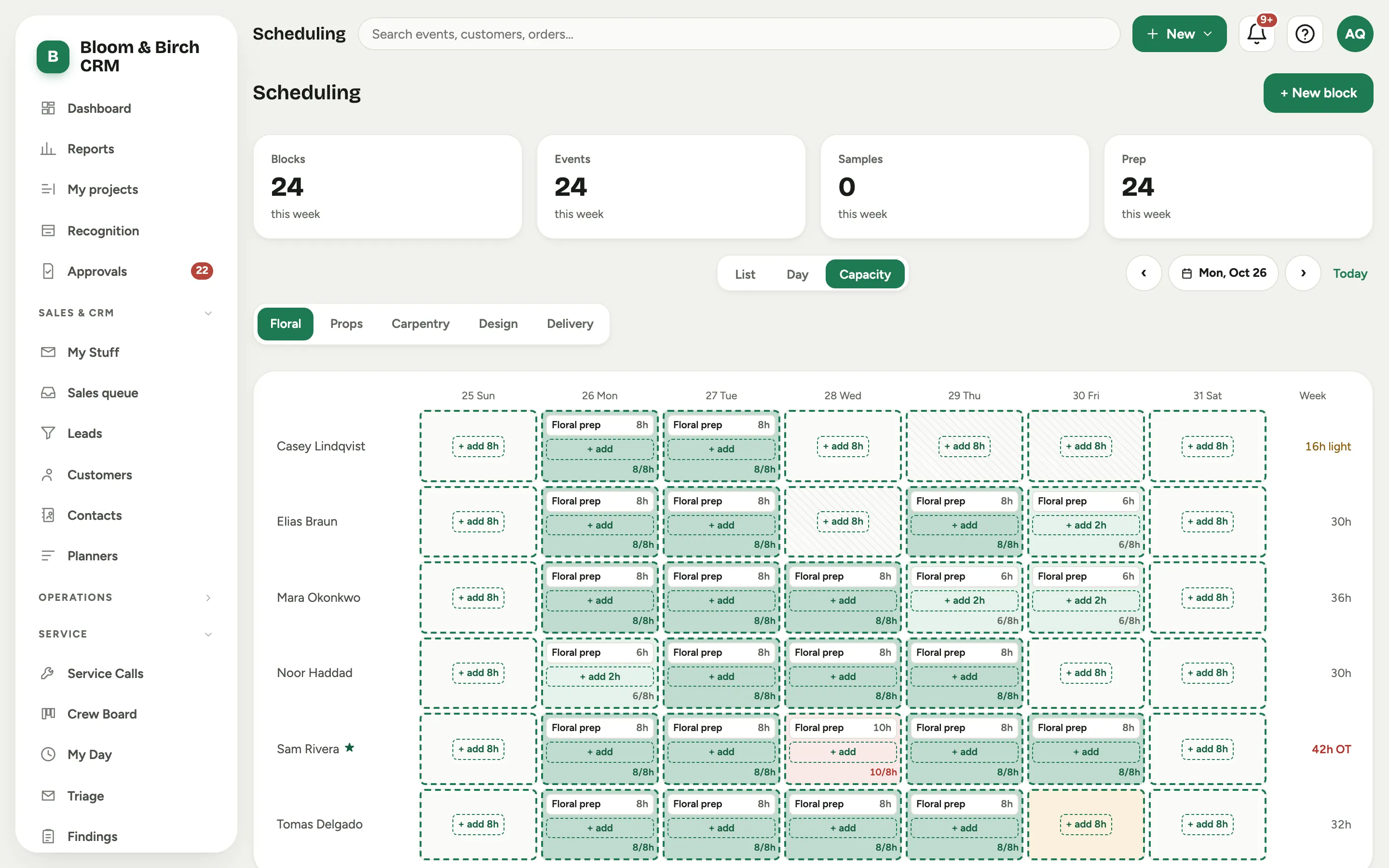 Screenshot from a demo workspace; data illustrative.
5. Adjust after placing
Click any placed chip to open the block and change the hours, add more crew, set a status, or add a note for the crew. Drag a chip to another cell to move it to a different person or a different day.
The same editor is where you give a block its event, or name the several events one batched session covers: Attach studio work to its events.
6. Clear the “Assigned to no one” strip
Above the rail, a strip collects blocks that have a day but nobody on them, which is usually a phase whose last crew member was removed. They are invisible to the grid, which draws people, and to the backlog, which holds undated work, so the strip is the only place they show up.
Two ways to clear one: drag it onto a person, or click Return to backlog to send it back to the rail so it can be placed again later.
A block that still has crew on it cannot be returned. Florio says so: “This block still has crew on it. Remove the crew first to return it to the backlog.” That is deliberate. Returning to the backlog is a manager’s decision, never an automatic side effect of a routine crew edit.
 Screenshot from a demo workspace; data illustrative.
Good to know
- Placing a task outside its window is allowed and produces no warning. The rail is ordered by due date, and the window pill and due date on each card are the whole nudge. Read them.
- A cell showing more hours than a workday holds turns red. That is the board telling you, not stopping you.
- Placing a task puts the whole job on one person-day. For a big build, open the block, use Advanced, then Split into smaller blocks, move part of the hours to another date, and crew each piece.
- The rail is not limited to the week you are looking at. It holds every unplaced task for that team, so stepping through the weeks never hides work from you.
- An empty rail means one of three things: it is all placed, nobody has pressed Seed backlog on the events yet, or the work routes to another team’s board. Nothing seeds a backlog on a schedule: it is always someone pressing the button on the event.
- Durable work is your overtime lever. Pull it forward into light days and the crunch week before the event stops needing 50-hour crews.
- The same weekly totals drive send-home decisions in slow season: a board full of light flags is a cost signal, not just a scheduling one.
- Where this fits: Scheduling: crews, the backlog, and the week.