Set up employee expenses
Employee expenses let your people record what they paid for out of pocket, with the receipt, and be repaid through payroll after two approvals. Nothing appears for your team until you turn it on, so you can prepare the category list first. For what your team does once it is on, see Record an expense and get repaid.
Before you start
- You need the permission to manage settings.
- Connect QuickBooks first if you want each category to name its account: Connect QuickBooks. Categories save without accounts when it is not connected, and the account pickers say so.
- Make sure each person’s manager is set, because the manager gives the first approval. A person with no manager goes straight to final approval.
Turn expenses on
Go to Admin, then Expenses. Under Expense settings, turn on Expenses are on for this company and confirm. Expenses then appears in the menu for everyone who may record one.
Build the category list
Expense categories is the list your people pick from under What was it? They never see an account or a cost category; those are yours to set here, once.
| Column | What it sets |
|---|---|
| Category | The name, and its name in Spanish underneath for people who use Florio in Spanish. |
| Can be charged to | A job or a company cost, Company cost only, or A job only. This decides whether the form asks what the expense was for. |
| On a project or event | The cost category the expense joins when it is charged to a job, and the account it posts to. |
| As a company cost | The account it posts to when it is charged to no job. |
| Receipt | Whether a receipt is required. Mileage does not need one. |
| Vehicle | Whether the form asks which vehicle it was for. |
| Warn over | An amount above which the approver is warned. It is not a maximum. Nothing is blocked. |
| In use | Turn off to retire a category. |
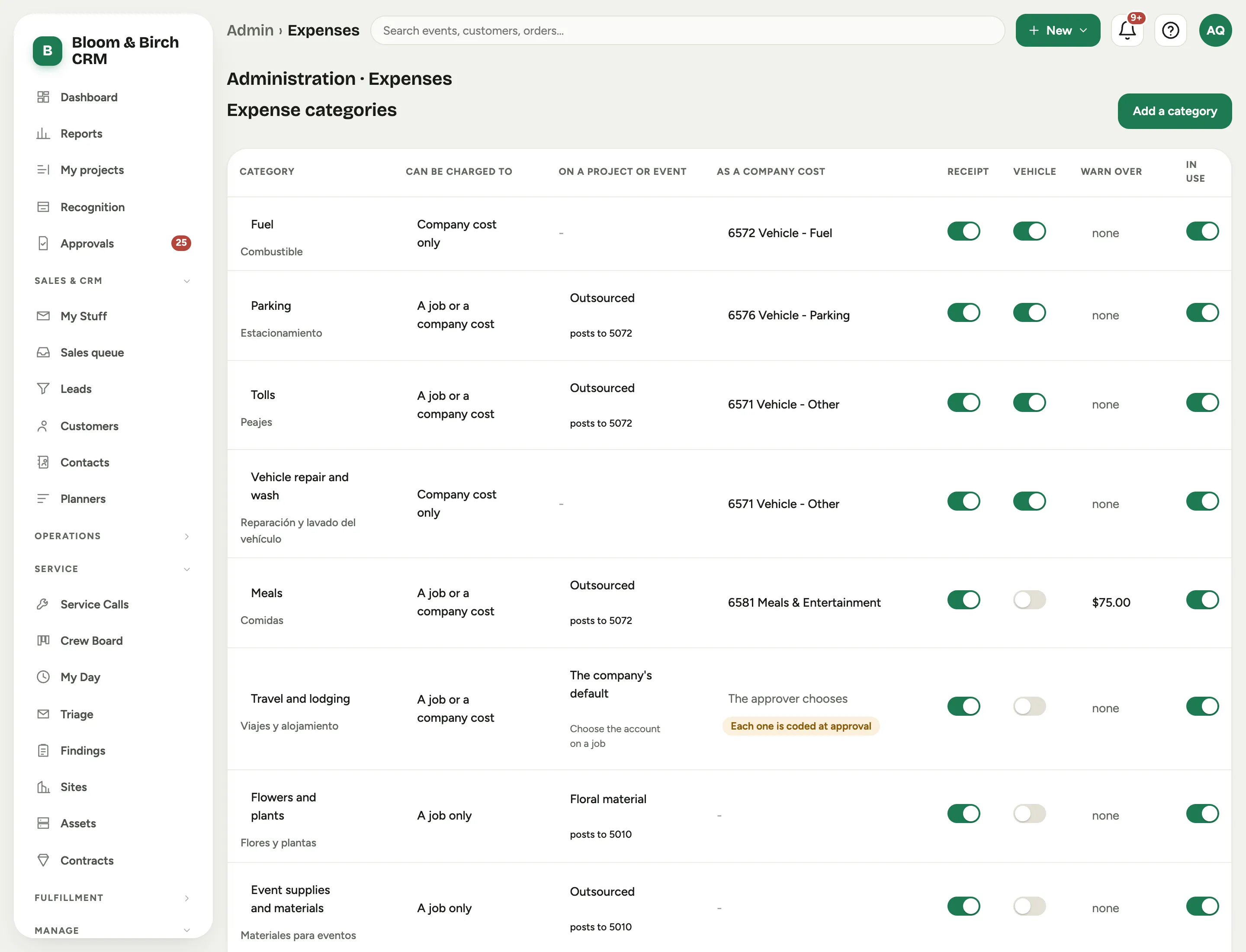 Screenshot from a demo workspace; data illustrative.
Every value is edited in place and saved when you confirm it.
- Click Add a category to add one: its Name, Name in Spanish, what it can be charged to, where it goes on a job and as a company cost, and whether A receipt is required.
- A category with no account reads The approver chooses: each expense in it is given its account at approval. This suits a catch-all category.
- Only cost categories that count dollars are offered. A labor category counts hours and cannot take an expense.
- If a cost category posts to an account your project costs do not read back, Florio refuses it and says why, so that an expense can never be approved onto a job and then fail to show there.
- A category is never deleted, only retired. A retired row shows when it was retired and how many past expenses keep it.
The settings
Also under Expense settings:
- Send within: how many days old an expense can be before the approver is warned. Older expenses are flagged, never blocked.
- Mileage rate: what a mile is repaid at. A new rate applies from the day you change it; claims already entered keep the rate they were entered at. Florio does not update this for you when the tax authority changes its rate.
- Cost category when a category has none: where a job expense goes when its category does not name a cost category.
- Payroll provider: the name shown on the import button on the payroll page, and in the import’s file name.
- The reimbursement code: the code written into every row of the payroll import. It starts as a placeholder. Confirm the right code with your payroll provider before your first import, and the layout of the file with it: see The two files.
- Lines of business for company costs: the choices offered when a company cost should be recorded against one part of the business.
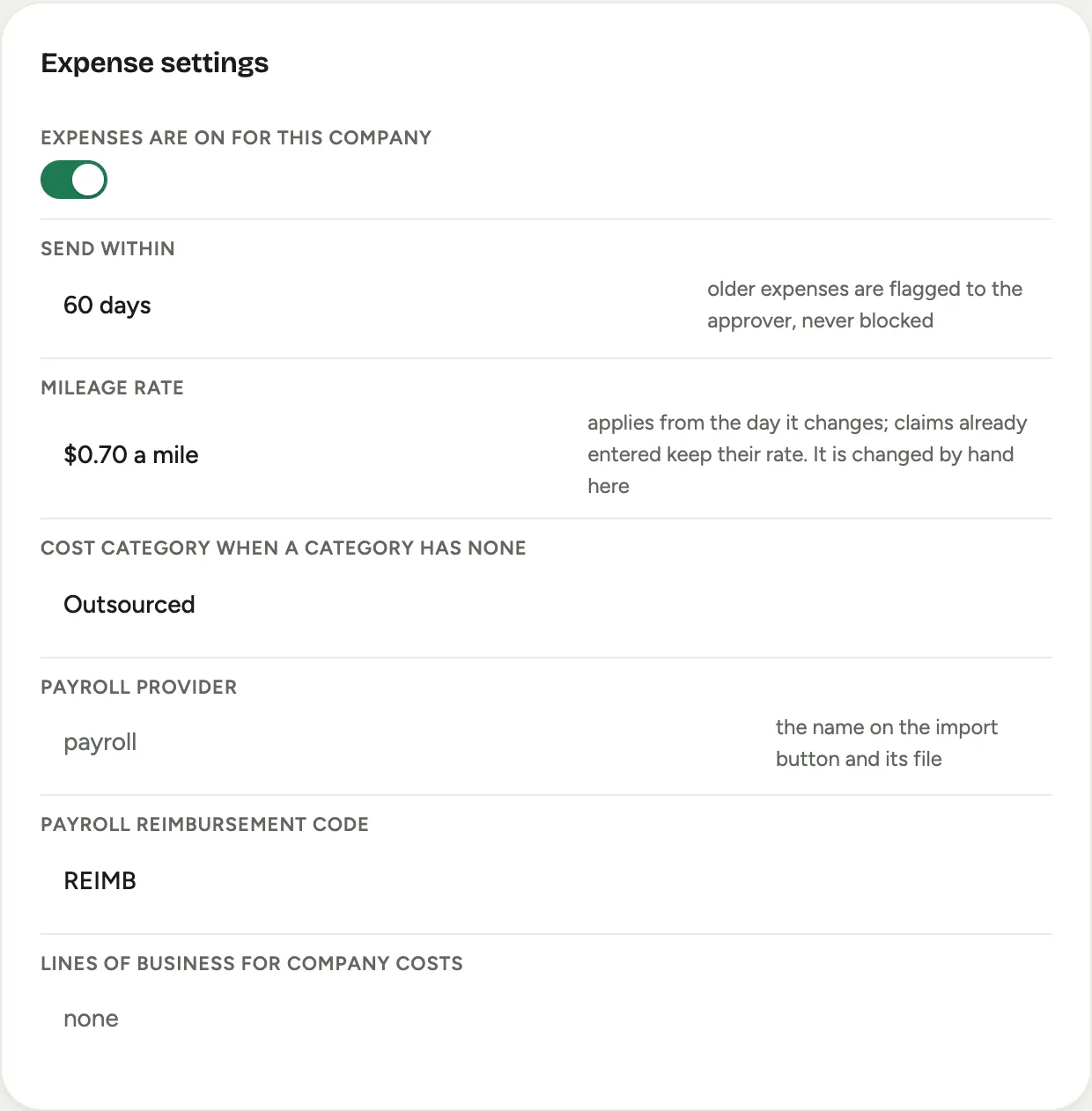 Screenshot from a demo workspace; data illustrative.
Expenses are numbered from their own series, which you can change under Admin, then Numbering.
Who can do what
Three permissions cover expenses, on Admin, then Roles & permissions:
| Permission | What it opens |
|---|---|
| Enter and submit your own expenses | The Expenses page and recording one’s own. Give it to everyone who may be repaid. |
| Approve expenses at the final gate, enter them for anyone, re-open, and download the reimbursements file | Final approval, stepping in for a manager, entering for anyone, re-opening, correcting entries, and both cards on the payroll page. |
| View everyone’s expenses | Reading every expense without being able to decide any. |
A manager needs no permission to approve their own team: being the person’s manager is enough. Nobody approves their own expense, and no one person gives both approvals, whatever their permissions. See How approval works.
For a bill to be drafted, each person also needs a QuickBooks vendor chosen on their employee profile, and for the payroll import a Payroll ID, set under Admin, then Users.
The QuickBooks switches
Whether Florio sends bills to QuickBooks is decided separately from turning expenses on. Go to Admin, then QuickBooks and find Bills sent to QuickBooks. There are two switches:
- Send purchasing and subcontractor bills: vendor bills from purchase orders, and subcontractor time bills from the payroll page.
- Send expense bills: one bill per person per pay period for approved expenses, with the receipts attached.
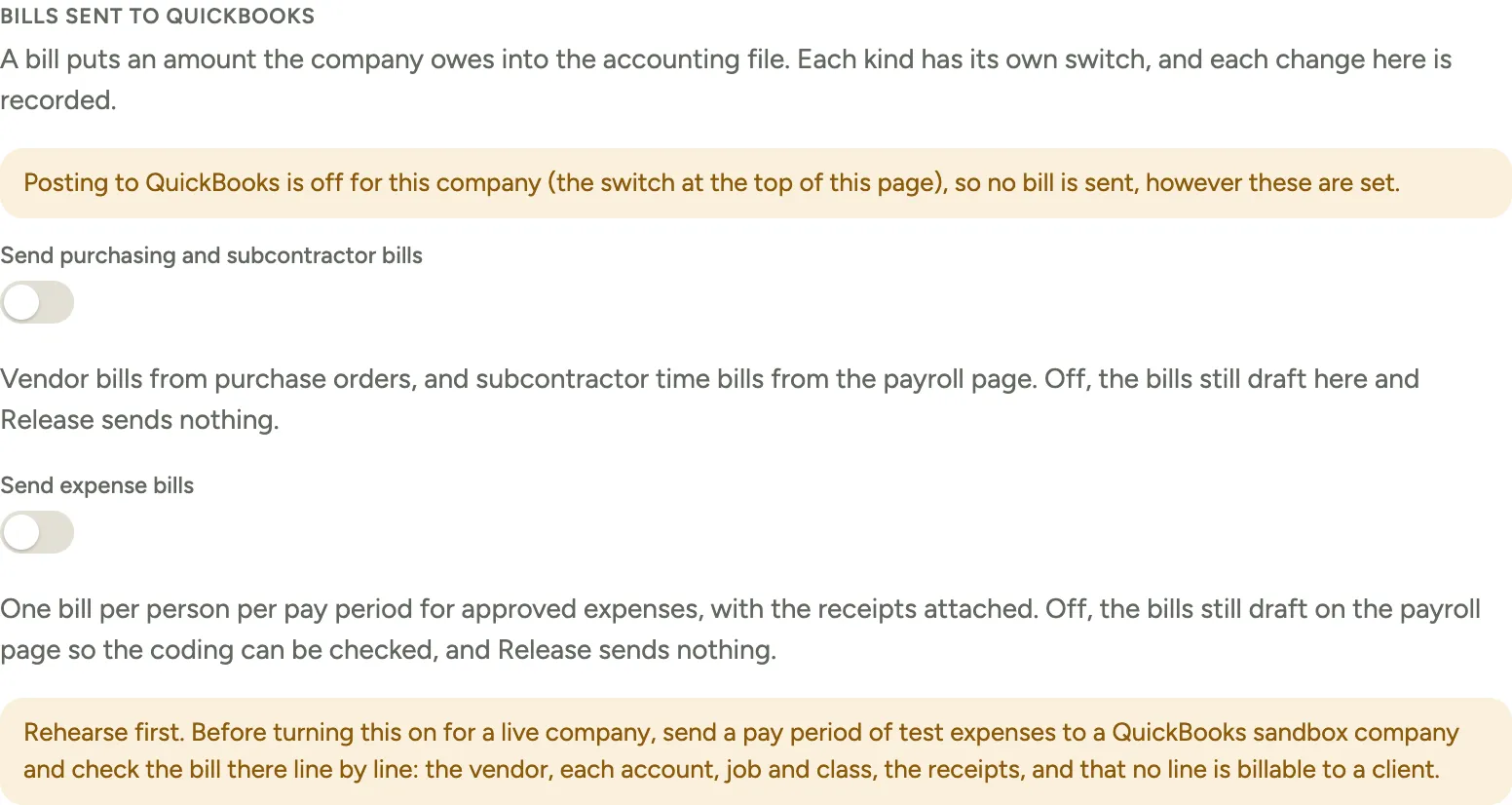 Screenshot from a demo workspace; data illustrative.
Both are off until you turn them on, each asks you to confirm, and each change is recorded with who made it. Neither does anything unless posting to QuickBooks is on for your company as a whole (the switch at the top of the same page); the page says so while it is off. See Go live and turn on posting.
With Send expense bills off, everything else still works: expenses are approved, their cost lands on the job, the reimbursement files download, and the bills draft on the payroll page so the coding can be checked. Release sends nothing.
Rehearse before you turn it on. Send a pay period of test expenses to a QuickBooks sandbox company and check the bill there line by line: the vendor, each account, job and class, the receipts, and that no line is billable to a client. Agree with your accountant how the bill will be cleared against payroll. Once the switch is on, the next Release to QuickBooks really posts.
Good to know
- You can prepare everything on this page while expenses are still off for your company.
- Turning expenses off hides the screens. It does not delete anything already recorded.
- Expenses are for out-of-pocket spending. Company card purchases, per diems and cash advances are not part of this.