Add a vehicle and authorize drivers
The Day board can put a crew in a truck because someone told Florio the truck exists. This is that setup: the vehicle, its class, who may drive it, and the renewal dates nobody should have to remember.
Before you start
- Anyone who can see the scheduling boards can read the Fleet page. Adding a vehicle and editing its record needs the vehicle permission, which you can grant on its own so whoever keeps the trucks on the road does not also need full settings access. The purchase price and loan terms stay with settings manage.
Steps
-
Open Fulfillment, then Fleet. This is the whole fleet on one page: every vehicle, its plate, class, status, who it is assigned to, and what compliance date comes due next. Summary cards up top count active vehicles, anything unavailable, and compliance due soon or overdue.
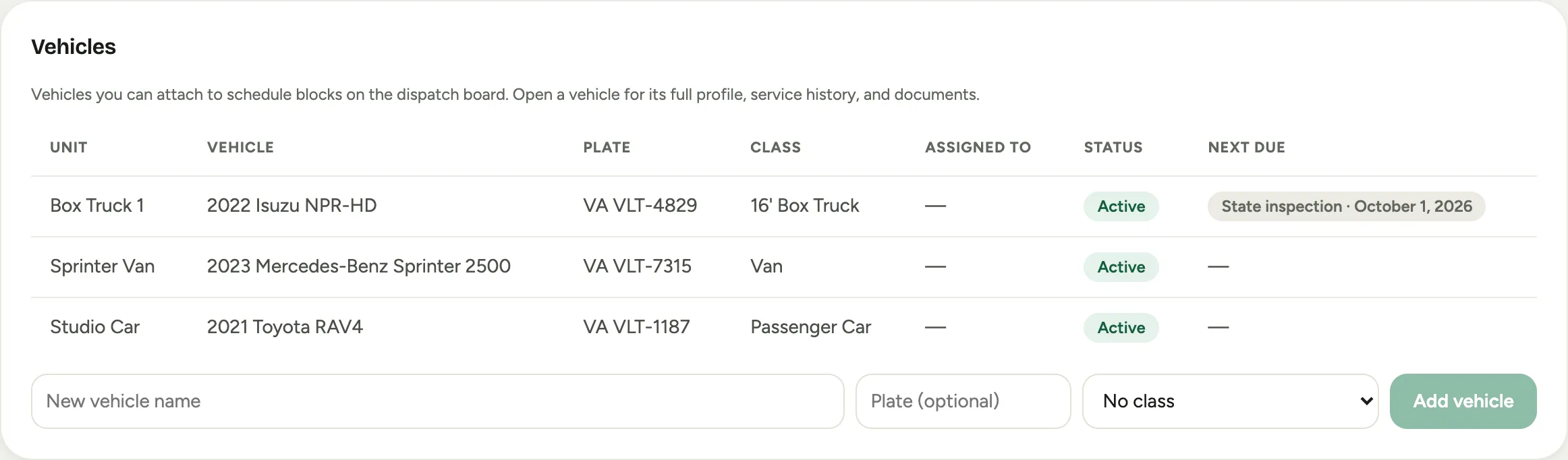 Screenshot from a demo workspace; data illustrative.
 -
Add a vehicle in the row under the list. Give it a name your crew actually says (“Box Truck 1”), an optional plate, and a Class. Classes group similar vehicles (the 16-foot box truck, the van, a passenger car) and are what driver authorizations apply to, so add the class first if the one you need is not there yet.
-
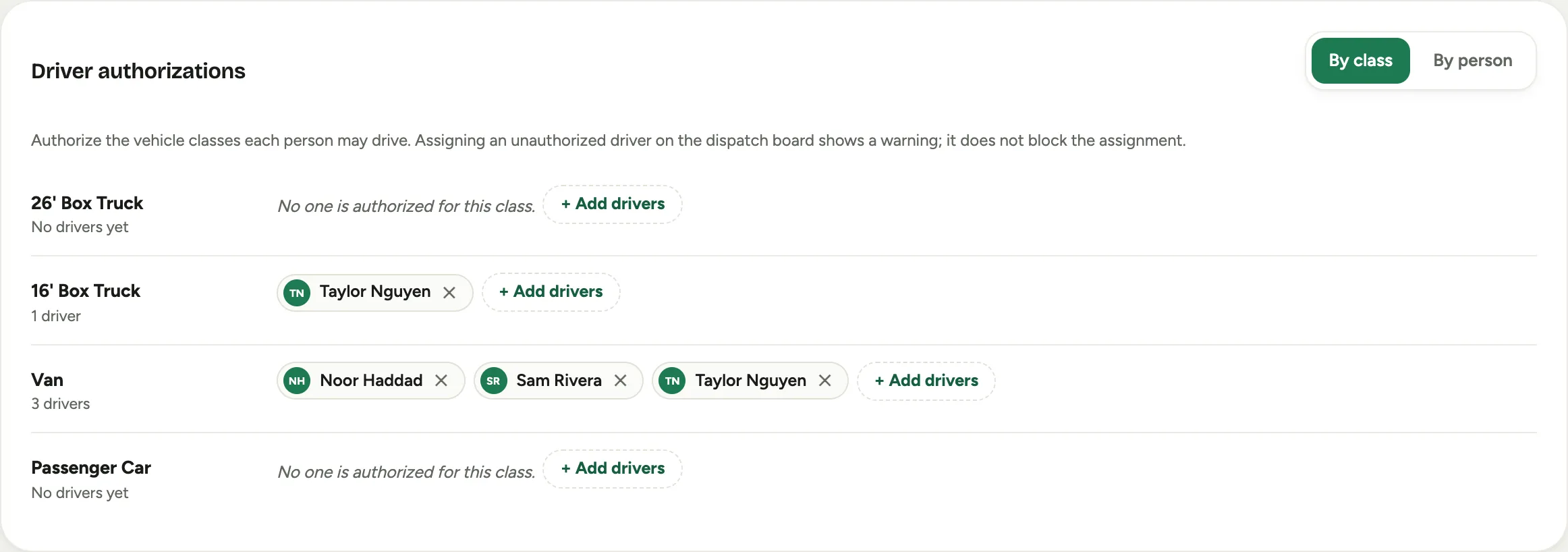
Below the list, Driver authorizations shows a row per vehicle class with the authorized drivers as chips. Use Add drivers to pick several people at once from a searchable list, or the x on a chip to revoke one. Flip to By person to see the classes one person may drive. Assigning an unauthorized driver on the Day board shows a warning, not a block, so treat this as guidance.
-
Open a vehicle for its full profile: identity, odometer, service history, incidents, devices, and Compliance & Expirations. Add a registration, inspection, insurance, or service-due date and Florio watches it. Inside the reminder window it opens a task for the fleet queue and the assigned driver, and adds a line to the morning briefing, so nothing lapses quietly.
-
To keep a vehicle with one person, set Assigned to on its detail page. A dedicated vehicle shows a “dedicated” tag and only joins schedule blocks whose crew includes that driver. Leave it unassigned to keep it in the shared pool for any crew, which is how most vehicles work.
Good to know
- Fill the fleet queue with whoever handles vehicles so compliance reminders reach a person; queues are set up in Set up teams and queues.
- There are three separate permissions here on purpose, so you can hand out only as much as someone needs: logging service records, incidents, odometer readings and renewals needs the fleet permission, so a bookkeeper can keep the records without full admin; adding a vehicle and editing its record, including ownership, insurance, warranty and the vehicle’s documents, needs the vehicle permission; and the purchase price and loan terms, the vehicle classes, the fleet vocabularies and driver authorizations stay with settings manage.
- An attached vehicle shows up on its schedule block and as its own row in the Vehicles band of the Day board, where each run names its driver. The Fleet page adds the profile behind it.
- Where this fits: Scheduling: crews, the backlog, and the week.