Leads and customers: from first inquiry to repeat client
Every relationship your studio has starts as an inquiry and, if you win it, becomes a customer you serve for years. Florio keeps that whole arc in one place, under Sales & CRM in the sidebar, as four connected record types:
- A lead is an inquiry you have not won yet: a form fill, a referral, a reply to one of your mailboxes. You work it, qualify it, and either convert it to a customer or set it aside with a reason.
- A customer is a won relationship. Florio calls them customers everywhere, even
though the web address reads
/clients. A customer gathers events, orders, rentals, and invoices over time, so its record becomes the one place to see everything you have ever done together. - A contact is a person attached to a customer: the bride, the office manager, the celebrant’s daughter. One customer can have many.
- A planner is an outside event planner you work with across many customers and events, tracked with their own commission and communication rules.
The four sit together because they are one story. This page walks each screen in turn. Every section below is a target of the in-product help icon, so the ? on any of these screens brings you straight to the matching heading here.
The leads list
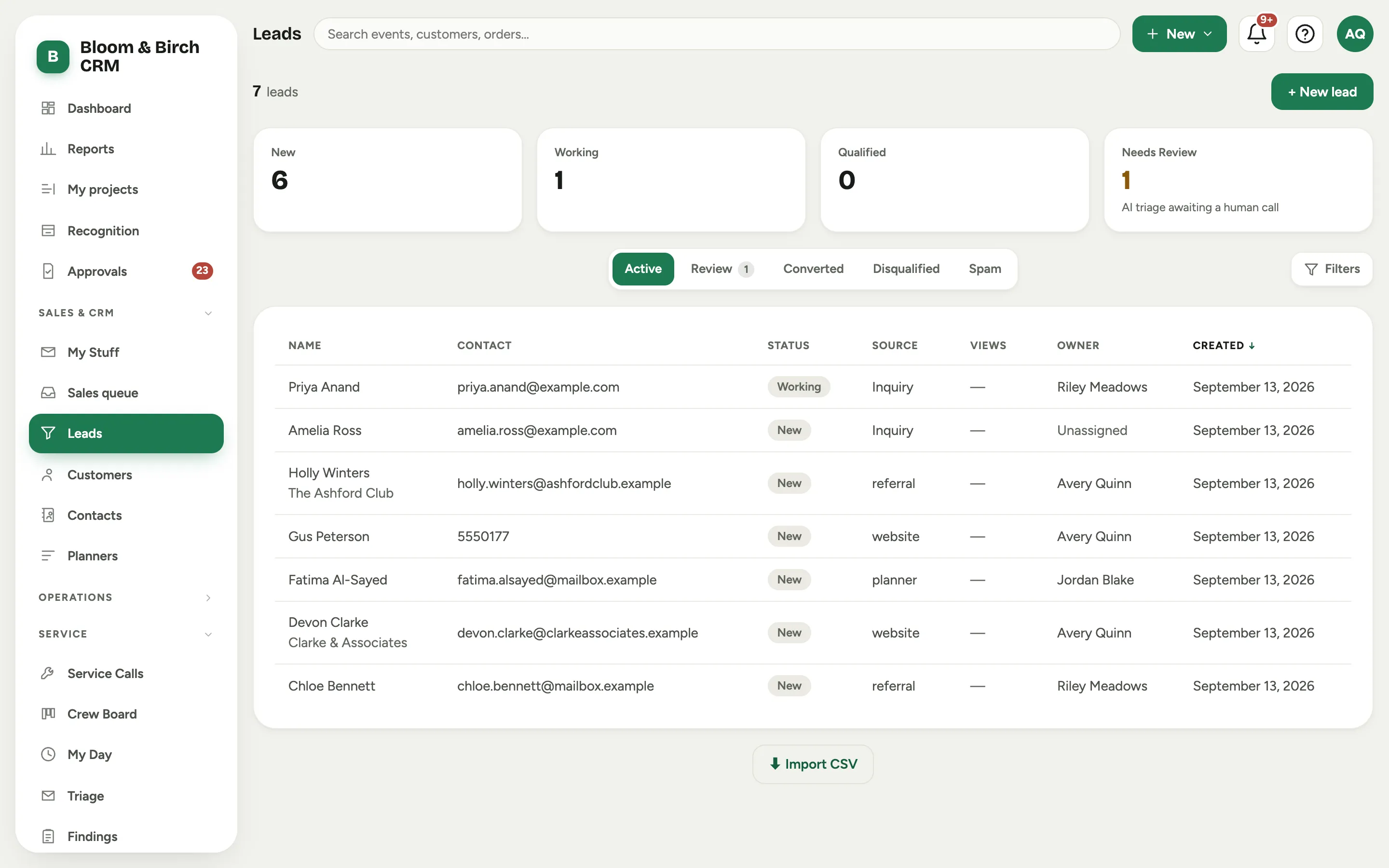
Leads is every inquiry as a row, newest work first. The chips across the top are views: Active is the ones you are still working, and the rest file the outcomes, Review, Converted, Disqualified, and Spam. The four stat cards count the open pipeline, New, Working, Qualified, and Needs Review.
 Screenshot from a demo workspace; data illustrative.
Needs Review counts inquiries the AI front desk flagged for a human call rather than filing on its own, and clicking the Review chip opens that bucket. Start a lead by hand with New lead, or bring a whole list in with Import CSV.
The lead record
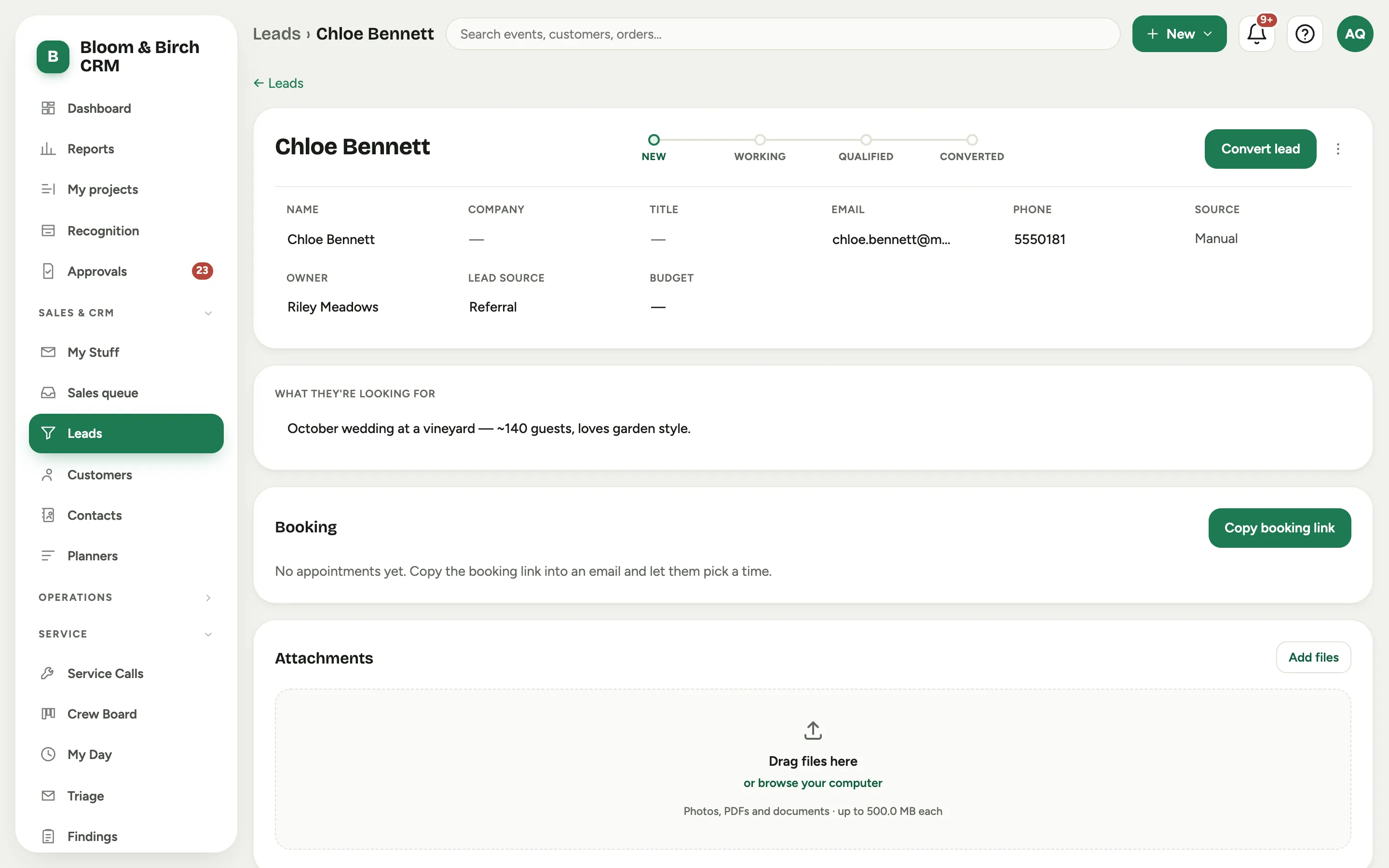
Open a lead and the track across the top is its stage: New, Working, Qualified, and then one of the two ends, Converted or Disqualified. Click a stage to move the lead along it.
 Screenshot from a demo workspace; data illustrative.
The facts down the left are all inline-editable: Name, Company, Title, Email, Phone, Source, Owner, Lead source, and Budget. Below them, What they’re looking for holds the free-text brief. If the lead arrived through a watched mailbox, an AI Triage panel reads the message and summarizes it.
The header actions: Convert lead turns a won lead into a customer plus a first piece of work. The kebab menu (Lead actions) holds Disqualify, which asks for a reason, Mark as spam, and, for admins, Delete lead. Anything set aside can come back with Reopen lead.
The customers list
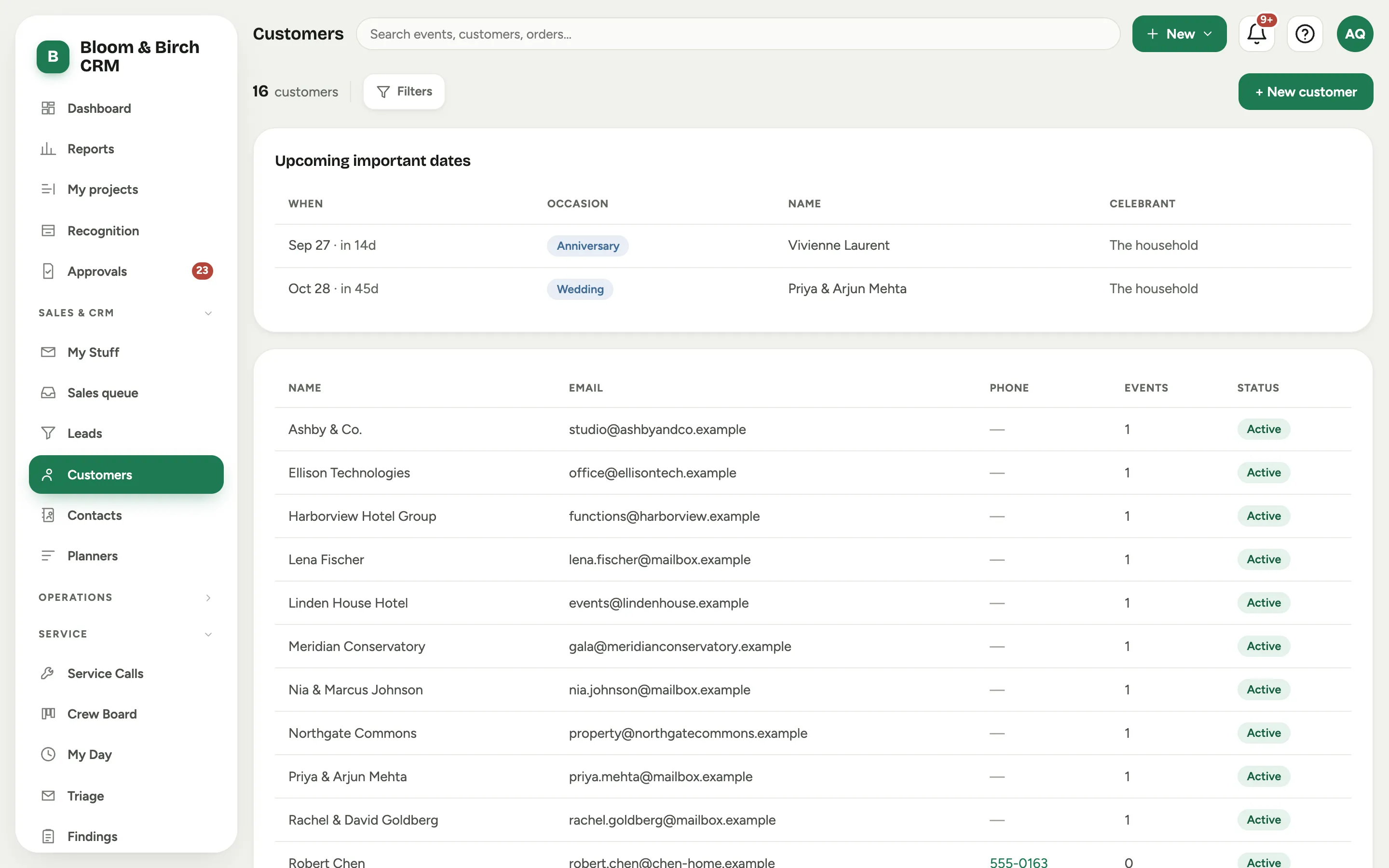
Customers is your won relationships, with columns for Name, Email, Phone, Events, and Status. A customer is Active or Inactive. Create one directly with New customer, though most customers are born the moment you convert a lead.
 Screenshot from a demo workspace; data illustrative.
The Upcoming important dates panel above the list is a small marketing worklist: the birthdays, anniversaries, and wedding dates coming due across all your customers, so a card or a call never slips.
The customer record
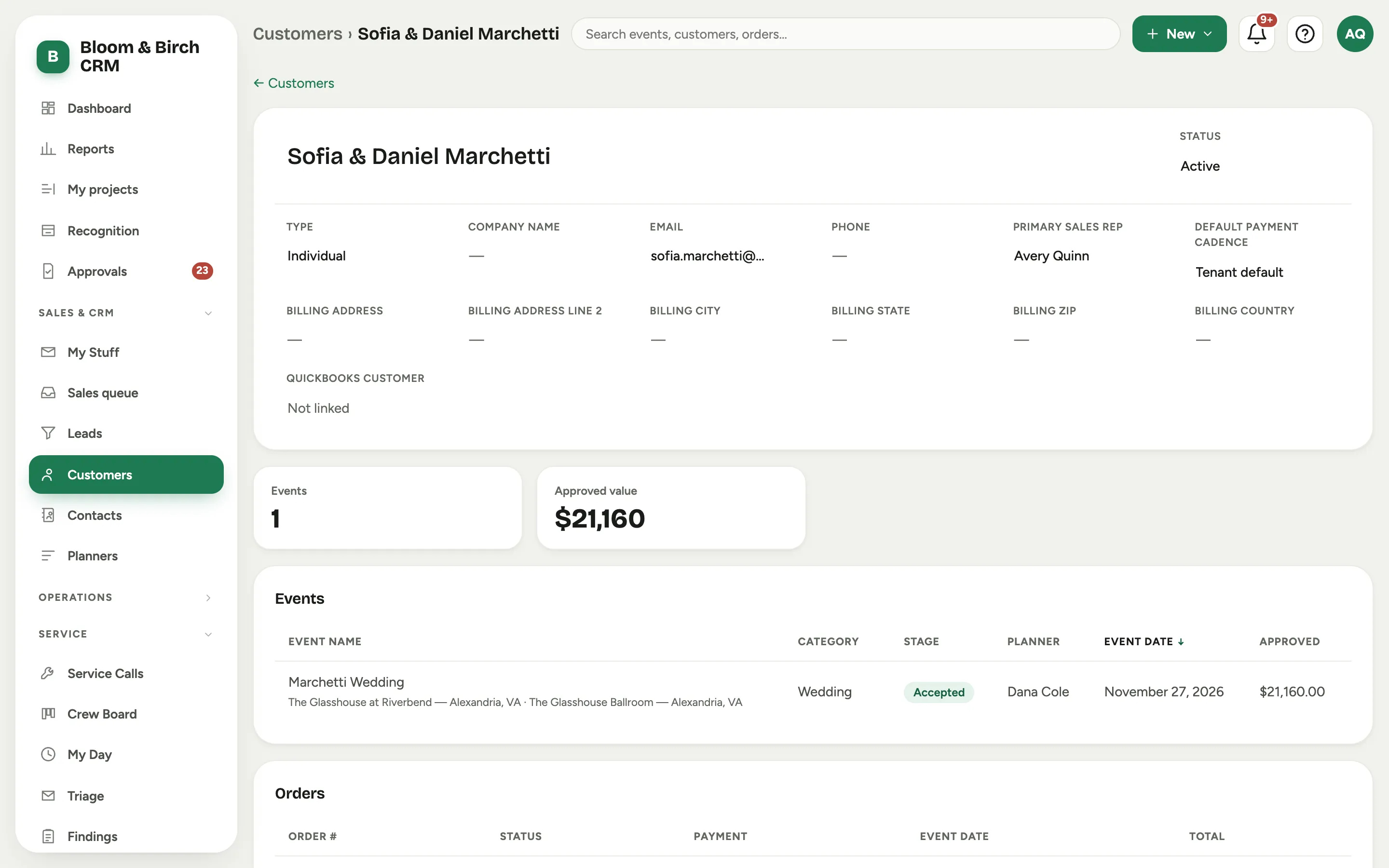
This is the fullest screen in Florio, the 360 on one relationship. The header carries an editable Name and Status, then the facts: Type (Individual or Company), Company name, Email, Phone, Primary sales rep, Default payment cadence, and, where QuickBooks is connected, the QuickBooks customer link. Two stat cards sit above the fold, Events and Approved value.
 Screenshot from a demo workspace; data illustrative.
Down the page, the Events, Orders, and Rentals cards list everything booked under the customer, each linking straight to its record. The Financials and Customer Profitability panels turn invoices and scorecard actuals into lifetime numbers. Related people, Important dates, and, for companies, Email Domains hold the human and mail-capture side. When two records are the same customer, Merge & consolidate folds one into the other.
Contacts
Contacts is every person attached to a customer. A contact belongs to one customer and can be named on that customer’s events. The Primary contact toggle marks the one you deal with most, and the Email Addresses card holds several addresses for the same person with one marked Primary.
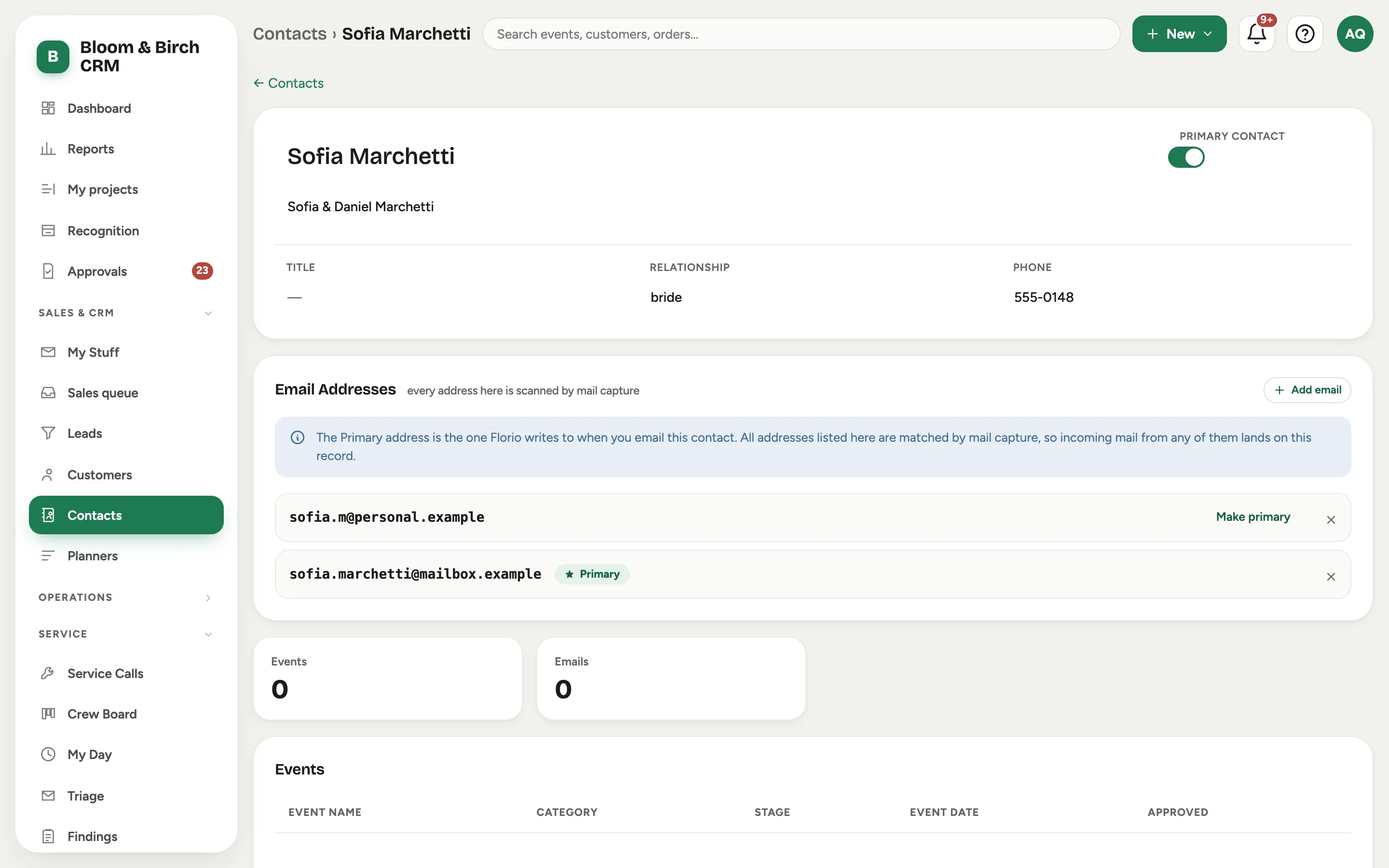 Screenshot from a demo workspace; data illustrative.
Contacts also appear on their own, created for you when mail capture sees a new person writing about a customer’s work. Those wear an Auto · unverified tag and a Confirm contact banner until someone confirms who they are.
Planners
Planners is the outside event planners you work with again and again. A planner is not a customer, they bring you customers, so they carry their own rules. The Comms preference decides who speaks to the customer, Planner owns all comms, Invoicing only, or Direct-to-customer OK, and a Commission % rides on the events they refer.
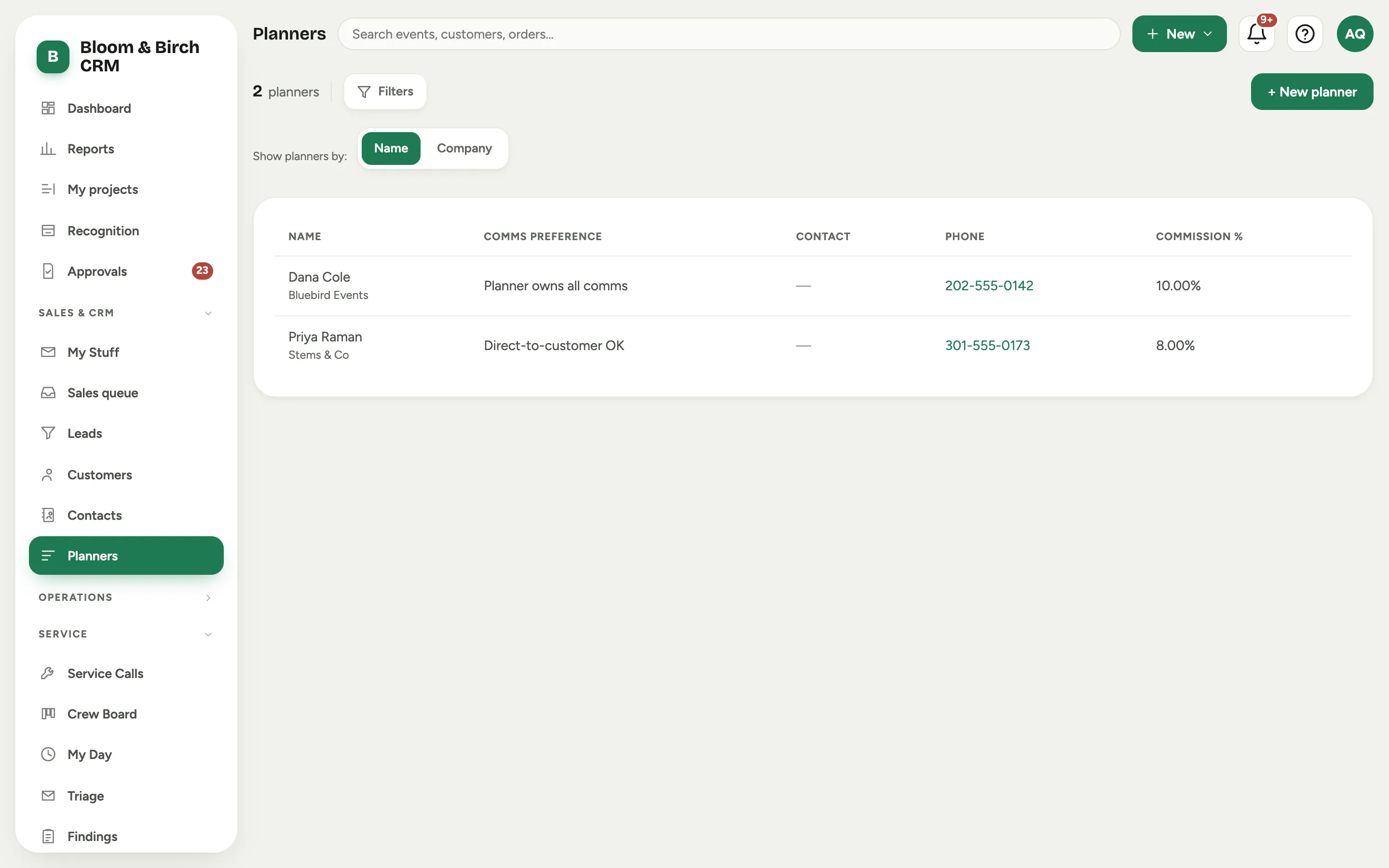 Screenshot from a demo workspace; data illustrative.
Each planner’s own page lists the events tagged to them, so at renewal or reconciliation time the commission and the work are on one screen.