Send an order for client sign-off
Some orders want a client’s yes before you build them, a bigger arrangement or one you are charging a card for. The Client sign-off card on any order sends the client a link to review the line items and total, approve, and, if you turn it on, pay. Approving never blocks or changes the order; it records that the client signed off, and on a payment link it takes the money.
Before you start
- You need permission to edit the order.
- To collect payment, the customer has to be on the order (the charge goes to their card-on-file) and your Stripe connection must be set up. Without it, sign-off still works, just without the payment step.
Steps
-
Open the order and find the Client sign-off card. Fill in the Client name and Client email.
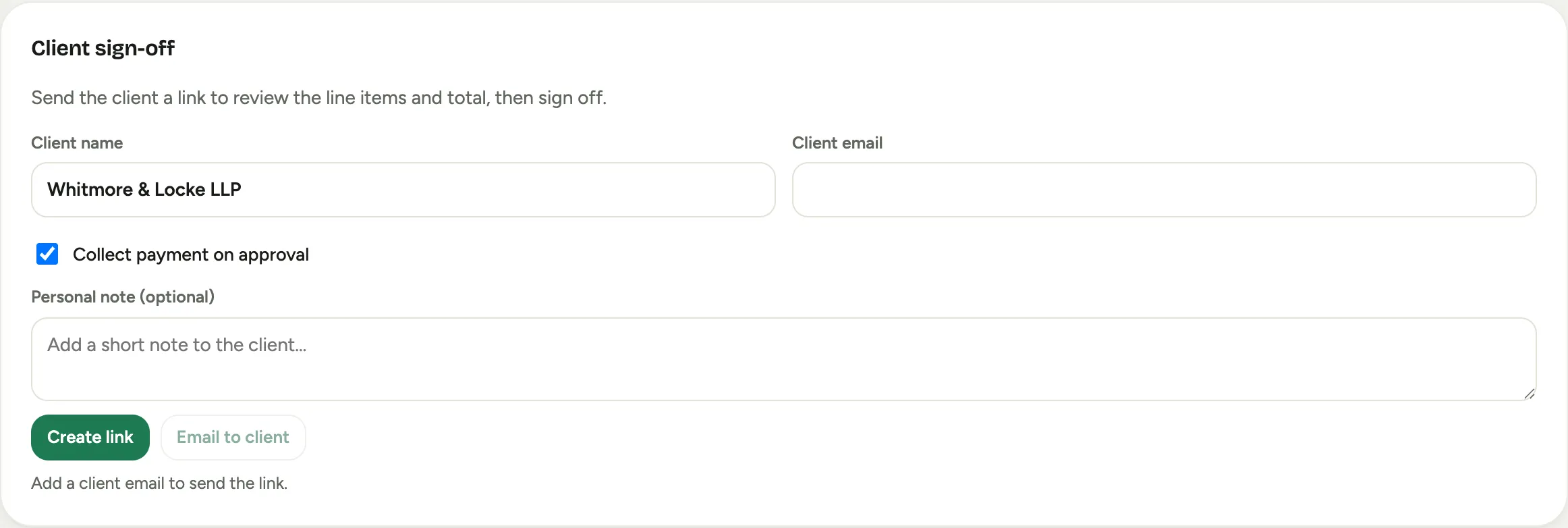 Screenshot from a demo workspace; data illustrative.
 -
Decide on payment. Leave Collect payment on approval on to charge the client the approved total when they sign, or turn it off for approval only. Add a Personal note (optional) to say something in the email.
-
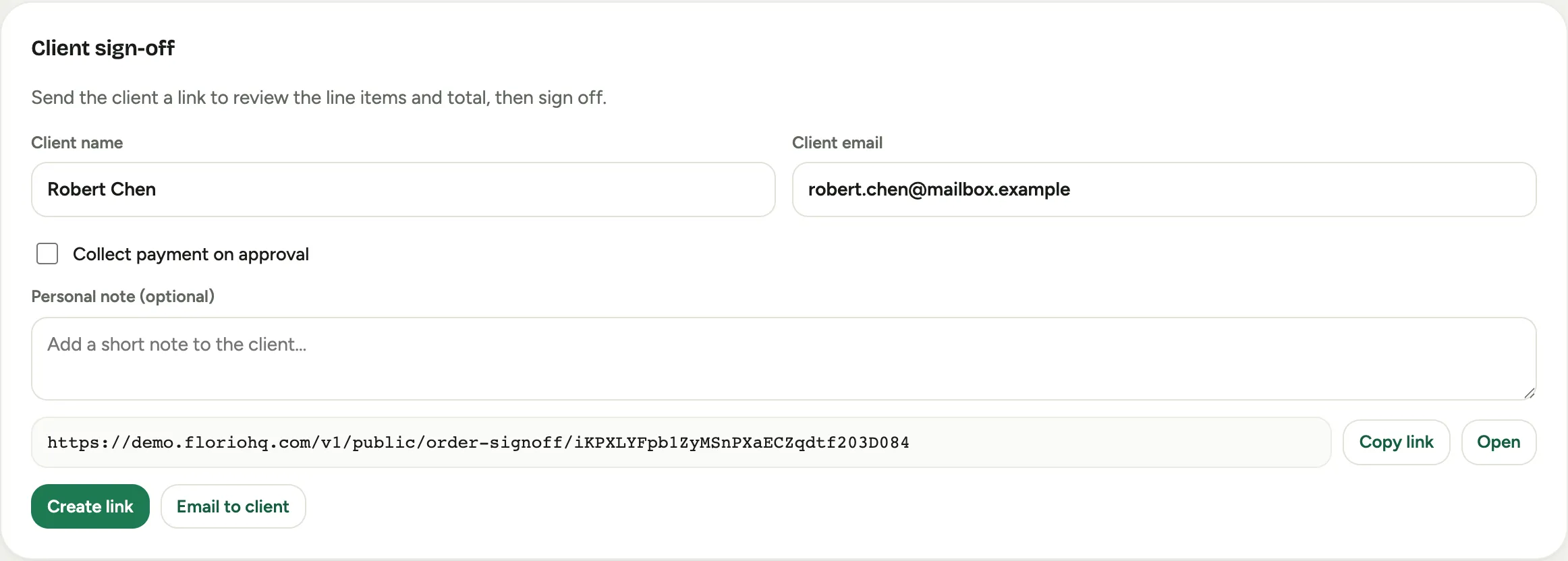
Send the link. Email to client sends a branded email with the link; Create link just makes the link so you can Copy link into your own message or Open it to preview. Once sent, the card shows Awaiting client sign-off and tracks when the email was sent and opened.
-
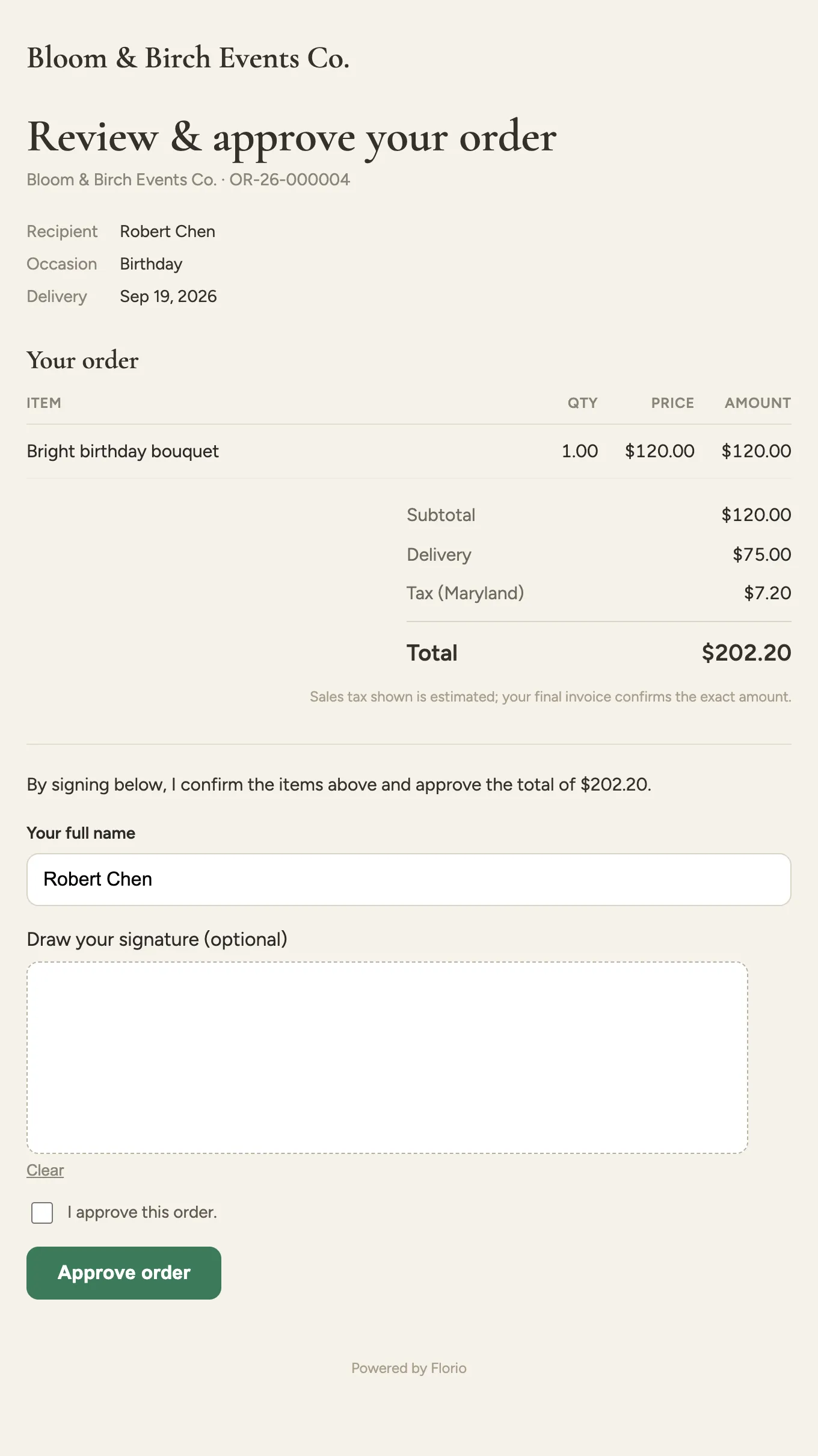
The client opens the link to a Review & approve your order page: the line items, the totals (including Tip and tax), and an approval statement. They type their name, optionally draw a signature, check I approve this order., and click Approve order, or Approve & pay when you are collecting payment.
-
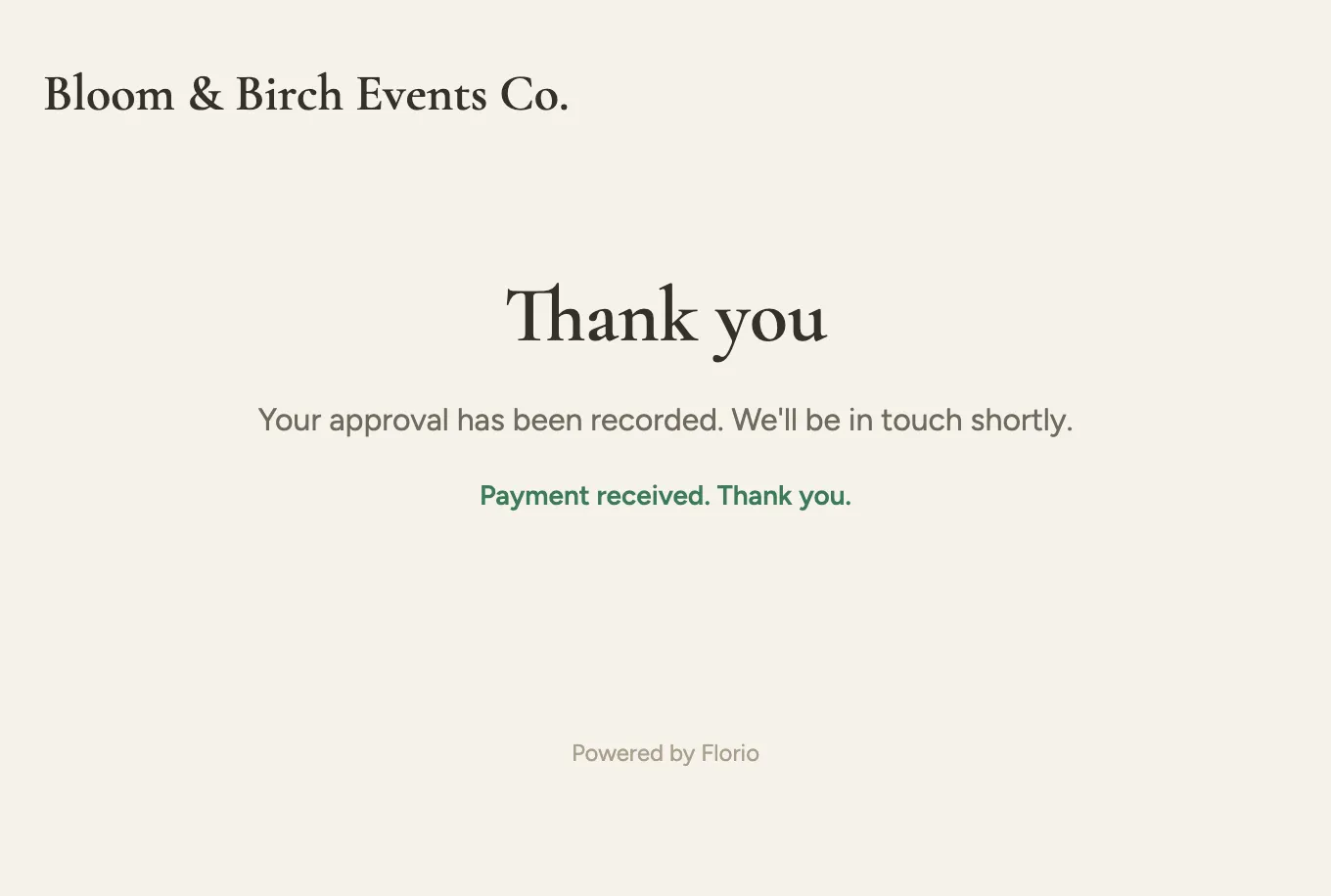
When they approve, the card on the order shows who approved it and when; if they drew a signature, a View signature link opens it. On a payment link, their card is charged the total and they land on a Payment received. Thank you. confirmation.

Good to know
- Sign-off is non-blocking. It never changes the order’s status or holds up the bench; it records the approval (and payment) as proof, freezing the exact items and total the client signed.
- The amount charged is the approved total the client saw (items, delivery, tip, and estimated tax), less anything already collected. A declined card does not undo the approval: the order stands as approved-but-unpaid and you follow up.
- The client never types a card number to you. The card field is Stripe’s, and the card is saved to their Card on file for next time, so you can also charge it yourself later from the order’s Charges section.