Cost an event
Costing an event is the heart of the Florio method: you enter what the work actually takes, and only then the price. Do it in that order and the margin is a fact you can see, not a guess you defend later.
Before you start
- Your target margin should be set, so the worksheet has something to check the price against.
- Have your real numbers to hand: wholesale flower cost, rental cost, and how many crew for how long.
Steps
-
Open the event and open its scorecard. You land on the Cost & hours worksheet.
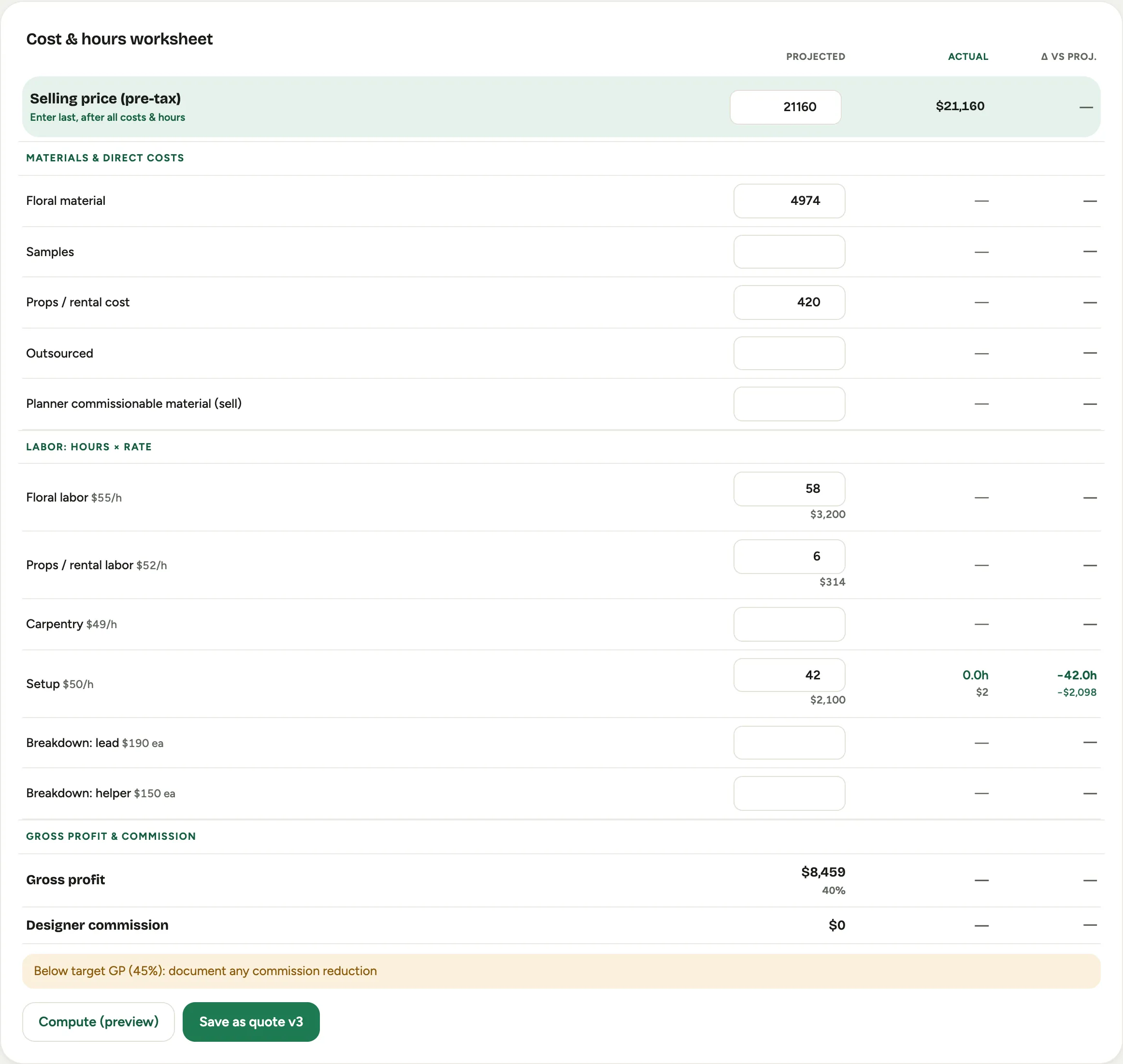 Screenshot from a demo workspace; data illustrative.
 -
Enter your Materials & direct costs: floral material, samples, props and rental cost, anything you buy for the job, each at what you pay for it.
-
Enter your Labor. Design and production time goes in as hours at a rate; breakdown and setup crews go in by headcount, how many people, not how many hours. See Price labor by bodies.
-
Enter the Selling price (pre-tax) last. With every cost already in, the Gross profit & commission summary shows your real margin and flags it if it falls under target.
-
Click Compute (preview) to check the numbers without saving. When it looks right, save it as a quote version.
-
When you are ready for the price to be blessed, use Submit in Quote versions. An approver clears it with Approve, and only an approved price can carry a proposal out.
Good to know
- The order is the point. Florio deliberately asks for the price last. Entering costs first is what turns the scorecard into a check on your pricing instead of a place to invent it.
- Under target? The summary flags it and shows by how much, so you can raise the price, trim the design, or make a deliberate exception. Nothing goes out below the line by accident.
- After the event, the same worksheet fills its Actual column, so you can see how the job really landed. See Read projected versus actual.
- Where this fits: The margin scorecard.