Unlock scheduling for an event
Florio will not schedule an event until the client’s acceptance is recorded. It is a deliberate stop. Everything the schedule knows, the hours, the crew size, the work items, the job sheets your crew reads in the van, comes from the version the client signed. Build that from an unsigned proposal and you have staffed a guess, in public, with real people.
What the gate blocks
On an event, four actions wait for acceptance:
- Scaffold day-of
- Plan backward
- Seed backlog
- + New block, including a block created from the Scheduling page rather than the event
Nothing else changes. Anyone with permission can still read the schedule, and blocks that already exist stay fully editable: crew, vehicles, times, status, work items. Work that does not belong to an event, a rental reservation, a client sample session, a plant care visit, a standalone block, is never gated.
What you see while it is locked
The event’s Schedule panel stays exactly where it is, on the record’s Schedule tab, with the block list and the empty state intact. The four buttons are simply off, and each one’s tooltip carries the same sentence that sits under the heading in plain text: “Scheduling unlocks when the client accepts.”
Beside it is a Record acceptance link, which opens the event’s scorecard page at the Accept & payment schedule card. The link only appears if you have permission to accept on the client’s behalf. Without it, you get the sentence, and you know who to ask.
 Screenshot from a demo workspace; data illustrative.
Why changing the stage does not unlock it
The gate reads one fact: whether an acceptance has been recorded on the event. It does not read the pipeline stage.
Moving the stage dropdown by hand re-labels where the deal sits. It records no signature, no signed date, no signed total, and no answer to the question of which proposal was agreed to, so the schedule stays locked. That is on purpose: quiet stage drift becomes a visible prompt instead of a schedule built on nothing. If an event looks accepted but will not schedule, the fix is to record the acceptance, not to re-pick the stage.
Record the acceptance
- Open the event, then its scorecard, and find Accept & payment schedule. The Record acceptance link on the Schedule panel takes you straight there.
- Answer Which proposal did the client sign? The list holds the latest released version of every live proposal lane on the event, named with its lane, its version, and its total. If there is only one, it is already chosen. If the event has no proposal at all, the question does not appear.
- Fill in the signed total if it differs from the approved price, set the signed date, and pick a payment template if you do not want the default one.
- Click Record acceptance.
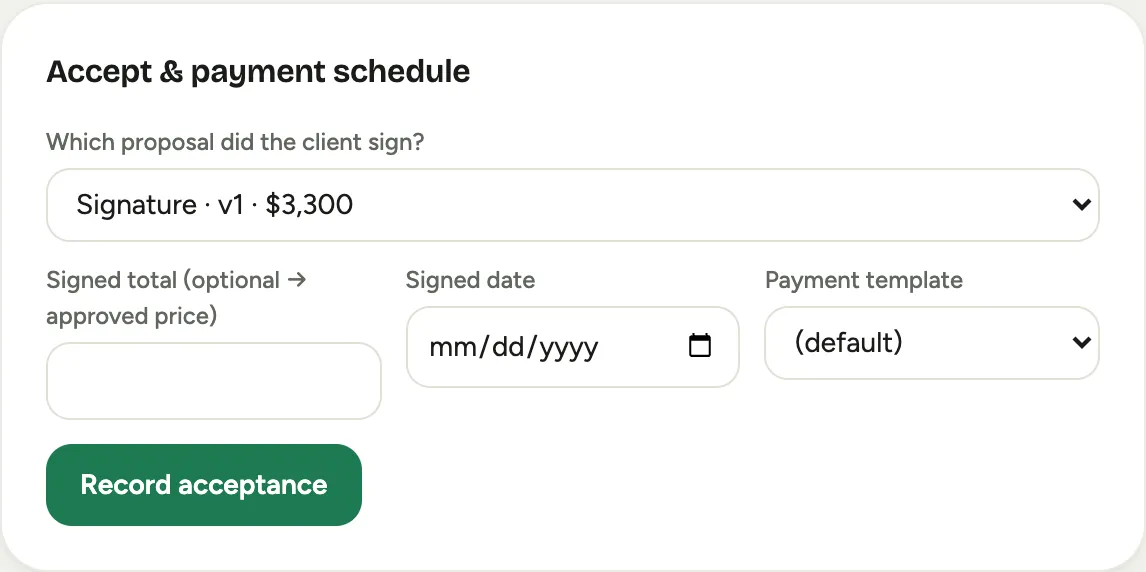 Screenshot from a demo workspace; data illustrative.
That single click does several things:
- Stamps the acceptance and moves the event to your first won stage.
- Marks the chosen version as signed, accepts its lane, and sets the competing lanes aside, exactly as a client e-signature would.
- Builds the payment schedule from the template.
- Flags a price discrepancy if the signed total differs from the approved price. That is a note for you, not a blocker.
- Unlocks the four scheduling actions.
Choosing No linked proposal still accepts the event and still unlocks scheduling. It just leaves no accepted proposal behind, so see the last section for what your crew ends up seeing.
Events that unlock themselves
You will use this panel less often than you might think. Every acceptance route ends in the same place, so the schedule unlocks on its own when:
- the client signs the proposal on their own screen, or
- an acceptance arrives from a system you have connected.
The manual panel is for the acceptance that happened over the phone, in the showroom, or on a paper contract.
Which version your crew ends up building
The work items on a block, the prep tasks in the backlog, and the descriptions and photos on a job sheet all come from one place: the accepted proposal.
- If a version of that proposal has been signed, the latest signed one is what the crew sees. A change order the client signs later takes over.
- If the accepted proposal has no signed version, which happens when the acceptance came in from another system, its latest released version is used, meaning the one you approved or sent.
- If no proposal was accepted, nothing is. A draft is never used. The event still schedules, and all the sold labor sits on one Unitemized line sized from the scorecard total.
When a proposal is revised after acceptance
Editing a draft revision changes nothing your crew sees, which is the point.
The work moves only when two things happen: the new version is actually signed, either by the client or by recording acceptance again and picking it, and someone re-runs Scaffold day-of or Seed backlog to pull the new lines through.
Re-running is safe. Removed lines do not erase history: a work item that already has punched time or an assignment is marked skipped rather than deleted, and a prep task already placed on someone’s day is kept and flagged for review rather than cancelled out from under them.
Good to know
- Creating an event block from the Scheduling page is refused by the same rule, but the message there is terse. Start from the event page, where the reason and the link to fix it are on screen.
- Where this fits: Scheduling: crews, the backlog, and the week, and Build an event’s work framework.