Proposals: build it, price it, send it to sign
A proposal is where a booking is won or lost, usually late at night while the inspiration is still warm. Florio’s job is to make sure nobody starts from a blank page: the numbers are already right from your catalog, the photos are your own past work, and the price cannot go out until it clears your margin. A proposal always belongs to an event, and you build it on that event.
This page walks the proposal screens: the editor where you build it, the event’s Proposals tab that holds it, the versions and the compare view, the lifecycle rail that carries it from draft to signed, and templates. Every section below is a target of the in-product help icon.
The proposal editor
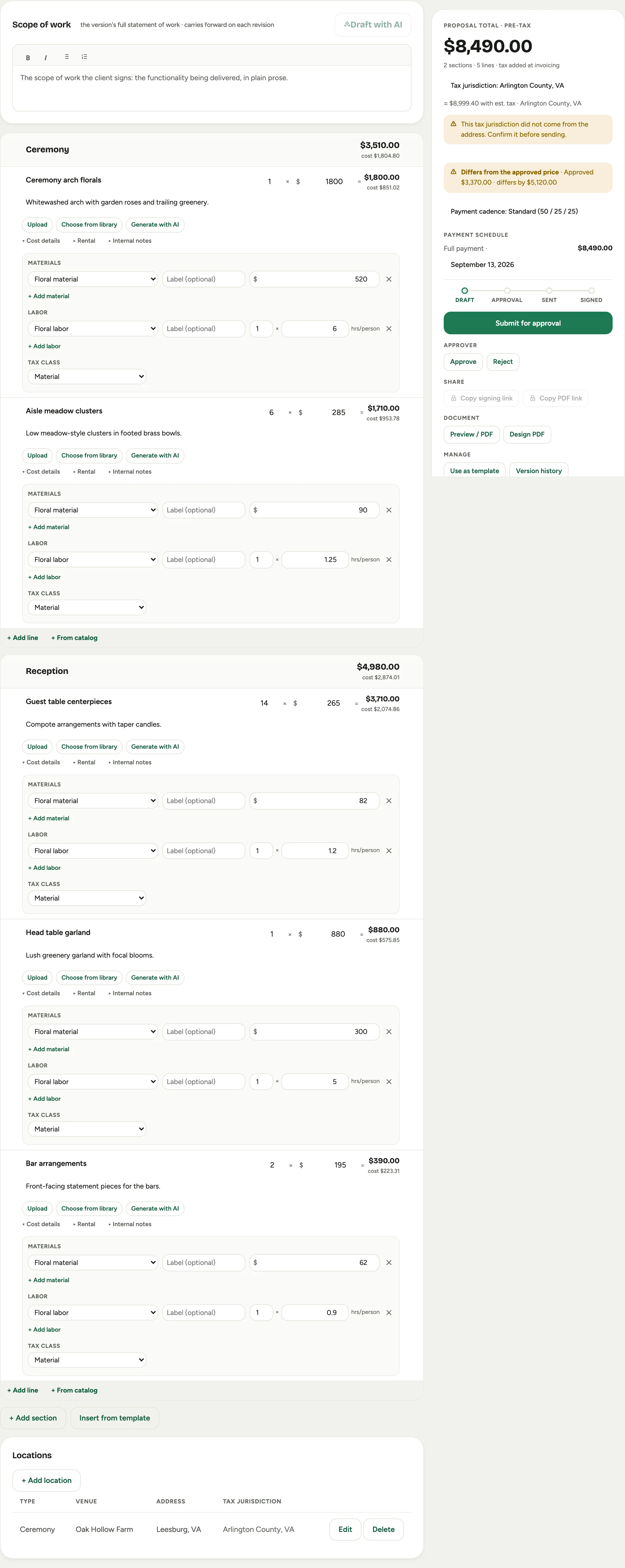
Open a proposal and you get a two-column workspace. The left side is the document you are building; the right side is the rail: totals, the live scorecard, and the actions that move the proposal forward.
 Screenshot from a demo workspace; data illustrative.
You build the document in sections. + Add section starts a group (Ceremony, Reception, Rentals); + Add line adds an item to it, and + From catalog pulls one straight from your price book with its cost already attached. Each line has an Item name, a quantity and unit price, a Description, and photos, added with Upload, Choose from library, or Generate with AI. Cost details opens the Materials and Labor cost lines behind a line, which is what feeds the scorecard. On a draft the cost details start open on every line, so the costs sit in front of you while you price instead of behind a click you might forget; a line you collapse stays collapsed.
The card above the document carries the facts of the booking, and two of them do more than read. Designer is the person who owns the event; change it here and it changes on the event. The Customer label and the event number are links, so the customer record and the event are one click away without leaving the proposal.
Design PDF on the rail opens the cover and concept editor for the client document. Cover photos come from your library with Add photos, or straight off your computer with Upload. A photo you upload belongs to this proposal only unless you tick Also add to photo library, which is off by default, so a one-off client photo does not land in the library you search from. The finished cover credits the designer by name, and the internal cost sheet names the designer too, adding who prepared the document when that is someone else.
On the rail, Live scorecard shows the margin as you work, with On target or Check the flags below, so you know the moment a design choice pushes the price under your line. Building a proposal is covered step by step in Build a proposal from sections and lines.
The proposals panel
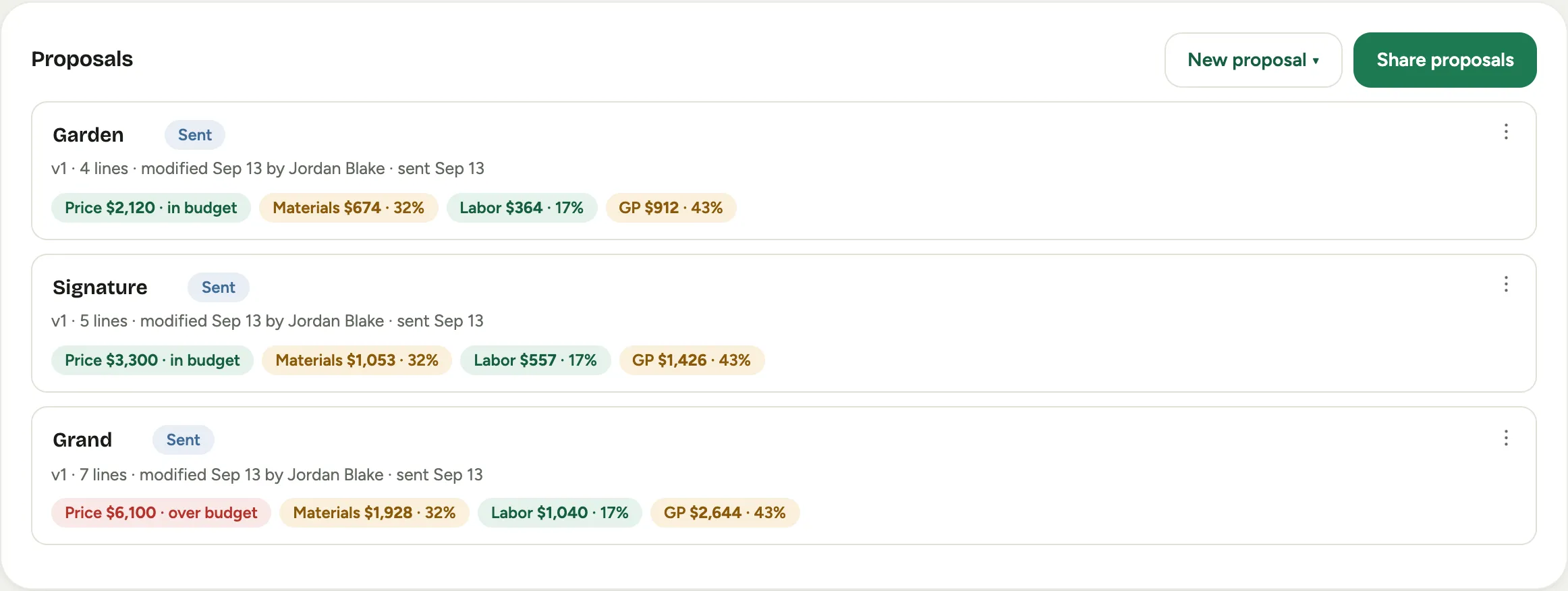
On the event’s Proposals tab, the proposals panel lists the proposals for that booking. Most events have one, but you can offer a client options, a simpler version and a fuller one, side by side, and let them choose.
 Screenshot from a demo workspace; data illustrative.
New proposal starts another one: Blank proposal from scratch, or Clone to copy an existing one as a starting point. Each card shows the proposal’s price, a margin chip, and its status. Share proposals sends a set of options to the client as one page they choose from; that chooser is covered in What your clients see. Offering options is covered in Offer good, better, best options.
Versions and compare
When the planner changes everything on a Tuesday, you do not rebuild the document, you revise it. Revise (new version) starts a new numbered version, keeping the old one intact, so the whole history of a booking’s proposal is preserved.
 Screenshot from a demo workspace; data illustrative.
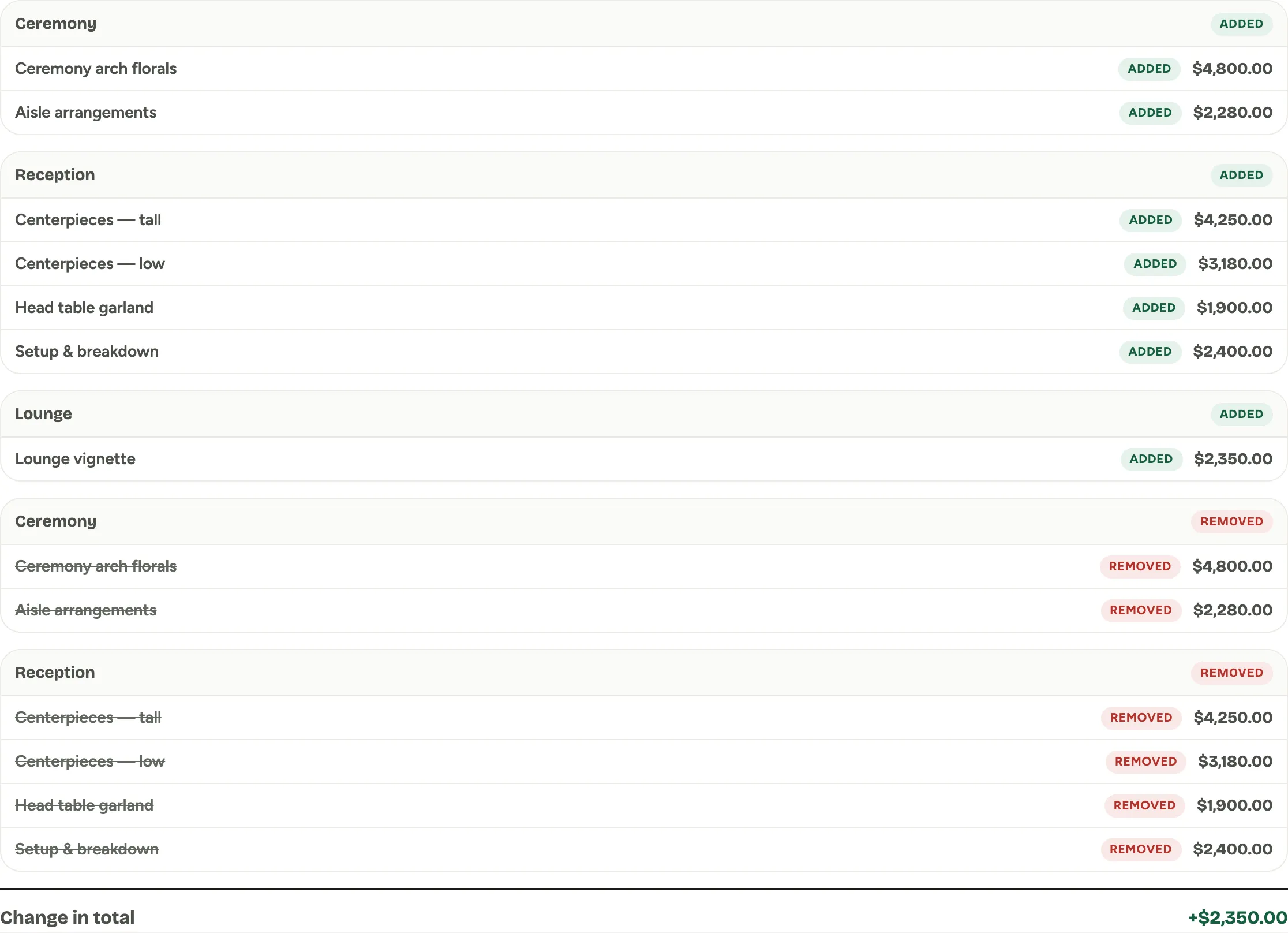
Compare puts two versions side by side and marks exactly what moved: Added, Removed, Changed, Renamed, and Moved lines, with the Change in total at the bottom. Turn on Customer-facing changes only to hide internal edits, and Diff PDF prints the comparison to walk a client through. See Revise and compare versions. A separate, lighter safety net, the within-draft Version history with one-click Restore, is covered in Restore an earlier version.
The lifecycle rail
The rail carries a proposal through four stages: Draft, Approval, Sent, and Signed. The stage matters, because the approval gate is real: a proposal must be approved before it can be sent, and it cannot be approved while the price is under your margin.
- From a draft, Submit for approval sends it to an approver. Before it goes you can leave a Note to the approver (optional): the margin you chose to hold, the quote a line rests on, anything that saves a question. The approver reads it beside the approve and reject buttons, on their approvals list, and in the review email; if the proposal comes back to you and you submit again, the note is waiting to be edited rather than retyped. Until it is approved, the rail says Approval is required before this can be sent to the customer, and the share buttons are locked.
- An approver uses Approve or Reject.
- Once approved, Send to customer emails it, or Copy signing link hands you the link to share yourself. Copy PDF link shares a read-only copy.
- When the client signs online the proposal moves to Signed; you can also Mark signed by hand for an offline signature.
Sending a proposal, and everything the send window offers, is covered in Send a proposal for signature. To see the review and sign page exactly as your client gets it, read What your clients see.
Templates
The parts of a proposal you write again and again, a standard delivery-and-setup section, a boilerplate line, an entire starter proposal, can be saved and reused.
 Screenshot from a demo workspace; data illustrative.
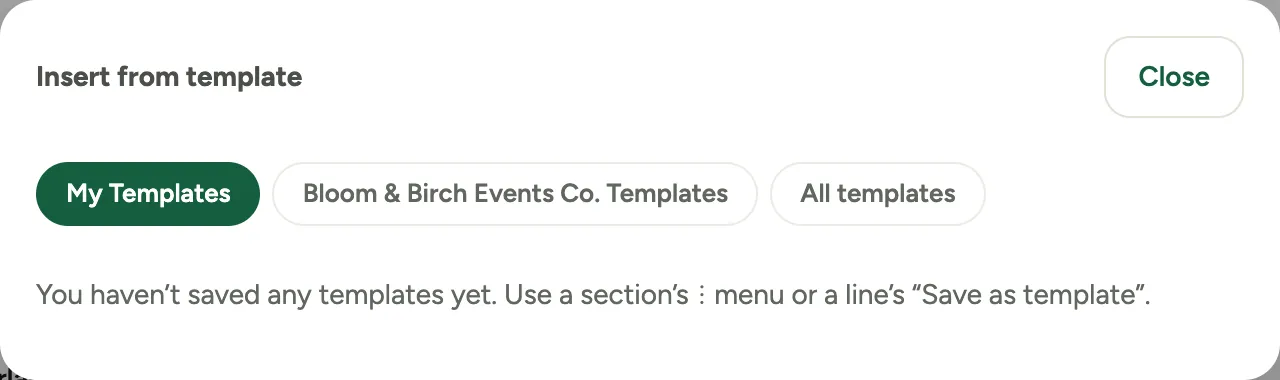
Insert from template drops a saved section or set of lines into the proposal you are building. You save them from where you make them: Save section as template from a section’s menu, Save as template from a line, or Use as template from the rail to keep a whole proposal as a starting point. See Save and reuse templates.