Reply to a client from a record
When a client’s email is captured onto their record, you can answer it right there. The reply goes out from your own connected mailbox and files back onto the timeline, so the conversation stays in one place and the person covering next week sees the whole thread.
Before you start
- Email capture must be connected for your workspace (see Set up email capture).
- Sending replies uses your own Gmail, so your Google account must be connected. If it is not, Florio tells you email sending is not enabled yet and points you to Connect Google.
Steps
- Open the record the mail is on: a customer, event, order, or contact. Go to its Activity feed (on a lead, the mail is on the Activity feed directly).
- Find the client’s message and choose Reply. To write a fresh message instead, use New email.
- The composer opens already addressed. Fill in the Subject and Message. If you like, start from a saved message with Use template, or offer a meeting with Propose times or Copy booking link.
- Choose Send.
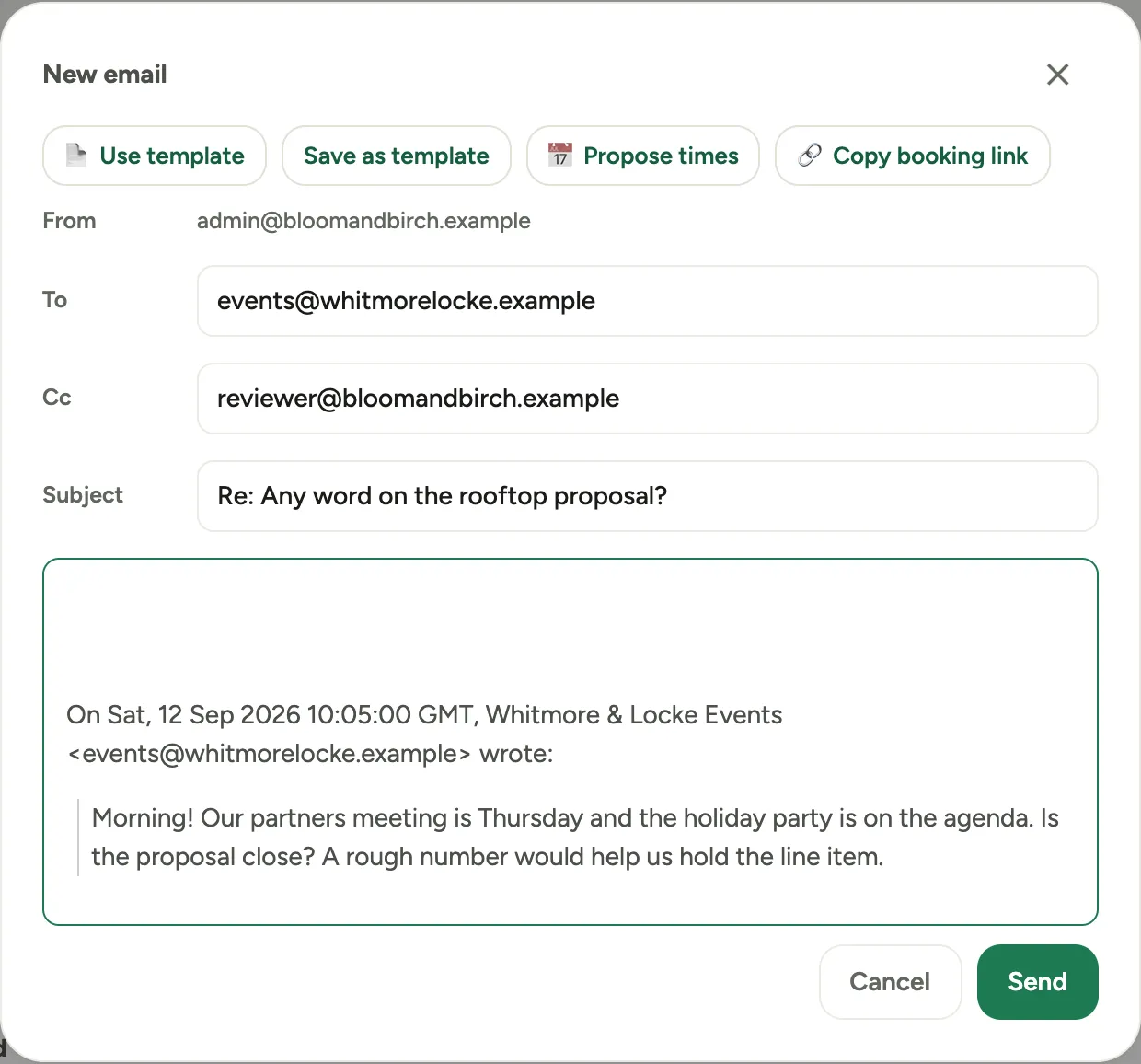 Screenshot from a demo workspace; data illustrative.
Your reply lands in your Gmail Sent folder and appears on the record’s timeline as a Sent message, so the thread reads top to bottom in one place.
Reply as your shared support address
On a service call, the composer can send as your workspace’s shared support address instead of your own, so the customer sees one support identity and never a person’s name, address, or personal signature. When an admin has set it up under Admin, Service, the composer shows a From dropdown just above To with two choices: the shared address and yourself. The shared address is preselected when your workspace has chosen that default.
- What the customer sees. The From name and address your admin configured, the shared signature (it appears in the message as a read-only block; nothing in it can be edited), and, if set, a Reply-To address such as your service intake address. The subject carries the call’s reference, so the customer’s reply lands back on the same call.
- Your own address never slips through. If your own email address appears anywhere in a shared reply, in the recipients, the subject, or the message, Florio refuses to send and tells you why. Remove it, or switch the dropdown to yourself.
- Switching keeps your draft. Choosing the other identity swaps only the signature block; what you typed, and the To, Cc, and Subject fields, stay as they were.
- Who wrote it is still recorded. The call’s activity log shows the reply as sent from the shared address by you, so colleagues can see who answered even though the customer cannot.
- Where it leaves from. Your admin chooses whether shared replies go out through the shared mailbox itself or through Florio’s built-in sender (Admin, Service, Sent through). With the built-in sender the reply is queued and out within a minute, the customer’s answer still lands on the same call, and the feed row reads Sending until it has gone, then Delivered, Bounced, or Not sent if it could not be delivered. Opening the row shows the exact message as it was sent.
- Sending as the shared address needs the permission Reply to service customers as the shared support address, granted by default to admins, managers, and dispatch. Without it the dropdown does not appear and you send as yourself.
Opens and clicks
When your admin has turned on Email tracking (Admin, Email capture), every email you send from a record carries an invisible open pixel and tracked links, whichever identity it goes out as. The activity feed then shows Opened ×2 · Clicked ×1 on the row, or Not opened yet; click it to open the same trail a proposal view gets: when, from where, on which device, and which link was followed.
- What counts. Automated fetches (security scanners, link previews, crawlers) and hits from your own office networks are listed but not counted, and you can mark any hit as one of yours. A webmail image proxy does count: it fetches only when a person opens the message.
- Who opened it. Each recipient gets their own tracked copy, so the trail names the person, not just the message. Everyone still sees the same To and Cc lines and reply-all still reaches the whole thread.
- Colleagues are never counted. Anyone on your own domain, or on a mailbox Florio monitors, receives an untracked copy. Their reading the thread cannot move the customer’s number, so an open is always the customer.
- What is left alone. Links inside the customer’s quoted text, mail and phone links, and links to Florio’s own pages, which have their own tracking. An email sent while the switches were off carries no count at all, not a zero. Reading a sent message inside Florio, or quoting it into a reply, never records an open.
- The same counts appear on the record’s activity log, on the automated service messages Florio sends for you as well as on your own replies.
Good to know
- A stray click will not lose the message. Once you have typed anything, the close button, Cancel, the Escape key, and a click outside the window all ask before they throw the draft away. Opening a template or the meeting-times window and then backing out of it leaves your message exactly where it was. If you were holding meeting times, the question tells you how many go back to your calendar; see Propose meeting times in an email.
- You can reply the same way from My Stuff, which lists the inbound mail across all your records with an inline Reply on each one.
- Sending a reply clears the Awaiting reply nudge on that thread, so it stops showing up as owed.
- The Emails panel on a record is captured mail you read; writing always happens on the Activity feed.