Capture and qualify a lead
Every inquiry becomes a lead so nothing is worked out of an inbox. This is the daily loop: create the lead, learn what you can, and push it toward Qualified or file it with a reason.
Before you start
- Anyone on the sales team can create and work leads. Deleting a lead outright is admin-only; everyone else sets a lead aside by disqualifying it, which keeps the record.
- Most leads arrive on their own, from your booking page, a web form, or a watched mailbox. This guide is the by-hand path; the automatic one is Work the Inbox Triage queue.
Steps
-
Open Leads and click New lead. Fill in the name and whatever contact detail you have. Florio checks as you type and shows a Possible duplicate note if the person already exists, so you can open the existing record instead of making a second one. Save with Create lead.
 Screenshot from a demo workspace; data illustrative.
 -
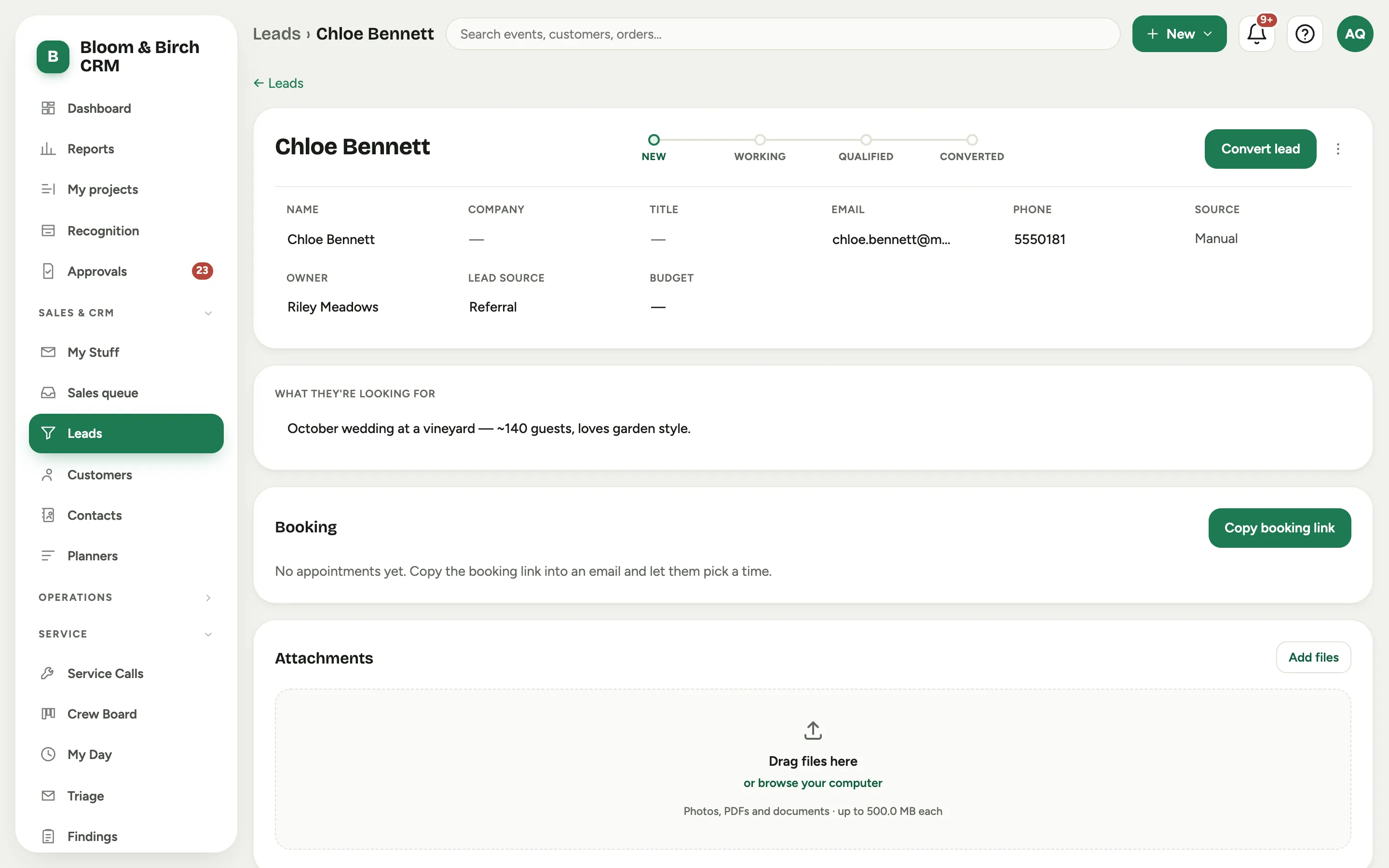
Open the new lead and fill the facts down the left. They edit in place: set the Owner so it lands in someone’s queue, the Lead source, and a Budget if you have one, then write the brief in What they’re looking for.
-
Move the lead along the track as you learn more: click Working when you are actively in it, and Qualified once it is real and worth a proposal.
-
Carry it forward or set it aside:
- Won it? Click Convert lead and follow Convert a lead to a customer.
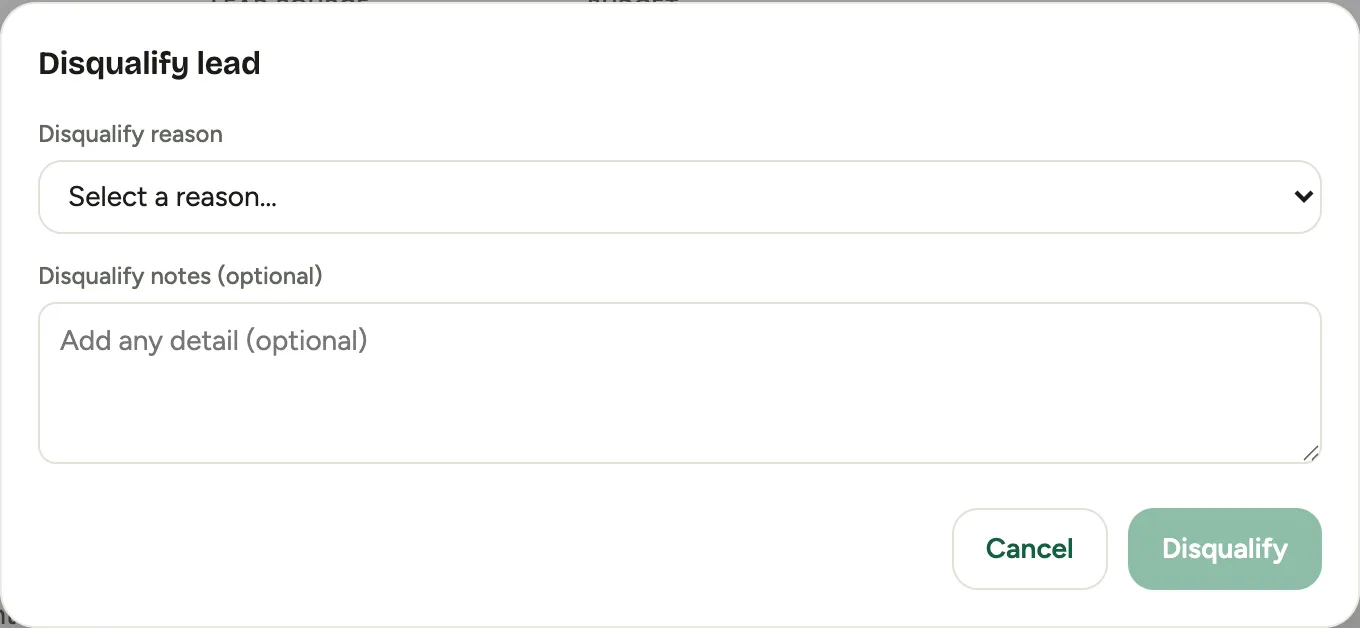
- Not a fit? Open Lead actions, choose Disqualify, pick a reason such as Budget too low, Outside service area, or Unresponsive / went cold, add an optional note, and confirm.
- Junk? Mark as spam files it out of the way without a reason.
-
If a set-aside lead comes back to life, open it and click Reopen lead to put it back in Working.
Good to know
- Disqualifying is not deleting. A disqualified lead keeps its reason and stays in the Disqualified view for reporting on why inquiries do not convert. Delete lead, which only admins see, removes the record entirely, so reach for it only on a true mistake.
- The Active view hides converted, disqualified, and spam leads. Switch the chip at the top to find one you filed earlier.
- The stat cards count your open pipeline, so New plus Working plus Qualified is the work still in front of you.
- Where this fits: Leads and customers.