Request and approve time off
Time off in Florio is one flow from “can I take Friday?” to a marked-off day on the capacity board. Requests route through your approval chain (typically the direct manager, then leadership, then payroll processing), and nobody has to re-type anything into the schedule afterward.
Before you start
- Requesting needs no special permission; everyone has the Time off card on their Profile page and in the Florio app.
- Approving is by routing, not role: requests reach the requester’s direct manager, then the members of your leadership and payroll queues (see Set up teams, queues, and vehicles).
- Recording time off for someone else, without a request, is for admins and HR (the Record time off for anyone permission).
Steps: request it
-
Open your Profile and find the Time off card. Click Request time off.
-
Pick the type (by default Vacation, PTO / Sick or Unpaid; your workspace sets the list), the first and last day, and add a note if context helps. Florio shows the hours being requested, counting workdays only (a Monday to Monday week off is six days), any events you are crewed on during those dates, and the exact approval path ahead.
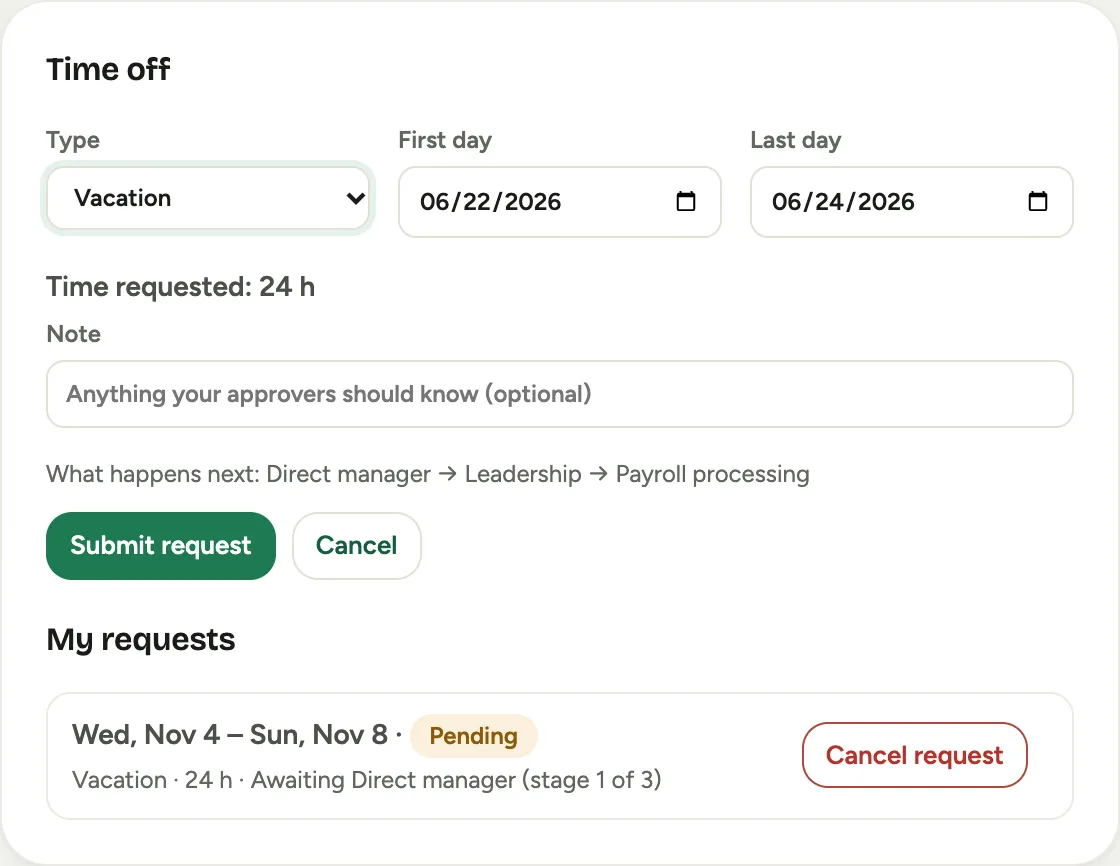 Screenshot from a demo workspace; data illustrative.
 -
Submit. The request appears under My requests with its stage, and the schedule immediately shows those days as requested off, so nobody books you meanwhile. You can cancel any pending request, or an approved one that has not started yet.
Steps: approve it
-
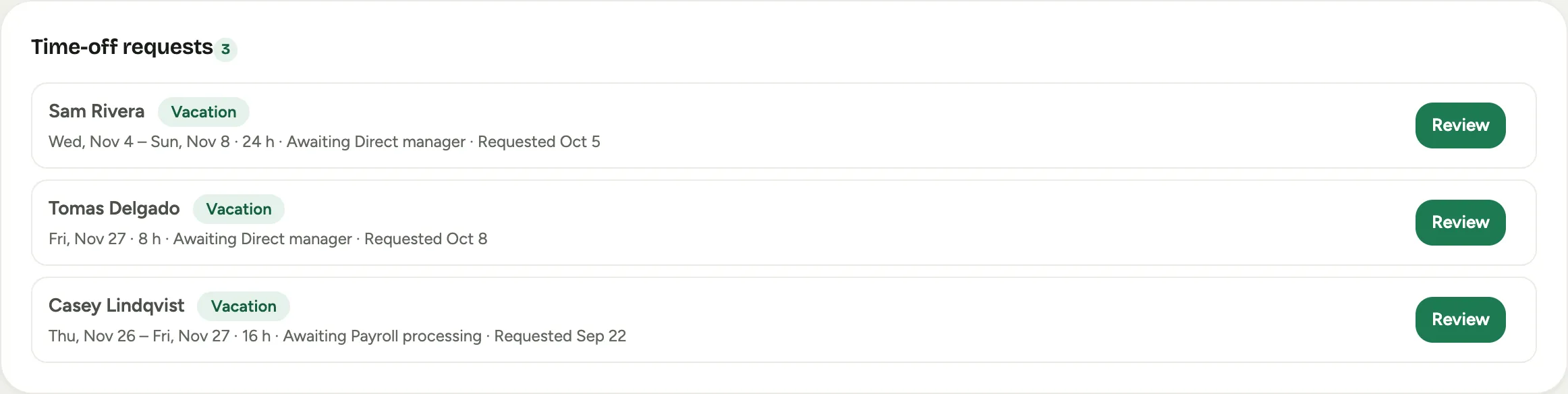
Approvers get an email and a push, and the request appears under Time-off requests in the Approvals hub. Each row ends with the day it was requested, or recorded.
-
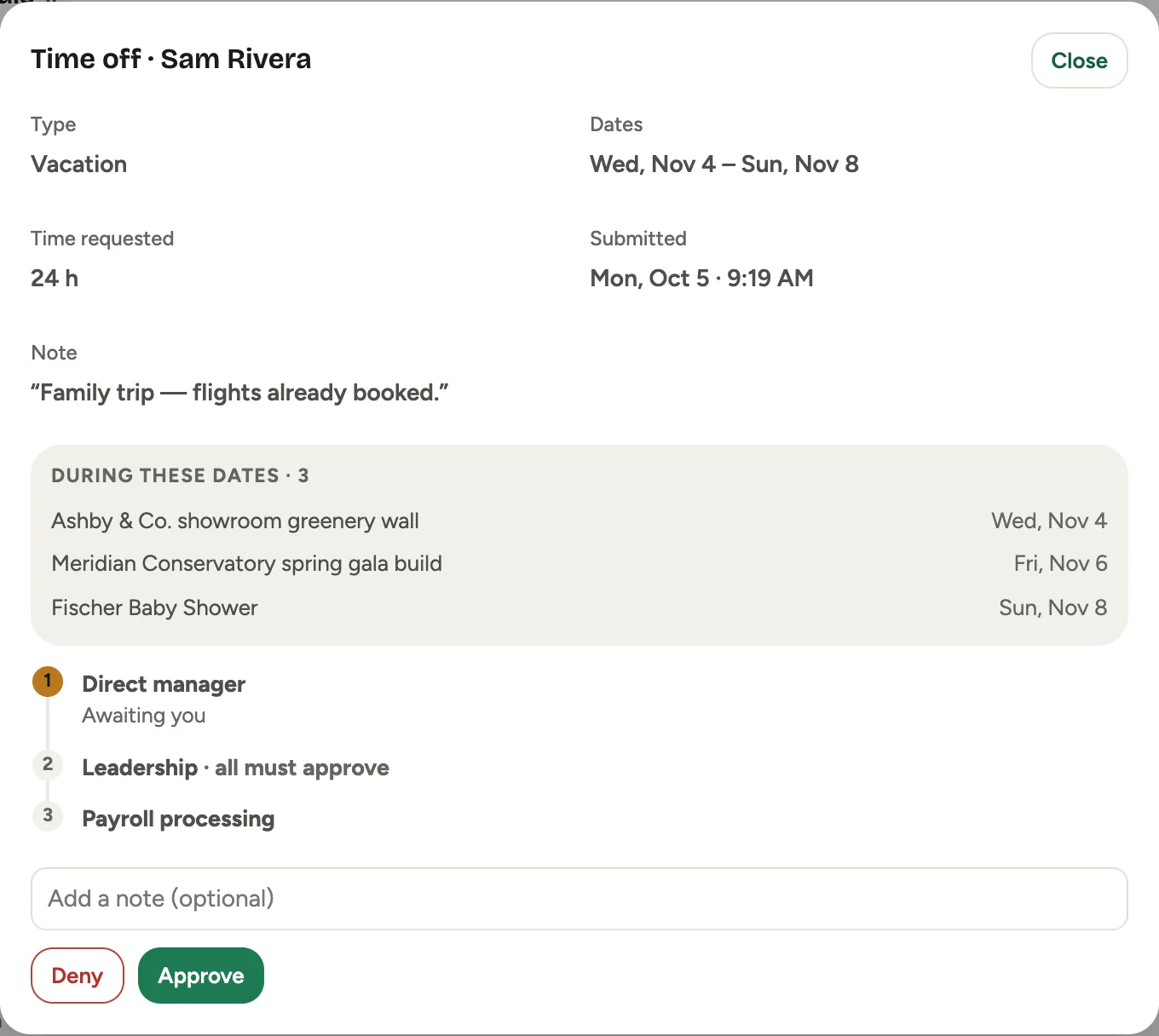
Click Review. The modal shows the dates and hours, when the request was Submitted (day and time, on your company’s clock), the requester’s note, whether they are crewed on events in that window, who else on the team (or, at the leadership stage, in the company) is out at the same time, and where the request sits in the chain.
-
Approve or Deny, with an optional note. When a stage needs everyone (a leadership pair, for instance), the rail says so and waits for both.
-
On the final approval the days flip from requested to time off on the Capacity board and the person is marked on the Day board and the dispatch board. A whole day off is a hard block: scheduling them that day needs an override with a reason, which goes in the activity log. Part of a day off warns only when the hours overlap. The requester is notified either way.
-
The payroll stage comes last: a checklist, naming your payroll system, to verify and record the time there, then Mark processed. If the balance does not cover it, payroll can still bounce the request, and the schedule entry is removed.
Record time off for someone
Admins and HR can put someone’s time off on the schedule without a request: a subcontractor’s week away, a sick day phoned in, leave agreed in person.
- Open Time clock, then Time off. The page lists everyone’s time off, requested or recorded, with who is out today and what is waiting for approval or for payroll. Open a row to see when it was Submitted (or Recorded), its stages, or to cancel it.
- Click Record time off. Pick the person, the Type of leave, and the dates or part of a day, and add a note if it helps. The dialog shows what is already on their schedule in those dates. The type list can include types an employee cannot request for themselves; by default those are Personal Leave of Absence, Family and Medical Leave, Bereavement Leave, and Jury Duty.
- Save. It goes on the schedule at once, with no approvals. For someone on payroll it still goes to the payroll step so it gets recorded in your payroll system; for a subcontractor paid by vendor bill it is final. The person gets an email and a push saying time off was added for them.
You can also record from a person’s page in Admin (their Time off card) or from the dispatch board, where every tech has Mark time off with that day filled in. Recording refuses dates that overlap time off the person already has and says which; approve or deny a pending request in Approvals instead.
Good to know
- Approval authority follows routing, so a request never strands: if a stage has nobody (no manager set, an empty queue), it falls to your HR fallback.
- You cannot decide your own request; cancel it instead.
- The card tracks hours used per type this year. Florio tracks usage; your payroll system stays the source of truth for balances.
- Recurring days off (every Monday, for example) are separate from time off and are set up with your Florio onboarding today; they show on the same boards.
- Where this fits: Scheduling: crews, the backlog, and the week.