Connect QuickBooks Online
Connecting is the first stage of the QuickBooks setup journey. It takes about two minutes and changes nothing in your books: until you turn posting on at the end of the journey, Florio only reads from QuickBooks, never writes to it.
Before you start
- You need the Manage QuickBooks integration permission in Florio. If you do not see the buttons described below, ask your Florio admin to grant it under Admin, then Roles & permissions.
- You need an Intuit sign-in that is an admin on the QuickBooks company you keep your books in. Florio connects to QuickBooks Online; it cannot connect to QuickBooks Desktop.
- One Florio workspace connects to one QuickBooks company. If you keep more than one company file, connect the one where this business’s sales are recorded.
Steps
-
Go to Admin, then QuickBooks.
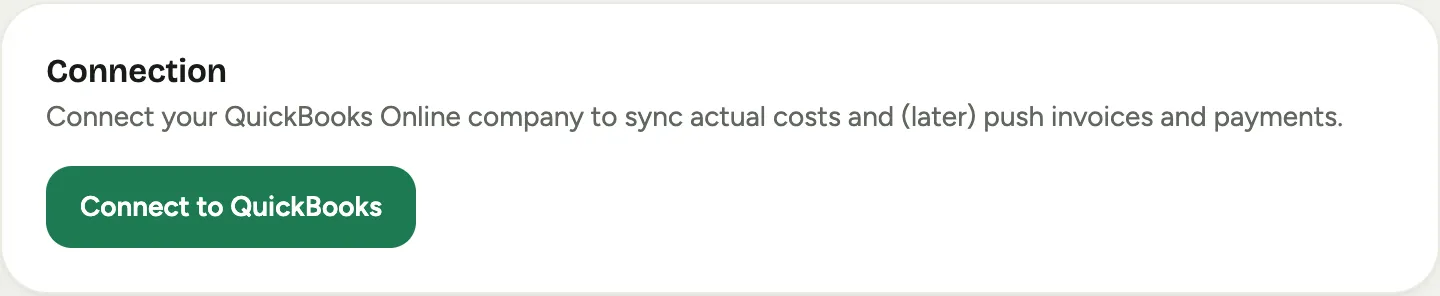 Screenshot from a demo workspace; data illustrative.
 -
Click Connect to QuickBooks. Your browser goes to Intuit’s own sign-in page. Florio never sees your Intuit password.
-
Sign in with your Intuit account, pick the company you want to connect if Intuit asks, and allow the connection when Intuit shows what Florio is asking for.
-
You land back in Florio with a confirmation that QuickBooks is connected. The Connection card now shows a Connected badge and the connected company.
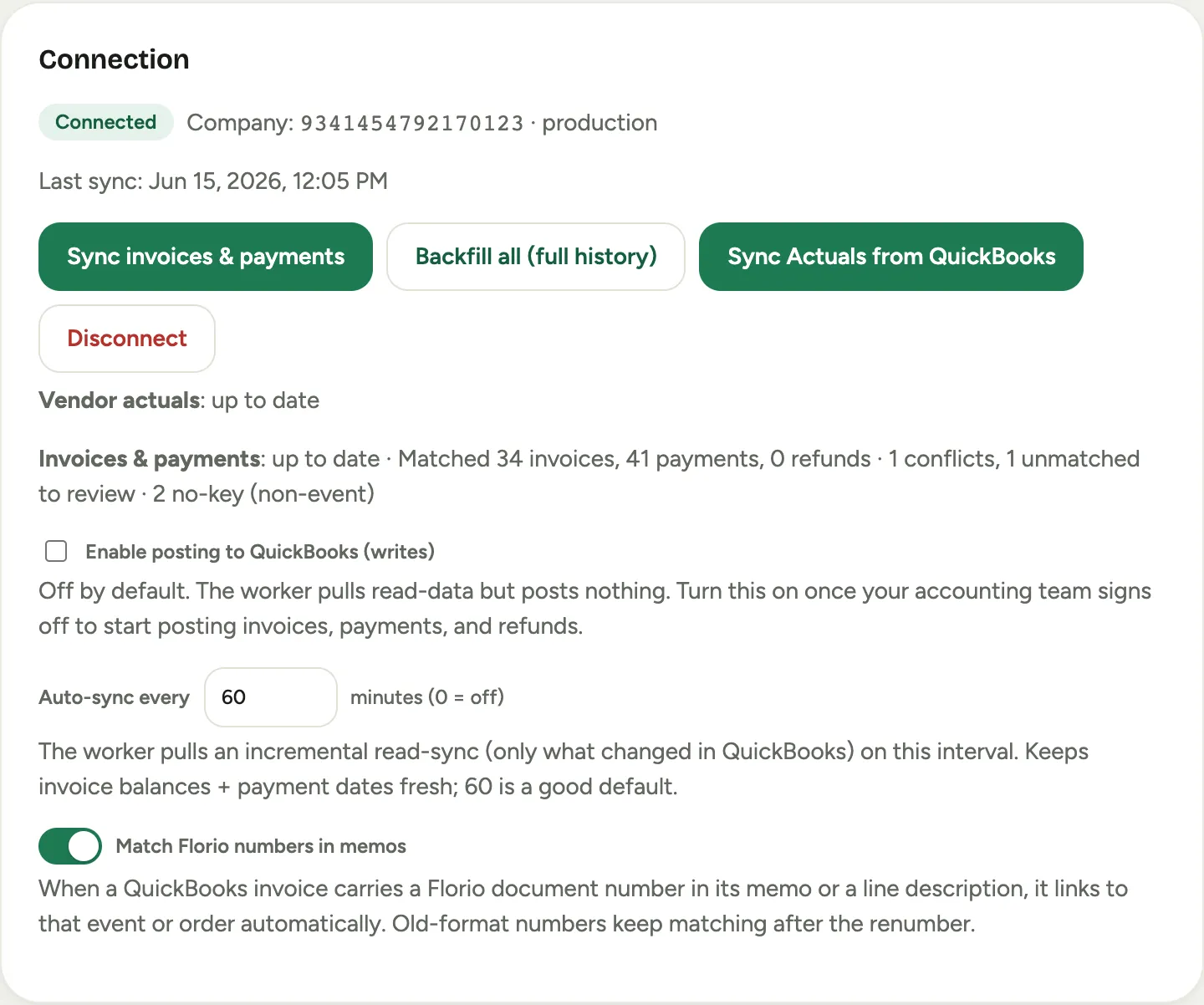 Screenshot from a demo workspace; data illustrative.
 -
Give the first sync a few minutes. Florio starts reading your chart of accounts, products and services, and tax codes (these fill the mapping pickers in the next stage), and begins syncing invoices and payments in the background. The card shows Last sync once the first pass completes.
Screenshot from a demo workspace; data illustrative.
When QuickBooks asks you to reconnect
Intuit expires connections from time to time: a changed password, a security review on their side, or simply a connection that has gone unused for a few months. When that happens, Florio pauses the sync, emails the people who manage the integration, and waits. Nothing is lost.
-
Go to Admin, then QuickBooks.
-
Click Connect to QuickBooks and sign in again, exactly like the first time.
-
That is all. Paused syncing and any waiting work resume on their own once the connection is back.
Screenshot from a demo workspace; data illustrative.
Good to know
- Sync now, by hand. The Sync invoices & payments button pulls the latest changes immediately instead of waiting for the next scheduled pass, and Backfill all (full history) re-reads your whole invoice history. You rarely need either; the background sync handles it.
- If the tab says QuickBooks isn’t configured, the server itself is missing its QuickBooks keys. That is a setup step for whoever runs your Florio instance, not something a workspace admin can fix; contact them, or ask us through the request form.
- Disconnecting. The Disconnect button stops all syncing until someone reconnects. Use it only if your accountant asks you to sever the link; day to day there is no reason to disconnect.
Next stage: Map your items and accounts.