Choose who gets notified
Two Admin tabs decide who hears about what: Notifications for the moment-to-moment money alerts and for what your crew hears about their own schedule, and Morning briefing for the daily recap. Set them once and the right people stay in the loop without watching the app.
Set the acceptance alert recipients
Notifications is the list emailed when a deal is signed or accepted, when a signed event is re-signed, and when a signed total does not match the approved price.
- Open Admin, then Notifications.
- Type an email and click Add. Each recipient saves at once.
- Remove anyone with the × on their chip.
Leave it empty and those alerts are not emailed to anyone, so add at least the owner and whoever watches the books.
Tell crew when their day changes
The second card on the same tab, Crew schedule notifications, decides what a crew member hears about their own schedule. Both halves are on out of the box, so this is a card you tune rather than one you have to turn on.
What sends a message
A person is notified when someone else changes their day: they are added to a block or taken off one, their assignment is handed to somebody else or moved to another event, a block they are on is re-dated or re-timed, or they are made, or replaced as, a truck’s driver. A retimed block reaches everyone on it, drivers included, on both the old date and the new one.
Two rules keep it sane. You are never notified about your own edit, and a change to a day that has already passed is never sent.
One message per person per day
Changes are gathered rather than fired one by one. A person gets at most one pending notice per affected date, and each further change slides the window rather than starting a second message. Staff a whole day by dragging on the Day board and the crew gets one message once you stop, not one per drag.
The message itself says how many updates there are, for which date, and links to that person’s own schedule. No detail, no addresses, no money: those live on the page it opens.
Quiet hours
Anything falling due inside quiet hours waits and goes out on the first pass after they end. Nothing is lost and nothing arrives early. Windows that cross midnight work normally, and setting the start and end to the same time turns quiet hours off. The evening digest is not held by them.
The evening digest
The digest goes out the evening before, listing tomorrow’s blocks: the time, the phase, the client and event, where it is, and how many work items are on it. Only people who are on a block tomorrow get one.
It is an email first: a crew member with no email address on their record is skipped for the digest on both channels, so keep addresses current for anyone you want it to reach.
The settings on the card
Every time on this card is your workspace’s local time, and the card names the timezone it is using. Click a value, change it, and confirm; there is no page-level save button.
| Setting | Default | What it does |
|---|---|---|
| Assignment notify (push + email) | on | Turning it off stops the messages being raised at all, not just sent |
| Tomorrow digest (push + email) | on | The evening summary of tomorrow |
| Coalesce window (minutes) | 15 | How long Florio waits for you to stop editing, between 1 and 240 |
| Quiet hours start | 21:00 | When to stop sending for the night |
| Quiet hours end | 07:00 | When to resume. Equal to the start means no quiet hours |
| Digest send time | 17:00 | When the evening digest goes out |
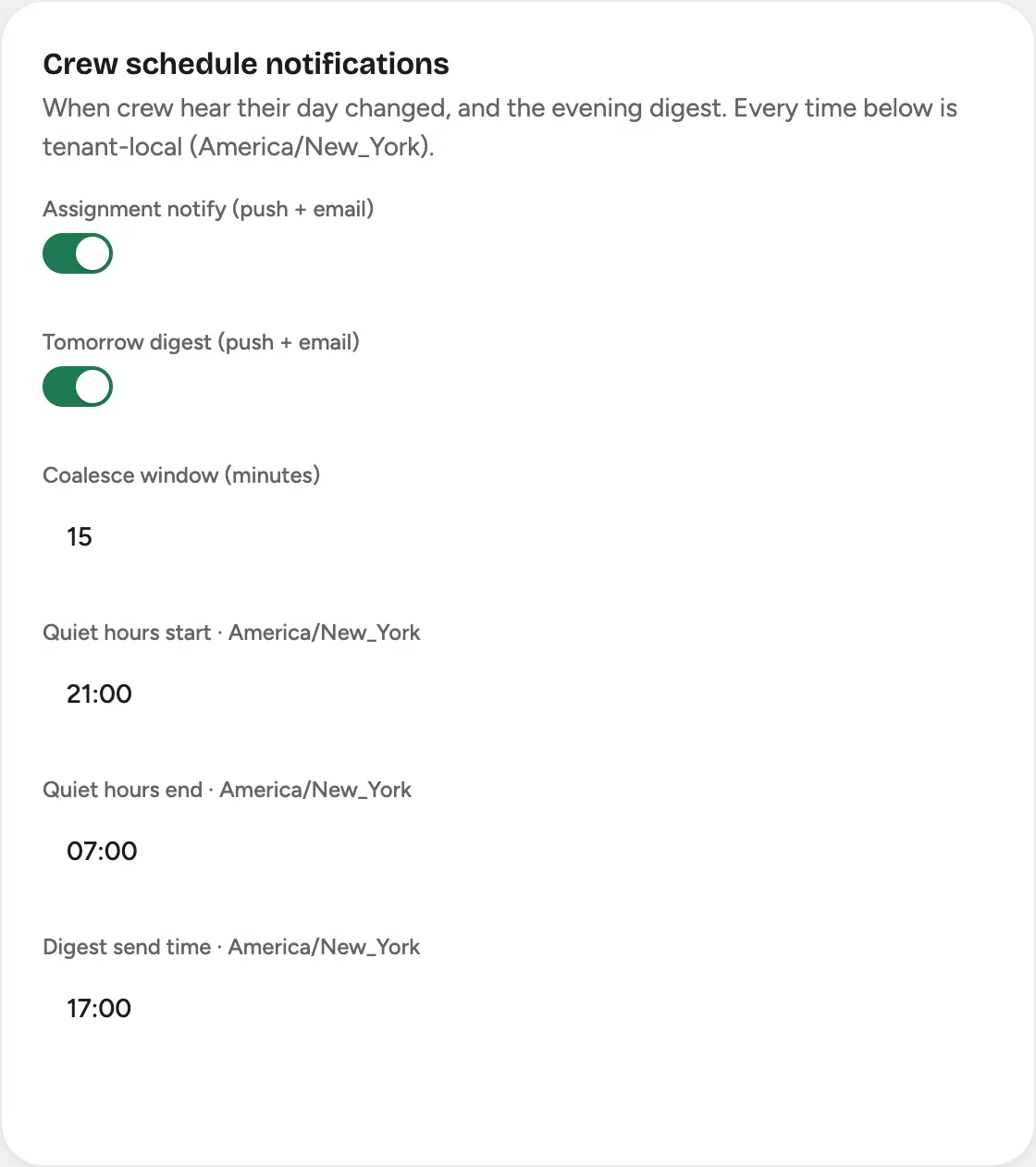 Screenshot from a demo workspace; data illustrative.
What has to be true for a message to arrive
- Everyone with an email address gets the email half.
- The app notification reaches anyone signed into the Florio app on their phone. Web-only people get the email and the in-app bell.
- Each person is written to in their own language, with nothing to configure.
- Set your workspace timezone before you trust any of these times. See See your day and punch in for what the crew sees when they follow one of these messages.
Decide whether crews see money on their job sheets
The third card on the tab, Crew job sheet, has one switch: Show each line’s sell price + material cost. It is off unless you turn it on.
On, a crew member reading a job sheet or a work list sees what each sold line sold for and what its materials cost. Off, those figures are not dimmed or blanked, they are simply not sent to that screen at all. Either way the setting never reaches a shared wall or monitor display: those carry no pricing in any workspace, whatever this is set to.
It is a workspace-wide choice rather than a per-person one, so treat it as a decision about what your crew should know rather than about one employee. Changes are recorded in the activity log with who made them. See Read your job sheet.
Turn on the morning briefing
Morning briefing is an email recap of yesterday’s leads, customers, events, orders, and proposals, with trailing trends. In a workspace that runs field service it also covers service calls, visits, quotes and invoicing, with the calls that need someone this morning, and where your phone system is connected to Florio it covers the phone too.
- Open Admin, then Morning briefing.
- Switch Send the daily briefing on and set a Send time (tenant local time, business days only).
- Under Recipients, add each address and choose its Frequency: Daily is a business-day recap (Monday covers the weekend); Weekly is one Monday-morning recap of the week before; Daily + weekly sends both.
- Under Sections, choose which lines of business the briefing covers: Events, Orders, Rentals, Plant maintenance, Service where your workspace runs field service, and Phone where your phone system is connected.
- Under Send a test now, enter an address, choose Daily or Weekly, and use Send test to see that version before you rely on it.
The Service section counts the calls opened and closed, the visits completed (on the day the technician checked out) and the visits that could not be completed, and the dollars quoted, signed and invoiced. Under those numbers it lists the calls that need someone: urgent and high priority, no visit scheduled, an emailed or web request still waiting on a first reply, and resolved calls ready to bill. Its trend cards follow the open backlog and how long a written request waits for a first reply.
The Phone section counts inbound calls and who they reached (your team, the answering service, or nobody), missed calls and how many were likely called back, outbound calls, talk time, calls outside business hours, and callers not matched to a client. Under those numbers it lists missed calls nobody called back, open voicemails, and from call insights the calls that left a customer’s question unanswered and the calls with a negative tone. It shows team totals only, never numbers for one person. A busy caller counts as a missed call; blocked calls and test calls count nowhere.
Good to know
- The briefing is the one email that tells an owner how the studio did without opening the app; a weekly recipient is a good fit for a partner who wants the trend, not the daily detail.
- The acceptance alerts here also serve as the fallback recipients for a task SLA breach when that alert has no recipients of its own.