Schedule and dispatch a visit
A service call becomes field work when you add a visit and put it on a technician’s day. Visits ride the same scheduling engine as the rest of the studio, so the Crew Board shows service alongside installs and deliveries and never lets you double-book a person.
Before you start
Florio Service must be on, and you need the dispatch permission to assign and release visits. The technicians you dispatch to are set by the dispatch pool in Set up Florio Service.
Steps
- On the service call, in the Visits card, choose Add Visit. A visit with no date yet lands in the Crew Board’s Needs Scheduling rail.
- Open the Crew Board from the Service group. Rows are technicians; the Needs Scheduling rail on the right lists the open calls waiting for a day, most at-risk first.
- Put the visit on a technician and a time. The board checks the pick against all of that person’s work, service, installs, deliveries, so a time-critical overlap is caught before it happens.
- When the plan is set and the tech should head out, choose Release to Field. The visit moves to the technician’s My Day, notifies them, and emails the customer their appointment.
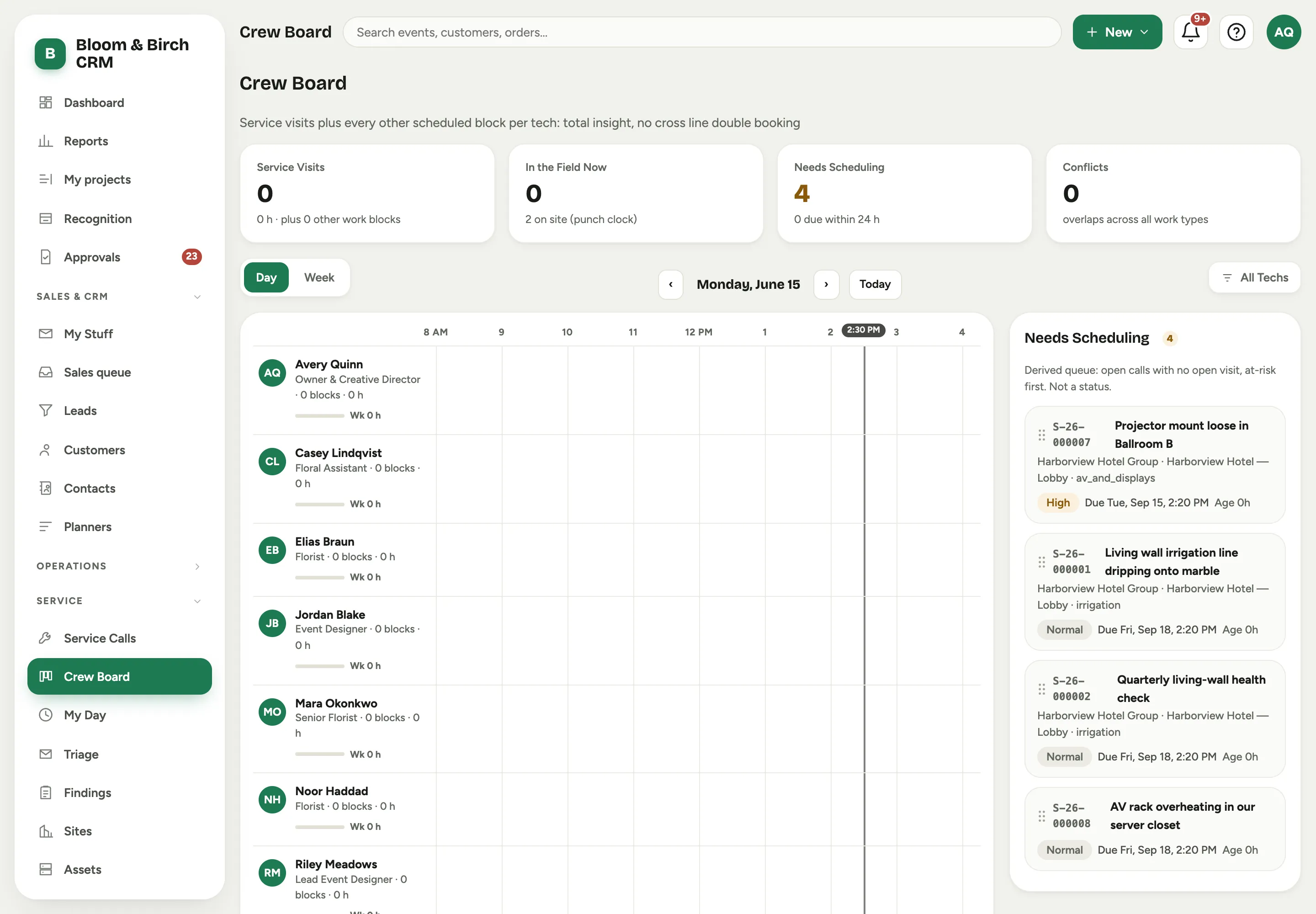 Screenshot from a demo workspace; data illustrative.
Changing a visit after you have made it
Plans move. Every visit on the call’s Visits card edits in place: click its date, start, end, technician, arrival window, or site contact and change it. You can do the same from the board, without leaving it: click any placed visit, in either Day or Week view, and the card that opens carries Reschedule and Cancel Visit beside Edit Visit.
A visit that has already happened does not move. Completed, cancelled, and in-progress visits show as plain text with no edit controls and say why, because the schedule stopped being a plan the moment someone drove to it.
Delete or cancel
Delete is offered only for a visit that never went anywhere: not released, nobody checked in, no parts against it. Nothing has happened, so nothing is lost.
Everything past that point cancels instead. Cancelling keeps the visit and its history, asks you why, and leaves the call open so you can add a new visit when you have a date.
Telling the customer
Once a customer has been told about a visit, Florio keeps them told.
- When you release a visit, they get the appointment: the day, the arrival window, the technician, and the site.
- The day before, they get a reminder.
- If the visit moves, they get a note showing the old time struck through and the new one below it.
- If you cancel, they get a note that nobody needs to be on site, and what happens to their request next.
Each of these is on by default, and the confirmation shows you the address before you commit, so you always know who is about to hear from you. Untick the box to make a change quietly; the fact that you did is recorded on the call.
Two things Florio will not do. It never emails someone who was never told about the visit in the first place, so a cancelled visit that had not been released sends nothing. And it never emails about a change the customer would not notice: sliding a visit within its arrival window is not a change to the promise you made, so nothing goes out. Moving the day, or the window itself, does.
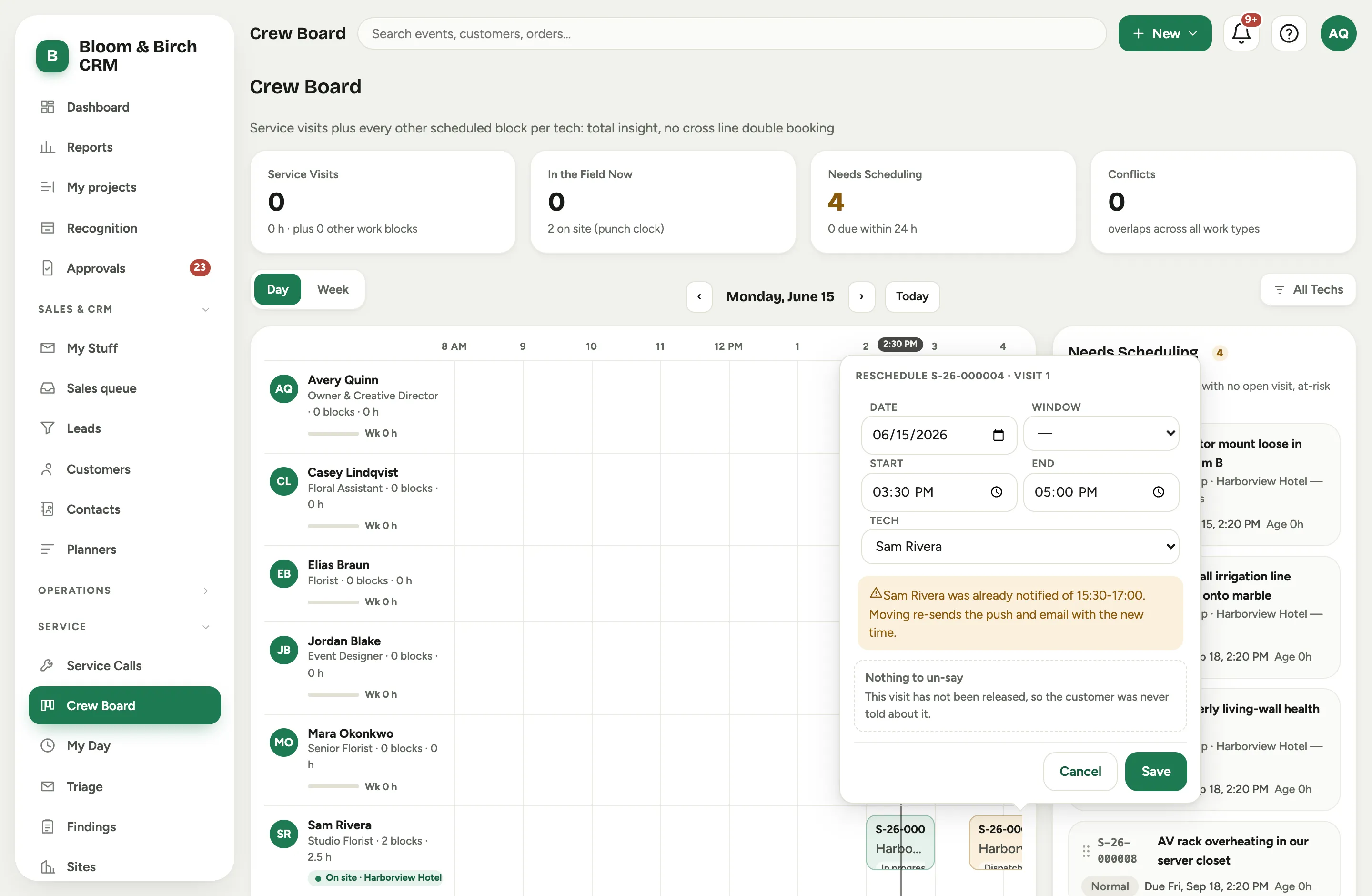 Rescheduling from the board. This visit has not been announced to its customer, so the notice
panel says there is nothing to un-say; once a customer has been told, the same panel carries the
tick box and names the address. Screenshot from a demo workspace; data illustrative.
Rescheduling from the board. This visit has not been announced to its customer, so the notice
panel says there is nothing to un-say; once a customer has been told, the same panel carries the
tick box and names the address. Screenshot from a demo workspace; data illustrative.
Who gets the email
Each visit has a site contact, and it starts as the contact on the call. Change it on a single visit when a different person is meeting you that day, which happens often in homes where one partner is in on Tuesday and the other on Thursday. Leave it alone and the visit simply follows the call, so fixing the call’s contact fixes every visit that never had its own.
If that person has no email address on file, the confirmation says so and names them, rather than skipping quietly. Nobody should discover a customer was never told by finding them waiting.
Good to know
- The board is shared with the studio’s event crewing, so the same board runs the whole day. The general framework is in Scheduling and crews; this page is the service angle.
- A blocking overlap on time-critical work hard-stops the assignment. You can override it, but the override asks for a reason and is written to the log.
- The stat cards read the current day: Service Visits, In the Field Now, Needs Scheduling, and Conflicts.
- The board remembers where you left it. Your choice of Day or Week follows you between sessions and devices; the date you were looking at stays put while the tab is open and resets to today in a new one.
- Needs Scheduling is worked out, not set: it lists open calls that have no dated visit. A call leaves the rail the moment a visit lands on a day, and comes back if that visit is cancelled.