Set up a site and its assets
Before you dispatch anyone, tell Florio where the work happens and what equipment lives there. A site keeps its own access notes and history, and every asset carries its warranty and its service record, so the person who shows up already knows the ground.
Before you start
Florio Service must be on and you need the permission to manage service records. See Set up Florio Service.
Steps
Add the site
- Go to Sites and choose New site.
- Name the site and add its address. To tie it to one customer, set the Customer; leave the customer empty to make it a Shared venue that can host any client’s equipment.
- Record how to get in under Access notes: loading docks, after-hours entry, the certificate of insurance on file. This is what a technician reads before they arrive.
- Choose Create site.
A customer’s own page also lists their sites, in a Sites section above their service calls. New Site there adds a site for that customer with a name and address, and the first site a customer gets becomes their Main site, the one a new service call fills in when the customer has several. The menu at the end of a row has Set as Main Site; click the row to open the site’s page for everything else.
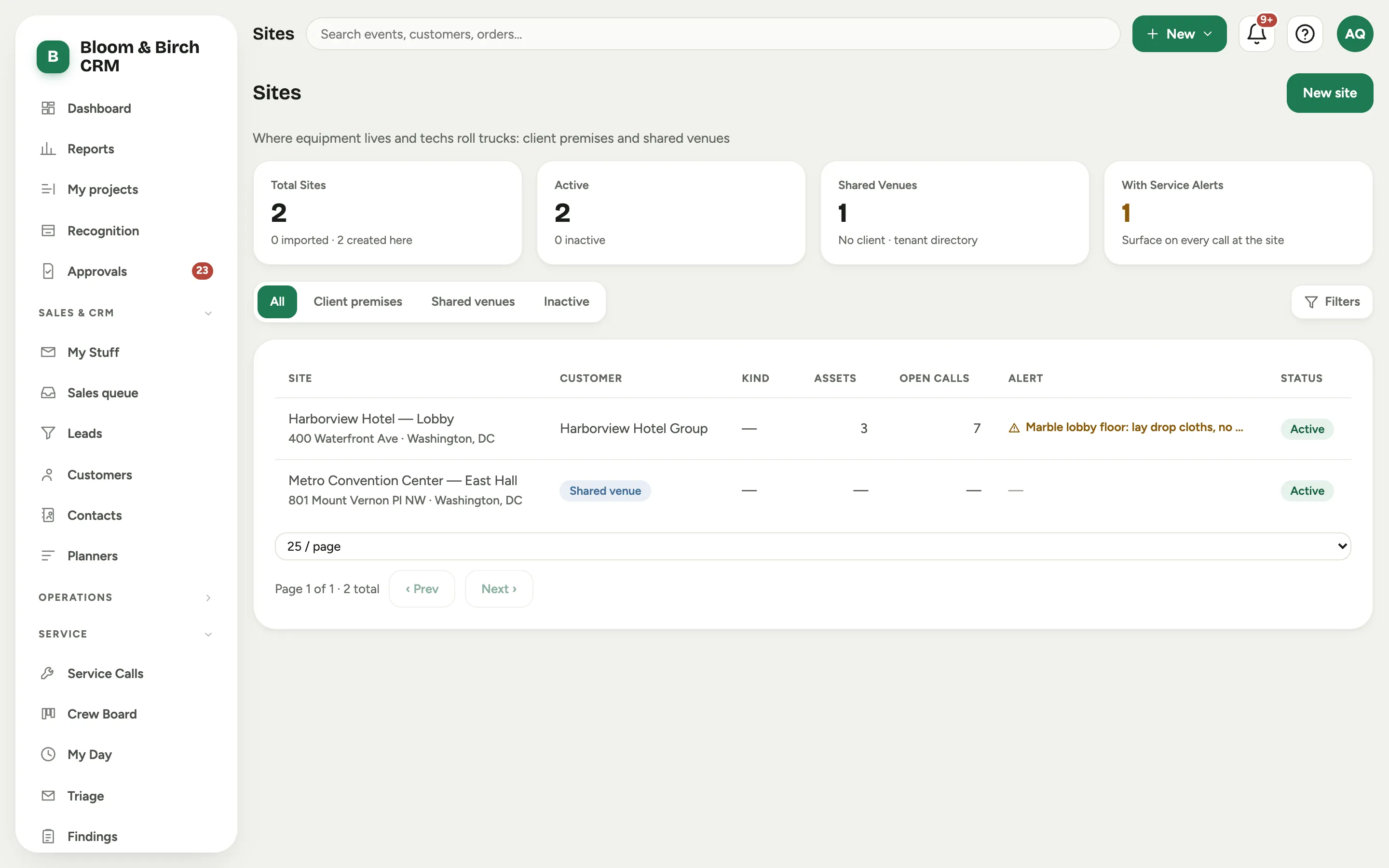 Screenshot from a demo workspace; data illustrative.
Add the equipment
- From the site, or from Assets, choose New asset and pick the Customer and Site.
- Describe the asset and add its manufacturer, model, and either a serial number for one tagged unit or a quantity for a pooled line (for example six identical planters, no serial).
- Set the install date and the warranty dates so the warranty chip shows on the list and the record.
- Choose Create asset. On the asset record you can add Components and any network attributes, and every future call against it lands in its history.
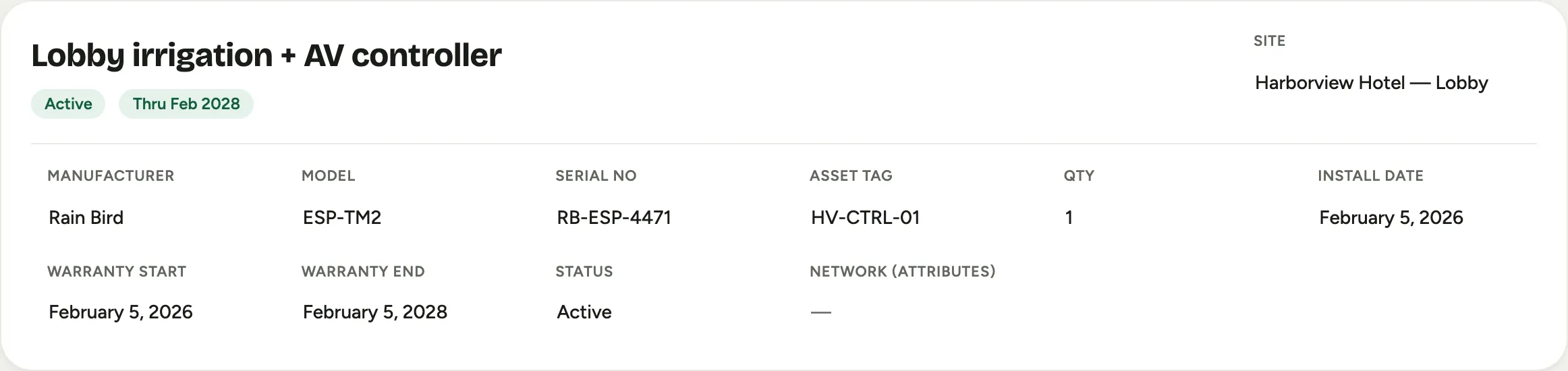 Screenshot from a demo workspace; data illustrative.
Good to know
- A site’s alert banner and its access notes ride to the technician’s My Day, so anything a crew must know before entering belongs on the site, not buried in a call.
- A shared venue keeps one directory of equipment even when different clients own different pieces in the same room.