Run a visit from your phone
My Day is the technician’s view of the day: their own stops, one after the next, built for a phone at a job site. This is how a tech runs a visit from arrival to close-out.
Before you start
You need a Florio sign-in with the service view permission, and a dispatcher has to have released a visit to you (see Schedule and dispatch a visit). Your stops then appear under My Day in the Service group.
Steps
- Open My Day. The current stop is expanded and shows the site access notes, the caller, the parts on the call, and a spot for photos. Read the site access first: it is where the loading dock, the badge, and the floor rules live.
- On arrival, tap Check In. Your clock starts on that visit and runs until you close it out. The card shows the time you arrived and how long you have been on site.
- Do the work. Add photos as you go, and confirm the parts you actually used.
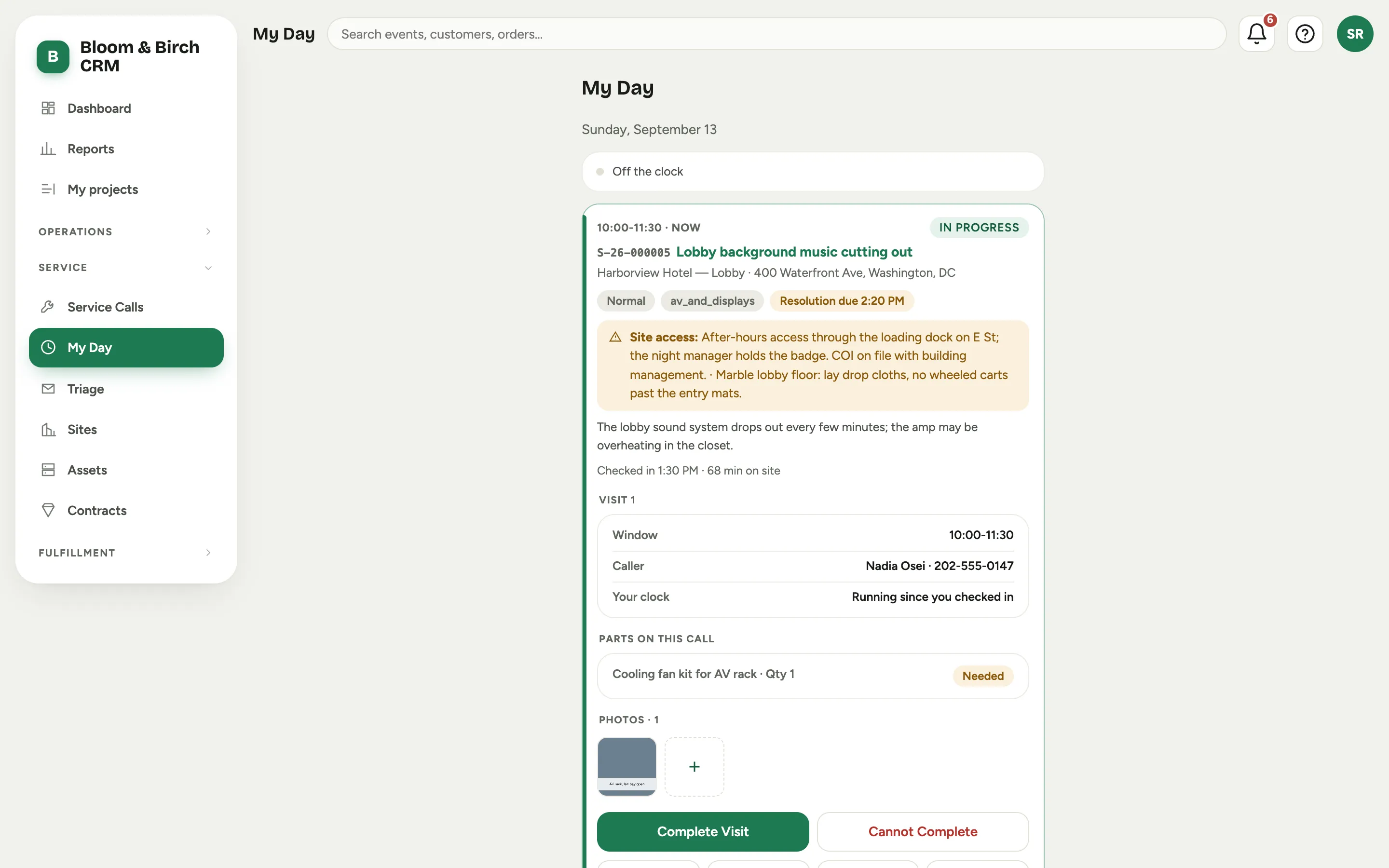 Screenshot from a demo workspace; data illustrative.
- When you finish, choose Complete Visit. That stops your clock on the visit, confirms the parts used, keeps your photos, and takes a short note on what happened. If you could not finish, choose Cannot Complete and pick a reason such as no access, parts needed, or customer rescheduled, which sends the call back for a follow-up visit.
- If you have another stop later that day, your drive to it starts on its own as soon as you close out. At the next visit it stops when you check in, so there is nothing extra to tap. When the next stop is a job rather than a visit, its card says you are on the way there: tap Clock In when you arrive, which ends the drive and starts your time on the job. On your last stop of the day nothing starts, because the trip home is not work travel.
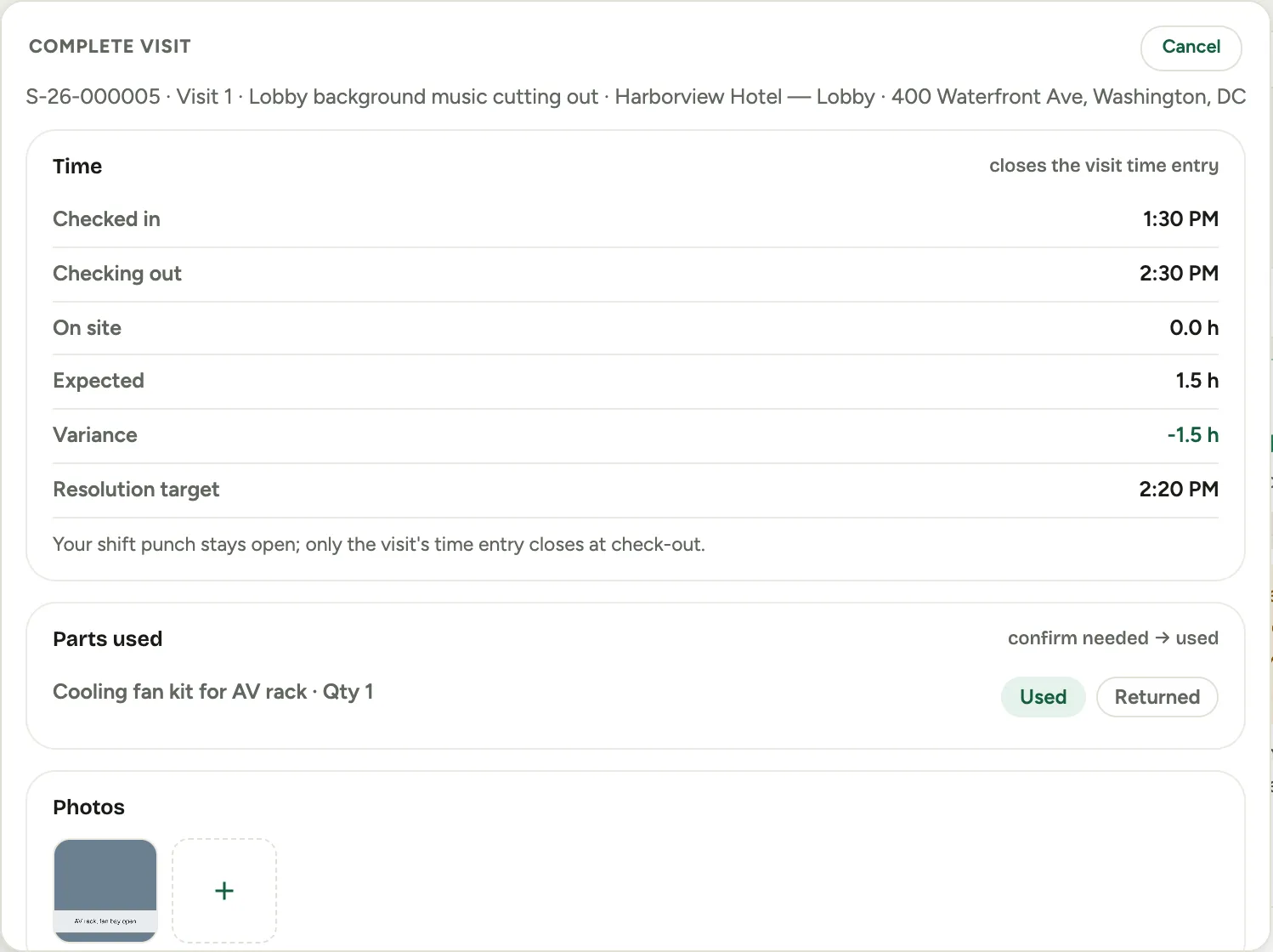 Screenshot from a demo workspace; data illustrative.
Good to know
- Two taps cover the whole day. Check In and Complete Visit are the only things you need to press. Between them they mark your time on site, your drive to the next stop, and your time at that one.
- If you forget to close out, your clock does not run all night. Florio stops it at the end of your day, marks it as closed automatically, and sends it for approval so somebody can correct the end time. Tell your manager the real time if it matters.
- Your notes ride on the hour. What you type in the debrief is stored with the time you logged, so somebody reading back months later can see what the hours bought. Some workspaces require that note: when yours does, Complete Visit will not close the visit until you have said what you did, and clocking out from My Day has no Skip.
- Forgot to check in? The link at the foot of My Day, Forgot to clock in? Add missed time, lets you add the hours yourself and charge them to the visit. See Add time you forgot to punch.
- The parts you confirm as used, and your on-site hours, flow to the call’s cost and to its Call P&L in the office. You never see a part’s cost or price on your phone.
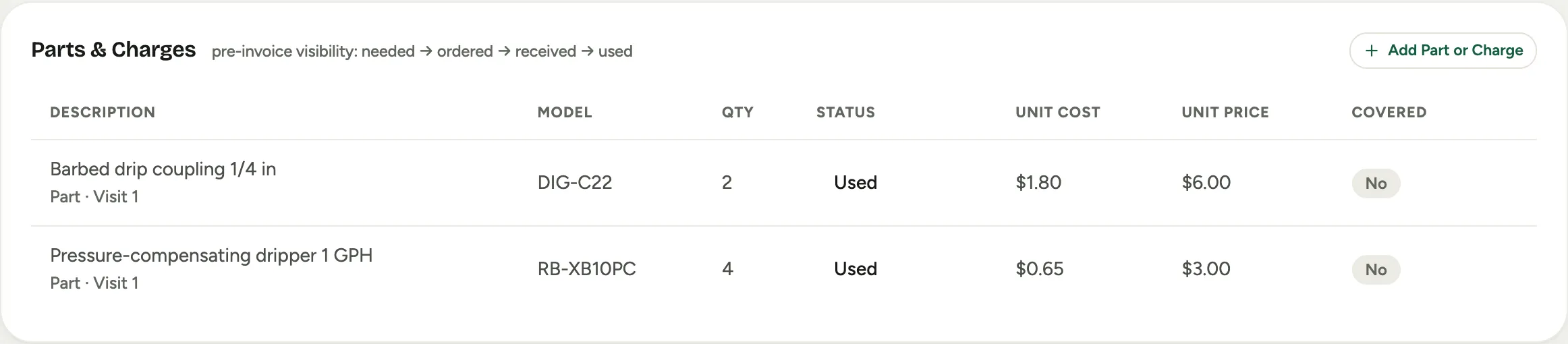 Screenshot from a demo workspace; data illustrative.
- Completing the last open visit does not close the call. It hands the office a suggestion to resolve it, so a human always makes the final call.