Open the lines behind a profit figure
The Live profit panel tells you a job has cost $41,748 in materials so far. The next question is always the same: which bills? This page is about that question. Every figure on the panel that has lines behind it is a link, and clicking it opens those lines directly under the panel, newest first, with the same total at the top that you clicked on. Nothing is re-keyed and nothing is estimated: the list is the figure.
Before you start
Opening a figure needs a permission of its own, separate from seeing the panel. Someone who can see project money but not open the figures gets the same panel with plain numbers and nothing to click: for them it is a report, and it reads as one. Workspace admins, finance and HR have the permission from the start. It is treated as a pay-data permission, because the labor list shows what each hour cost the job, so it is not handed out with the ordinary reporting roles. Ask your workspace admin if a figure you expect to open does not.
Actual to date: the documents
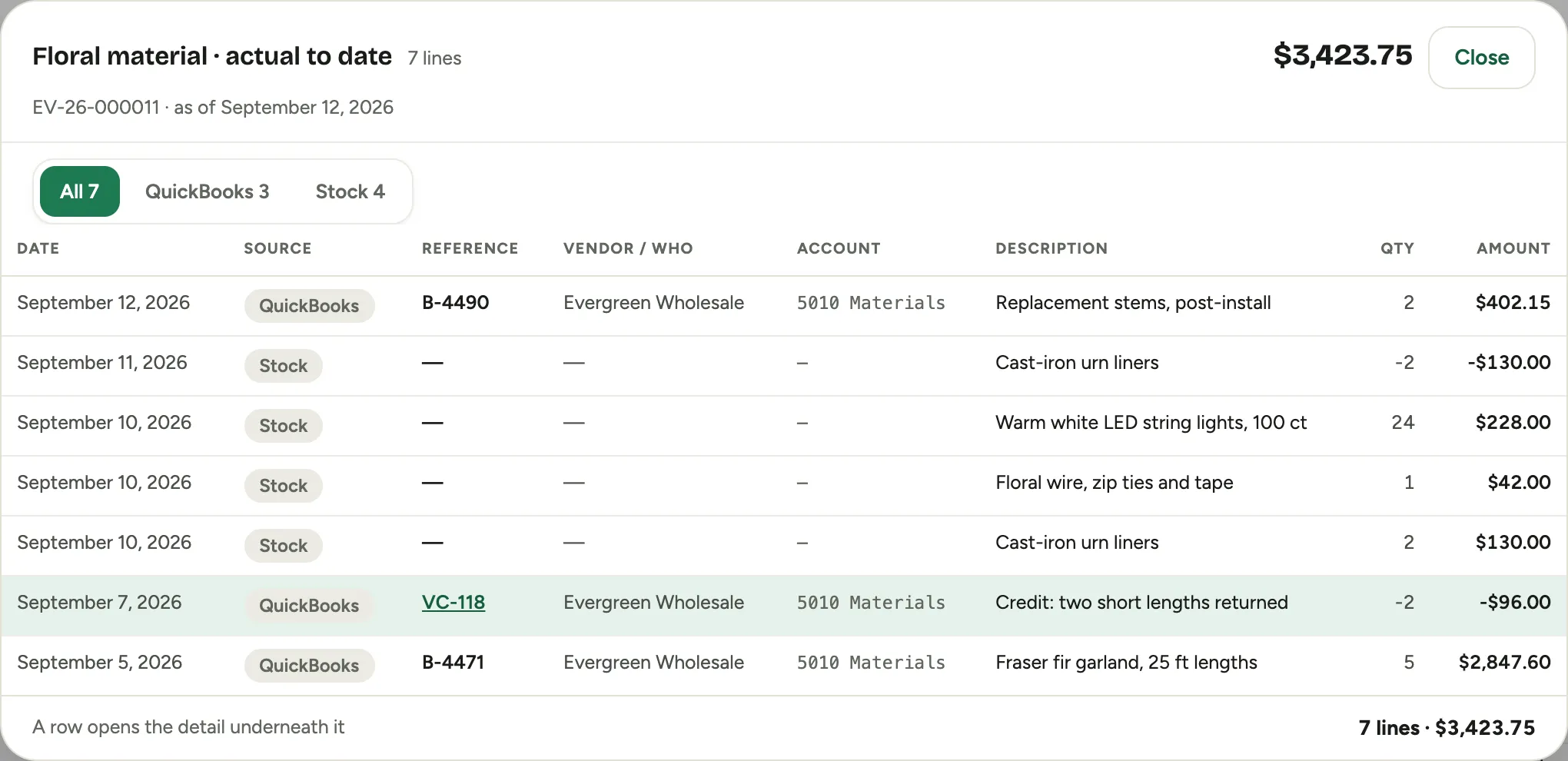
Click the Actual to date figure on a material or expense row and you get the documents that make it up.
 Screenshot from a demo workspace; data illustrative.
- Each line is one document line: the date, where it came from, the reference (a bill number, a stock issue, an archived invoice), the vendor, the account it was coded to, the description, the quantity and the amount. A vendor credit is a negative line and nets against the rest; it is never added.
- The chips above the list say where the lines came from and let you narrow to one source: QuickBooks for bills and purchases your accounting connection read, Stock for material shipped to the job off your own shelf, and the name of your legacy system for history brought over from it. The All chip is the full list.
- A workspace that moved over from a legacy system sees a divider in the list: lines from before the cutover date sit under the archive heading, everything since sits above it. The split is by date, not by source, so an archive line dated after the cutover shows above the divider with its archive chip still on it.
- A row opens its detail underneath itself. A document that arrived with a scan shows a paperclip on the amount, and the detail shows the receipt with a link to open the full file. Nothing opens in a side pane and nothing opens a second window.
- A line coded to the project but to no cost category is listed and greyed, and contributes nothing to the figure. It is shown on purpose: hiding it is how a coding mistake stays uncorrected. Fix the account in your accounting system and the next nightly read picks it up.
Archive lines have no live entry to open, so their detail is a read-only card.
The Actual to date figure on the Total cost row opens every line on the job, and the time clocked on it: one row for each cost line people clocked time against, under the heading Clocked time · a row opens its entries at the top, with the days the entries span, how many there are and whose, the account, the hours and their cost, overtime premiums included. The documents follow under Documents, so the list adds up to the figure. The Time chip narrows the list to those rows. Click one and the panel shows that cost line’s entries, the same list its own row opens, with Back to Total actual above it to return to the full list.
Labor: the rate, broken down
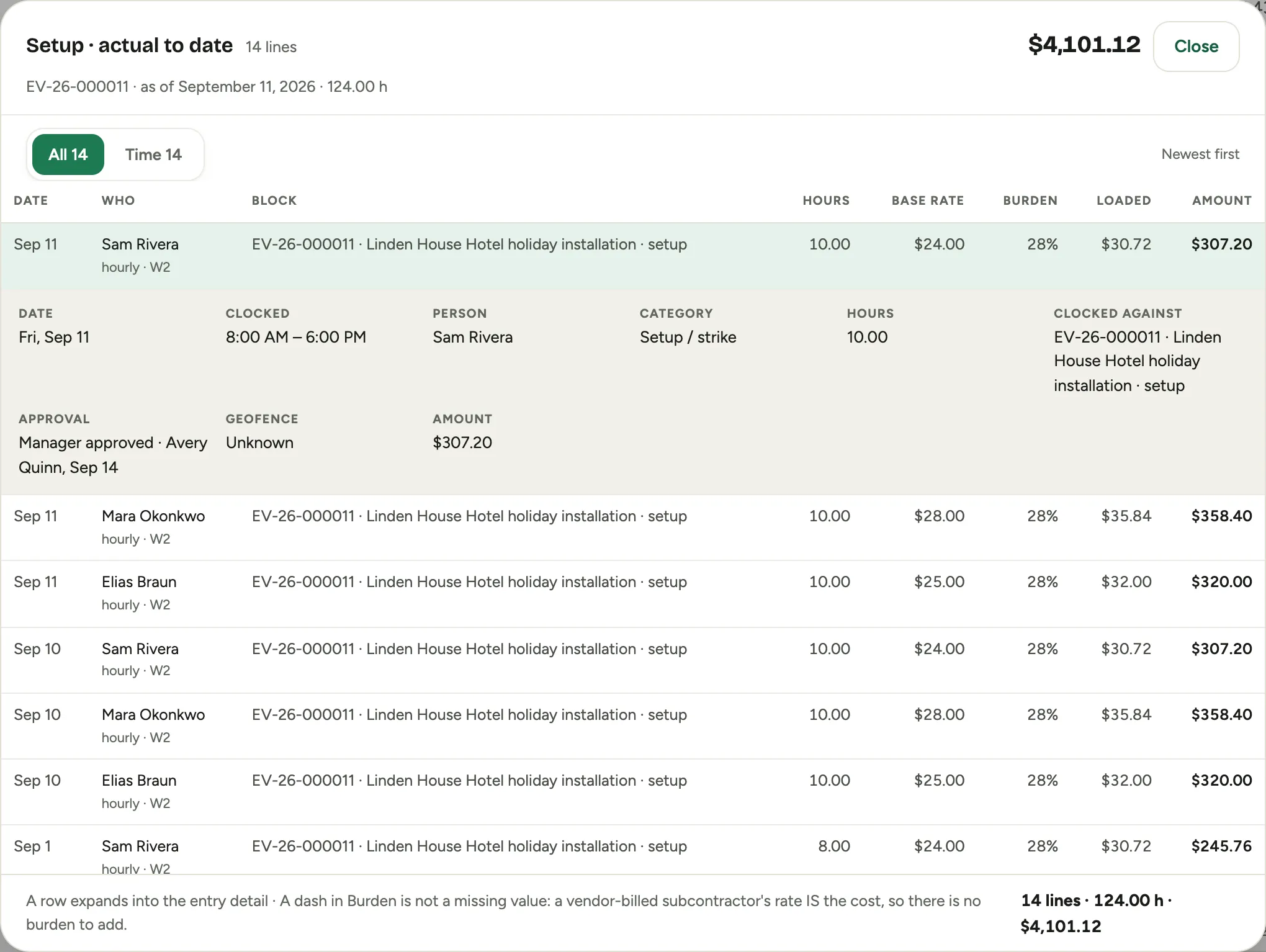
Click Actual to date on a labor row and you get the crew entries instead of documents, because there are no documents behind labor: there are hours, and a rate. The Subcontractor row opens the same list when a vendor-billed subcontractor clocked time on the job: their entries, plus any bills coded to subcontract work.
 Screenshot from a demo workspace; data illustrative.
- Each line is one approved time entry: the day, who, what they clocked against, the hours, and then the rate in three columns. Base rate is the hourly wage, or an annual salary spread over the workspace’s standard year. Burden is the employer overhead percent on top of it. Loaded is the two together, and Amount is hours at the loaded rate. The pay shape sits under each name so you can see which rule produced the rate.
- A vendor-billed subcontractor shows a dash in the Burden column. That is not a missing value: their rate is what you pay them, so there is no burden to add, and the footer says so.
- An entry whose person has no pay rate on file is costed at the workspace’s default loaded rate and marked Estimated, the same way the panel marks it. Add the rate under HR and the next nightly run replaces the estimate.
- Only entries a manager has approved are in the list, because only those are in the figure. An entry still awaiting approval is on the project’s Time Entries card below the panel, not here.
- A row expands into the entry’s detail: the day, the clocked range, the person, the category, the hours, what it was clocked against, who approved it and when, whether the phone was on site, and the note. Pay details never appear in the expansion; the loaded cost on the row is what the job was charged, and that is all the project view shows.
Projected and Budgeted: the plan
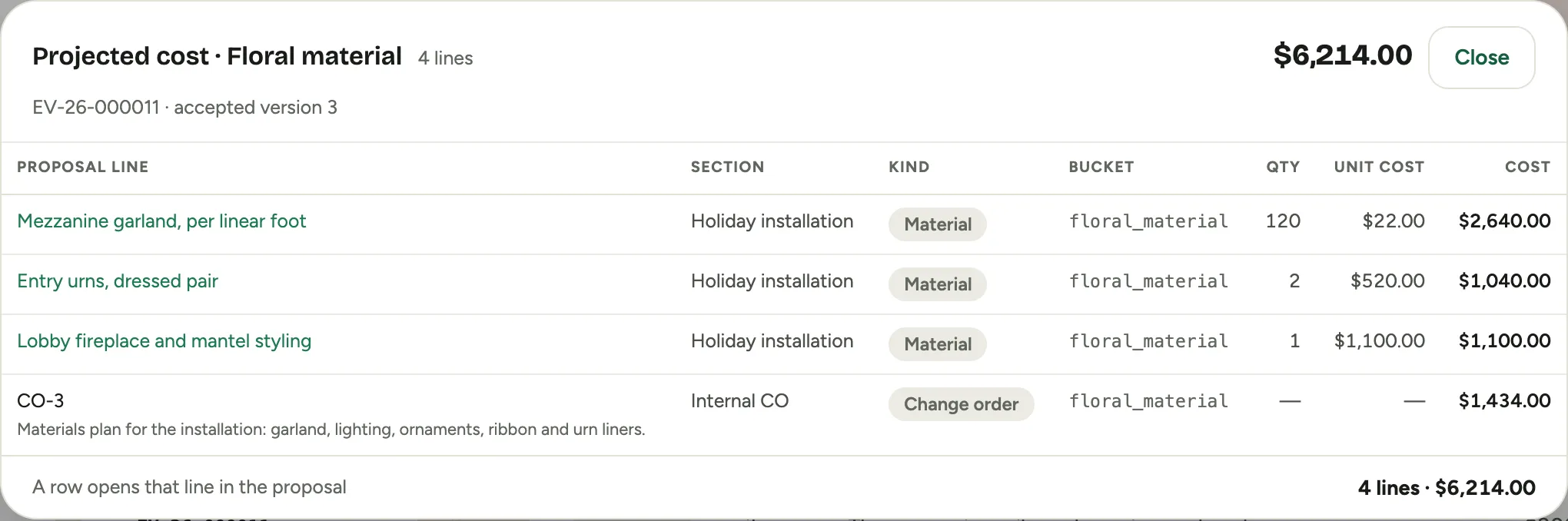
Click Projected or Budgeted on any row and you get the cost side of the sold proposal for that bucket, line by line.
 Screenshot from a demo workspace; data illustrative.
- Budgeted reads the version the client first accepted. Projected reads the latest approved version, so the two lists differ by exactly the change orders in between. The sub-line names the version you are reading.
- Each line is a proposal line’s cost row in this bucket: the line, its section, whether it is material or labor, and the quantity, unit cost and cost. On a labor row the columns are hours, the rate the proposal was accepted at, and the cost, and the sub-line states the rate.
- A re-estimate raised on the contract card has no proposal line behind it, so it appears as a row of its own, named by its change order, with its amount. That is what keeps the list equal to the panel figure when a project’s cost has moved without a proposal.
- A row opens that line in the proposal.
Earned revenue: the working
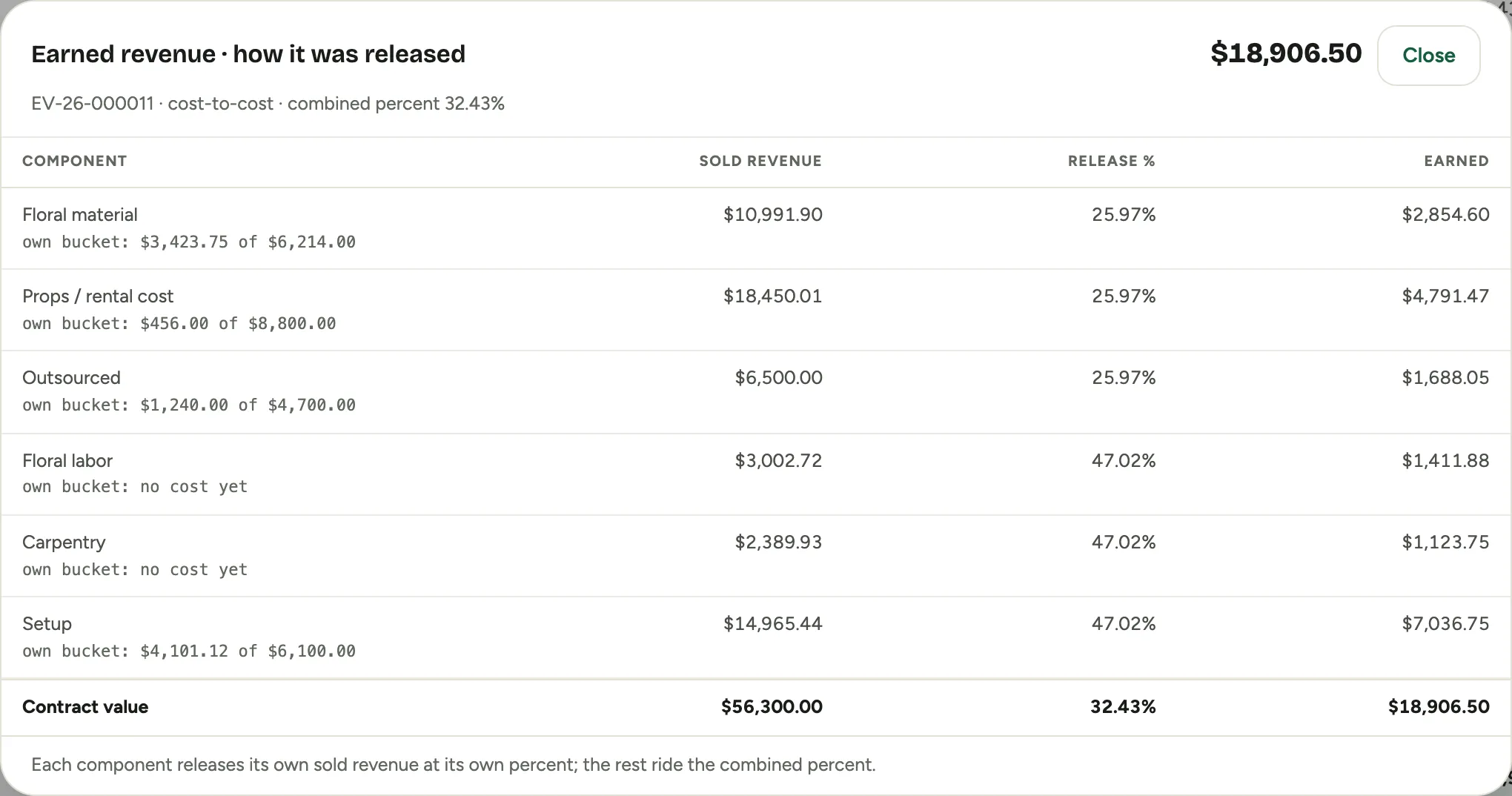
Earned revenue is not a list of documents. It is each component’s sold revenue released at its own percent complete, so clicking it shows the arithmetic rather than a table of rows pretending to be source records.
 Screenshot from a demo workspace; data illustrative.
Each component shows its sold revenue, the percent it released at, and a note saying why: its own cost against its own projected cost when it is in the completion ratio, or the combined percent when it rides along. It is the answer to the question a small earned figure always provokes: a dollar of consumables cannot pull forward the revenue held by materials and labor that have not started yet.
Log a receipt
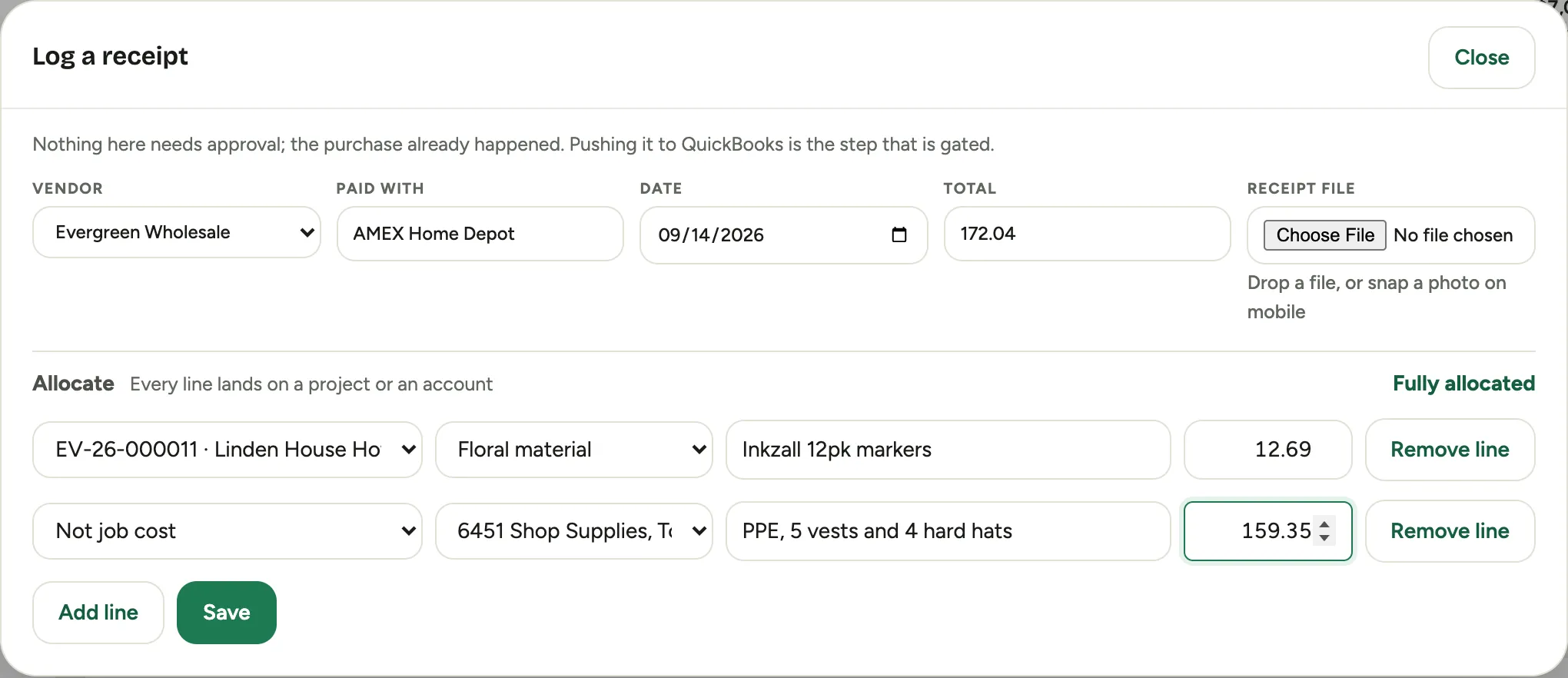
A receipt is not owned by a project. A hardware-store run often has a few dollars of job cost and a hundred dollars of safety gear on the same slip, so the purchase is the record and its lines are allocated.
 Screenshot from a demo workspace; data illustrative.
There are two ways in, and they open the same form:
- Purchase orders, then Log a receipt in the page header. This is the default, and the one to use for a mixed receipt.
- The project’s Financials tab, then Log a receipt under the Live profit panel. The same form with this project filled in on the first line, for the common case where the whole slip is one job. Every other line is still free to land on another job or on an account.
Fill in the vendor, what it was paid with, the date and the total, and attach the slip: a photo or a PDF, and on a phone the camera. Then allocate. Each line takes an amount and a description, and lands in exactly one place: a project and a cost category, or Not job cost and an expense account from your chart. The running left to allocate figure has to reach zero before the form saves, and it turns to Fully allocated when it does.
Nothing here needs approval. The purchase already happened, and a queue in front of recording it would only leave the project’s cost wrong until someone clicked. The QuickBooks push is the step that is gated, and it is not yet offered from this form. Until it is, a logged receipt is on file in Florio but is not yet counted in the project’s cost: the figures on the Live profit panel come from your accounting connection’s read of bills and purchases, and a receipt reaches them once it has been pushed there and read back.
Logging receipts is available where purchasing is switched on for the workspace.
Good to know
- The total at the top of every drill is the figure you clicked. If a list ever disagreed with its figure the drill would be worse than no drill, so the panel and the lists are written from the same pass.
- Lists read newest first.
- The Remaining column does not open: it is Projected less Actual, and both of those do.