Build an event's work framework
Once the client has signed, someone has to turn the sale into work: the load and setup phases for the day, the floral build beforehand, the cleanup after. Florio builds all of that from the proposal you already priced, so planning starts from a filled-in board instead of a blank one, and the hours on the board are the hours you charged for.
Before you start
- You need the schedule manage permission (department managers and admins have it).
- The client’s acceptance has to be recorded. Until it is, all four buttons on the panel are off: Unlock scheduling for an event.
- The event needs its date, and its scorecard needs costed labor. Everything below is sized from those numbers.
- For work broken out line by line, the event also needs an accepted proposal. Without one the work still gets built, it just arrives as one lump instead of a list.
Steps
1. Open the event’s Schedule tab
Open the event and pick the Schedule tab; the Schedule panel sits below the day-of plan. Three buttons sit above the block list: Scaffold day-of, Plan backward, and Seed backlog, plus + New block for anything the generator cannot know about.
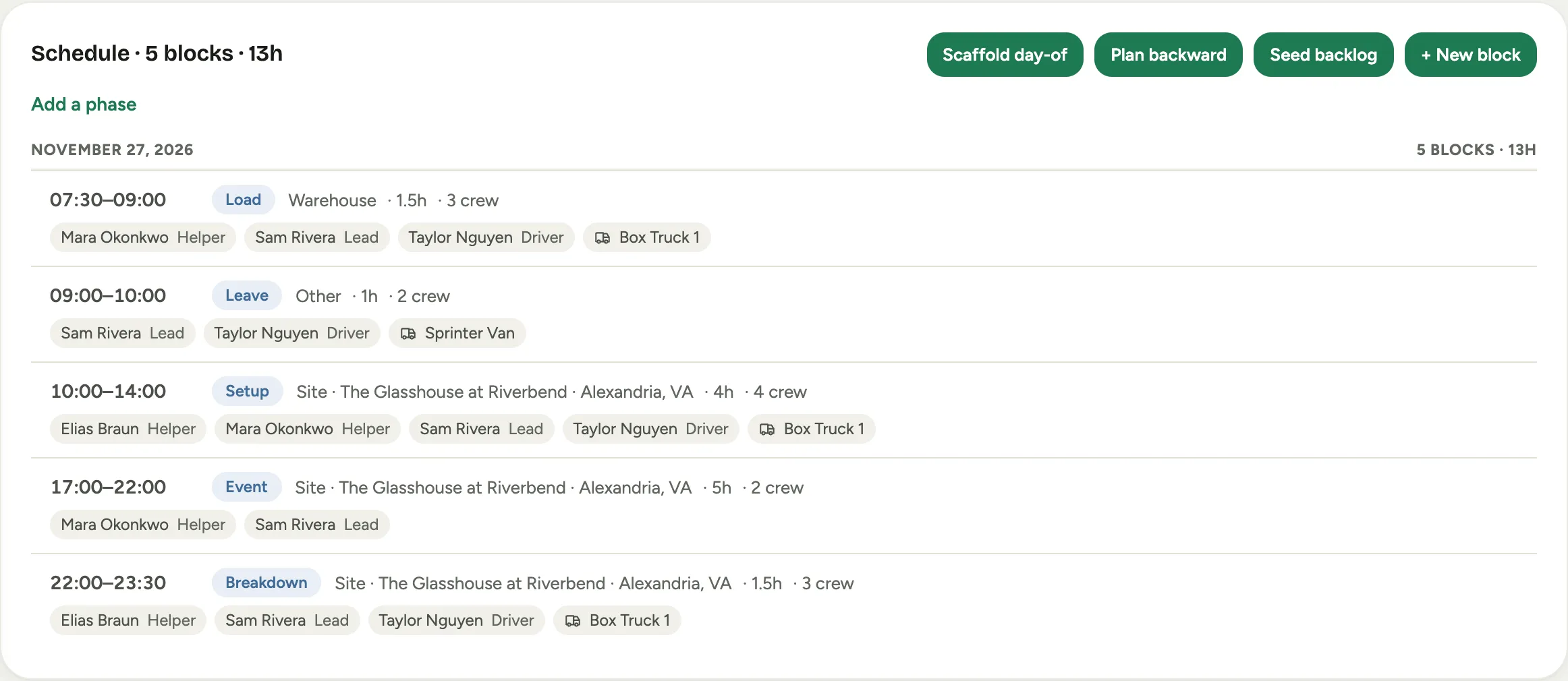 Screenshot from a demo workspace; data illustrative.
2. Scaffold the day
Click Scaffold day-of. Florio creates the standard phase chain on the event date: Load, Leave, Setup, Event, Breakdown.
Two things arrive with it.
The sold hours and crew size. Setup carries the setup labor you sold, breakdown carries the breakdown labor, and each phase’s planned crew size comes from the headcount you priced. Where two paid roles work side by side, such as a breakdown lead and breakdown helpers, their headcounts add up rather than compete.
A work list. The setup block gets one work item per sold line, named as the client saw it and carrying that line’s hours and people. If the sold lines do not account for the whole labor number on the scorecard, the difference arrives as a single Unitemized setup item. Managers assign items, crews punch against them and mark them done, and those punches feed approvals, payroll, and the scorecard exactly as before.
Times stay blank on purpose. The scaffold decides what happens, not when. The next button decides when.
3. Plan the times backward
Click Plan backward. The Plan day-of backward window opens as a preview: it writes nothing until you say so.
On the left are the event’s own times, which you can read but not invent:
- Setup available is the earliest the venue lets you in.
- Setup complete is the deadline, tagged as the anchor. The whole chain is measured back from it.
- Event start and Event end frame the party.
- Travel to venue is the drive in minutes, taken from the event, or from your workspace default when the event does not say so.
On the right, the chain Florio derives from them:
- Load is sized from how big the event is, and it re-calibrates itself over time from what your crews actually punch.
- Leave is the drive.
- Setup is the sold crew-hours divided by the number of people you plan to send, rounded up to the next quarter hour, and set to land a buffer’s worth of time inside the deadline rather than exactly on it.
- Breakdown is planned forward from the end of the event, because that is the only direction it can go.
The two steppers, crew size and travel minutes, re-plan the whole chain as you press them.
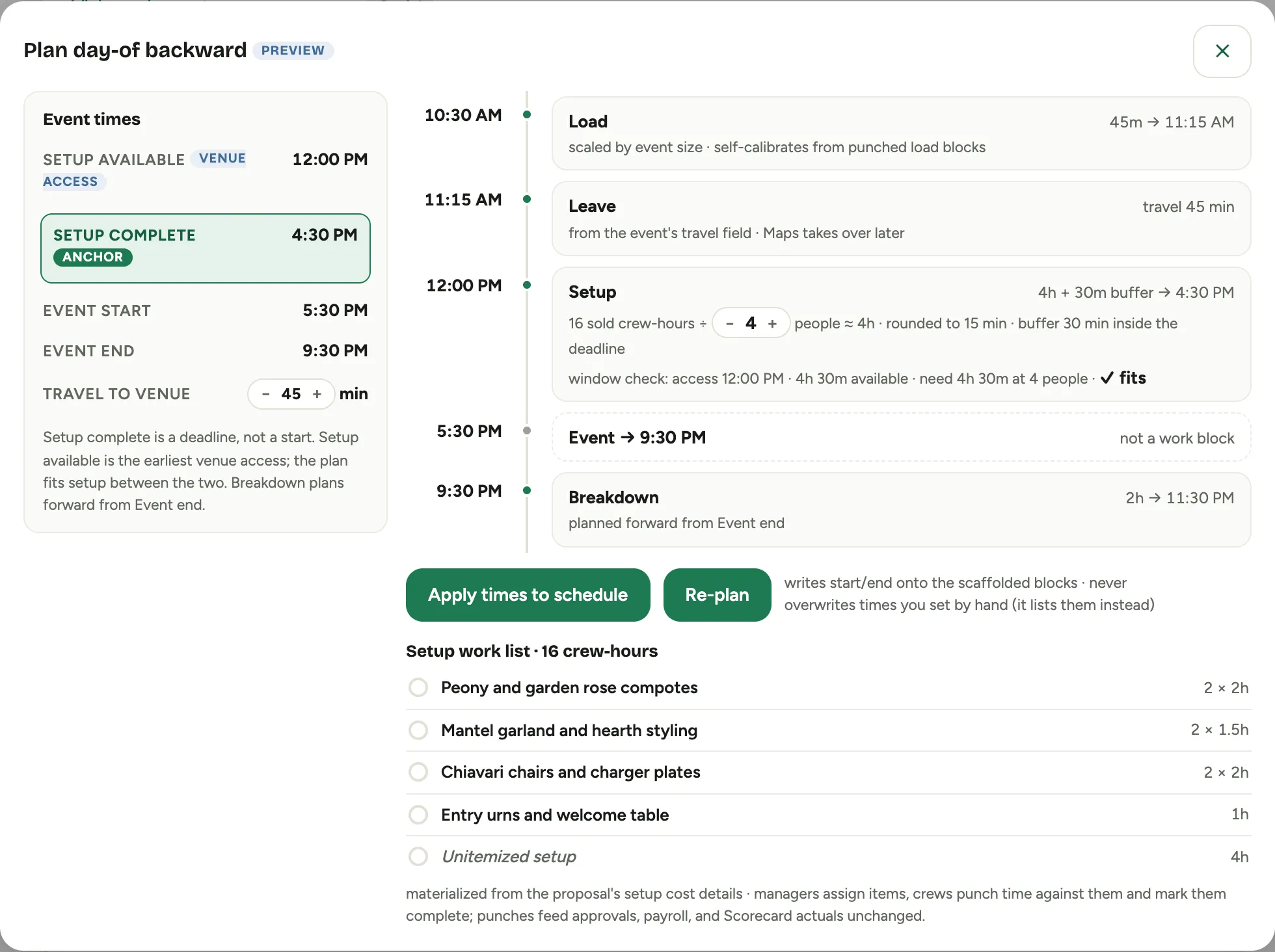 Screenshot from a demo workspace; data illustrative.
4. Read the window check
Under the chain, one line tells you whether the setup fits between venue access and the deadline.
- When it fits, the line says so and ends in fits.
- When it does not, a Window too tight box says how much room you have against how much you need at the current crew size, and names the crew size that would fit. Click the suggestion and the whole plan recomputes at that number, usually clearing the warning.
- When even your whole roster could not do it in the time available, the box says so instead. That is a conversation with the venue or the client, not a staffing problem.
- If neither Setup complete nor Event start is set, there is nothing to plan back from and the window says exactly that. Set the time on the event first.
None of these stop you. They are advice, and you can apply a plan that carries a warning. Your other moves are to widen the window by changing the event’s times, or to sell fewer setup hours.
 Screenshot from a demo workspace; data illustrative.
5. Apply the times
Click Apply times to schedule. Florio writes the start and end of each phase onto the blocks the scaffold made, and writes the crew size you settled on onto the setup block. If you typed a travel time by hand it is saved back onto the event, because a hand-entered number always wins.
Two results are worth reading:
- Times you set by hand are kept, not overwritten. Florio lists which phases it left alone. A block counts as hand-set the moment a person changes its times after a plan was applied, and the preview marks those phases before you apply, so there are no surprises.
- Phases with no block yet are named, with the instruction to scaffold first. That happens when the phase chain was trimmed, or the event was planned before it was scaffolded.
Re-plan clears the tweaks you made in the window and re-previews from the event’s own numbers. It does not undo an apply; to change applied times, plan again or edit the block.
6. Seed the flexible work
Click Seed backlog. Florio creates the undated work:
- One task per sold line, badged line item, carrying that line’s hours and crew size, with a due date and a window class of perishable or durable.
- One remainder task per prep category when the sold lines do not cover the whole costed number, shown as Unitemized and badged remainder. It shrinks as the proposal gets itemized, and retires itself once the lines cover everything.
- A Recondition task after the event, sized from the event’s value, for the wash-and-restock work everyone forgets to plan.
Those tasks are now waiting in each team’s backlog. Placing them is the next job: Schedule backlog work on the Capacity board.
7. Staff the day
Crew and trucks go on from the Day board, where you can see the rest of the shop at the same time: Run the day on the Day board.
Good to know
-
All three buttons are safe to click again. A phase that already exists is reported as already present, never duplicated. A re-run refreshes only the sold numbers, the hours, the crew size, and the work list. It never touches a date, a time, a crew, a vehicle, a status, or a manager’s note.
-
If a sold line changes, the matching task and work item change with it on the next run. If a line is removed, an unplaced task drops out of the backlog, while one already placed on someone’s day is kept, because deleting scheduled work behind a manager’s back is worse than leaving a stale task to review.
-
A work item that has punched time or an assignment against it is never deleted. It is marked skipped, so the history of what was worked survives the sale changing.
-
You can also start from the Scheduling page: click + New block, pick the event, and the offer to plan the whole event day in one step appears above the single-block fields. Blocks for an event that has not been accepted are refused there too, but the event page is where the reason is spelled out.
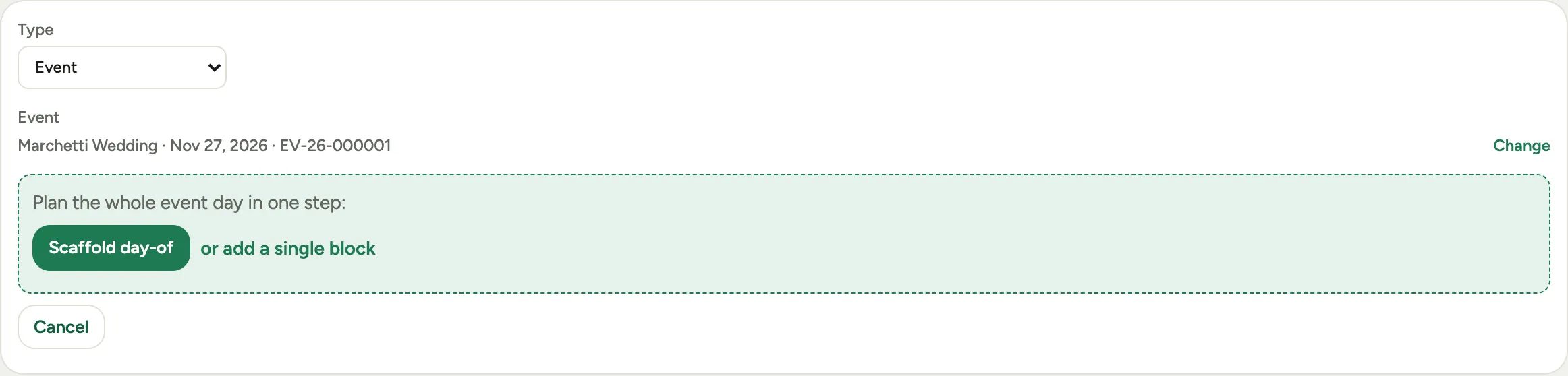 Screenshot from a demo workspace; data illustrative.
 -
Florio can seed backlogs on its own as events sign, so boards stay populated with zero clicks. Ask us to switch that on for your workspace.
-
Where this fits: Scheduling: crews, the backlog, and the week.