Work an event through its stages
Every event moves through your studio’s pipeline, from a first inquiry to a signed, produced booking. The stage track at the top of the record is how you move it, and it is the same kind of track you already use on leads and orders, so the whole business reads consistently.
Before you start
- Your pipeline stages are set in Admin, so they match how your team actually talks about a booking. See Admin and setup.
- Moving a stage is a logged action. The Activity log on the event’s Activity tab records who advanced it and when.
Steps
-
Open the event. The Stage track runs across the persistent header, so it stays with you on every tab.
-
Click the stage you want to move the booking to. The track advances, and the change lands in the activity log.
-
When a booking stalls, hold it. Open More event actions and choose Put on hold; the record shows an amber On hold badge and a Hold note field for the reason. Clear it later with Take off hold.
-
When a booking does not come through, mark it lost. Open More event actions and choose Mark as lost.
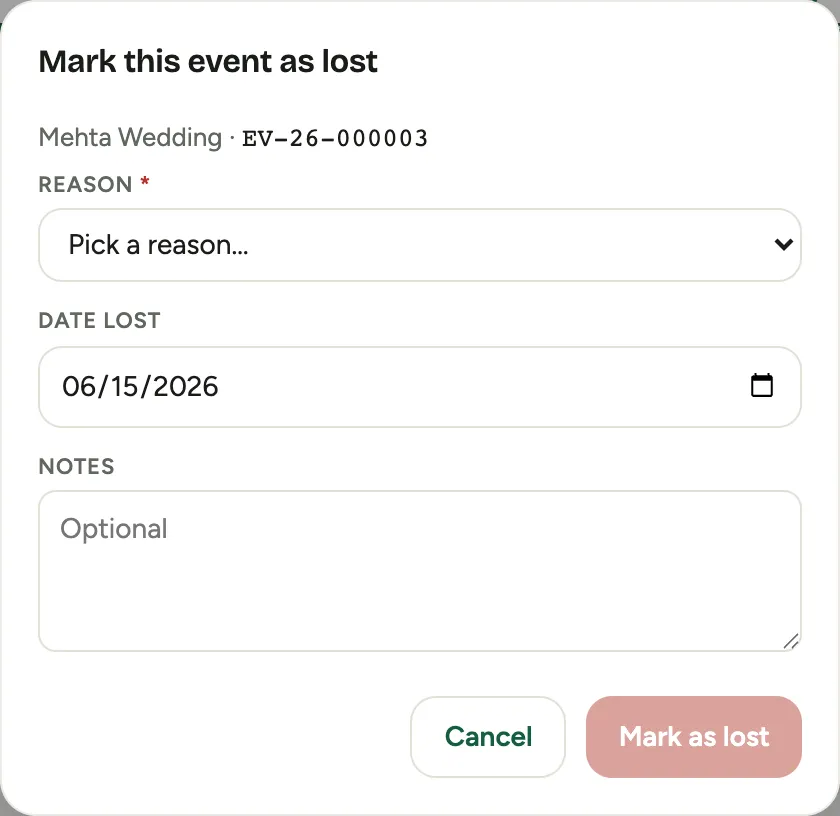 Screenshot from a demo workspace; data illustrative.
 -
In Mark this event as lost, pick a Reason, set the Date lost, and add Notes if there is more to say. This takes the event off the active pipeline while keeping the record and its history.
Past events
Once an event is a set number of days past its date (your workspace chooses how many; 30 to start), it is a record of a job that happened, and Florio keeps it from being reused as a new sale:
- Still open to everyone: correcting an earlier date, the client, the name, the venue, payments, costs and notes, and marking the event won or lost.
- Needs the Edit past events permission: moving the date to today or later, putting the event back into the pipeline, and creating, revising, approving, sending or sharing its proposals. Without it, Florio explains why and suggests the way below.
- To do the event again, open its proposal and choose Copy to new event. The copy lands on a new event as a draft and goes through approval like any other proposal.
- A record is never locked in its first week, so a new event typed with last year’s date can still be fixed.
- Someone with Edit past events can still make these changes; each one is recorded in the event’s Activity tab.
Good to know
- Reopen anytime. A held or lost event can come back. Open More event actions and choose Reopen event to put it back on the active pipeline. Sending a proposal, approving a scorecard or recording a signature on a lost event reopens it too: the Activity tab shows Reopened (was lost) and who did it, and the old lost reason and notes are cleared.
- Why the reason and date matter. They feed your win/loss reporting, so the studio can see why bookings slip away and when. Guessing later is worse than a quick pick now.
- The stage track is not the proposal status. The event stage is where the booking sits in your pipeline; the proposal has its own status (draft, approved, sent, signed) on the Proposals tab. See Proposals.
- Test events stay out of the pipeline entirely. Mark one with Mark as test event from the same menu, and undo it with Unmark as test event.
- Where this fits: Events.