Preview what your client will see
You never see the client-facing pages in your own workspace, but you can open any of them yourself, exactly as your client will. It is the fastest way to proof a proposal, check that your availability looks right, or see what someone is looking at when they call you with a question.
Before you start
- You preview from wherever you would send the link: an event’s proposal, a booking link, or an order.
- Opening a link never sends anything. The one thing to avoid is clicking the final action (approving or confirming), which would be a real approval or a real booking. Stop just short of it.
Steps
-
Preview a proposal. On the event’s proposal, take the share step but make a link instead of emailing it, then open that link (or copy it and paste it into your browser). You land on the exact chooser your client sees. The full flow for sending is in Send a proposal.
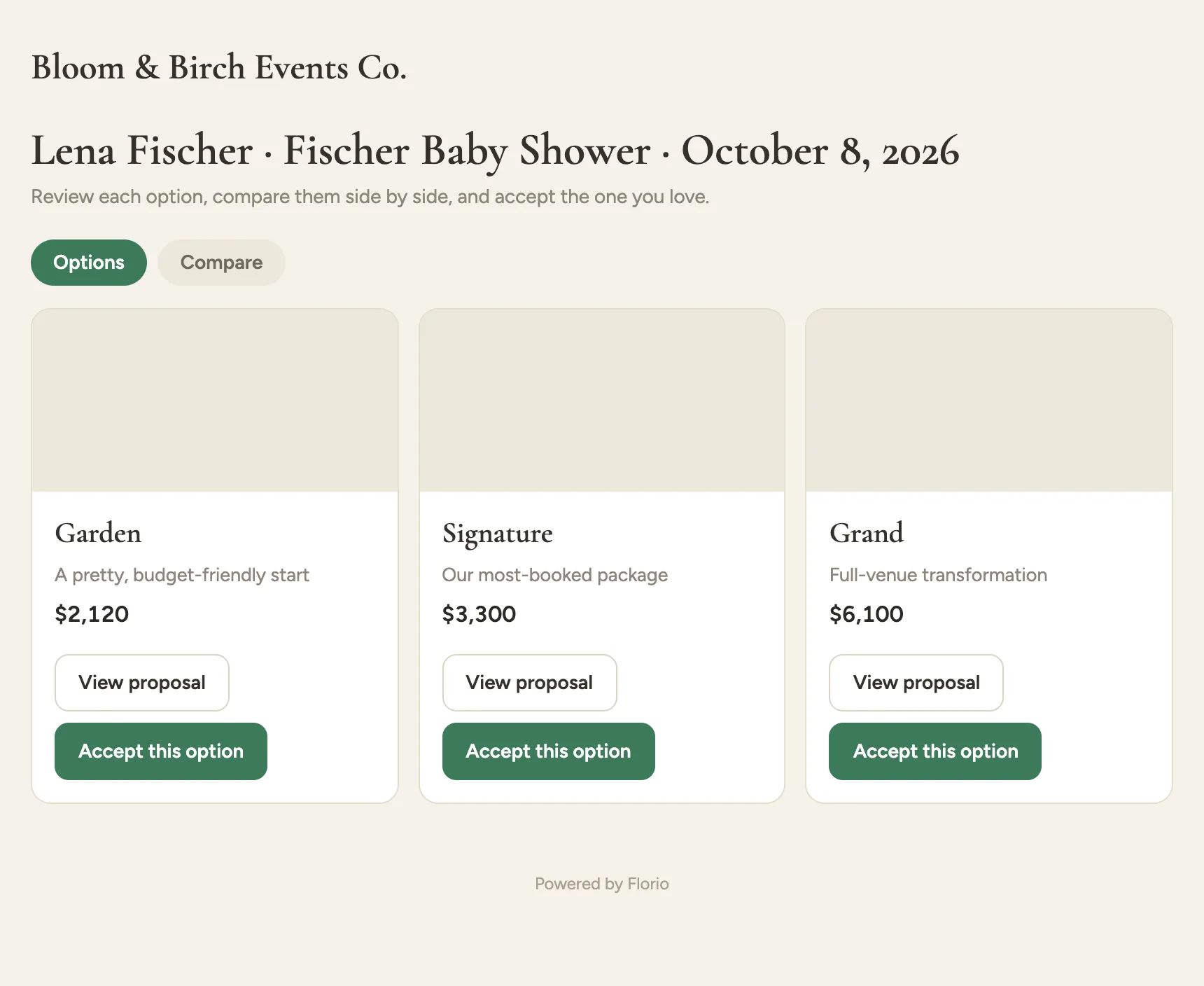 Screenshot from a demo workspace; data illustrative.
 -
Walk the approval. From the preview, use View proposal to open the PDF and Accept this option to reach the signing page. Read it, then stop: this is where the client types their name and signs, and going further would accept the proposal for real.
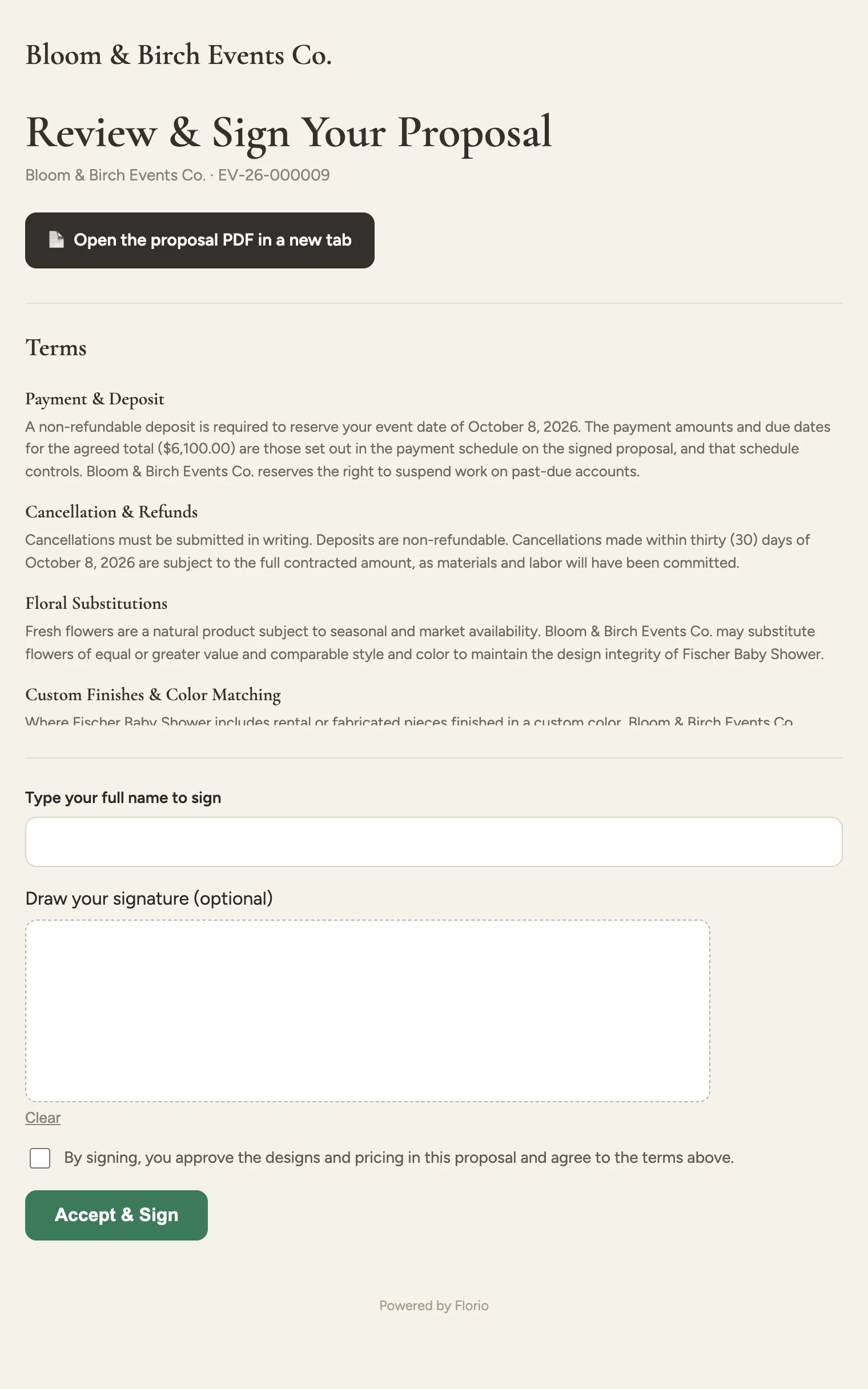 Screenshot from a demo workspace; data illustrative.
 -
Preview a booking link. Open the booking link you would paste into an email. You see your live availability the way a client does, in their timezone. Do not click through Confirm booking while proofing, or you will book a real appointment. Sending booking links is covered in Propose meeting times.
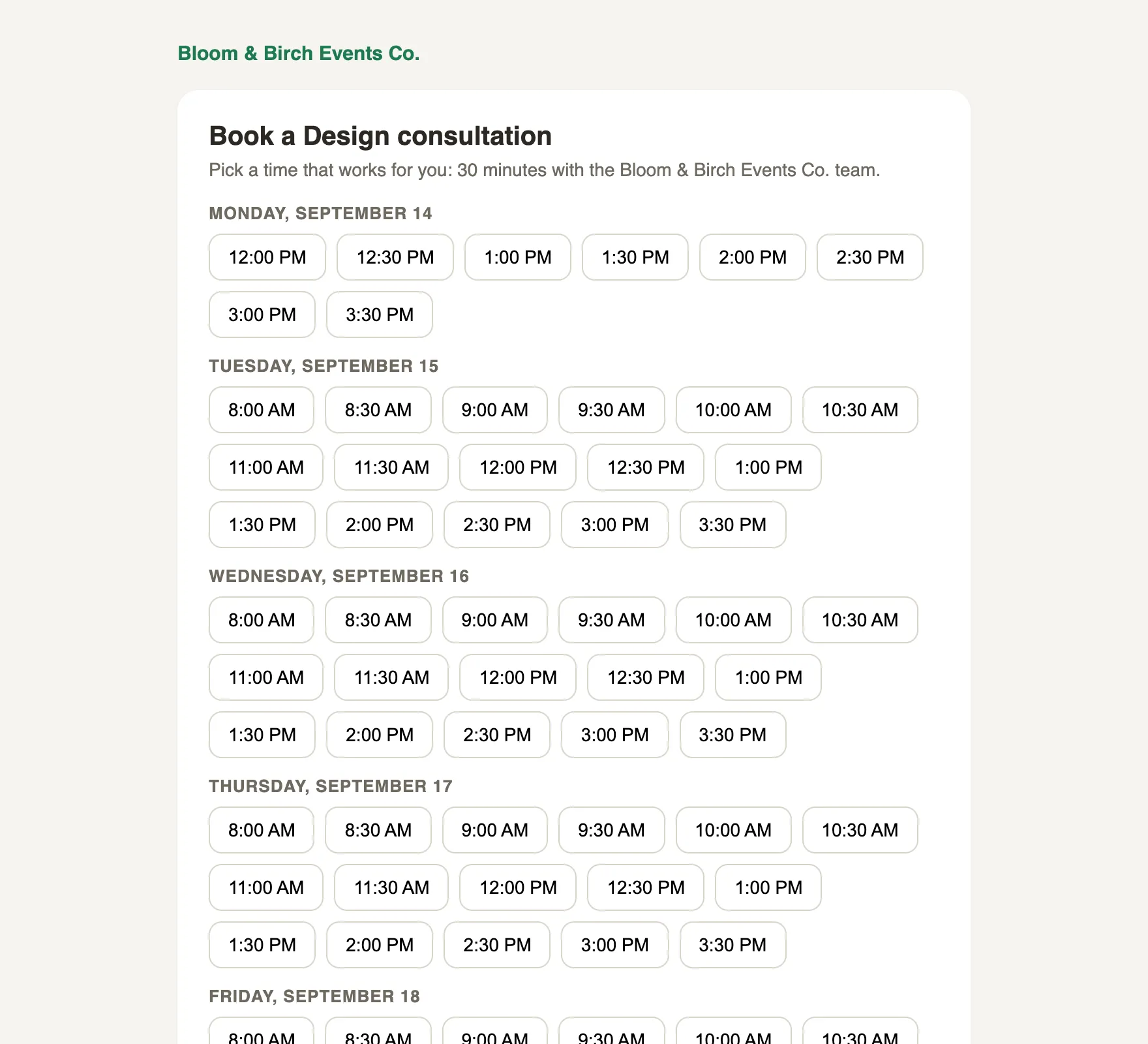 Screenshot from a demo workspace; data illustrative.
 -
Preview an order sign-off. On the order’s Client sign-off card, use Create link, then Open it. Full details are in Send an order for client sign-off.
Good to know
- Previewing changes nothing on the record. You are opening a link, not editing.
- The two clicks that are real even in a preview are approving (a proposal or order) and Confirm booking. Proof everything up to those, then close the tab.
- The pages render in your client’s language automatically, so a preview may read in Spanish if that is how the link is set.
- Where this fits: What your clients see.