Revise and compare versions
Plans change, and a good proposal keeps up without losing its history. Instead of editing over the top of what the client already saw, you revise: a new numbered version, with the old one kept intact, so you can always show precisely what changed and by how much.
Before you start
- This is for numbered versions (v1, v2, v3), the change-order trail. For the lighter, automatic within-draft snapshots and one-click restore, see Restore an earlier version.
Steps
-
Open the proposal and, on the rail, click Revise (new version). Florio creates the next version and leaves the previous one untouched, so nothing the client saw is lost.
-
Make your changes on the new version: add or remove lines, adjust prices, re-order sections.
-
To see what moved, click Compare in the header.
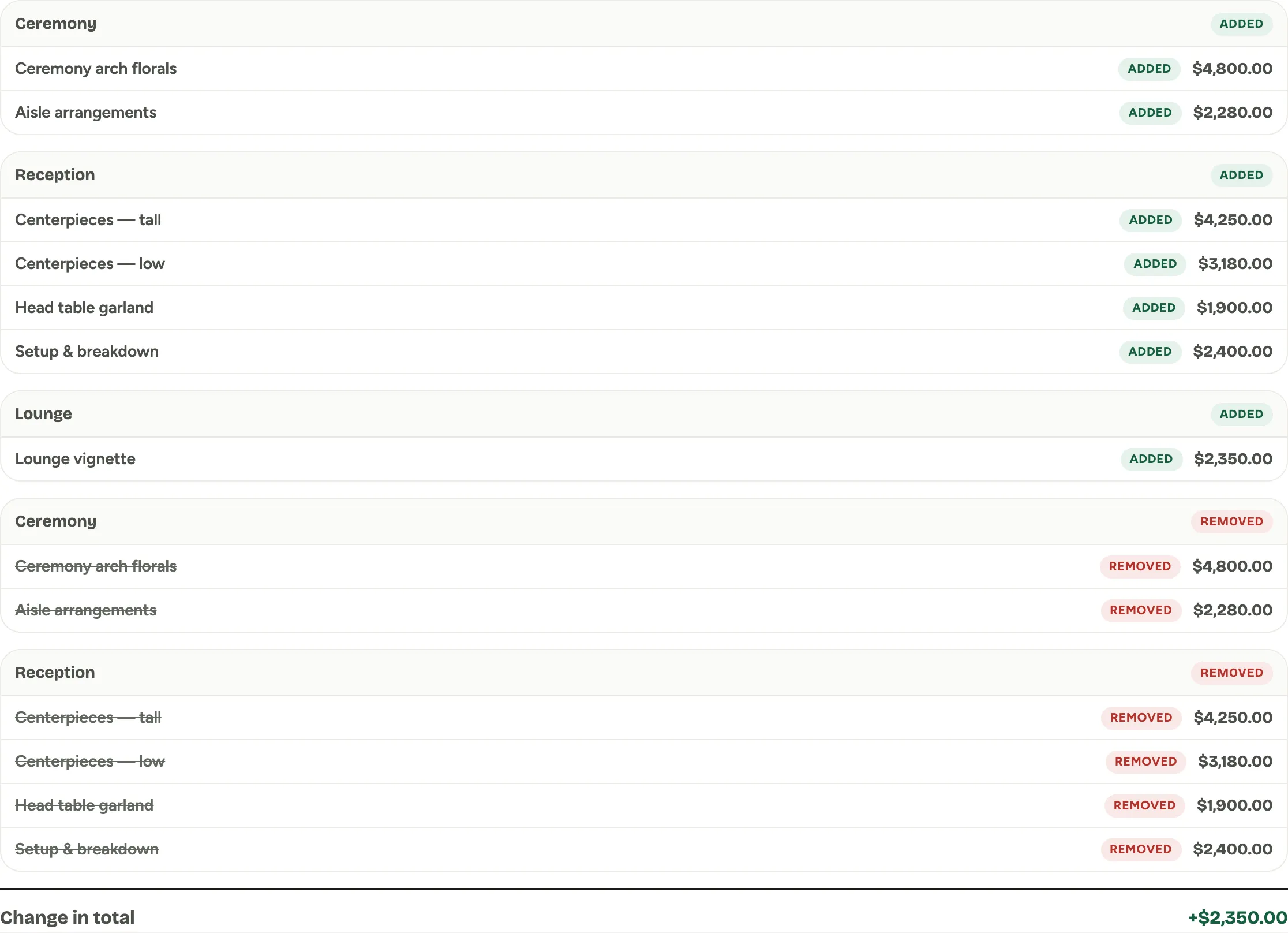 Screenshot from a demo workspace; data illustrative.
 -
Choose the Base version and the Compare to version. The diff marks every change: Added, Removed, Changed, Renamed, and Moved lines, with the Change in total at the bottom.
-
To walk a client through it, turn on Customer-facing changes only to hide internal edits, or use Diff PDF to print the comparison.
Good to know
- Why versions beat editing in place. When a planner asks “what changed since last week,” the answer is one screen, not a memory test. And the price on each version is preserved, so an approval always maps to a specific version.
- Older versions are read-only. Open one and Florio tells you it is not the current version and offers a link back to the latest.
- Moved is hidden in the client view. When you filter to customer-facing changes, a line that only moved position is not called out, because the client does not care where it sat.
- Where this fits: Proposals.