See your day and punch in
When crew hours are punched against the exact work they were spent on, the schedule you planned and the payroll you run become the same numbers. Florio makes that the easy path: your day is listed with everything you need to walk out the door, and the punch button is on each job.
Before you start
- You need to be on a block’s crew for it to appear in your day. Managers put people on blocks from the Day board or from the block editor: Run the day on the Day board.
- Punching uses the same clock as the rest of Florio: one clock at a time, per person.
Steps
1. Open your schedule
Open Time clock in the app or on the web. The first card is My schedule, with three choices:
- Today is today.
- Tomorrow is tomorrow only, so you can see the call time before you go home.
- Week is the next seven days, with a heading for each date.
Florio remembers which one you last used on this device.
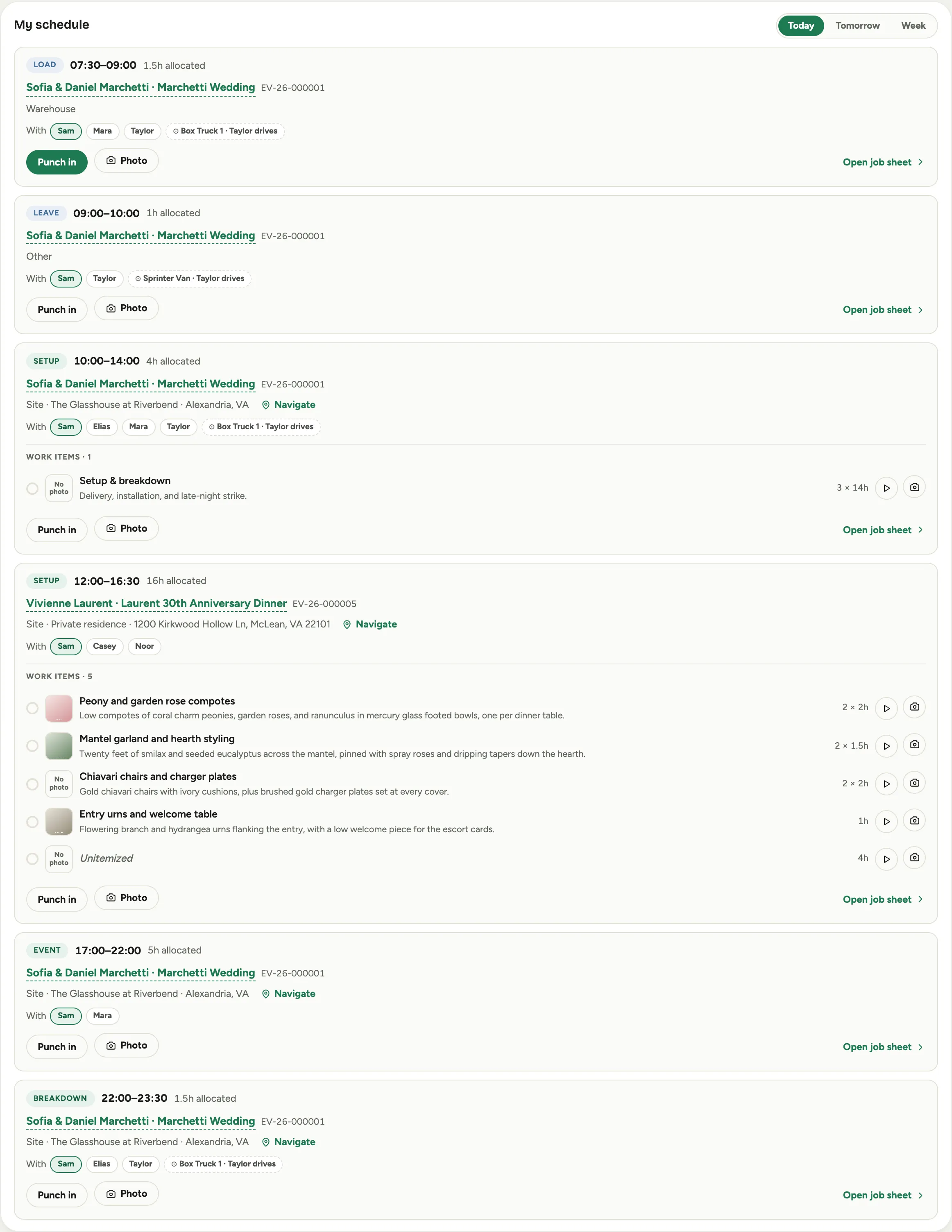 Screenshot from a demo workspace; data illustrative.
2. Read the assignment
Each row tells you what the job is before you open anything:
- The phase, such as Setup, Breakdown, or Floral prep, with the time range, or Anytime when the work has no fixed hour, and the hours allocated to you.
- The client and the event. If you have permission to open events, it is a link.
- Where: Warehouse, Venue, or Other, with the address when the block carries one, and a Navigate link that opens your maps app. Prep at the warehouse often shows just the word: open the job sheet for the street address and its own Navigate.
- With, then the crew-mates on the job, so you know who to look for.
- The truck and who is driving it.
- From proposal, then the line this work was sold as, unless the block is already named for that line, in which case Florio does not print it twice.
3. Read a prep assignment
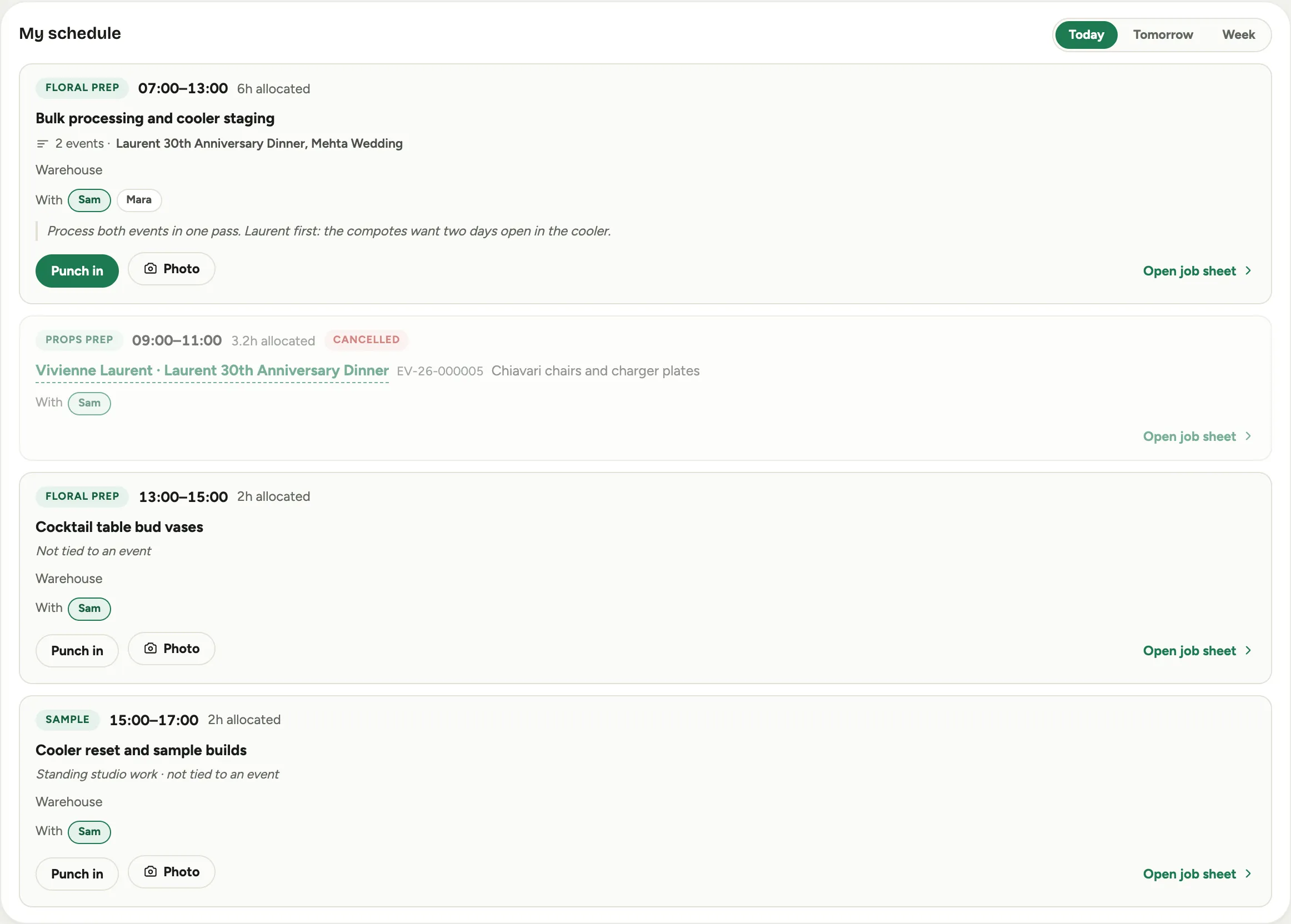
Prep off the backlog reads differently from a day-of phase, because the block is itself one thing that was sold rather than a shift with jobs inside it. Those rows carry the sale with them:
- A one line description of the piece, in the words the designer wrote.
- The first reference photo, as a thumbnail beside it.
- Due and a date: the deadline the work was scheduled against, which is usually before the event rather than on it.
- The window, perishable for work that has to stay near the event or durable for work that can be pulled weeks forward.
- Anytime rather than a time range, because backlog work is given a day, not an hour.
 Screenshot from a demo workspace; data illustrative.
A row named Unitemized is the leftover hours nobody broke out into their own line. It carries no description and no photo by design.
4. Rows that name no event, and rows that are cancelled
Not every block belongs to one event, and the row tells you which situation you are in:
- Not tied to an event is event work that has lost its event. Worth mentioning to your manager, who can attach it.
- Standing studio work · not tied to an event is the studio’s own standing job, the cooler clean or the sample build. Nothing is missing.
- A count of events, such as “2 events”, followed by their names, is one batched session covering several jobs at once.
A cancelled block dims, shows Cancelled, and offers no clock and no camera. It stays on your day so you know it was there and is not simply missing. If you have been told to do it anyway, ask your manager to bring it back first.
 Screenshot from a demo workspace; data illustrative.
5. Punch the block
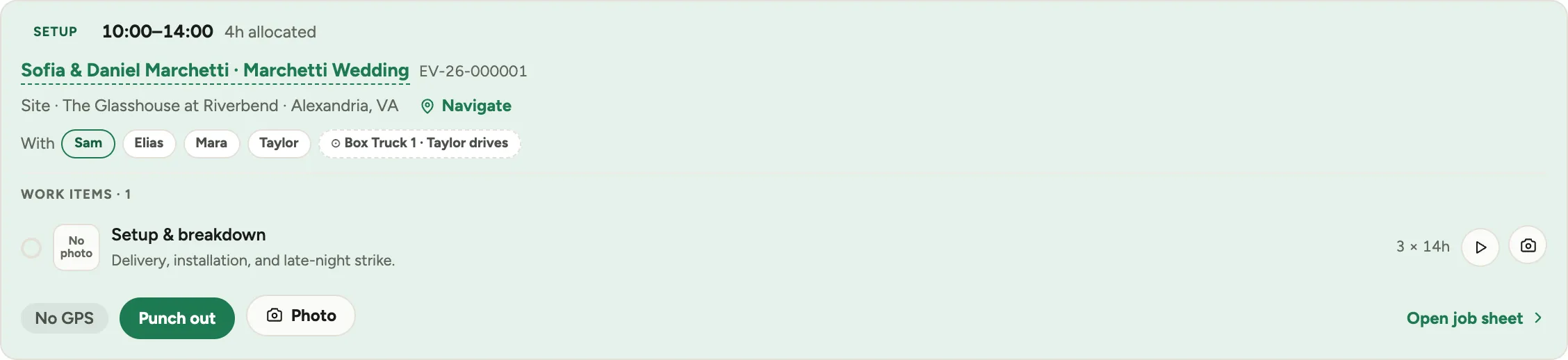
Tap Punch in as you start, and Punch out when you finish. While you are on the clock, the row shows an honest location chip: On site, Off site, or No GPS.
Use Photo to attach a picture to the whole block: the loaded truck, the finished install, the damage you found when you opened the case. Those photos come back to you on the block’s job sheet under Your photos, so you can check one later rather than wondering what you sent.
 Screenshot from a demo workspace; data illustrative.
6. Punch the work items, on day-of work
Under a day-of assignment sits its work list, one item per thing that was sold. Each item has three controls:
- The ring to its left marks it done: Mark complete. Once done it names who completed it. There is no undo from here, so tap it when the work is actually finished.
- The play and stop buttons punch against that item alone: Punch in starts your clock on that piece of work, Punch out stops it.
- The camera adds a completion photo: Add a completion photo. Some studios require one before an item can be completed, and Florio says so if yours does.
You do not have to be the person an item was assigned to. Anyone on the block can punch any item on it, which is what happens on a real install.
Each item shows a one line summary of what it is. The full description, the photos, and the notes are on the job sheet.
A prep block has no work list, so it has no rings and no per-item clocks. The block’s own Punch in is the only clock on it, and there is no control for marking a block done: a manager sets a block’s status.
7. Open the job sheet for the detail
Tap Open job sheet on any assignment for the full picture: the complete sold description, reference photos, the designer’s internal notes, and your manager’s instructions, for each item on day-of work or for the block itself on prep. The sheet also carries the venue address, the time the install has to be finished, and the photos you have already sent from that block. See Read your job sheet.
Add time you forgot to punch
Forgot to punch in, or your phone died on the way to the job? Add the hours yourself rather than waiting for the office to do it.
- Open Time clock, find Forgot to clock in?, and tap Add missed time. On a phone, the same link sits at the foot of My Day.
- Pick the Day you worked. Under Which job?, Florio lists the work you were scheduled on that day, and only yours. Pick the one the hours belong to and the times fill in from the schedule; change them to what really happened. Hours that belong to no job, such as loading the van at the shop, go under No job with the right Work type.
- Under What did you do?, say what you worked on and why the punch is missing.
- Tick These hours are correct, to the best of my knowledge. and tap Add the time.
The entry joins your recent entries with an Added by me chip and goes to your manager for approval, the same as a punch.
- You can add time in the current pay period and the one before it. Anything older is still a correction for the office.
- Added time cannot overlap hours you already have. If Florio refuses the times, look at what you already punched that day first.
- Time that has not happened yet cannot be added.
- Time off is not missed time. Your workspace may leave PTO out of Work type here; send a time-off request instead: Request and approve time off.
Fix or remove your own time
Your own hours in My recent entries on Time clock can be put right without waiting for the office, as long as your manager has not approved them yet.
- Fix a time or the work type. Click In, Out or the work type on the row and change it. If the entry was returned to you, fixing it sends it back for review.
- Started earlier than you punched? Change the start while the clock is still running, from the running clock or from the row. The finish is set when you stop the clock.
- Added an hour by mistake? Time you added yourself has Remove. It comes off your record and cannot be undone; if you only got a detail wrong, remove it and add it again.
- Added it from the app? On iPhone, iPad and Mac, the line Added. It is with your manager now. under Add missed time has Undo beside it until the screen reloads. Tap it and confirm Remove entry; the line changes to Removed. It is off your record. If your manager approved the hour in the meantime, Florio says so and the hour stays.
- Anything else, such as a punch or an hour your manager already approved: choose Request delete and say why. The entry shows Delete requested until your manager deletes it or keeps it; if they keep it, their note shows on the row. Cancel request takes it back.
- Hours payroll has approved are locked. Ask your manager.
- An hour that took its job from a check-in stays on that job; ask your manager to move it.
Good to know
- Punching from this card works on today’s rows only. On Tomorrow and Week the rows are there to read: Navigate and Open job sheet are live, the punch and photo controls are not. The job sheet you open from a later row follows the same rule, so there is no way round the back to start a clock early.
- One clock at a time. Starting a new punch stops whatever was running and sends that entry into approval. The block’s Punch in button will not let you double up, and tells you to punch out first.
- A drive is the exception. When your drive to a job is on the clock, its card says Driving here. Punch in when you arrive: the drive stops and your time on the job starts. A drive never stops you punching in somewhere else.
- Some workspaces require a note when you clock out. When yours does, the clock will not stop until you have said what you did, and a note you typed when you clocked in already counts.
- Location is advisory. A missing or off-site reading never blocks a punch, it just shows honestly.
- In the Florio app, punches made with no signal at the loading dock sync safely once you are back online, without doubling up.
- If your studio has crew notifications on, you get a message when your day changes and an evening summary of tomorrow’s blocks. Both open this page.
- Your week’s punched hours stay visible on the same page, and managers see who is on the clock right now. Where the hours go next: Approve time for payroll.
- Where this fits: Scheduling: crews, the backlog, and the week.