Approve expenses
Every expense is approved twice before it is repaid, the same way a time entry is: once by the person’s manager, and once by a final approver. This page is for both. For recording an expense, see Record an expense and get repaid.
How approval works
- The manager. Anyone above the person in your reporting structure can approve their expenses. No permission is needed beyond being their manager.
- Final approval. Someone with the permission to approve expenses at the final step, usually whoever runs payroll or the books.
Two rules hold everywhere, and nobody can override them:
- You cannot approve your own expense, at either step. Florio shows You can’t approve your own expense. in place of the buttons.
- One person cannot give both approvals. If you approved an expense as the manager, Florio shows You approved this as the manager. Someone else has to give final approval.
A person with no manager on file skips the first step. Their expense reads No manager on file · final approval is the only step, and a final approver other than themselves decides it.
At final approval three things happen at once: the expense is stamped to the pay period it will be repaid with, its cost goes onto the job it was charged to, and it locks.
Approve as a manager
- Go to Expenses and click Expense approvals. The Approvals page has an Expenses card that leads to the same place, and so does the email Florio sends when one is waiting.
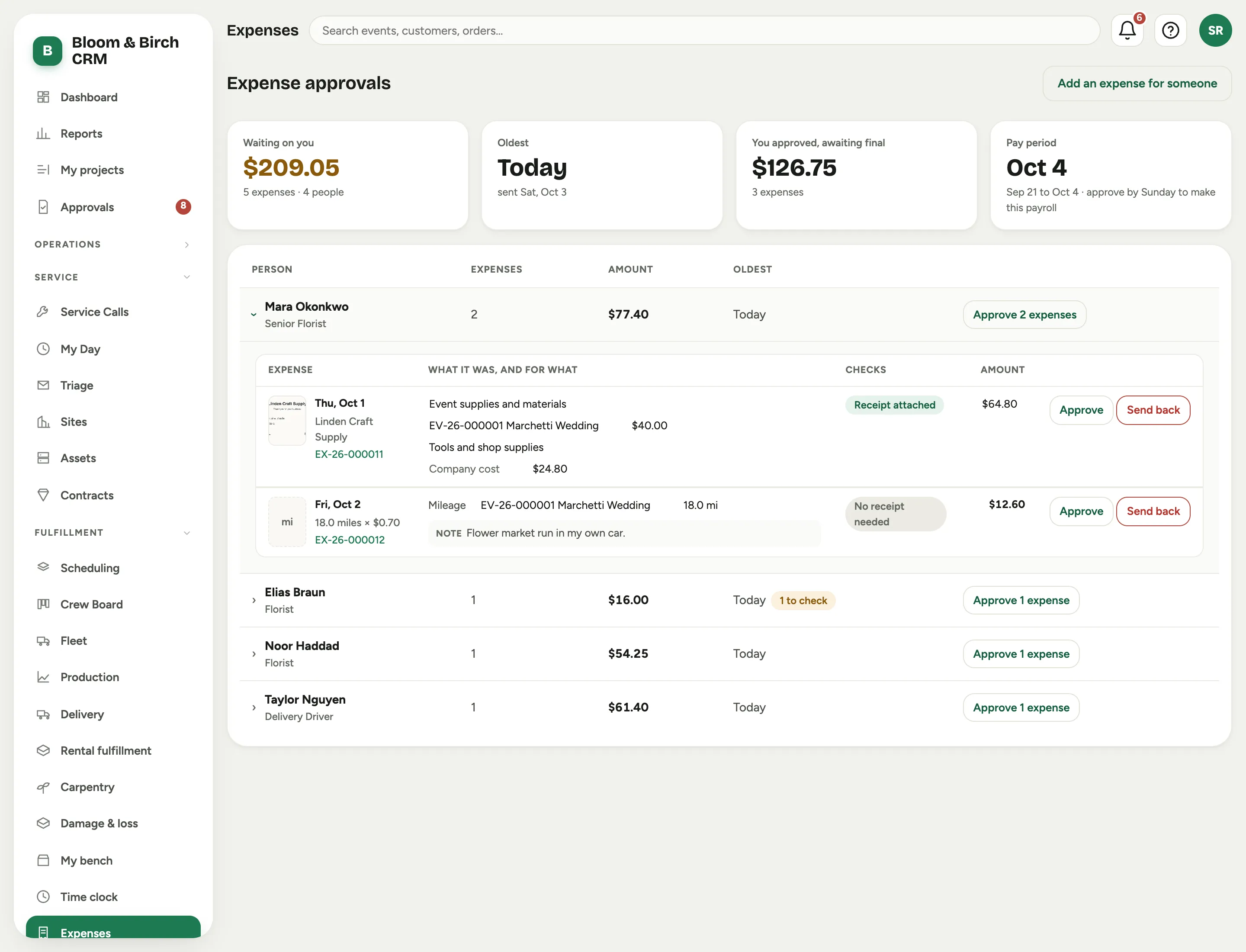
- Each person with something waiting is a row. Open it to see their expenses, each with its receipt, what it was, what it was for, and its Checks.
- Click the receipt to read it, or the expense number to open the whole expense.
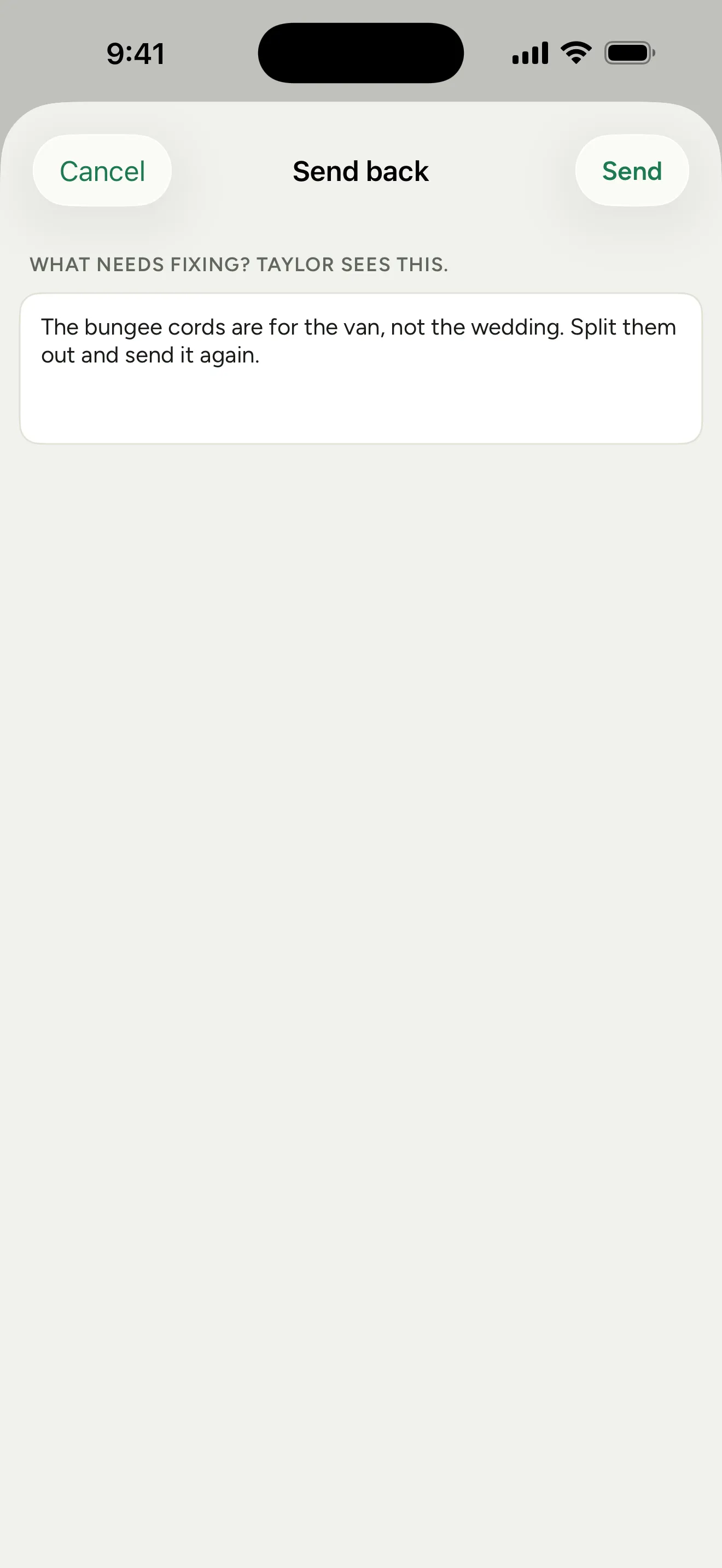
- Click Approve, or Send back and say what needs fixing. The person sees your note, fixes the expense and sends it again. A person’s whole row can be approved in one click; anything Florio will not let you approve is listed by number with the reason.
 Screenshot from a demo workspace; data illustrative.
The page shows how many are Waiting on you, the Oldest, and the day to approve by for the current pay period. If expenses sit, Florio reminds you the next business morning, and after three business days it tells your own manager and the final approvers.
Give final approval
Final approvers get three views on Expense approvals:
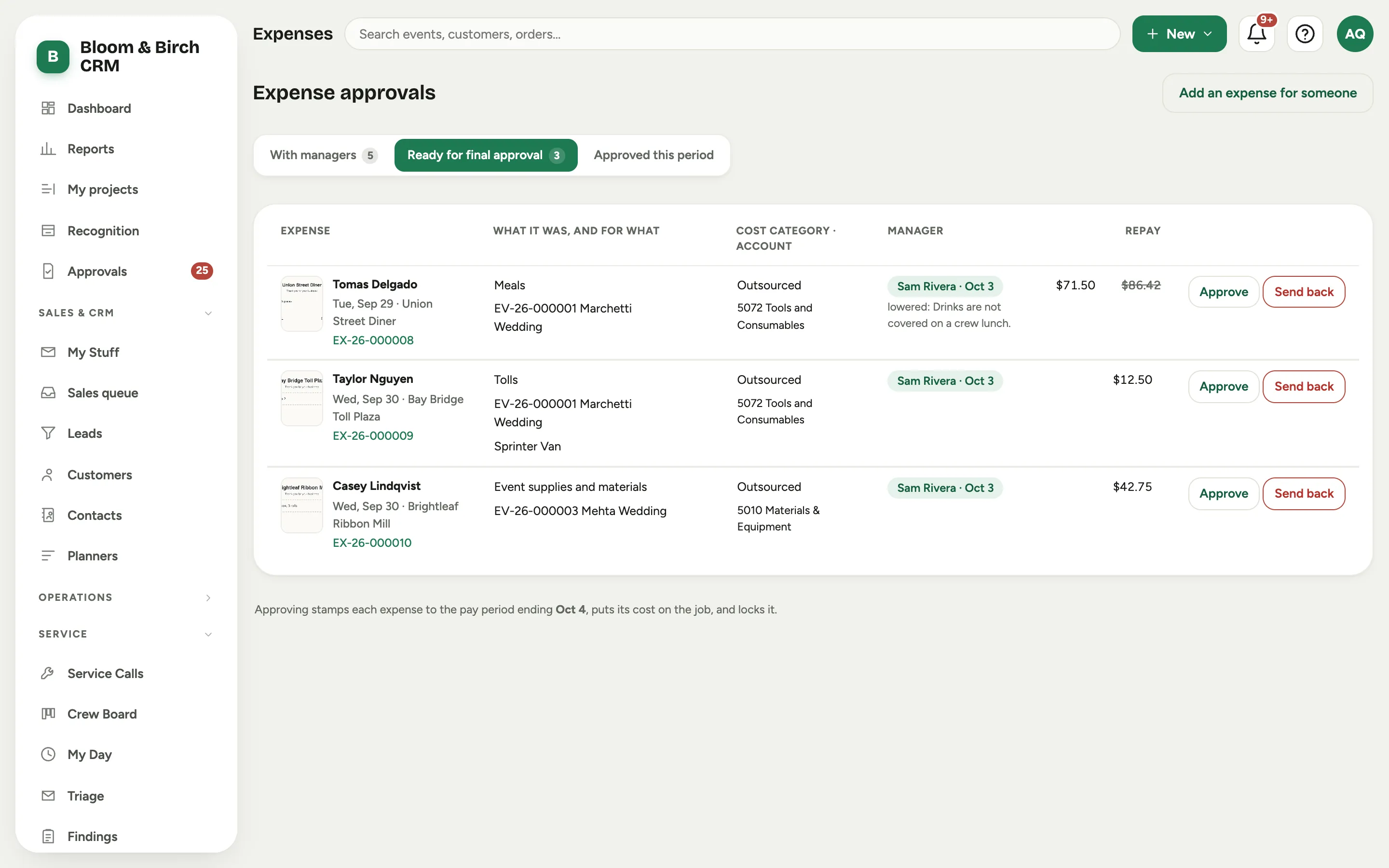
- With managers: everything still at the first step, by manager, with how long it has waited. Step in as manager approves the first step when a manager is away. Someone else then has to give the final approval.
- Ready for final approval: what managers have passed. Each row shows the manager’s decision, the Cost category and Account it will be recorded under, and the amount to Repay.
- Approved this period: what has already been approved into the current pay period.
 Screenshot from a demo workspace; data illustrative.
Which pay period an expense belongs to is decided by the day of final approval, not by the day of the purchase. Approve by the day the page names to make that payroll.
The checks
Florio flags things for the approver. They are warnings, and none of them blocks an approval.
- The expense is older than your company asks expenses to be sent within.
- It is over the warning line your company set for that category.
- It may be a duplicate: the same person, date and receipt total as another expense.
- No receipt: the person said they do not have it. Why shows their explanation.
- The job it is charged to is closed.
What an approver can change
Either approver can correct an expense instead of sending it back. The person it belongs to is the one thing that can never be changed.
- How it is categorized. Change What was it?, What was it for?, or the Cost category on any line, and split or re-split the lines. These changes keep the approvals already given. The person is not notified of a recategorization, but can see it on the expense.
- The account. A final approver can also set the QuickBooks Account for one line by hand. This is on the web only.
- The facts. If you change the receipt total, the date or the miles after the manager has approved, the expense goes back to the manager to approve again, and Florio says so as you save.
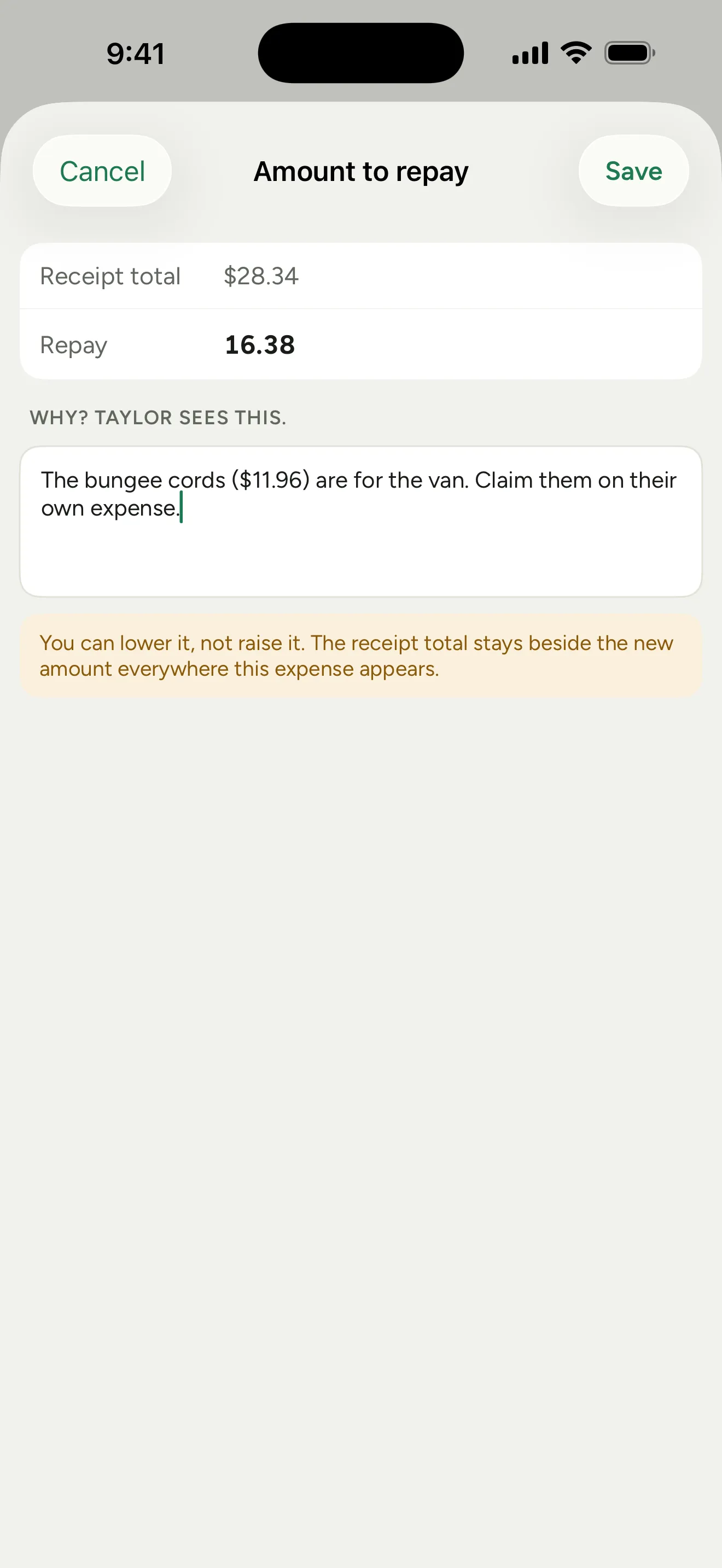
- The amount to repay. Open Amount to repay, fill in Why it is lower, then lower the amount. You can lower it, not raise it. The person is told, with your reason, and the receipt total stays beside the new amount everywhere the expense appears. Lowering does not send the expense back to the manager.
Every change is recorded on the expense’s activity log with who made it and the before and after.
Enter an expense for someone else
On Expense approvals, click Add an expense for someone and choose who it is for. A manager can enter one for anyone who reports to them, and a final approver for anyone. The person is told, it appears in their list, and it is approved like any other. Entering it does not stop you approving it as their manager; the final approval is still someone else’s.
After approval
An approved expense is locked. There are two ways to fix one, depending on when you catch it.
- Re-open it, while its pay period has not ended. A final approver opens the expense, clicks Re-open and gives a Reason. It goes back to waiting on the manager, its cost comes off the job, and it leaves that period’s reimbursement file until it is approved again.
- Add a correcting entry, once the pay period is over or the expense is on a bill that has gone to QuickBooks. Florio offers Add a correcting entry in place of Re-open. The entry is linked to the original and is for the same person, its amount may be negative, and a note takes the place of the receipt. It needs approval like any other expense and lands in the current pay period, so the original period is never rewritten.
Where the cost lands
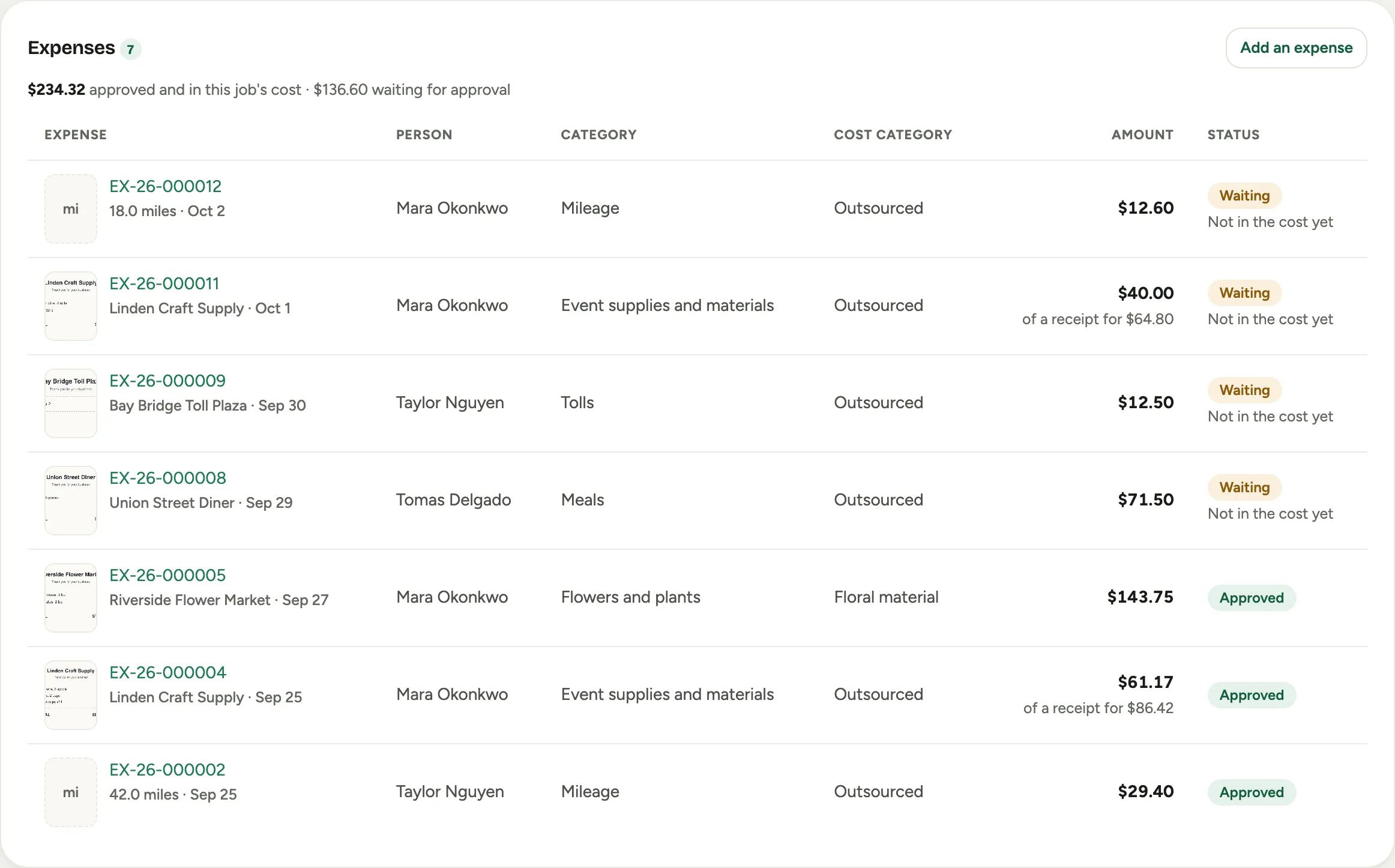
Cost lands at final approval, not before. Until then a job’s Expenses card marks the expense Not in the cost yet.
| Charged to | What happens |
|---|---|
| A project or event | The amount goes into the job’s actual cost under the line’s cost category. It shows in the job’s profit figures and their drill-down, labeled Expense, with the person’s name and the receipt one click away. |
| A service call | The amount is added to the call’s cost under Expenses. Nothing is added to the customer’s invoice. |
| An order or a plant care contract | The expense is listed on the record for reference. These records do not track actual cost yet. |
| Nothing | It is a Company cost, on no job. |
On an approved expense, the Where the cost landed column says the same thing line by line.
Each of those records has an Expenses card listing what was charged to it, approved and waiting, with Add an expense to record one with the job already filled in. A vehicle’s page lists the approved expenses that name it.
 Screenshot from a demo workspace; data illustrative.
An expense is never billed on to a client by Florio.
Approve on the phone
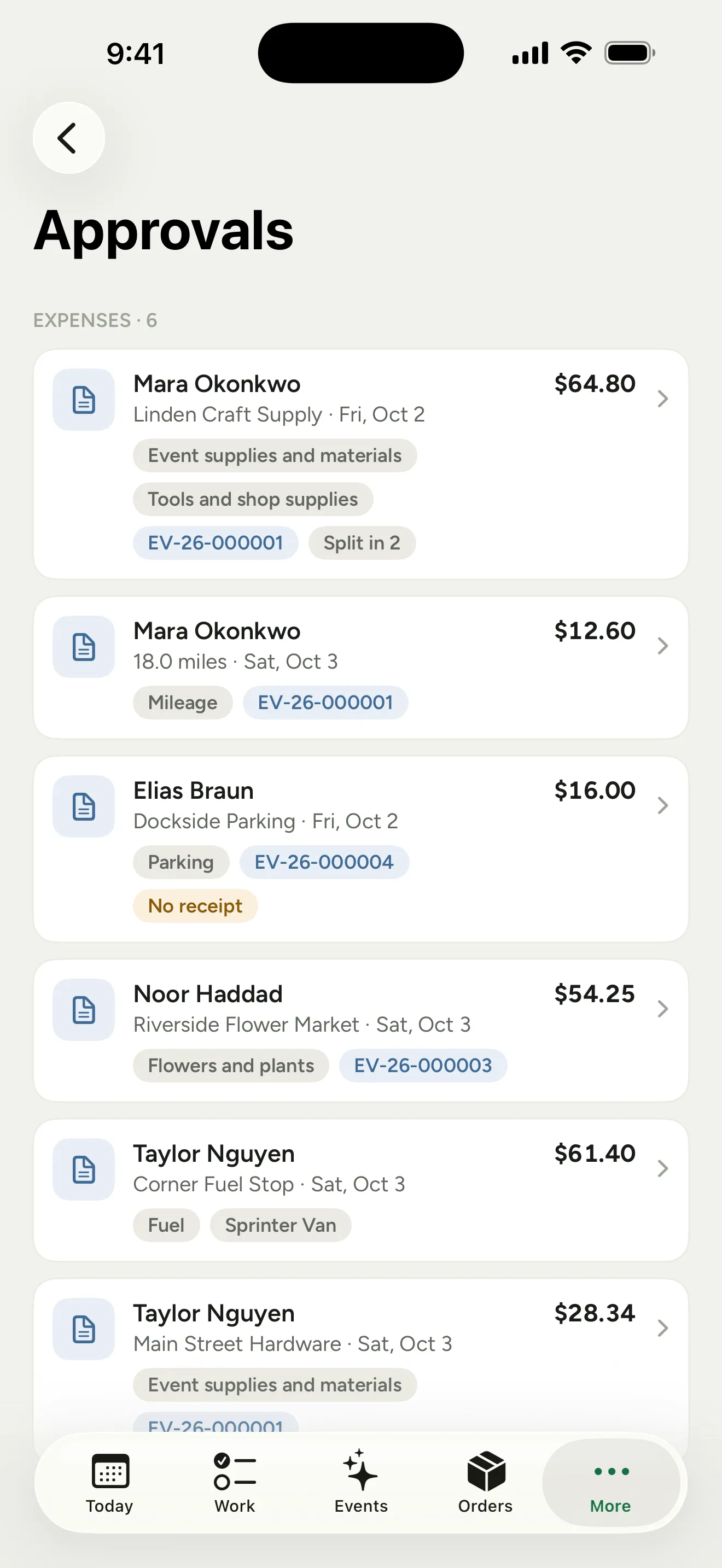
The Florio app for iPhone lists expenses first in its Approvals inbox. Open one to see the receipt, which opens to zoom, then Approve or Send back with your reason. The two rules above apply: where you may not decide, the app shows the sentence in place of the buttons.
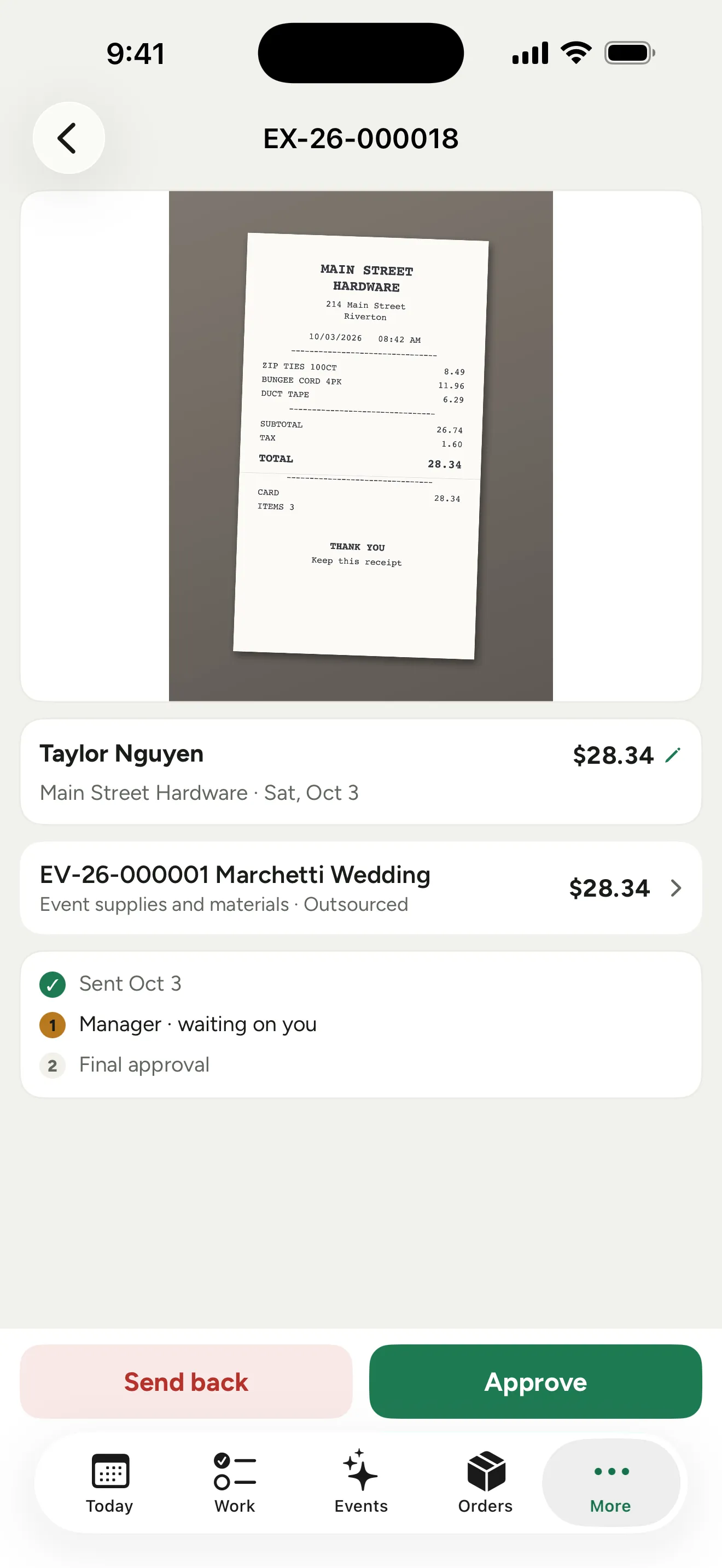 Screenshot from a demo workspace; data illustrative.
Approvers can also tap a line to change its category, job or cost category, and tap the amount to lower it with a note. Setting an account by hand stays on the web.
 Screenshot from a demo workspace; data illustrative.
Good to know
- If your company sends expense bills to QuickBooks, do not also enter the same receipt in QuickBooks by hand. Florio cannot see a hand-entered copy, and the cost would count twice.
- Managers see their own team’s expenses. Seeing everyone’s is a separate permission: Set up employee expenses.
- What happens after approval, the reimbursement file and the bill, is covered in Repay approved expenses.