Projects: contracts, change orders and the money as it moves
Some jobs are not a single day. A hotel holiday installation, a showroom greenery wall, a gala build that takes a crew all week: these run for weeks, the client changes their mind partway through, materials arrive on different days, and somebody has to know whether the job is still making money before it is over. Projects is the part of Florio that runs those jobs, and it lives on the same event the job was sold on. Nothing is re-entered: the accepted proposal becomes the contract, a revision of that proposal becomes a change order, and the crew hours and stock you already track become the cost to date.
This page walks the surfaces in the order you meet them. Each section is a target of the in-product help icon, so the ? on a screen brings you to the matching heading.
The contract card
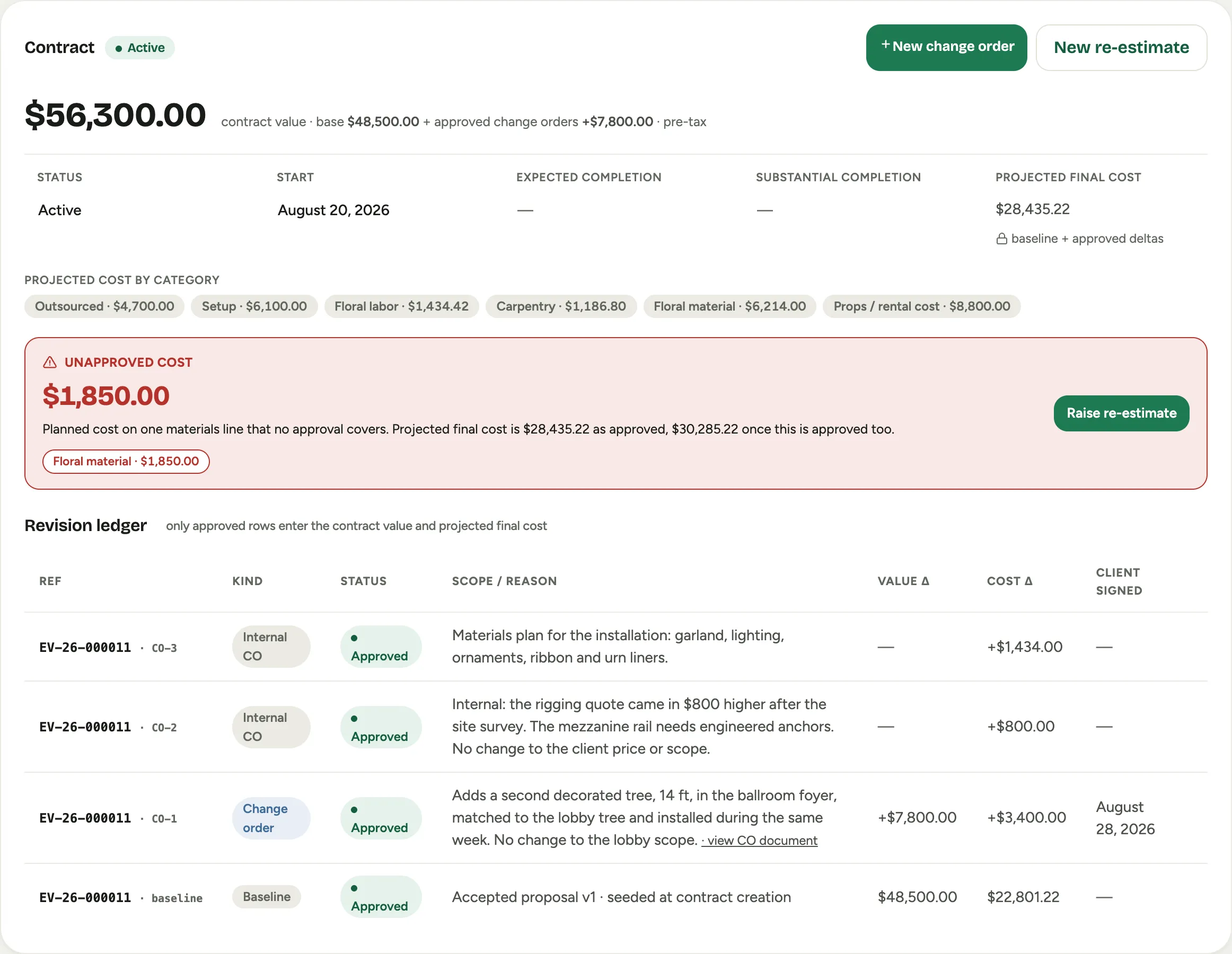
When a client accepts a proposal, Florio creates the contract and shows it at the top of the event’s Financials tab as the Contract card, with the live profit view and the billing read below it. There is nothing to set up: the accepted proposal’s total becomes the base value, and the cost lines behind the proposal become the approved cost baseline. An event sold without a proposal can still get a contract: the card offers Create from accepted proposal or Create manually.
 Screenshot from a demo workspace; data illustrative.
Reading it top to bottom:
- The big number is the contract value: the base from the accepted proposal plus every approved change order, pre-tax. It is derived, never typed.
- Projected Final Cost is what the job is expected to cost in total: the proposal’s cost baseline plus every approved cost change. The chips under it split it by cost category. The card says what it means in plain words rather than in accounting shorthand.
- Unapproved cost appears when someone has planned materials that no approval covers yet. See Approve planned cost.
- The Revision ledger is the history of the contract: the baseline, then each change order or re-estimate with its kind, status, value change and cost change. Only approved rows enter the contract value and the projected final cost.
- Scope of work is the accepted baseline followed by every signed amendment, in the order the client accepted them. See Write the scope of work.
The two header buttons, New change order and New re-estimate, start the two kinds of revision described next.
Change orders
A change order is a new version of the proposal on a project that is already under contract. You author it in the proposal builder, exactly like any revision, and the builder switches into change-order mode: it shows the contract value today, this version’s total, and the change-order value between them, and it tags every line as added, changed or removed against what the client signed.
Florio works out the kind for you at review time, from the price:
- If the total moved, it is a Client change order. Approval sends it to the client for signature, and the client signs the scope of changes and the line deltas, not a restated proposal. On signature the diff lands on the ledger.
- If the total is the same and only costs or hours moved, it is an Internal change order. Approval applies it to the ledger with no client leg, and the projected final cost moves by the cost change.
A Re-estimate is the third kind: a cost-only correction entered by category on the contract card, with a reason, when no proposal line is involved. The step-by-step flow, the review screen and the client document are in Raise and sign a change order.
The Live profit panel
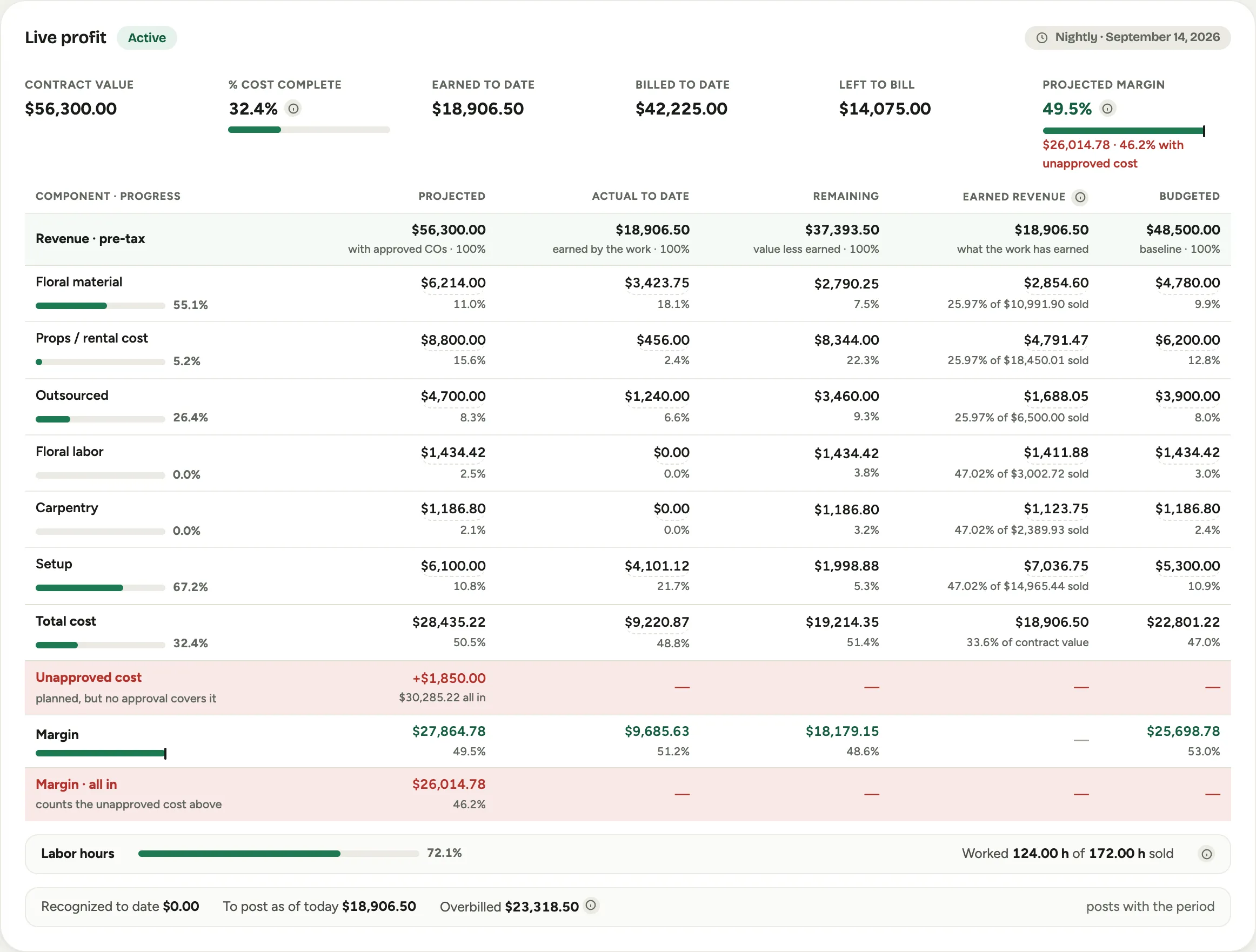
Under the contract card on the Financials tab, people who can see project money get the Live profit panel: what the job has cost so far, what it is projected to cost, what it has earned, what has been billed, and the margin both ways. It is computed nightly from the contract, the stock shipped to the job, the approved crew hours and the billed payment milestones. Every figure with lines behind it opens them: see Open the lines behind a profit figure.
 Screenshot from a demo workspace; data illustrative.
The panel has two vocabularies depending on how your workspace recognizes revenue. The default, Management only, treats earned revenue as a management measure that never touches accounting. A workspace on Cost to cost gets the recognition vocabulary and the monthly close described below. Read the Live profit panel walks every number.
Materials
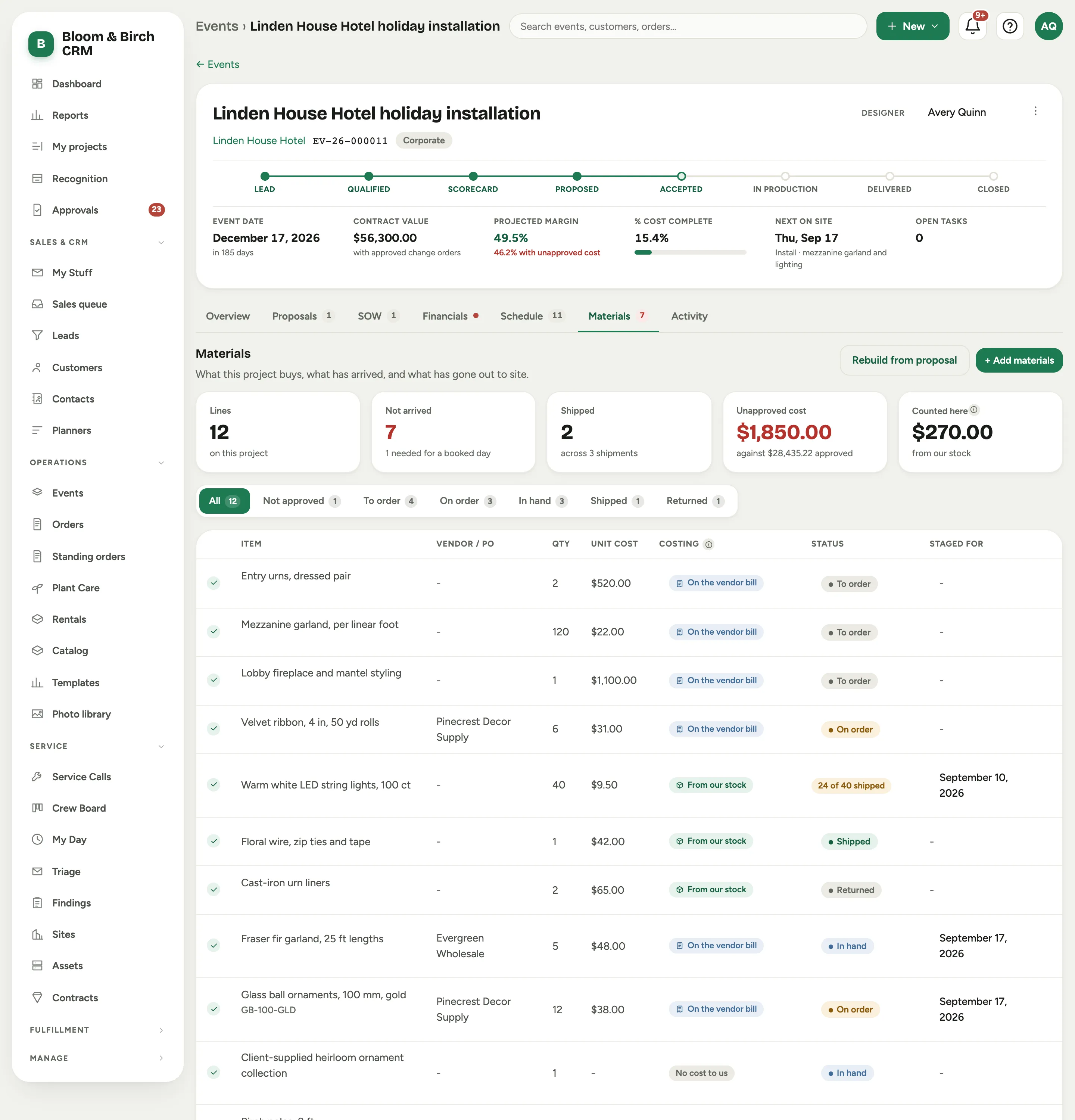
The Materials tab on the event record is what the project buys, what has arrived, and what has gone out to site. It gets the record’s full width, and its count chip carries how many lines have not arrived. Each line carries a vendor and PO, a quantity and unit cost, a Costing choice that says how its cost reaches the project, a status through the lifecycle from To order to Shipped, whether an approval covers it, and the day it is staged for.
 Screenshot from a demo workspace; data illustrative.
Materials ship when a crew loads them from a pick list, which is the moment their cost lands on the project. A part load is allowed: 24 of 40 can go out and the line stays open for the rest. A return is recorded as a reversal in the Shipments ledger, never as an erasure. Planning materials, staging a truck and confirming a load are in Plan materials and load the truck.
Materials is turned on per workspace; see Set up Projects.
Phases and the schedule
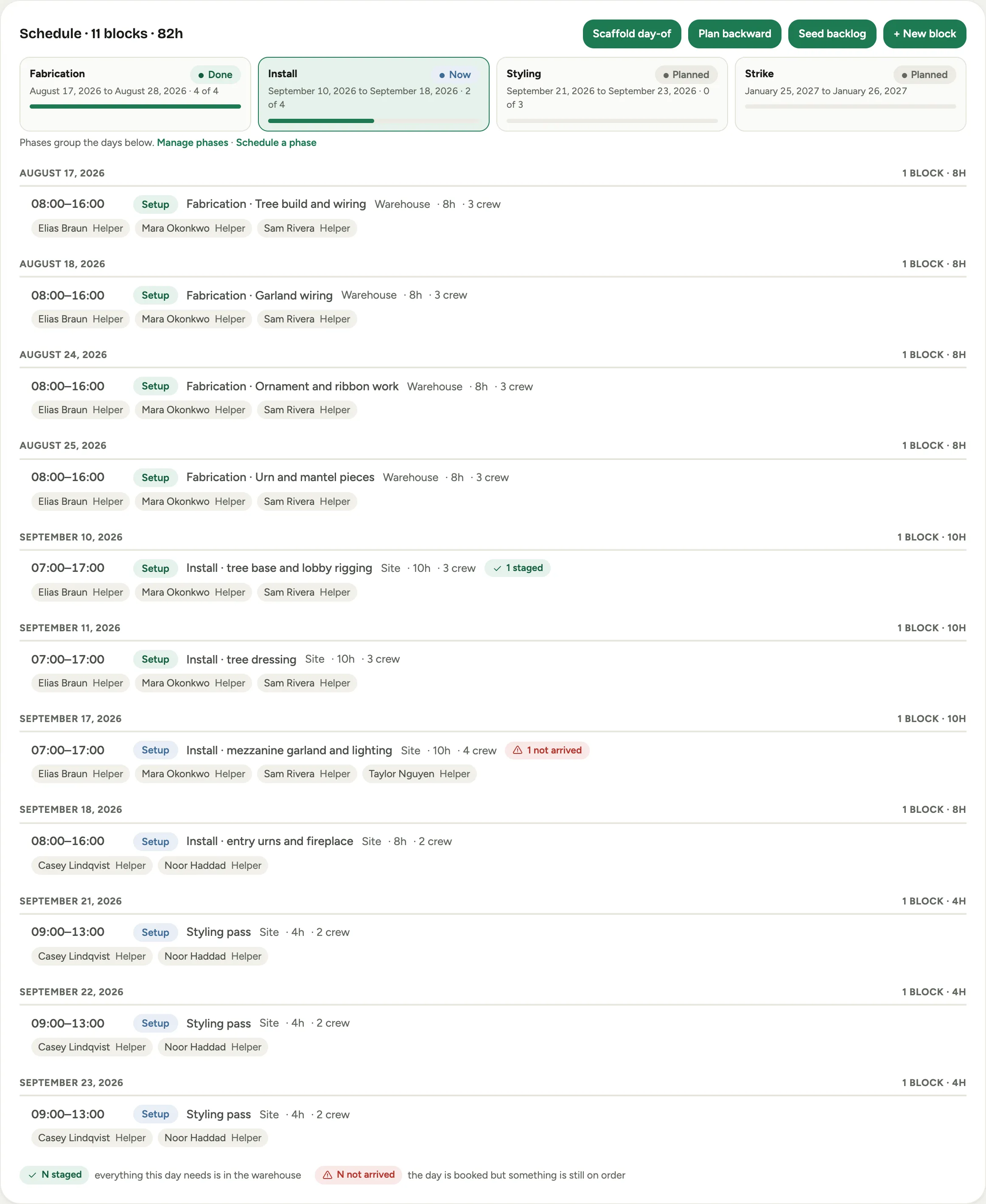
A multi-week job has phases: fabrication in the studio, install on site, a styling pass, strike. On a project, the Schedule panel on the event’s Schedule tab opens with a phase strip, one chip per phase with its planned window, how many of its days are done, and a state that reads Planned, Now, Wrapping, Done, or Late when work is booked past the planned end. The days below are grouped by date, and a day whose staged materials have not all arrived carries a red readiness chip that links to its pick list.
 Screenshot from a demo workspace; data illustrative.
Schedule a phase generates one day per weekday across a phase’s window, with the hours, headcount and crew you choose. Phases are explained alongside materials in Plan materials and load the truck.
My projects
My projects in the sidebar answers the question a project manager asks every morning: which of my jobs needs me today? One row per project with its current phase, the next four weeks as day dots, materials readiness, and a Next action in plain words: a short day and the PO to chase, a phase booked past its end, unapproved cost waiting for sign-off, items still in the warehouse, days with nobody named. Rows sort by urgency. There is no money on this page by design; profit stays on the Live profit panel behind its own permission.
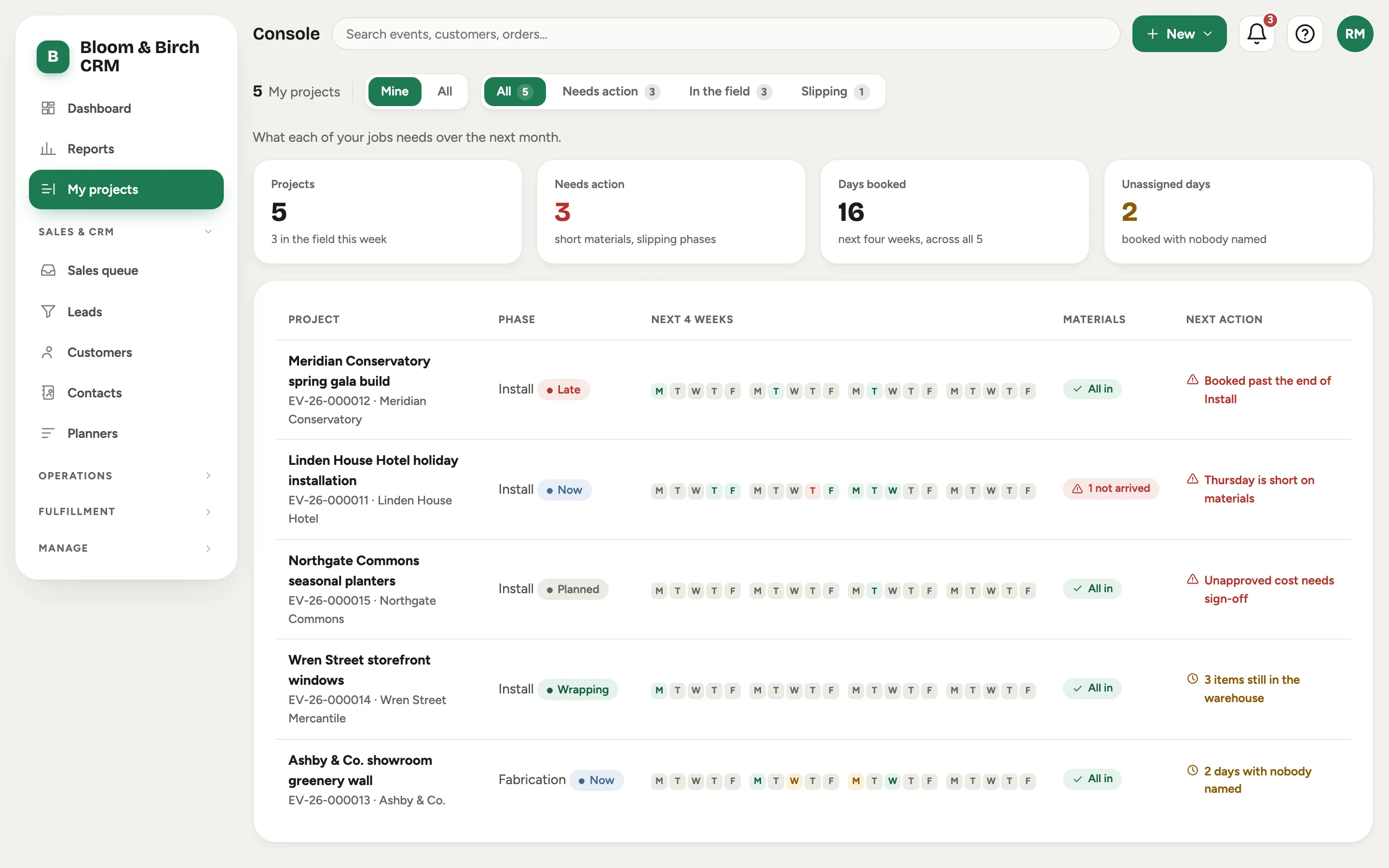 Screenshot from a demo workspace; data illustrative.
The Project status report
Reports, then Project status is the whole portfolio on one page: every open contract with its value, a progress cluster (cost, hours and billed, each as a bar with the numbers beside it), earned to date, billed to date, the billing position, what is left to bill and the unpaid balance. Filter chips pick out overbilled, underbilled, unpaid, loss flagged and on-hold contracts, and Export CSV downloads the table. See Read the Project status report.
The recognition close
For a workspace on cost to cost, Recognition in the sidebar is the monthly close: one period per month, one computed run per contract, and a seven-check guard report on each run. In this release the screen is the read; posting to QuickBooks and locking the period arrive with the accounting writer. See Run the recognition close.
Admin settings
Admin, then Recognition holds the default recognition method for new contracts, the right-to-payment basis captured when cost to cost is first activated, and the cost components kept outside the percent complete. Turning materials on, the tolerances for planned cost, and which roles can plan materials, ship them and approve contract changes are all covered in Set up Projects.
What we don’t publish
The exact formulas behind the earned figures, the guard’s reconciliation rules and the journal-entry shapes are documented for auditors on request, not here. The screens tell you what each number is; this site tells you how to read and act on them.